
Abutment of Dummy Shapes in Pcells
At advanced nodes, cells are placed close together and such proximity can lead to various interconnect and layout-dependent effects. So, abutment at advanced nodes needs to be driven by specific design rules that will ensure optimal device placement, yield, and performance. For information about the design rules that are applicable at advanced nodes, see
At advanced nodes, abutment of shapes in Pcell submasters, which are not attached to pins is supported. This is enabled by using
During incremental or full extraction, the connectivity extractor creates abutment violations for shapes inside Pcell submasters that have an abutment name, and are not pin figures. Because these shapes have no assigned connectivity at the top level, the extractor performs a shape chase to identify any such shapes at level 1 even when the default extraction depth is 0 and determines what connectivity should be assigned to each shape.
If the two overlapping shapes identified by the extractor are within Pcell submasters, which contain at least one shape each with an abutment name, then during abutment, the user-defined or PDK SKILL abutment function is called with a new event—Abutment Event 5. This new abutment event allows the abutment function to adjust the Pcell parameters and return a SKILL list containing a pair of shapes to be abutted. In the context of advanced node abutment, this new abutment event allows the abutment function to add or remove dummy shapes during abutment so that the shapes which initially overlapped to trigger the abutment can be totally different shapes (with different names) from the shapes that are finally abutted together.
Dummy shapes are defined by using the customFill layer purpose. For more information about the use of this layer purpose for creating these shapes, see
For more information about the Pcell abutment capability supported by Virtuoso Layout Suite XL, see Abutment Event 5. For information about the generic device abutment in Virtuoso Layout XL, see Debugging Abutment.
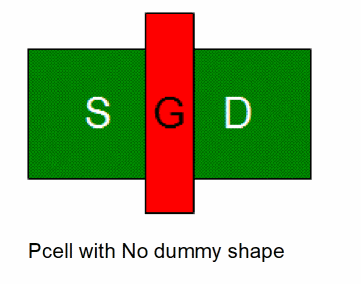
Let us now look at some examples that depict Pcells with and without dummy shapes. To begin with, below is an example of a Pcell without a dummy shape inserted.
Before we see some examples of Pcells with dummy shapes added, it is useful to know that the dummy shapes in a Pcell can be controlled by using the Pcell parameters.
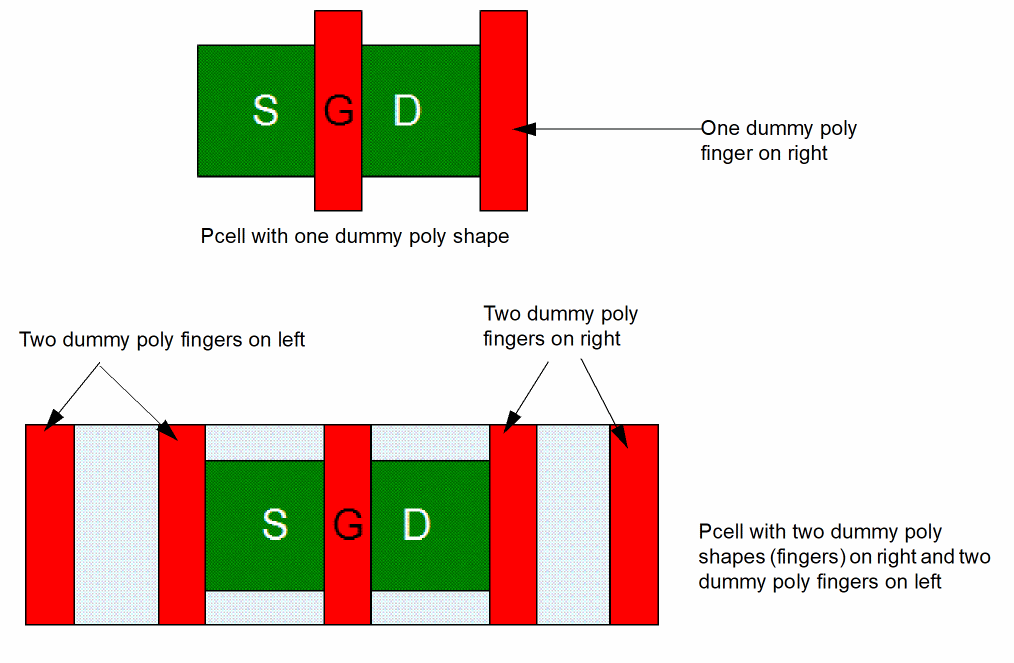
Let us now look at some examples of Pcells that have one or more dummy “poly” shapes added. Notice that in the figure below, the Pcell at the top has a single dummy poly finger added to the right and the Pcell at the bottom has two dummy poly fingers added on either side.
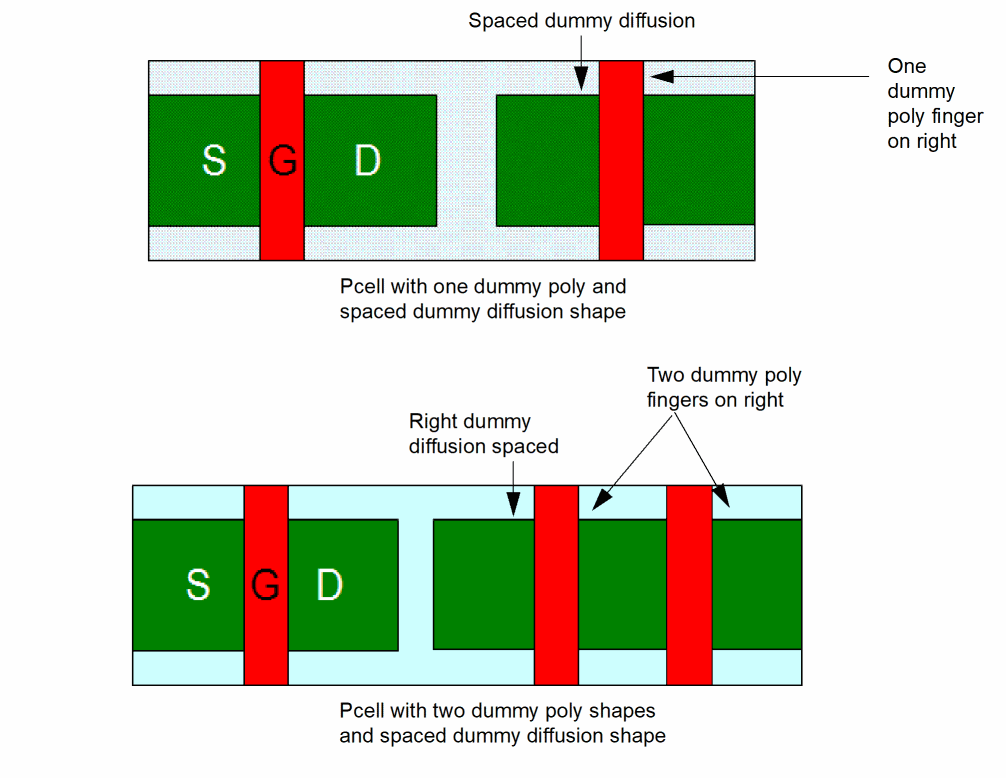
Now, let us look at some Pcells that have one or more dummy “poly” shapes and one or more “spaced” dummy “diffusion” shapes added.
In the figure below, the Pcell at the top has a single dummy poly shape and a dummy diffusion shape added. However, that the dummy diffusion shape is added at a distance from the transistor diffusion.
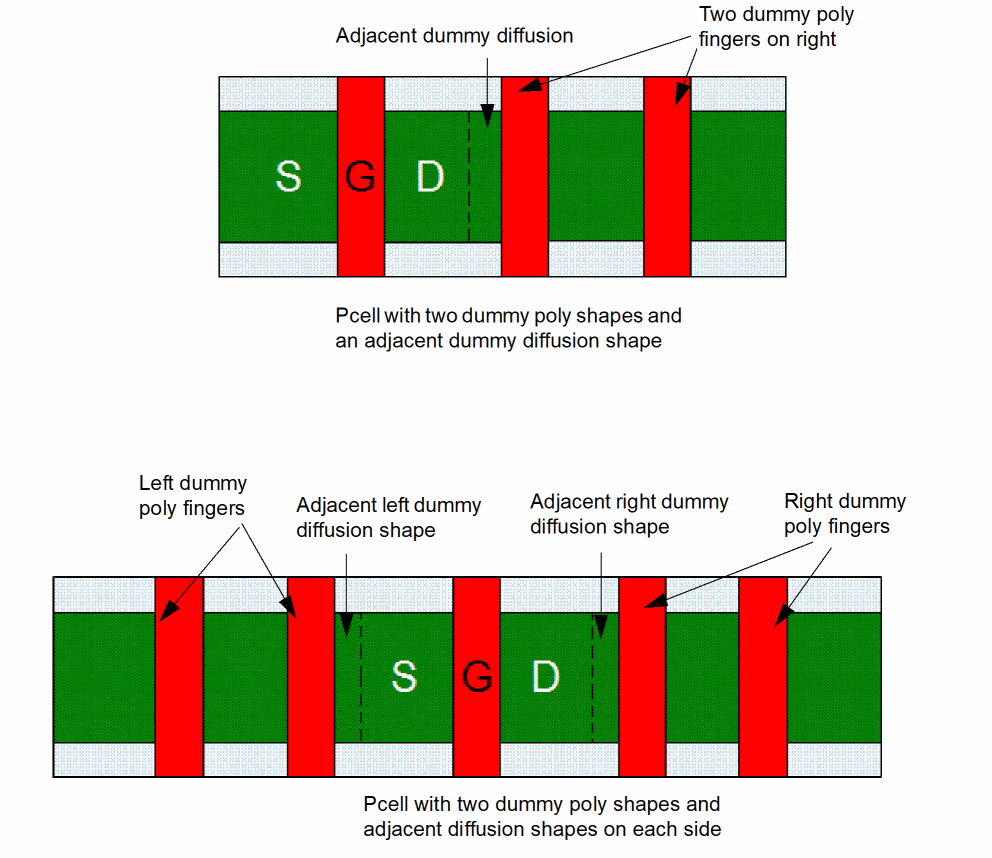
Now, let us look at some Pcell examples that have one or more dummy poly shapes and an adjacent dummy diffusion shape added. The dummy diffusion shape is placed immediately adjacent to the transistor poly or diffusion shape.
In the figure below, notice that the Pcell at the top has two dummy “poly” fingers and an adjacent dummy “diffusion” shape added. On the other hand, the Pcell at the bottom has two dummy “poly” shapes on either side and the dummy “diffusion” shape is adjacent to the transistor diffusion.
Return to top