
Navigator
This section describes only the extended Navigator functionality enabled in the Layout suite.
The Navigator assistant is divided into two main panes—Summary and Details. The Summary pane lists the datasets in various default and user-defined categories and displays the number of objects that each dataset contains. The Details pane, as displayed in the figure below, hierarchically lists the objects that exist within the dataset selected in the Summary pane.
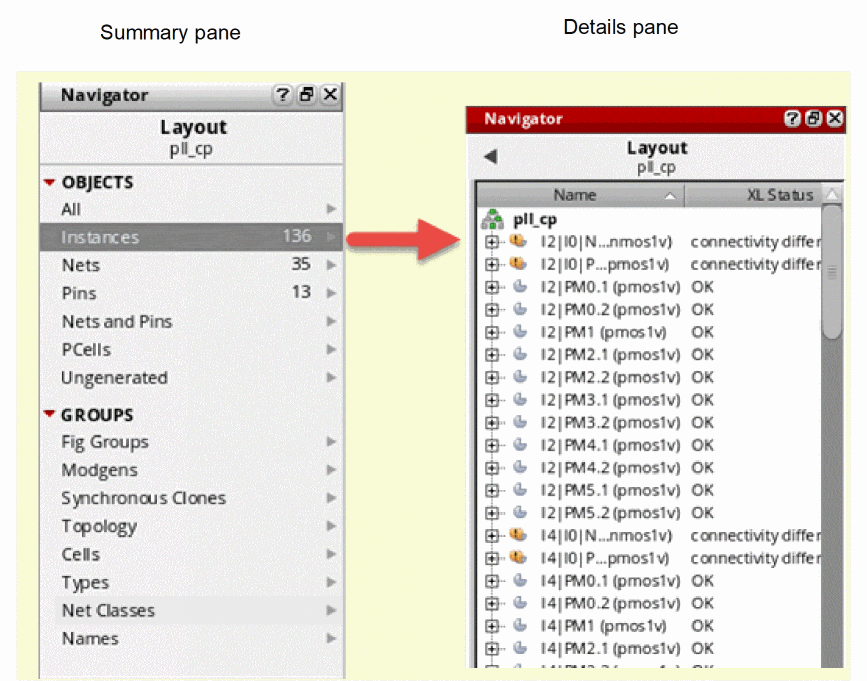
The Summary pane, as mentioned above, lists certain predefined data categories, such as Instances, Pins, Ungenerated, and so on. You can click any of these categories to display the associated objects in the Details pane. The Ungenerated category, for example, displays a list of all the ungenerated objects in the design—objects that are available in the schematic view but are not yet generated in the layout. For more information on how to use the Navigator assistant to view these instances and how the ungenerated instances can be generated in the layout, see Viewing Ungenerated Instances In Navigator.
The hierarchical display of the objects in the Details pane of the Navigator assistant simplifies the task of navigating through a hierarchical design to find the components you are looking for. The hierarchical display can represent devices, nets, pins, and parameterized cells (Pcells).
An unelaborated instance in the Details pane displays a [+] sign before the icon; indicating the instance holds some devices, nets, or pins within. To elaborate an instance, you must click the instance once. If the sub instance is a leaf, it does not carry the [+] sign. Else, the sub instances carry the [+] sign till you explore them and browse to the leaf level.
When using Layout XL, there is a Navigator available in the schematic window and one in the layout window. Selecting a component at the current level of hierarchy in either of the Navigators selects the corresponding component in the other Navigator and in the canvases. Similarly, selecting a component at the current level in either of the canvases selects the component in both the Navigators.
Similar to cross-selecting, cross probing across the two views only works for objects selected at the current level of hierarchy. Probes created elsewhere in the hierarchy still propagate through the hierarchy but they do not cross probe to the schematic. See Adding a Probe using the Right Mouse Button.
For a lab database and related workshop instructions to help you explore the features supported by the Navigator assistant, view or download the rapid adoption kit, Virtuoso Navigator Assistant.
Related Topics
Viewing Extended Chain in Navigator
Viewing Extended Selection for Instances, Pins, and Nets in Navigator
Viewing Ungenerated Instances In Navigator
Selecting and Deselecting Nets in Navigator
Adding a Probe using the Right Mouse Button
Return to top