
Troubleshoot Cloning
If a target clone cannot be found, the software displays an appropriate CIW message, such as the one below:
INFO (LX-1353): There are no target structures matching the selected clone source.
INFO (LX-1371): Either all the schematic components have already been generated in the layout view, or the criteria you specified in the Generate Clones form are too restrictive. Change the Search In mode to Layout or change the Search With criteria to make it less restrictive.
A list of possible reasons for not being able to find clones and how you can resolve the issue preventing the clone generation are described below.
- Structure Already Exists in the Layout
- Connectivity Structure is Different
- Master Cells are Different
- Parameters or Properties are Different
- Automatic Parameter Update Causes Different Submasters (Message LX-2149)
Structure Already Exists in the Layout
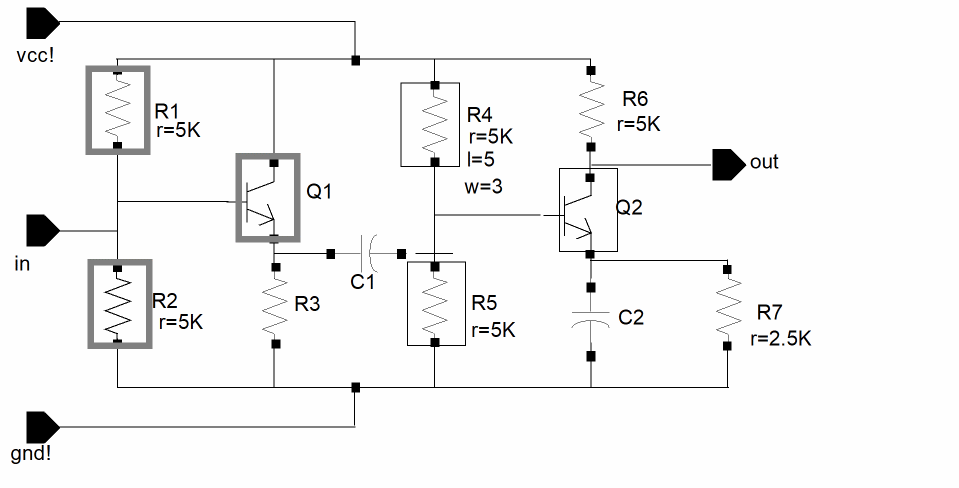
The structure or part of the structure that you selected as the target already exists in the layout. For example, here R1, R2, and Q1 in the layout were the source components for clone search in Schematic and R4 (which is already implemented), R5, and Q2 were the target components.
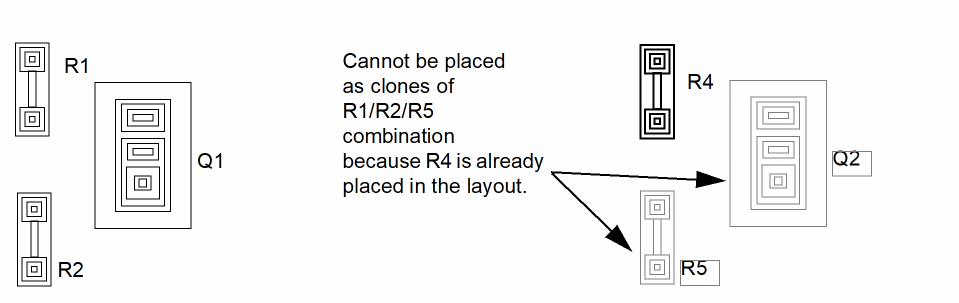
In the example above, the clones cannot be found because R4 already exists in the layout. To overcome the issue, delete R4 from the layout and then search for matching targets. Else, generate Q2 and R5 in the layout and search for clones in the Layout instead of searching in the Schematic.
Connectivity Structure is Different
If the connectivity of the source and target structures is not the same, clones cannot be found.
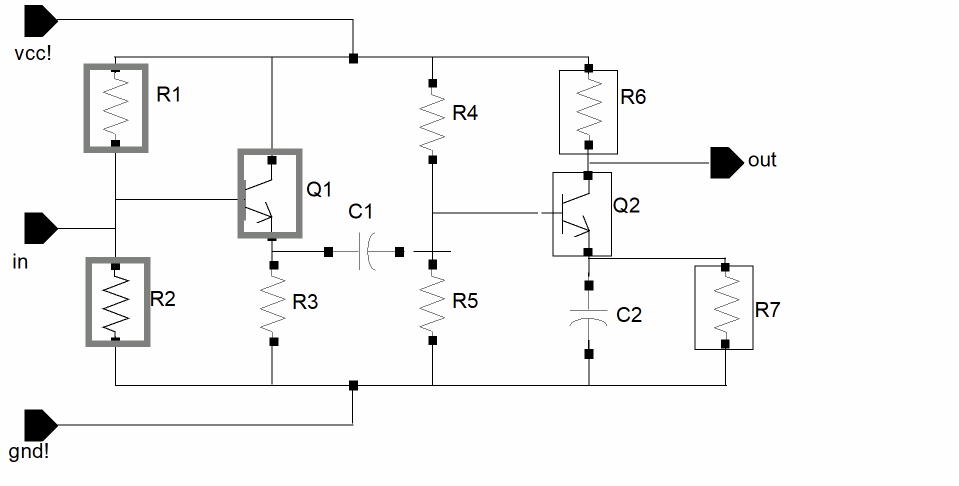
For example, if you choose R1, R2, and Q1 as the source components, R6, R7, and Q2 cannot be found as clone target components because the clone source and clone target components are connected differently.
To overcome the issue, leave the Exact Connectivity check box deselected in the Generate Clones form. This allows matching targets with the same set of instances but different connectivity to be found during the clone search.
Master Cells are Different
If the master cells of the source and the target instances are not the same, matching target clones cannot be found.
More Source Components are Selected than Target Components
More source components are selected than target components. For example, if you select R1, R2, and Q1 as source components and run a search on Selected Set Only with R4 and Q2 selected in the schematic, no clones can be found.
To resolve the issue, when searching on Selected Set Only, ensure that the selected set in the schematic contains at least the same number of components as the clone source.
Parameters or Properties are Different
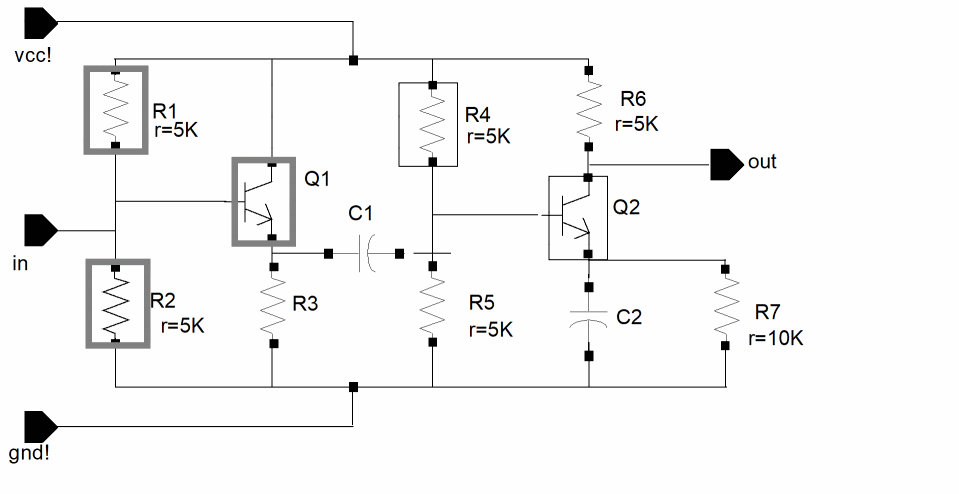
The parameters or properties of the source and target instances are not the same. For example, you could not use R1 and R2 in this diagram to clone R4 and R5 because their resistance values are different.
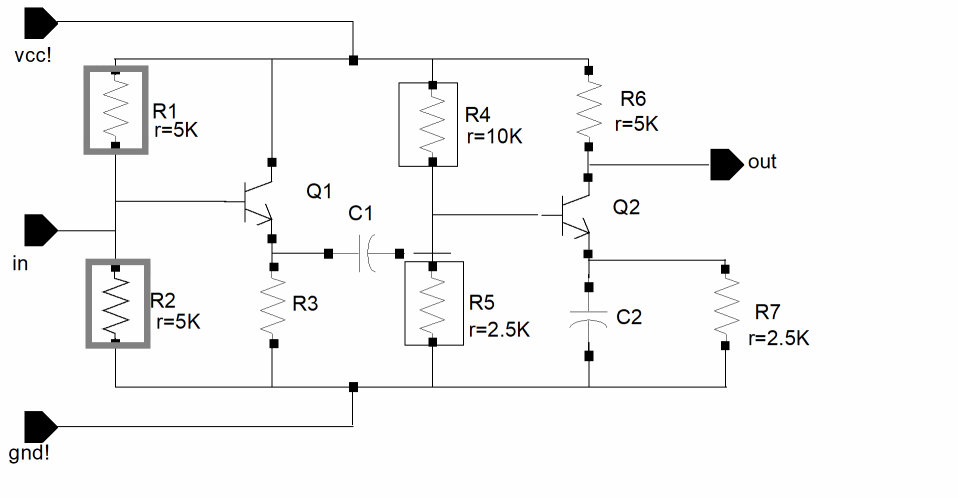
The target instance must have all properties with values the same as those on the source instance. In some cases, the target instance might have some additional properties as well.
In the example below, you can use R1, R2, and Q1 as source components to clone R4, R5, and Q2 because the targets have the same properties and values as the sources, even though one of the targets has additional properties.
To ignore the CDF parameters while searching for the clone target, you can use either:
To ignore properties while searching for the clone target; in the Parameters tab of the Connectivity form , select Properties used to ignore objects during generation and update and add the property names to be ignored.
Automatic Parameter Update Causes Different Submasters (Message LX-2149)
When you search for clones with Exact Parameter Match turned off, Layout XL also lists targets with components that do not have same parameter values. When you generate a clone from one of these targets, the software automatically updates the parameters and parameter values in the generated clone to match those defined on its schematic counterparts.
This automatic parameter update can lead to the creation of different submasters for the cloned instances. This in turn can cause problems when you try to generate synchronous clones and with existing abutments in the design.
You can avoid this situation by running the Update Layout Parameters command before selecting the clone source and then Find Matching Targets with Exact Parameters match turned on. If the different submasters are causing problems with abutment, add the abutment properties to the list of properties to be ignored in the Parameters of the Connectivity form.
To avoid the issue, ensure that all layout-only parameters, such as abutment parameters in this case, are properly ignored by Layout XL.
- Choose Launch – Configure Physical Hierarchy window.
- In the Cells tab, select the cell to be ignored.
- Select the Attributes – Parameters tab.
- In the Ignore for generation field, specify the abutment parameter names that need to be ignored for generation.
- Save and close the window.
The specified abutment parameters will be ignored by Layout XL commands such as Generate All From Source, Update Layout Parameters, Generate Clones, and Check Against Source.
Because Check Against Source will ignore the specified abutment parameters, no mismatch between the layout and schematic parameters, if any, is reported.
The Generate Clones command will be able to generate synchronous clones because it will not require the schematic and layout abutment parameters to be the same.
Related Topics
Return to top