
Summary Pane
The Summary pane has three sections:
ALERTS Section
This section informs you about any issues that might arise when you edit in your design partition.

The alerts are reported under three categories:
|
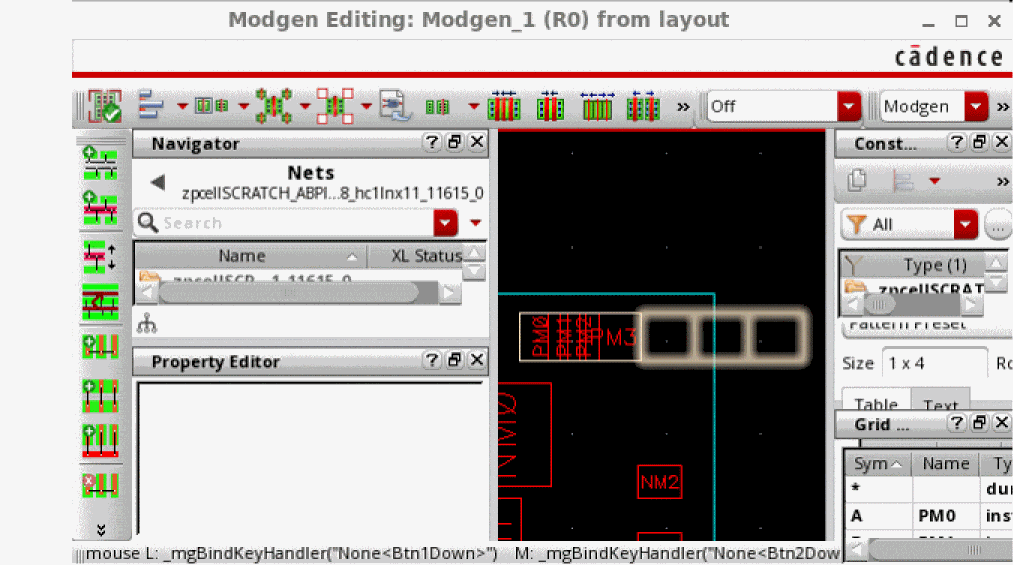
Edit losses occur when you edit a constraint, such as MODGEN or an object that has been created in an imported peer partition. Warnings are displayed in the assistant and a message box displays asking you to undo the changes because they can result in edit loss. If you ignore the warning and save without undoing the edits, the edited object might be in an inconsistent state due to data loss. The following image shows MODGEN inconsistency due to data loss: |
|
 |
|
|
You can work around this issue by editing constraints and objects imported from peer partitions in full partition view. Although edits are lost when you create a design partition view, the geometries are retained. |
|
|
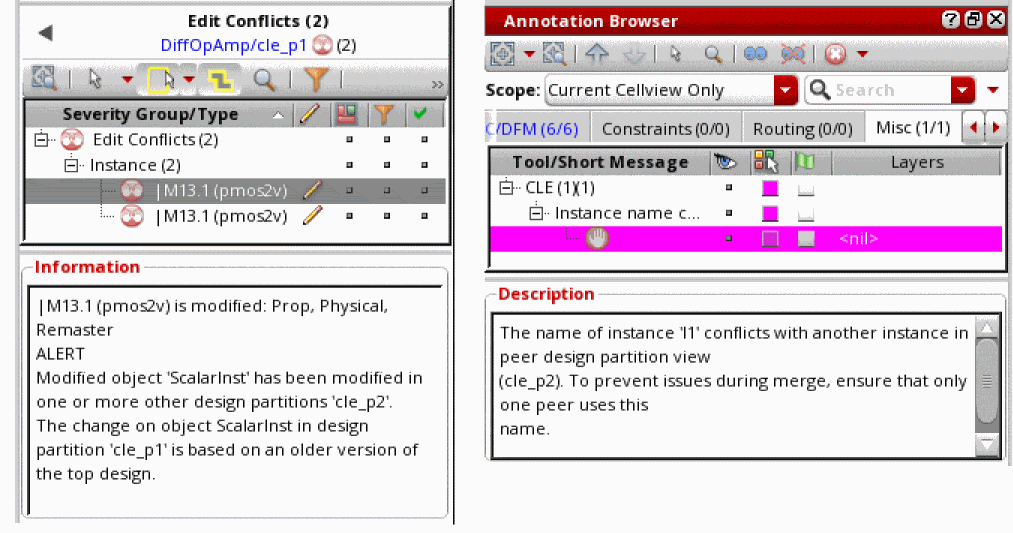
Editing in Concurrent Layout is done offline, therefore the manager or designer might edit the same object leading to the edit conflict. The assistant immediately shows an alert and cross-highlights it in canvas. Edit conflicts can cause issues during the merge or import process because when two changes conflict, only one can be considered and the other is lost. You can do the following to prevent or resolve edit conflicts:
|
|
 |
|
|
Concurrent Layout does not stop you from editing outside the current design partition. This is because most SKILL scripts and commands are not partition-aware. However, a warning is displayed to inform you that you are editing outside the partition. It is important to avoid such edits because they can cause edit conflicts when you try to merge or import the current design partition. 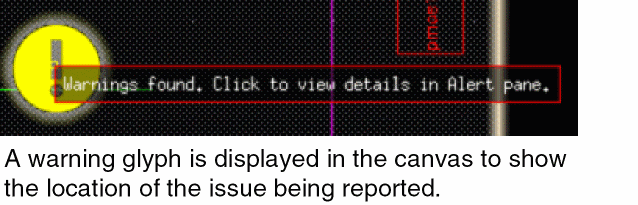 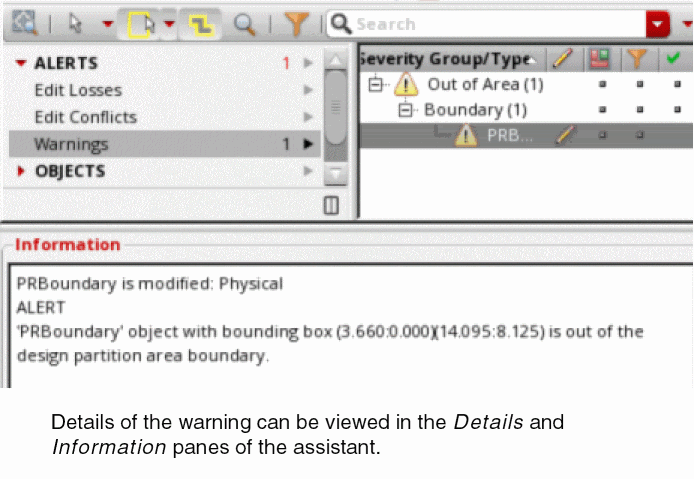 |
|
|
If all partitions are object-based partitions, each partition contains an exclusive object ownership for a designer to edit or delete objects. Therefore, the designer who creates an object also owns it. These objects are enclosed by a figure group and can be edited by using the edit-in-group (EIG) option.
If you do not want to remove edits for objects you do not own, select the Filter changes for objects not owned option in the |
|
OBJECTS Section
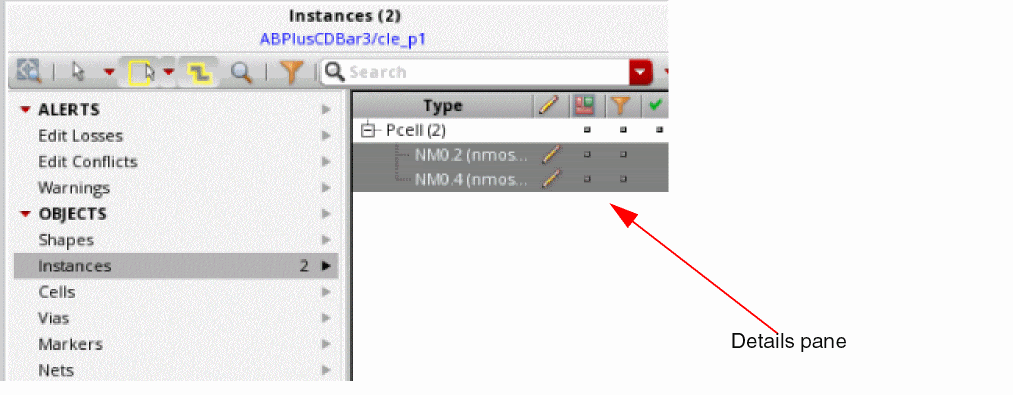
This section lists all the objects you have updated in the selected design partition. When you select an object here, details for it are displayed in the Details Pane.
MODIFICATIONS Section
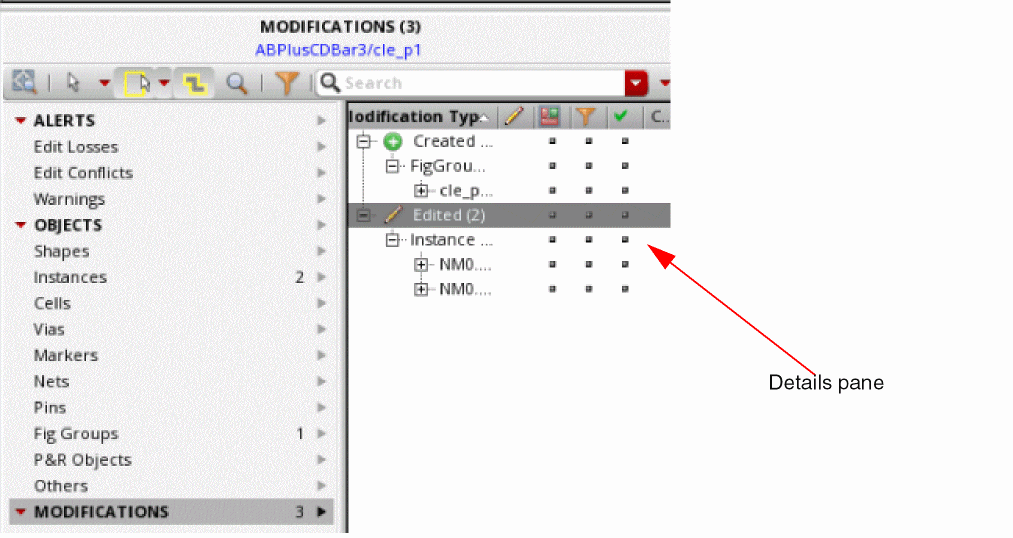
This section lists the number of updates made in the selected design partition. Unlike the OBJECTS section, one entry is added per change. Details of the updates can be checked in the Details Pane.
Related Topics
Design Partition View Contents Section in Designer Mode
Return to top