
Concurrent Layout Flow
The default Virtuoso Layout flow is sequential in which each task is carried out after the previous task is complete. However, in the CLE environment, you can create multiple partitions in the design and have designers work in parallel, which helps save time. The following flow chart shows the difference between the default Virtuoso Layout flow and the Concurrent Layout flow.
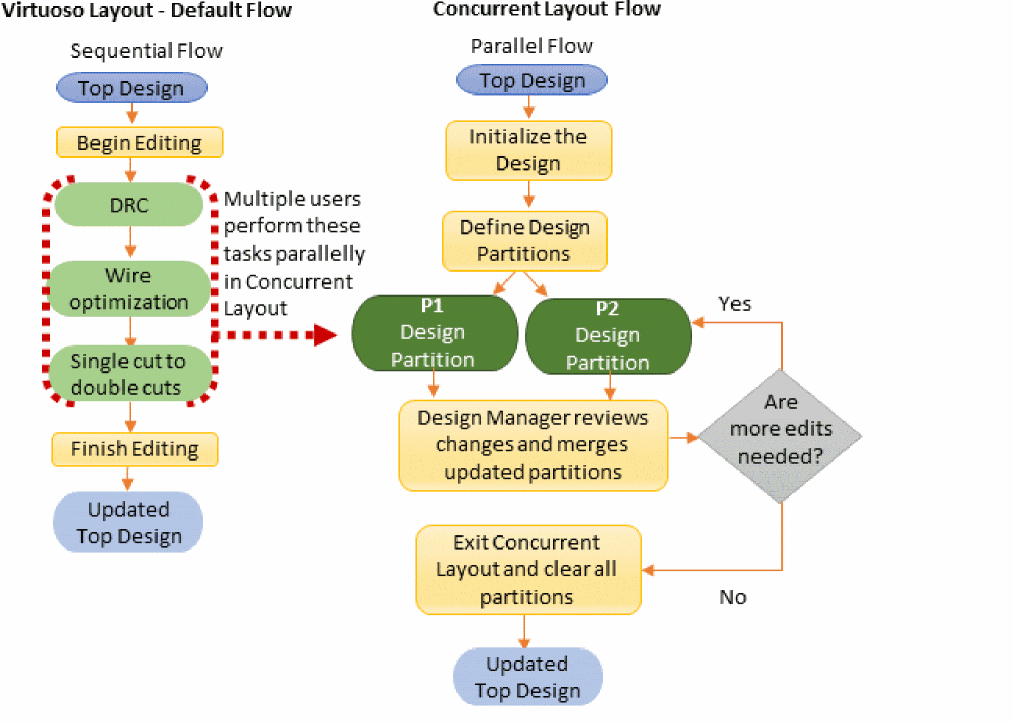
The basic Concurrent Layout flow, involves the following tasks:
- Open the top design. (Design Manager)
- Initialize the design for concurrent layout editing. (Design Manager)
- Define design partitions based on how you want to divide the work among various designers. (Design Manager)
- Perform various tasks such as DRC checks and wire optimization in parallel on assigned designed partitions. (Designers)
- Save design partition updates in respective design partition views and submit the updates for merge with the top design. (Designers)
- Review and merge design partitions. (Design Manager)
- Repeat steps four to six as needed. A merged design partition is auto reset in memory when it is reopened. (Designers)
- Exit the CLE environment and clear all design partitions. (Design Manager)
- Open the updated top cellview in Virtuoso Layout. (Design Manager)
Related Topics
Initializing the Design for Concurrent Layout Editing
Defining an Area-Based Design Partition
Defining a Layer-Based Design Partition
Submitting a Design Partition for Merge
Merging a Submitted Design Partition
Return to top