
16
The Property Editor Assistant
This chapter contains the following topics on the Property Editor assistant pane (the Property Editor):
- Introducing the Property Editor
- Accessing the Property Editor
- Hiding the Property Editor
- Property Editor Keyboard Shortcuts
- The Property Editor User Interface
- Editing Property Values
- Property Status Visualization
- The Property Editor and CDF Support
- Modgen Property Updates using the Property Editor Assistant
Introducing the Property Editor
The Property Editor is a dockable assistant pane that provides a flexible framework for defining a collection of objects and their associated properties. An object represents a component of interest in an application, for example a wire segment in a schematic, a constraint, or an analysis to be passed to a simulator. Properties are the characteristics of these objects and can be viewed and edited as required.
Some of the key features provided by the Property Editor include the ability to:
- Filter by object type and property categories
- Visualize the current status of an object property, for example if the property value is non-default or read-only
- Compare values across multiple selected objects and schematic windows
- Directly edit individual property values on single and multiple objects.
Accessing the Property Editor
To access the Property Editor in Schematics:
- Select Window – Assistants – Property Editor.
- Right-click in the main Schematics menu or toolbar area and select Property Editor.
-
The Property Editor is also available in the following default window workspaces (first select Window – Workspaces – ... , or select from the Workspace toolbar):
You can access a workspace by either selecting Window – Workspaces, or by choosing a workspace from the Workspace Configuration toolbar pull-down.
Once selected, Schematics will embed the Property Editor as a docked assistant pane within the current session window. By default the Property Editor will be positioned in the lower left area of the session window.
For more information on workspaces see
For more information on customizing your own workspaces see
Hiding the Property Editor
To hide the Property Editor in the current session window:
- Right-click in the Schematics toolbar area and uncheck the Property Editor option.
- Change to a window workspace that does not include the Property Editor as part of its default configuration.
- Click the Hide button (X) in the Property Editor assistant pane title bar.
The Property Editor User Interface
The Property Editor comprises of the following user interface (UI) elements:
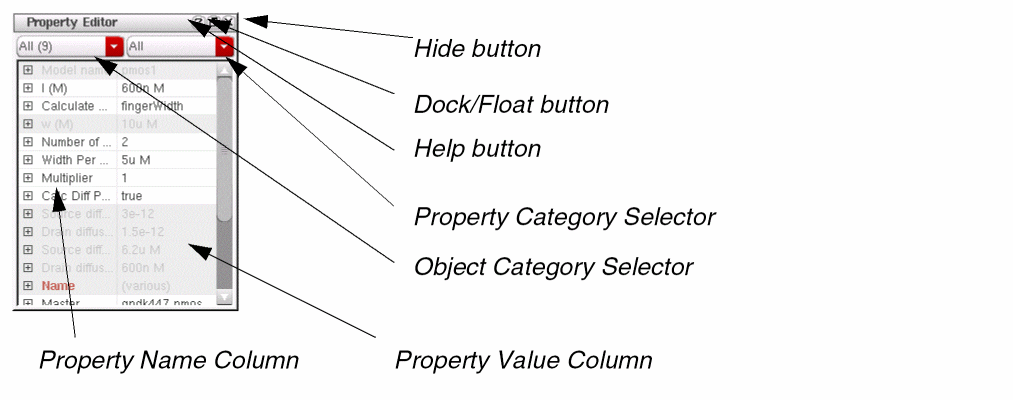
Figure 16-1 The Property Editor
- The Property Editor title bar buttons, which allow you to:
- The Property Editor contains two drop-down selection categories:
-
The Property Editor contains two distinct columns:
- On the left there is the Property Name Column (see Filtering by Object Type) which displays the name of a property.
-
On the right there is the Property Value Column (see Editing Property Values) which displays the current value of a property.
- The Property Editor context-menu (for related information see The Property Editor Context-Menu).
-
The Property Editor also utilizes ToolTips that can display fully expanded property names and values as well as provide property value status information (such as read-only properties and if the property value has been changed from a default value).
To obtain ToolTip information float your cursor over the property value or name. If you add or make changes to the description of the CDF parameters, the same information gets reflected in the tooltip in the Property Editor.
Selecting Objects
The Property Editor displays information for the currently selected set of objects. As you select or deselect objects in the editor window the Property Editor display is automatically updated. If no objects are selected in the design canvas, the Property Editor displays the properties of the current cellview.
If multiple objects have been selected in the design canvas, the Property Editor will highlight, in the canvas, the object whose properties are currently selected for edit in the Property Editor.
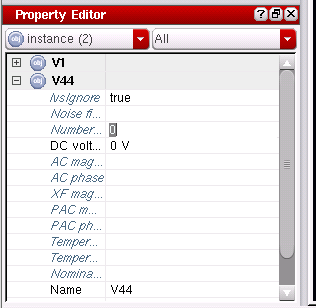
For example, in the figure below, instances M10 and M9 are both currently selected in the canvas, but it is a property of instance M10 (highlighted) that is currently selected for edit in the Property Editor assistant.
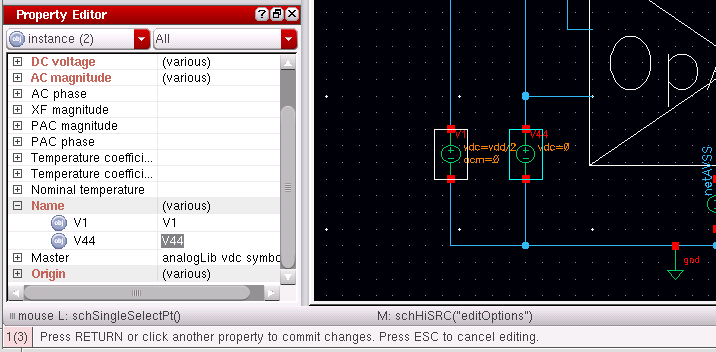
Figure 16-2 A Property of Instance V44 Currently Selected for Edit
If you are editing a property across several objects all of these objects will be highlighted in the canvas.
The following object types are supported: instance, instance pin, pins, pin names, wire names, net expressions, property labels, instance labels, wire segments, note shapes, note text.
You can specify minimum and maximum voltages for a net in the VSE property editor assistant. However, if you want to set the voltage for an individual bit, draw a wire representing that bit. For example, if there is a bus, BUS<0:7>, set the voltage on bit#1and draw the wire, BUS<1>.Then, set the voltage on that wire.
Object Selection Thresholds
If more than a specified number of object selections are made in a single selection (either through manually selecting objects or using Edit – Select – Select By Filter), in the current design canvas, the Property Editor will enter lazy display mode. That is, rather than automatically attempt to display property information for all the currently selected objects, the Property Editor will inform you of the number of objects selected and provide an option to Show their associated values, if required.
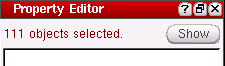
Figure 16-3 Property Editor Threshold Exceeded
You can set Property Editor threshold values using SKILL variables that can be set in the .cdsinit file.
-
oiSelectionThresholdsets the maximum number of objects the Property Editor displays before entering lazy mode. The default is 50.
For example:oiSelectionThreshold = 50If you have 10 objects initially selected and displayed in the Property Editor, then attempt to select a further 90 objects on top of this, the Property Editor will state that there are a Further 90 objects that you can choose to Show (while still displaying property information on the 10 initially selected). -
oiMaxSelectionssets the maximum number of objects displayed by the Property Editor.
For example:oiMaxSelections = 1000 -
oiMaxInstTermssets the maximum number of instance pins displayed by the Property Editor for an instance. The default is1000.
For example:oiMaxInstTerms=1000
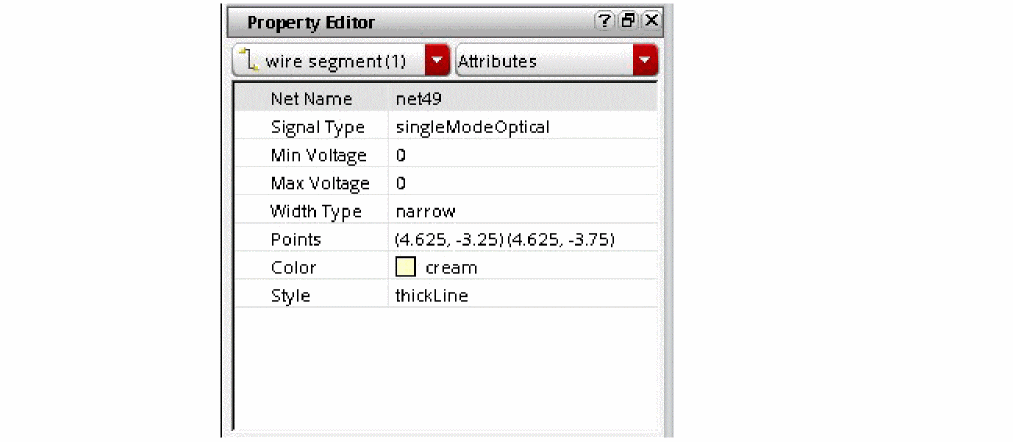
Editing the Optical Signal Types in Property Editor (Virtuoso Photonics Option)
You can view or edit optical signal types on pins and wires in the Property Editor assistant.
Filtering by Object Type
The Object Category Selector is a drop-down list located at the top-left of the Property Editor assistant. It shows a count of the different types of objects selected.
If you want to display property information for a particular object category, select the object category that you are interested in viewing, for example instance or pin, from the Object Category Selector drop-down list.
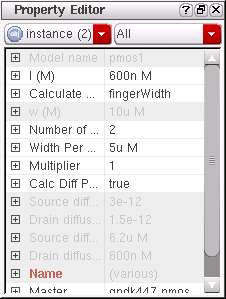
Figure 16-4 Instances selected as the object type
When an object category is selected, Filtering by Property Type drop-down list will automatically update to allow you to choose to display the property categories relevant to the visible objects.
In summary, to display an object category’s associated properties and values in the Property Editor:
-
Select one or more objects from the current session window view.
The currently selected object types will be displayed in the Object Category Selector drop-down. -
From the Object Category Selector drop-down, select the object category that you want to view properties for.
Only those properties that are associated with the selected object category will be displayed in the Property Name Column.
Filtering by Property Type drop-down updates to only list those property categories that are associated with the currently selected object category. - Choose from the Property Category Selector the property category that you want to view properties and values for the selected object category, for example All or Parameters.
Filtering by Property Type
The Property Category Selector is a drop-down list that displays the Property Categories associated with the current object category selection in Selecting Objects.
Selecting a property category from the Property Category Selector drop-down list will further filter the properties shown in the Property Editor.
You can choose to filter property display using the following property category options: Attributes, Properties, CDF Parameters, or All properties.
Property Categories
The Property Category Selector provides a range of property categories that can filter property data sources.
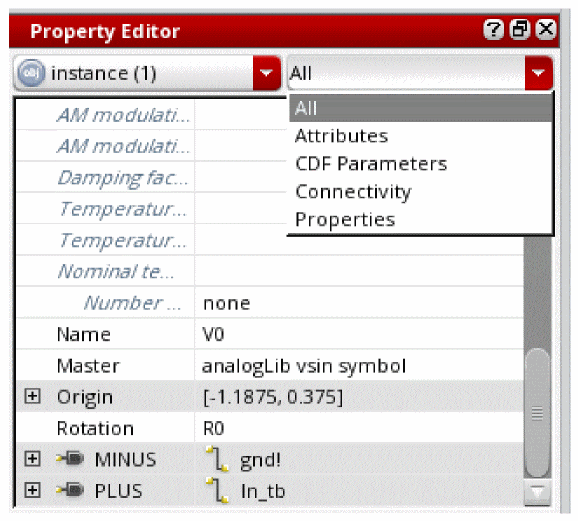
Figure 16-5 Filtering by property types
-
Attributes
Attributes are a combination of the basic and system property sections found in the Edit Object Properties form and represent the core characteristics of a selected object. -
Connectivity
This category is applicable only to pins and details such as Pin Name, Signal Type, and Direction. -
Properties
The Properties category contains details of any user-defined properties for the current objects.
For more information on basic, system and user-defined properties, see the Edit Object Properties form in the Virtuoso Schematic Editor L User Guide. -
CDF Parameters
The Property Editor lets you display details of Component Description Format (CDF) parameters. This enables you to view and edit them as you would database attributes and properties.
For information on CDF parameters see the Component Description Format User Guide
For information on CDF parameter display in the Property Editor see Property Status Visualization. -
All
Select All property classes to display all the properties associated with all the object categories selected in the Selecting Objects.
The Property Editor Context-Menu
The Property Editor’s context-menu provides options for arranging and navigating displayed properties. Right-click over the Property Editor to display the context-menu contents.
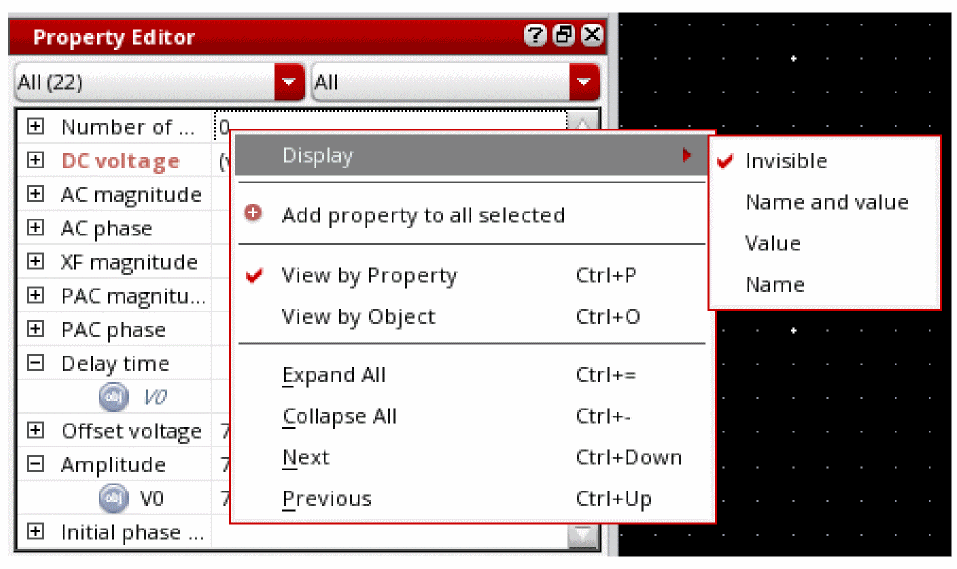
Figure 16-6 The Property Editor assistant context-menu
The Property Editor context-menu provide the following options:
- Display (see Displaying Object Property Values on the Canvas)
-
Delete property (see Adding and Deleting Properties using the Property Editor)
- Add property (Adding and Deleting Properties using the Property Editor)
- View by Property
- View by Object
- Expand All
- Collapse All
- Next
- Previous
- When you are in property value edit mode (see Editing Property Values) the context-menu will display editing options such as Cut, Copy, Paste, and Delete.
- Where applicable, a Revert to default option will be displayed in the context-menu (see Reverting to Default Values).
Displaying Object Property Values on the Canvas
To use the Propery Editor assistant to display (or hide) selected object property values on the canvas:
- From the design canvas, or the Navigator assistant, select the object(s) whose property values you want to show or hide on the design canvas.
-
In the Property Editor, right-click over the object property whose value(s) you want to display on the design canvas.
The Property Editor assistant context-menu will be displayed. - Select Display from the Property Editor assistant context-menu.
-
From the sub-menu now displayed, choose to either display the selected object property Name and Value, Value (only), Name (only), or to make these properties Invisible on the canvas.
The selected object will update to display the selected property values on the canvas. -
Repeat process as required to add multiple property values to the object in the design canvas. Where multiple property values are chosen to be displayed, they will be “stacked” (see below).
Figure 16-7 Using Property Editor Assistant to Display Property Values on Canvas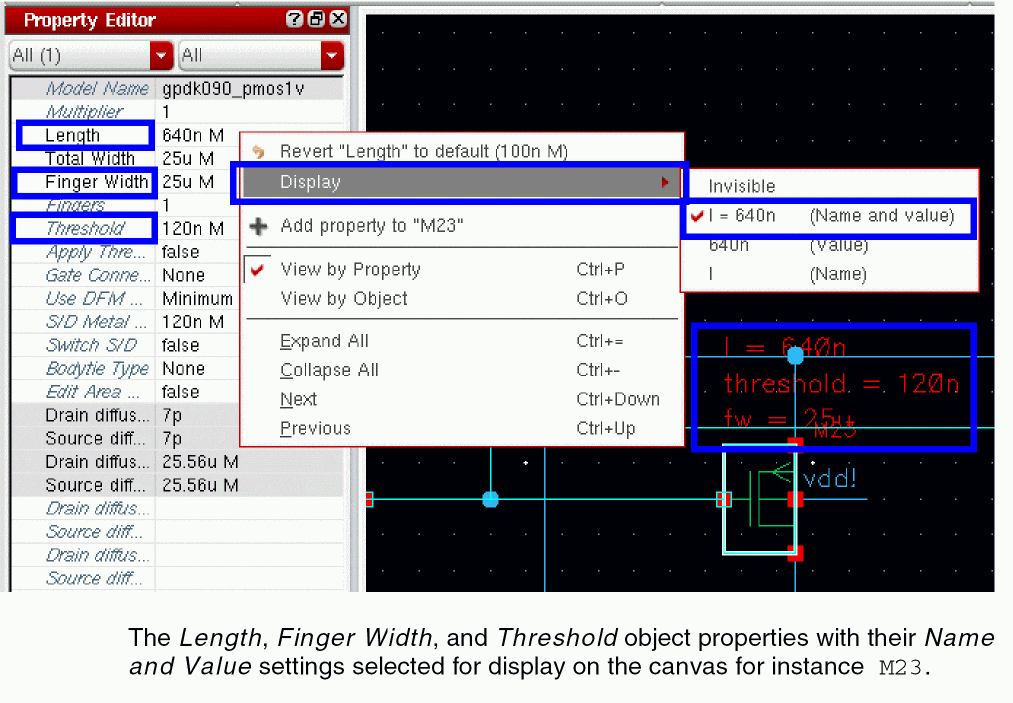
View by Property
Select View by Property to display all properties associated with the selected objects, grouped by property name.
Each object property is listed in a separate row providing a single or summary value for each object that has that property.
You can choose to view the information rolled-up (collapsed) or expanded by clicking on the +/- icon to the left of the Property Name Column row (see also Expand All and Collapse All).
If there are differences in property values across selected objects, the property name will be highlighted in red font and the property value summarized by the string (various). If there are no differences in property values across selected objects with the same property, a single value will be displayed (see also Property Status Visualization).
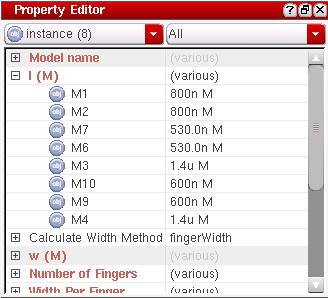
Figure 16-8 Red font property names indicate differences in property values
View by Object
Select View by Object to display information grouped by object rather by property. This mode gathers all the properties for an object together under a single entry.
You can choose to view information rolled-up (collapsed) or expanded by clicking on the +/- icon adjacent left (see also Expand All and Collapse All).
Expand All
Select Expand All to expand all of the properties or objects currently listed in the Property Name Column.
This will display a row for every selected object and related property, with the current value reflected in the Property Value Column in an alphabetical order.
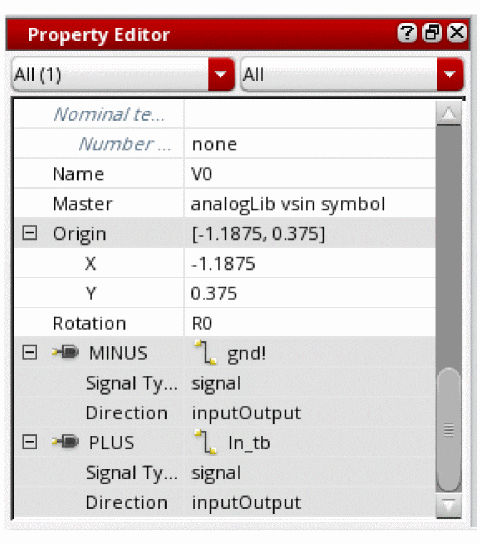
Figure 16-10 All properties expanded
Collapse All
Select Collapse All to collapse all of the properties or objects currently listed in the Property Name Column.
This will hide all the value rows for every object or property and display either a summary value (various), or a single value if the value is applicable to all collapsed objects or properties.
Next
Select Next from the Property Editor context-menu to move down a row to the next object or property row.
This action will automatically expand the selected row to display all object or property values associated with the current object or property.
Previous
Select Previous from the Property Editor context-menu to move back up a row to the previous object or property row.
This action will collapse the currently selected object or property and select and expand the object or property immediately above it.
Property Editor Keyboard Shortcuts
You can use the following keyboard shortcuts to assist interaction with the Property Editor:
| Key Combination | Action |
|
Switches to View by Property mode. |
|
|
Switches to View by Object mode. |
|
|
Expands all collapsed properties (see Expand All). |
|
|
Collapses all expanded properties (see Collapse All) . |
|
|
Advances to the next top-level property and expands it while collapsing the previously selected property (see Next). |
|
|
Moves to the previous top-level node and expands it while collapsing the previously selected property (Previous). |
Ctrl down/up arrows can be used to quickly expand/collapse through all table properties or objects.Adding and Deleting Properties using the Property Editor
You can use The Property Editor Context-Menu to add or delete properties from one or more objects.
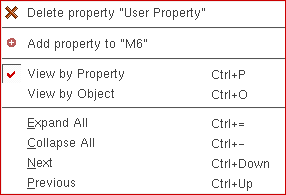
Figure 16-11 The Property Editor Context-Menu
Adding a Property Using the Property Editor
To add a property to one or more objects:
- Select the object(s) in the design canvas that you want to add the property to.
-
Right-click over the Property Editor.
This will display The Property Editor Context-Menu. -
Select Add property.If you are adding a property to multiple objects, the option will be titled Add property to all selected.This will display the Add Property form.
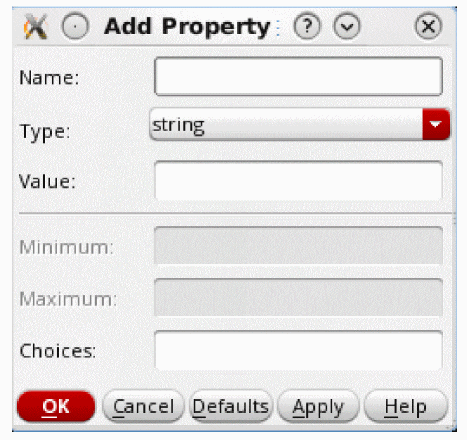
Figure 16-12 The Add Property Form
-
Complete the Add Property form as required:
- Name specifies a name for the new property.
- Type specifies a property type.
-
Value specifies a value for the property.
- Choices require to be set when Type is set to string. If the string can have more than one value, type the possible values. Entries in this field must match an entry in the Value field.
- Minimum and Maximum requires to be set when Type is set to int or float. Specify a range for the minimum and maximum range for the integer or floating-point value.
-
Click the OK button.
The new, user defined, property is added to the currently selected object(s) and displayed in the Property Editor.
Deleting a Property Using the Property Editor
To delete a property from one or more objects:
- Select the object(s) that contains the property you want to delete.
-
In the Property Editor, select the user property that you want to delete.If you want to delete a property from multiple objects at the same time, choose View by Object from The Property Editor Context-Menu. This will display all objects currently selected in the canvas in a list. Selecting Delete property, in step 4 below, will delete the property, if it exists, from all the selected objects.
-
Right-click over the Property Editor.
This will display the Property Editor context-menu. -
Select the Delete property option.
You will not be asked to confirm the property deletion but if you require to restore the property select Edit – Undo.
The property will be removed from the current object(s) and will no longer be displayed in the Property Editor.To quickly delete a property, select the user property to be deleted and click the red X icon to the right of the property row.Figure 16-13 Quickly delete a property by selecting the red X icon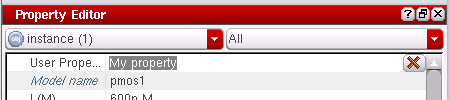
Editing Property Values
The Property Editor displays properties on a property-by-row basis inside two columns. The Property Name Column displays the current property names, while the Property Value Column displays the related property values.
You can edit property values for a single object or for multiple objects.
- See also Compound Properties.
Editing Single Object Property Values
To edit properties using the Property Editor:
-
Select one or more objects, such as instances, wire names, wire segments, and so on, from the current session window view.
You can select multiple objects by clicking and dragging around your selected view area, or usingshiftand select. When you select an object in the current view it is highlighted in a white outline.
Once a selection has been made the Property Editor automatically updates to display the properties and property values of the currently selected objects.
Figure 16-14 Cross-highlighting (NM1 instance) between Property Editor and Navigator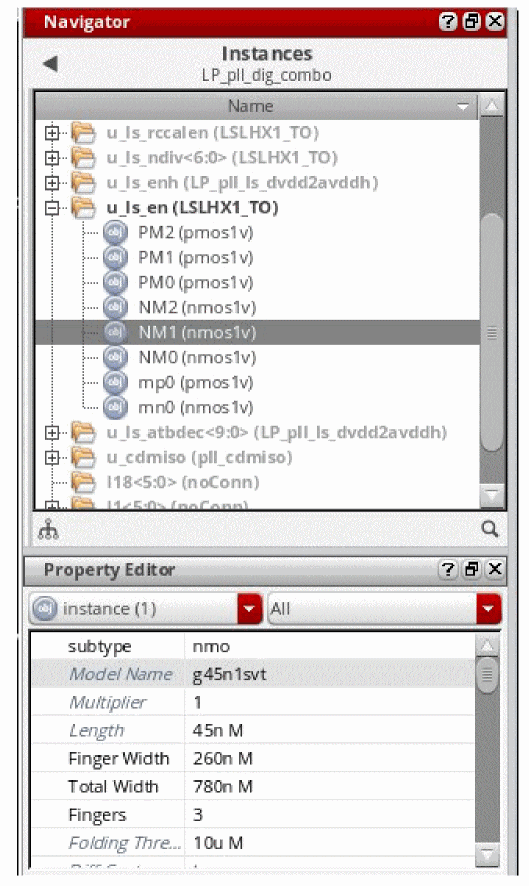
-
In the Property Value Column click the property value you want to edit.If a property or object has been collapsed you will have to expand it before selecting a property value to edit.Depending on the property you want to edit, a specific editing mechanism becomes active when you click in the property value field. For example, a cyclical field, a pull-down menu, or direct text editing may be used (see also Extended Editing Forms).Set theWhen multiple objects of the same type are selected in the current view, any properties common to all of the selected objects will store all of their values in one property row. For example, if you have selected three instances all of their name values will be rolled up in the one summary Name row. Clicking on the “+” icon to the left of the Property Name Column row will expand the row to display all instance Name values.
CDS_Netlisting_ModeSHELL variable to Analog to ensure that AEL evaluator is able to find the CDF property in OA. Subsequently, set the aelEvalCDFParam environment variable. Property Editor displays the value of the expression, however, the tooltip displays the expression. The expressions must be valid Analog Expression Language (AEL) expressions.
Figure 16-15 Multiple property values expanded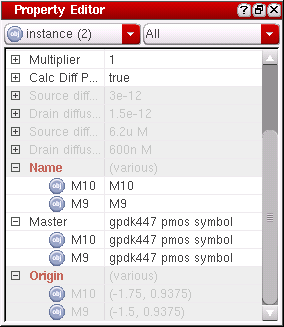
Where the values of selected objects differ, for example Name above, then a (various) value will be displayed in the adjacent property value field, and the property name will be displayed in red text. When editing such variant values, a pull-down menu will be available to enable you to choose what instance’s property value you want to edit. -
Edit the property value as required using the associated editing mechanism.When in edit mode you can right-click in the property value field to perform Undo, Redo, Clear, Cut, Copy, Paste and Select All actions from the property edit context-menu.To cancel a property value change click another property value row or press the
Esckey. -
To finish editing and commit your change, click anywhere in the canvas/toolbar/another window or press
Tab. On pressingTab, the control does not go to the next field but the value entered for the current field gets committed.
Editing Multiple Object Property Values
As well as editing individual property values you can also apply a single property value across multiple selected objects by editing the property value field of a property summary row.
To edit multiple object property values:
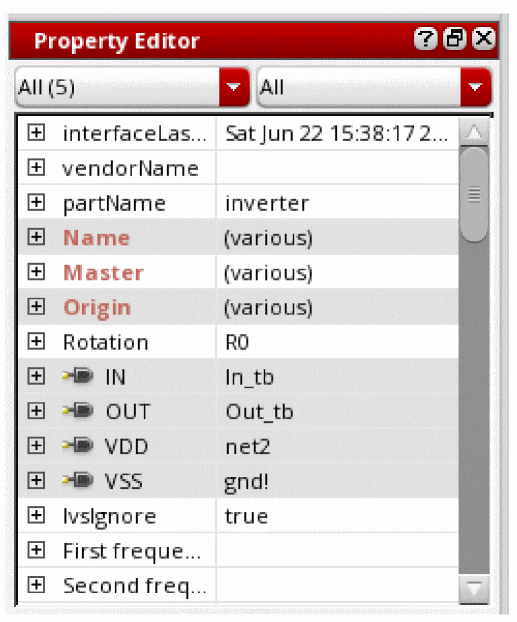
Figure 16-16 Multiple object property values indicated by “various” status
- Optionally, expand the property summary row to display the property values for all the objects you want to edit.
-
Edit the summary property value to be the value that you want to apply to all selected objects that share the same property.Depending on the type of property being edited the correct editing mechanism will be presented to perform the edit, for example a simple text entry or a cyclic entry field.To cancel a value change click another property value row or press the
Esckey.
Compound Properties
As well as being able to display “simple” properties and their values in the Property Editor, you can also view and edit compound (hierarchical or grouped properties) properties and their values.
Compound properties introduce another level of hierarchy in the Property Editor where the parent row shows a summary of the related sub-properties.
Editing Compound Property Values
- Expand the compound property in the Property Name Column.
-
Edit the required compound sub-property value in the Property Value Column.
The compound property summary values will be updated to reflect property value changes made.
The Property Editor will check that the values entered are valid before applying them to the sub-properties.
Extended Editing Forms
For certain property value editing the structure of the Property Editor is insufficient to perform edits. In such circumstances extended editing forms are necessary.
For example, extended editing forms exist for the following properties:
- Master property (see Editing Master Property Values)
- Points property (see Editing Point Property Values)
- Text property (see Editing Text Property Values)
Editing Master Property Values
Master property values exist, for example, for each instance Master property.
To edit a Master property value:
-
Click in the property value field for the Master property value you want to edit.
Figure 16-17 Click to expand editor represented by ellipses “...”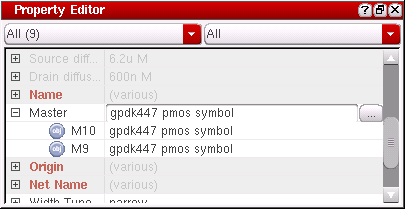
-
Select the Click to expand editor icon that is displayed to the right of the property value field.
This will display the Select Master form.
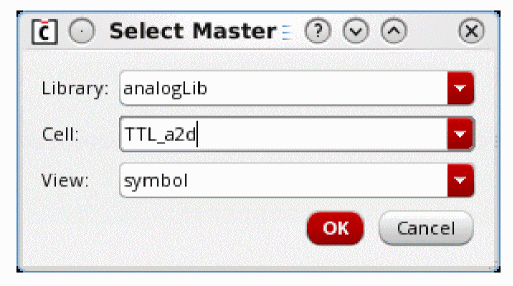
Figure 16-18 The Select Master form
-
In the Select Master form edit the instance master Library, Cell, and View option settings as appropriate.
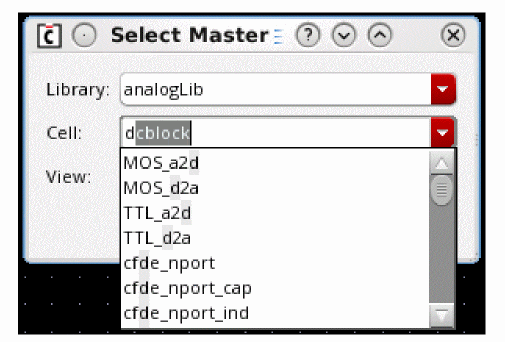
Figure 16-19 Auto-Scroll to Matching LCV Names
Editing Point Property Values
Point property values exist, for example, for each wire segment Point property.
To edit a Point property value:
-
Click in the property value field for the Point property value you want to edit.
-
Select the Click to expand editor icon that is displayed to the right of the property value field.
This will display the Edit Points form.
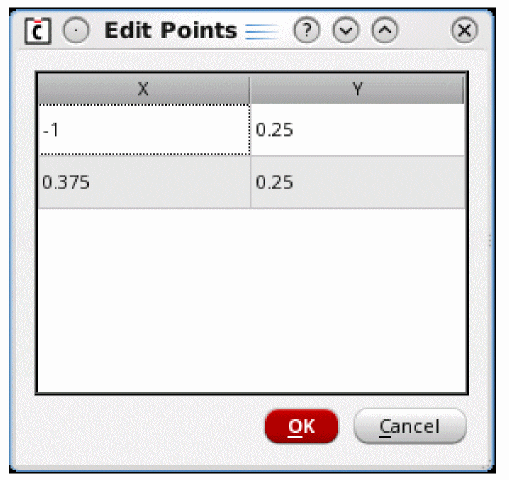
Figure 16-20 The Edit Points form
- In the Edit Points form edit the X and Y point values as appropriate.
- Click the OK button to apply the new Point property values.
Editing Text Property Values
Text property values exist, for example, for each note text Text property.
To edit a Text property value:
-
Click in the property value field for the Text property entry you want to edit.
-
Select the Click to expand editor icon that is displayed.
This will display the Edit Text form.
Figure 16-21 The Edit Text Form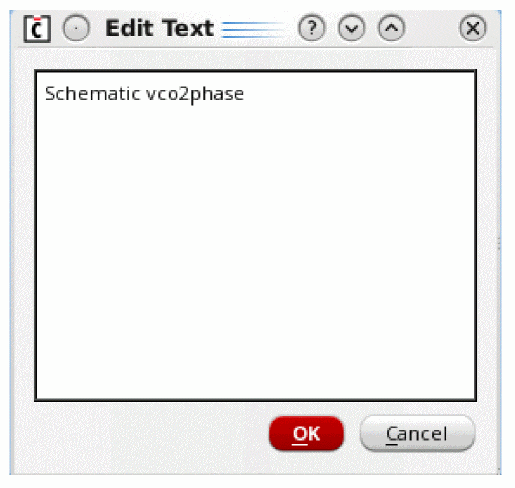
-
In the Edit Text form edit the current note text entry as appropriate.
- Click the OK button to apply the new note text.
Property Status Visualization
The Property Editor provides a variety of visual mechanisms to display the current status of a property and its current value.
Default Values
Properties whose current values are the same as the property default value are displayed in italic blue text. This provides an indication of which properties have not yet been changed and those properties that have been manually altered.
Those property values that have been modified manually are displayed in standard black font.
Reverting to Default Values
If you have overridden a default value you can quickly revert back to the default:
- Click in the property value field of the property you want to restore the default value for.
-
If the current value is different from the default value for the property a Revert to default button will be displayed to the right of the property value field.
The ToolTip for the button shows what the default value is.Where applicable, The Property Editor Context-Menu will also display a Revert to default option. -
Click the Revert to default button to automatically change the value of the current property back to the default value for that property.
Figure 16-22 Option to revert to default property value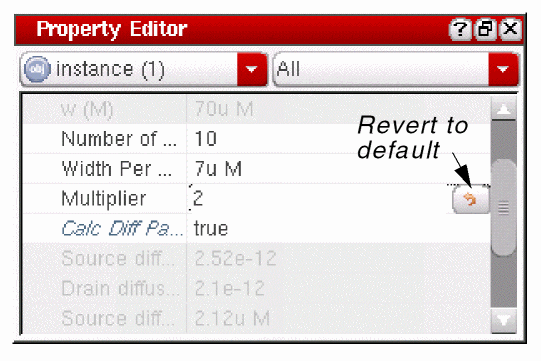
Read-Only Values
Property values that are set as read-only are displayed in gray font and cannot be edited.
Differences In Property Values Across Selected Objects
If there are differences in property values across selected objects, the property name will be highlighted in red font and the property value summarized by the string (various).
If there are no differences in property values across selected objects with the same property, a single value will be displayed.
The Property Editor and CDF Support
The Property Editor supports the viewing and editing of CDF (Component Description Format) parameters in much the same way as the
This section summarizes the CDF features supported, while highlighting areas to be aware of.
Callbacks
The Property Editor supports all CDF callbacks:
-
use
Determines if the parameter is available to be displayed. If the expression evaluates tot, the parameter is available to the Property Editor and its display is controlled using thedisplaycallback.
If the expression evaluates tonilfor a netSet, the schematic editor intentionally ignores this setting when the CDS_Netlisting_Mode isAnalog. For more details see, Effect of Netlisting Mode on netSets. -
display
Controls whether or not a parameter is to be shown in the Property Editor. -
editable
Specifies whether a parameter is editable or read-only. -
callback
Is evaluated whenever a parameter’s value is edited in the Property Editor.
For more information on the above, see Defining Parameters in the Component Description Format User Guide.
In addition, the initialization and postprocessing procedures described in the
-
formInitProc
Is executed prior to displaying CDF parameters in the Property Editor. -
doneProc
Is executed after a change is made to any parameter.
The Property Editor operates in a similar manner to a spreadsheet application, in that individual parameter changes are applied immediately. When a parameter value is changed, the Property Editor performs the following operations:-
It will call
formInitProcagain to ensure that the cdfgDatavariable is correctly set up for use in any subsequent parameter callbacks. - It applies the parameter change to the current instance.
- It calls the parameter callback.
-
It calls
doneProc.
-
It will call
cdfgData
cdfgData is used within callback code to access CDF data for the current object.
The Property Editor will set up this variable correctly even in cases where multiple objects are selected.
For more information on cdfgData see
cdfgForm
cdfgForm is the form on which CDF data is displayed, if there is one.
However, as already mentioned, the Property Editor is a dockable assistant, different from standard schematic editor forms. For this reason, cdfgForm is set to nil when using Property Editor to display CDF.
For more information on cdfgForm see
Emulating cdfgForm
It is possible to set up the Property Editor to emulate cdfgForm. This can be useful in cases where it is not possible to change the way cdfgForm is used in your CDF definition (and access to cdfgForm is limited to certain properties).
Setting the SKILL variable “oiEmulateCdfgForm” to “t” will cause the Property Editor to set cdfgForm to be effectively the same as . This means that all of cdfgData’s properties are accessible through cdfgForm.
With emulation enabled, the Property Editor will also display a warning any time a callback tries to access cdfgForm. This is done to alert you to the fact that the callback operation may not be working as intended.
In cases where the only use of cdfgForm is to access parameter values, for example cdfgForm -> parameter -> value, then cdfgForm and cdfgData are interchangeable, and emulation will yield correct results. If this is the case, then the recommended course of action is to modify the callback so that it does not use cdfgForm.
In cases where modifying the CDF definition is not possible, and you have verified that emulation is giving the intended results, the cdfgData warning message can be disabled by setting the SKILL variable “oiSuppressCdfgFormMessages” to “t”.
cdfgForm is not a genuine form. If you are using this feature, be sure to examine your callback code to verify that it will operate correctly.Modgen Property Updates using the Property Editor Assistant
You can use the Property Editor assistant to interactively update the properties of individual Modgen instances and Modgen arrays containing stack-type members. Any changes you make to the instance properties are immediately applied to the Modgen in the layout canvas, as displayed in the figure below.
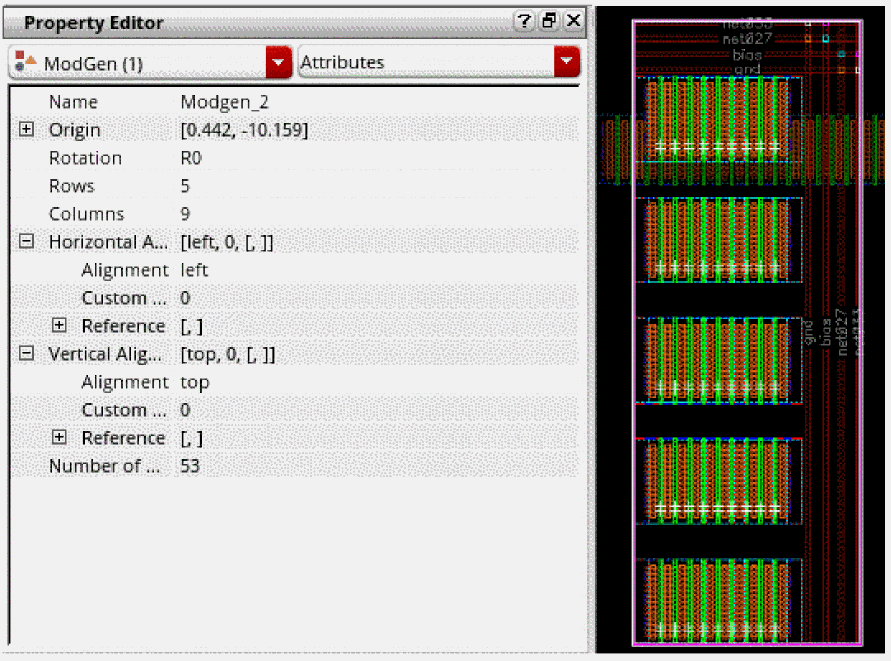
You can also use the Array Assistant to edit Modgen properties.
Related Topics
Return to top