
2
Using Dracula
The focus of this chapter is on using Dracula to perform the following:
- Verifying a Design with Dracula
- Creating a Rules File
- Compiling the Rules File
- Running Dracula
- Interpreting Dracula Output
- Dracula Distributed Processing
- Running Dracula in 32-bit or 64-bit Modes
Verifying a Design with Dracula
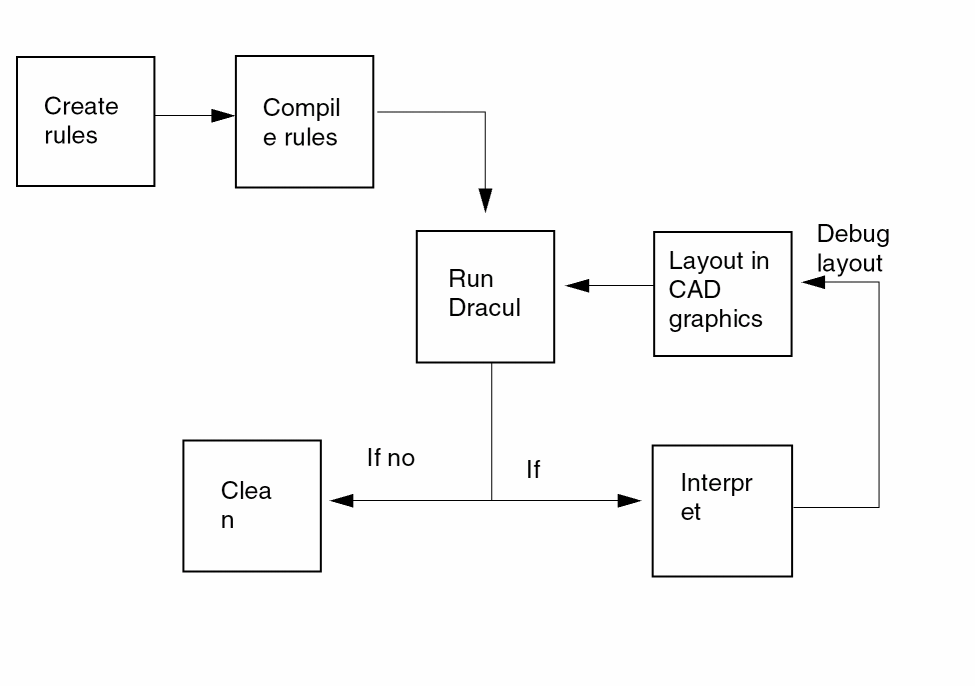
Before running Dracula to verify a design, you must write a rules file. The rules file identifies the layers in your design and the verification operations you want Dracula to perform. To verify a layout, compile your rules file with the PDRACULA preprocessor, then run the Dracula program.
If Dracula finds errors, it generates error reports and an error database that contains information you can use to debug the layout. After debugging, you can resubmit the verification job and continue debugging until you have a clean layout.
Creating a Rules File

A rules file is an ASCII file you create with a UNIX® text editor such as vi or emacs. The rules file contains Dracula commands that identify layers in your design and the verification operations you want Dracula to perform.
Rules File Structure
A Dracula rules file has the following parts:
Each block begins with a statement that identifies the block and ends with an *END statement. The *END statement is always the last line in the block. The block statements begin with an asterisk (*) in the first column.
Description Block
The Description block describes the system on which Dracula runs. This block also contains information about the circuit to be checked, including the following:
- Execution mode
- Primary cell name
- Input/output devices, file names, and formats
- Graphics scale factor
- Grid increments
- Output print file
- Display of warning messages
The *DESCRIPTION statement marks the beginning of the Description block. See Chapter 11, “Description Block Commands,” for descriptions of the commands you can include in the Description block.
Input-Layer Block
The Input-Layer block relates your layout layer numbers or names to Dracula layer names and specifies other information Dracula needs about layers. This block specifies the following:
The *INPUT-LAYER statement marks the beginning of the Input-Layer block. See the Introduction section of Chapter 12 for descriptions of the commands you can include in the Input-Layer block.
Operation Block
The Operation block defines the operations and applications to be run and flags errors. The types of operations it defines are
The *OPERATION statement marks the beginning of the Operation block. See the Introduction section of Chapter 13 for descriptions of the commands you can include in the Operation block.
Syntax
The following table shows the special characters used in Dracula rules files.
The first word of each command line must be a Dracula command. Each line can contain only one command. All commands within each block are free format; you can place them in any order you want. Blank spaces can precede a command.
You must separate all data items in a command line with one of these delimiters: a blank space, a comma, or an equal sign. For example:
INDISK = chip ; optional comment
Do not use a plus sign (+) to indicate a positive number. Do not put a space between a minus sign (-) and a negative number.
For additional information on creating Dracula rules files, see the
Rules File Example
The following example shows a Dracula rules file:
*DESCRIPTION
;
; System description data input section
;
PRIMARY   =  iomux
SYSTEM    =  GDS2
INDISK    =  1234
OUTDISK   =  5678
SCALE     =  .001 MICRON
MODE      =  EXEC NOW
RESOLUTION = .25 MICRON
.
.

*END
;
*INPUT-LAYER
;
; Layer mnemonic name definition section
;
poly      =  5
diff      =  7
implant   =  2
metal     =  9
mc1       =  10
epi       =  11
.
.
CONNECT-LAYER   =  diff  poly  metal
PAD-LAYER = vapox
*END
;
*OPERATION
;
; Logical, resizing, connection, and spacing operations
;
AND       poly     diff     gate
SIZE      gate     BY 1     ovgate
AND       diff     ovgate   difgate
ENC[O]    difgate  implant  LT 4  OUTPUT rule01 5
.
.
CONNECT   metal    poly     BY mc1
CONNECT   poly     diff     BY epi
CONNECT   metal    diff     BY mc1
.
.
*END
Compiling the Rules File
After you create your rules file, use the PDRACULA preprocessor to compile it. PDRACULA performs three tasks:
- Checks for syntax errors in the rules file
-
Compiles the error-free rules file and stores it in the jxrun.com file
The jxrun.com file contains the commands that submit a Dracula job. -
Creates a symbolic link from the main library to the run directory and puts it in the jxrun.com file
All reference libraries must be in the run directory or symbolically linked to the run directory.
If there is a problem compiling the rules file, PDRACULA issues either a warning or an error message indicating the line in question, the problem, and sometimes a possible solution. You must correct all errors and recompile the file. If you understand the implications of a warning message, you can disregard it.
PDRACULA is interactive. While PDRACULA runs, you can enter PDRACULA commands, which are described in the following sections. Here are some of the things you can do with the PDRACULA commands:
- View error messages
- Interactively edit and store changes to the rules file
- Compile multiple rules files to one run file
In addition, during the compilation of a rule file, PDRACULA splits each command into terms separated by delimiters, such as commas, spaces, and equal signs. However, this does not apply to semicolons. The maximum number of terms is limited to 20, which is enough for all commands except LVSCHK and LPECHK. Exceeding the maximum number or terms will return an error message.
When necessary, you can overcome the 20 term limitation for LVSCHK and LPECHK by writing the commands as two commands with complementary arguments. For example, the command:
lvschk[cpur] weffect=.125 muldelw=-2 wpercent=2 lpercent=2 capval=1 resval=1 eaper=1 dioarea=1 printline=200 listunmatch=200 dioperi=4
lvschk[cpur] weffect=.125 muldelw=-2 wpercent=2 lpercent=2 capval=1 resval=1 lvschk[cpur] eaper=1 dioarea=1 printline=200 listunmatch=200 dioperi=4
Running PDRACULA
To compile your rules file, follow these steps:
-
To start PDRACULA on a UNIX workstation, type the following command:
PDRACULA
-
Type PDRACULA commands at the PDRACULA command prompt, which is a colon (:). For example, you can
- Use the /GET command to indicate the rules files to compile and to display any error or warning messages.
- Use the /NEXT command to run multiple Dracula jobs.
- Use the /EDIT command to bring up your rules file in the vi or emacs text editor so you can make corrections.
See the PDRACULA command descriptions on the following pages for details about using individual PDRACULA commands. -
Use the /FINISH command to compile the rules file and end the PDRACULA session.
If the rules file contains errors, the PDRACULA command prompt returns and PDRACULA prompts you to correct the errors. If your rules file compiles without any errors, the PDRACULA session ends and the system command prompt appears. - If there are errors, make any necessary changes to the rules file and rerun PDRACULA.
Using PDRACULA Commands
To compile your rules file, view error output, and make corrections to your rules file, type the PDRACULA commands interactively at the PDRACULA command prompt. Precede each of the commands with a slash (/). To save time, type the first three letters (for example, /RES for /RESTART) or the first character (for example, /G for /GET).
The following pages describe the PDRACULA commands. Some of the following command descriptions use the term active input sequence. The active input sequence is the PDRACULA commands you have typed so far in the current PDRACULA session.
/ABORT
/ABORT
Description
Stops a PDRACULA run and closes all temporary files. Use /ABORT to stop all processing.
Example
/ABORT
/CLEAR
/CLEAR
Description
Deletes all currently active commands. Use /CLEAR to free your UNIX window and start a new process without exiting PDRACULA.
Example
/CLEAR
/DCL
/DCL
Description
Communicates with your host operating system without exiting the preprocessor. After issuing a /DCL command, you can use any of the host commands.
To return to PDRACULA, position the cursor on a blank line and press the Return key.
Example
/DCL
ps ax
/DCL
ls *.COM
/FINISH
/FINISH {jcl-filename}
Description
Ends the command sequence and starts the PDRACULA preprocessor.
PDRACULA checks the Description block for missing data and the rules file for empty Input-Layer or Operation blocks. If any required parameters are missing from the Description block, or if any layers are missing from the Input-Layer block, PDRACULA issues a warning.
If the rules file contains errors, PDRACULA prompts you to correct the errors and displays the PDRACULA command prompt. If the rules file has no errors, PDRACULA finishes and your system command prompt appears.
Arguments
Specifies the name of the file generated by the preprocessor. The default file name is jxrun.com.
Example
The /GET command reads in and displays the contents of the rules file, myfile.rul. After PDRACULA displays the file, /FINISH compiles the rules file, then ends the PDRACULA session.
/GET myfile.rul
   *DESCRIPTION
   SYSTEM      = GDS2
   PRIMARY     = iomux
   MODE        = exec now
   INDISK      = 1234
   OUTDISK     = 5678
   SCALE       = .001 micron
   RESOLUTION  = .25 micron
   *END
   *INPUT-LAYER
   diff        = 1
   poly        = 2
   *END
   *OPERATION
   AND poly diff gate
   EXT gate LT 5 OUTPUT rule03 5
   *END
/FINISH
/GET
/GETinput-filename{Y/N} {FILE} {MULTI}
Description
Specifies which rules file or files to compile.
Arguments
Specifies the name of the file to be compiled.
Y displays the input file and all warning and error messages on the screen.
N suppresses display of the input file on the screen. Only warning and error messages appear on the screen. In Dracula 4.8 and subsequent releases, N is the default.
When used with Y, sends the input file and all warning and error messages to a file. The name of the file is the rules file name with a .lis extension. When used with N, sends only warning and error messages to the .lis file.
Used for multilevel DRC only. Creates a two stage jxrun.com file to analyze and select multilevel Hcells. Creates the MULTICEL.TAB file after the jxrun.com file completes.
Examples
To display only warnings and error messages on the screen, type
/GET abc.rul
/GET abc.rul N
To display the contents of abc.rul file and messages on the screen, type
/GET abc.rul Y
To send warnings and error messages to a file named abc.lis, type
/GET abc.rul FILE
/ GET abc.rul N FILE
To send all the contents of abc.rul file and messages to a file named abc.lis, type
/GET abc.rul Y FILE
Multilevel Example
/GET drc.rul MULTI
The contents of drc.rul appear on the screen and PDRACULA creates the two stage jxrun.com file to perform data analysis and multilevel Hcell selection.
After you run the jxrun.com file, DRACULA writes the selected multilevel Hcells to the MULTICEL.TAB file, then you rerun PDRACULA with the following command:
/GET drc.rul N
- Creates a subdirectory for each cell name in the MULTICEL.TAB file
- Creates a jxmult.com file for the root directory and a jxrun.com file for each subdirectory
- Symbolically links the MULTICEL.TAB file to each subdirectory
- Chooses Hcells suitable for multilevel hierarchy and creates directories for checking each Hcell (CHECK-MODE = MULTI)
After PDRACULA completes, you execute the jxmult.com, which executes the jxrun.com files in each subdirectory.
PDRACULA selects cells for Hcells based on the following criteria:
- Cells must exceed the requirements specified in the HCELL-RULE command. The default number of placements is four. The default number of segments is 1,024 times the number of layers.
- If both parent and child qualify as Hcells, DRACULA checks if the total number of line segments (after expansion) of the child exceeds 90 percent of that of the parent. If so, DRACULA selects only the child cell as an Hcell.
- Does not violate overlap criteria set by the CHECK-MODE command.
- DRACULA writes multilevel cells with over 100,000 line segments to the MULTICEL.TAB file.
/HELP
/HELP {ACTION/EXECUTIVE/FILES-CREATED} item
Description
Displays information about PDRACULA. Use HELP to access online information for quick reference.
Arguments
Specifies the subtopic under which preprocessor commands are listed.
Specifies the subtopic under which input block information is listed.
Can be any keyword in the help dictionary under the headings of ACTION, EXECUTIVE, or FILES-CREATED. After choosing one of these, you can choose from the categories listed on your screen.
setenv DRACHELP4 drac_dir/etc/drac_help/
Examples
:/HELP
The following text appears on your screen. The text you type is shown in bold.
PDRACULA is the Dracula compiler that takes input in an English-like language and converts it to the JCL-like control language that drives the Dracula system.
Additional information available:
ACTION   EXECUTIVE  FILES-CREATED
PDRACULA SUBTOPIC?  ACTION
PDRACULA
   ACTION
ACTION DIRECTIVES
The EXECUTIVE CONTROL ACTION DIRECTIVES will cause some specific action to take place during the input processing phase of the program. These directives can be invoked anywhere within the input sequence of the program. The input processing system recognizes these directives by a slash ’/’ appearing as the first character in the input and followed directly by a keyword.
NOTE: Input that appears in curved brackets (that is, {OUTPUT c-name l-num}) indicates that this input data item is optional and depends on the user’s specific requirements.
Additional information available:
/ABORT               /CLEAR    /COMMANDS      /CREATE-JCL
/CURRENT-VERSION     /DCL      /EDIT          /FINISH
/GET                 /HELP     /JCL-FILENAME  /LIST
/NEXT                /OFF      /ON            /PRINT
/QUIT                /RESTART  /STATUS        /STORE
/SUBMIT              "?"       HELP           "UNSORTED"
PDRACULA ACTION Subtopic ? /GET
PDRACULA
   ACTION
     /GET
/GET {file-name {NOLIST | LIST} {FILE}}
The GET Action Directive will cause the input processing system to go out and read a previously generated file and then insert it into the input sequence. This function lets you use previously generated processes and card input streams to perform Design Rule Checks. NOLIST prevents the card images in file name from being echoed. LIST causes the card images in file name to be echoed. If the keyword FILE is specified, then all error and warning messages will be written to a file named filename.LIS
Additional information available:
    ARGUMENT     EXAMPLES
PDRACULA ACTION /GET Subtopic ? [RETURN]  ;Leave /GET
   ;subtopic.
PDRACULA ACTION Subtopic  ?  [RETURN]     ;Leave Action
   ;subtopic.
PDRACULA Subtopic  ?  [RETURN]            ;Leave HELP
   ;facility.
:
/LIST
/LIST block {UNSORTED/SORTED}
Description
Lists all or part of the active input sequence.
Arguments
Defines what to list: the input or output file names, or one of the following blocks:
ALL
DESCRIPTION
INPUT-LAYER
OPERATION
Indicates that the output listing is not sorted.
Expands free-format command lines into predetermined fields that make the command sequence easier to read and check. This option removes comment statements. Default.
Examples
/LIST myfile UNSORTED
/LIST DESCRIPTION
/LIST INPUT
/LIST OPERATION UNSORTED
/NEXT
/NEXT
Description
Marks one of the termination points in your command sequence. /NEXT creates the jxrun.com file and starts the preprocessor again. Use /NEXT to generate multiple jxrun.com files so you can run multiple Dracula jobs sequentially in the same directory. This command prompts for any data missing from the Description block.
/NEXT ends a prior /GET command and prevents unwanted concatenation. To end your entire sequence, use the /FINISH command.
/NEXT command when compiling a Dracula rule file for Dracula distributed processing with PDRACULA.Example
Enter the following commands to create three different jxrun.com files and execute the jobs in sequence:
/GET       drc1.com
/NEXT      ;creates jxrun.com
/GET       drc2.com
/NEXT      ;creates jxrun1.com
/GET       drc3.com
/FINISH    ;creates jxrun2.com
/PRINT block {UNSORTED/SORTED}
Description
Lists all or part of your active input sequence in a temporary file.
Arguments
Specifies which part of your input sequence to list in a temporary file. The list can include the input or output file name or one of the following blocks:
ALL
DESCRIPTION
INPUT-LAYER
OPERATION
Indicates that the list is not sorted.
Expands the free-format command lines into predetermined fields that make the command sequence easier to read and check. This option removes comment statements. Default.
Examples
/PRINT myfile UNSORTED
/PRINT DESCRIPTION
/PRINT INPUT
/PRINT OPERATION UNSORTED
/RESTART
/RESTART
Description
Executes part of your jxrun.com file without running the entire job again. This command restarts Dracula from a breakpoint in the jxrun.com file. PDRACULA prompts for “From” and “To” breakpoints.
On a UNIX workstation, you must manually run Dracula again using jxprechk.com. /RESTART affects the jxprechk.com file, which runs the portion of jxsub.com that lists your “From” and “To” breakpoints.
For details about break points and the BREAK command, see the "Introduction" section of Chapter 13.
Examples
/GET myfile.com NO
/RES
From: plot
To:   end
Reserved Breakpoints
You can use the automatic breakpoints listed below in the jxrun.com file, or you can insert other break points. Do not use these reserved words for breakpoints you define with the BREAK command.
BEGIN:
EXPAND:
SORT:
MERGE:
LVSNET:
SCHMIN:
SYSOUT:
DELETE: (if KEEPDATA = NO/SMART is specified)
END:
To use the /RESTART command from a breakpoint other than BEGIN on a previous Dracula job, use the KEEPDATA=YES command. If you specify KEEPDATA=NO or KEEPDATA=SMART in the previous job, the job stops.
/STATUS
/STATUS
Description
Displays your active status so you can identify the block being processed and the current status of processing. To determine which block Dracula is processing, use /STATUS following a /GET command.
Example
:/STATUS
YOU ARE NOT IN ANY BLOCK
   2 INPUT-LAYER      CARDS
   8 DESCRIPTION      CARDS
   4 OPERATION        CARDS
   0 PLOT-OUTPUT      CARDS
CATEGORY           NUMBER OF  MAXIMUM
                   LINES      ALLOWED

LOGICAL            1          1000
SIZE               3          600
INPUT LAYERS       2          256
OUTPUT CELLS       3          2000
TOTAL OPERATIONS   4          2000
/STORE
/STORE filename {UNSORTED/SORTED}
Description
Stores your active input sequence in a file. To simplify checking, the stored file is sorted and the data is placed in predetermined fields. The /STORE command lets you build processes and procedure files interactively.
Arguments
Specifies the name of the mass storage file created from your active input sequence.
Indicates that the output file is not sorted.
Expands free-format command lines into predetermined fields that make the command sequence easier to read and check. This option removes comment statements. Default.
Examples
/STORE myfile
/STORE process UNSORTED
Running Dracula
The PDRACULA preprocessor produces four executable files that you can use to run Dracula.
-
jxrun.comruns Dracula in the foreground. -
jxsub.comruns Dracula in the background. -
jxmult.comruns Dracula in multilevel mode. -
jxexe.comand jxpar.com run distributed Dracula in the background.
The jxrun.com file is a C shell script that contains all information from your rules file in an executable format. The file is divided into “stages.” The first stage reads in your database. The next stages process the layers in your design and perform all operations defined in your rules file. PDRACULA can process over 80 temporary layers. The last stage converts your database back to the original layout database format. As jxrun.com runs, the run messages it generates appear on the screen.
The jxsub.com file is a brief C shell script that executes jxrun.com in the background. This script saves all run messages in a log file. The following section, “Interpreting Dracula Output,” describes the log file and other Dracula output files.
The jxmult.com file is a C shell script that executes the jxrun.com scripts in each run directory when you run multilevel hierarchy. Dracula defines the primary cell for each run by the cells designated in MULTICEL.TAB. Dracula consecutively executes the jxrun.com in each subdirectory.
The jxpar.com and jxexe.com files are C shell scripts that Dracula uses when you run a distributed Dracula process. For information about the using these files, refer to the Dracula Distributed Processing section in this manual.
Interpreting Dracula Output
Dracula produces printed results of all major Dracula applications. If you run Dracula in the foreground, the results appear on the screen while Dracula runs. If you run Dracula in the background, the results are saved in files.
Each Dracula run, regardless of the applications it includes, might produce the following files and extensions:
- A log file with the .log extension
- A summary file with the .sum extension
- A system error file with the .mlg extension
- A warning file with the .msm extension
The PRINTFILE command in the Description block defines the file name. The default is printf, which produces the files printf.log, printf.sum, printf.mlg, and printf.msm.
After each Dracula run, check the log file to make sure the job was completed properly. The last stage listed in the log file shows a module called GDS2OUT, APPLEOUT, or a similar module depending on your database format. If the Description block of the rules file includes the command PREINQUERY = YES, the last module listed is PREINQUERY.
jxrun.com file, just like how the command PREINQUERY = YES does. However, the original command PREINQUERY = YES also works. If the log file lists something other than these modules in the last stage, refer to the system error file (.mlg). The system error file lists fatal error messages and log-off statistics, such as the amount of CPU time used for the run. If you include the EXTERM-NOWARN=NO command in the Description block, the log file lists the “unconnected pins in cell” messages.After each Dracula run, you should also check the summary file for cells that PDRACULA generated or skipped, depending on the errors found. The summary file also lists the number of errors found and the x and y coordinates of any problem polygons.
The warning file lists all warnings and error messages generated during the run.
Dracula Distributed Processing
Dracula distributed processing shortens Dracula run times by using multiple workstations running simultaneously. Distributed processing is designed to be easy to use, to minimize the communication overhead between machines, and to maintain the integrity of your database. Distributed processing works on heterogeneous networks that support Sun rpc, UNIX BSD rsh, and automount.
- Dracula distributed processing runs
- Dracula distributed processing
- Dracula distributed processing runs the following applications in flat mode:
- Dracula distributed supports hierarchical DRC and composite mode LVS. (Dracula 4.7 supports LPE/PRE).
-
dracqdoes not support Dracula.
The next sections describe how distributed processing works and the control scripts and files you need to run Dracula distributed. The remaining sections explain how to set up distributed runs and how to run Dracula distributed.
How Dracula Distributed Works
In a Dracula distributed run, each CPU on a MULTICPU or on a workstation is called a node. You start the job from the master node, which distributes tasks to the slave nodes.
A Dracula daemon, DRACD, manages the distribution of tasks between CPUs. Synchronization processes take place at these stages:
During a Dracula distributed run, the daemon creates and maintains the following two directories on each node:
-
The
drac-dirdirectory contains intermediate files generated during the run. Files must remain until being finally merged, and can be used if the job is restarted. -
The
drac-linkdirectory contains files that Dracula uses on the master node to identify all files from the previous run that were copied to the slave nodes.
In addition, the daemon maintains a history file, called STATUS.TAB, in the master node’s working directory. This history file remains on the master node after the run is complete.
Machines/CPUs which can be used to run the tasks are described in a node configuration file.
Setting Up for Dracula Distributed Processing
Before you start a Dracula distributed run, you must do all of the following:
- Use the MULTICPU command to start the Dracula distributed processing in a multiple CPU workstation. This is a new command in the 4.8 release.
-
In the master node, create the node configuration file. For example:
master/working1/executable_pathpower_rankmount_type
slave1/working10/executable_pathpower_rankmount_type
slave2/working20/executable_pathpwoer_rankmount_type
While creating the node configuration file, follow these guidelines:- List the master node first.
- Do not use symbolic links: Make sure that the working directory names in the node configuration file are not links to the physical directory, but are names of the physical directory itself.
- Do not include blank lines: Make sure that the node configuration files do not contain any blank lines (at the beginning, at the end, or between lines).
-
Edit the Dracula rules file to add the following line in the DESCRIPTION block:
PARALLEL-FILE = node_configuration_file
-
Create a run (working) directory on each slave node as listed in the node configuration file.
-
Check access and permission. This can require system privileges or the presence of a system administrator.
-
From the master node, you must be able to
rloginto slave nodes without being asked for a password and vice versa. - From the master node’s working directory, you must have write permission to slave nodes’ working directories. To check, enter the following:
master% touch /net/slave[i]/working_directory/dummy
slave[i]% touch /net/master/working_directory/dummy
-
From the master node, you must be able to
- Make sure working files are in the directory of the master machine, or Dracula issues an error message.
-
Add the
PARALLEL-FILEcommand or theMULTICPUcommand to the Description block of the rules file.
Creating a Node Configuration File
To specify the node configuration file to use in a Dracula distributed run, use the PARALLEL-FILE command. Each line in the node configuration file lists a node to be used in the run and contains the following six fields:
Name of a workstation to be used in the run.
Working directory on this workstation. The working directory must be different for each entry because no two workstations can share identical disk space.
Node type. The possible values are 1, 0, and asterisk (*). For the master node, specify 1. For a slave node, specify 0 or *. The master node must be the first entry.
Dracula executable path for this workstation. An asterisk specifies the path listed by the PROGRAM-DIR command in the rules file. The path for the PROGRAM-DIR command must be the explicit path.
Power rank of this workstation in relation to the other workstations being used in this run. The most powerful workstation has the highest number. An asterisk specifies a rank of one.
Mount type, which can be one of the following:
A # sign followed by the module name, which is used to assign critical processes to a powerful machine.
Example 1
This parallel file example assigns critical processes to a dedicated node:
nickel /net/nickel/dracula_lvs 1 $DRACBIN 4 0 # NODAL LVSCHM
iron /net/iron/dracula_lvs 0 $DRACBIN 1 0
silicon /net/silicon/dracula_lvs 0 $DRACBIN 1 0
In this parallel file, modules NODAL and LVSCHM must run on the machine nickel.
Example 2
The following example shows a node configuration file.
iron    /dracula/test  1  *                          4 0
silicon /dracula/test  0  *                          3 0
nickel  /dracula/test  *  /net/nickel2/dracula/bin   3 0
In this example, nickel has an executable path that is different from the path specified in the PROGRAM-DIR command.
Running Dracula Distributed Processing
To run a Dracula distributed processing, follow these steps given below.
Starting a Run
Perform these steps on the master node:
-
Compile the command file using PDRACULA.
PDRACULA generates the following control scripts you can use to run Dracula distributed processing:- The jxpar.com control script sets up the tasks to send to each node. It copies the necessary files to each node used in the run and creates the drac-dir and drac-link subdirectories.
- The jxexe.com control script starts a Dracula distributed run.
- The jxclean.com control script clears processes left running after you stop a distributed run with the UNIX kill -9 command.
PDRACULA uses your node configuration file to generate the following files that control Dracula distributed runs:- DRAC-FILE.TAB lists each file needed in the run.
- DRAC-TASK.TAB lists each task to be performed in the run.
- DRAC-NODE.TAB lists the nodes to be used in the run.
- DRAC-SYNC.TAB lists the synchronization points for the run.
For more information, see the “Distributed Dracula Files” section. -
To set up the distributed run, type
jxpar.com
Dracula sets up the tasks to send to each node, taking into account the dependencies listed inDRAC-TASK.TABand the workstation power ranks listed inDRAC-NODE.TAB. -
To start the run, type
jxexe.com
This command starts the run from the beginning.
*.parlog file. From version 4.6.0998 and subsequent versions, the error messages are found in the drac_dir/DRACCLNT.log.Restarting a Run
If a run stops before it is complete, you can restart it in one of two ways:
-
To restart from a specific task, enter the task number after the jxexe.com command. The
DRAC-TASK.TABfile lists the task numbers. For example, to start at the third task, type
Clearing Processes After a Run
After a normal Dracula distributed run, no processes are left running and cleaning is done automatically. The results are copied back into the master working directory.
However, if you use the UNIX kill -9 command to stop a distributed run, some processes might continue running on the slave nodes.
- To clear any processes still running after you stop a Dracula distributed run, type the following on the master node:
Distributed Dracula Files
The following sections describe each of the Dracula distributed files.
DRAC-FILE.TAB File
Each line in the DRAC-FILE.TAB file lists a file needed in the run and contains the following two fields:
The index number associated with the file.
Here is a sample DRAC-FILE.TAB file:
1 INPUT.DB
2 9ACTIVE.DAT
3 9POLY.DAT
4 9GATE.DAT
. . .
. . .
15 ACTIVE.DAT
16 POLY.DAT
17 GATE.DAT
. . .
DRAC-TASK.TAB File
Each line in the DRAC-TASK.TAB file lists a task to be performed in the run and contains the following six fields:
Task numbers of any tasks that must be completed before this task can begin. This field must end with an asterisk (*).
Index numbers of any input files to this task. The DRAC-FILE.TAB file lists the files with their index numbers. This field must end with an asterisk (*).
Index numbers of files this task generates. These are the same index numbers listed in DRAC-FILE.TAB. This field must end with an asterisk (*).
Index numbers of files the daemon must copy from the slave to the master server when this task is complete. These are the same index numbers listed in DRAC-FILE.TAB. This field must end with an asterisk (*).
Broadcast flag. The possible values are 1 and 0. To update DRACINFO.TXT, use 1.
Here is a sample DRAC-TASK.TAB file:
1      *          1*         2*     *     0
2      *          1*         3*     *     1
3      *          .          .      .     1
.      .          .          .      .     .
13     1 4 7*     15 16*     17*    *     .
Task number 13 in this sample file has 3 prerequisite tasks: tasks 1, 4, and 7. Its input files are ACTIVE.DAT and POLY.DAT, which are listed with the indexes 15 and 16 in the DRAC-FILE.TAB.
AC-FILE.TAB file. This task generates the GATE.DAT file. The daemon does not need to copy any files back to the master node when task 13 completes.
DRAC-NODE.TAB File
Each line in DRAC-NODE.TAB lists a node to be used in the run and contains the following seven fields:
Name of the workstation to be used in the run.
Working directory on the workstation to be used in the run.
Node type. The possible values are 1, 0, and asterisk (*). For the master node, specify 1. For a slave node, specify 0 or *. The master node must be the first entry.
Dracula executable path for this workstation. An asterisk specifies the path listed by the PROGRAM-DIR command in the rules file.
Security path. A slash (/) indicates the path listed by the DRACSEC4 environment variable.
Power rank of this workstation in relation to the other workstations being used in this run. The most powerful workstation has the highest number. An asterisk specifies a rank of one.
Mount type. A soft mount is zero. A hard mount is one.
The following example shows a sample DRAC-NODE.TAB file (explicit soft mount):
nickel  /net/nickel/dracula/test    *  /net/nickel2/dracula/bin  / 3 0
iron    /net/iron/dracula/test      1  *                         / 4 0
silicon /net/silicon/dracula/test   0  *                         / 3 0
The following example shows a sample DRAC-NODE.TAB file (implicit soft mount):
nickel  /dracula/test  *  /net/nickel2/dracula/bin  / 3 0
iron    /dracula/test  1  *                         / 4 0
silicon /dracula/test  0  *                         / 3 0
The following example shows a sample DRAC-NODE.TAB file (hard mount):
nickel  /net/dracula/test  *  /nickel/dracula/bin  / 3 1
iron    /net/dracula/test  1  *                    / 4 1
silicon /net/dracula/test  0  *                    / 3 1
These sample files list three nodes: nickel, iron, and silicon. Each node has a working directory called test under a directory called dracula. Iron is the master node, identified by the value 1 in the third field.
Iron is also the most powerful workstation because the power rank value in the sixth field, 4, is higher than the power rank values for the other two nodes.
The asterisk in the fourth field indicates that iron uses the path specified by the PROGRAM-DIR command as its executable path.
The slash in the fifth field indicates that iron uses the security path specified by the DRACSEC4 environment variable.
DRAC-SYNC.TAB File
During a distributed run, Dracula must synchronize twice. During synchronization, Dracula waits for all tasks currently running to complete before beginning the next task.
The first synchronization point is after the last EXPAND. It handles the design’s substrate and boundary. Dracula must generate all pseudo layers before it can continue with more advanced operations.
The second synchronization point is immediately before GDS2OUT, APPLEOUT, or CIFOUT. Dracula collects and sorts the summary files generated by each task. Dracula must complete all tasks before it can convert the database.
Each line in the DRAC-SYNC.TAB file lists a synchronization point and contains the following four fields:
Synchronization point type: either 1 or 2.
Number of the task at which to synchronize.
Number of the stage at which to synchronize. This is the stage number listed in the jxrun.com executable file.
Number of the synchronization file as listed in DRAC-FILE.TAB.
The following example shows a sample DRAC-SYNC.TAB file:
1     11     9     18*
2     131    0     *
Dracula Distributed Processing and the Dracula Graphical User Interface Tool
The Dracula graphical user interface (the draculaInteractive tool) supports Dracula distributed processing.
-
You need to set the Dracula data path correctly while running the Dracula interactive debugging tool. To get the Dracula data, you have to set the path to
master_node/drac_linkwheremaster_nodeis the directory from which you ran the Dracula distributed job. -
You should not use the
/NEXTcommand when compiling a Dracula rule file for Dracula distributed processing with PDRACULA.
See the “Note” under the KEEPDATA command section of this manual.
Dracula Distributed Processing in the Dracula 4.51 Release
-
Users can specify their own queuing system (
dracqdoes not support DD) - Dracula distributed processing groups layers for SPACING, LOGICAL and SELECT types of operations in order to reduce the overhead.
Dracula Distributed Processing in the Dracula 4.6 release
Dracula distributed processing supports multiple disks storage on master and slave nodes.
Dracula Distributed Processing in the Dracula 4.7 release
A Dracula distributed solution is available for LPE/PRE.
Log file details individual run times for each stage as well as total run time. Throughput of each machine/CPU is displayed for statistics.
Jobs can be optimized by assigning most critical steps to most powerful CPUs.
Dracula Distributed Processing in the Dracula 4.8 release
A new command in this 4.8 release is the MULTICPU command that allows you to run Dracula distributed processing on a multiCPU machine.
Running Dracula in 32-bit or 64-bit Modes
The Dracula directory structure is as follows:
-
The wrappers are stored in:
tools/dracula/bin
-
64-bit executables are stored in:
tools/dracula/bin/64bit
-
32-bit executables with or without a 64-bit equivalent are stored in:
tools/dracula/bin/32bit
To enable 64-bit applications use the UNIX environment variable CDS_AUTO_64BIT {ALL | NONE | "INCLUDE:list" | "EXCLUDE:list" | "list" }. This environment variable enables you to select 32-bit or 64-bit executables using the following values:
-
ALL: Invokes all applications as 64-bit, where available. The list of executables available are in yourinstall_dir/bin/64bit. -
NONE: Invokes all applications as 32-bit. -
"INCLUDE:list": Invokes all applications in the list as 64-bit, where available. -
"EXCLUDE:list": Invokes all applications as 64-bit, where possible, except the applications in the list. -
“list”: Invokes only the executables included in the list, if available, as 64-bit."list"is a list of case-sensitive executable names delimited by a semi-colon(;) or a colon(:). Providing the list without a preceding keyword works the same as using the keywordINCLUDE.
Examples:
setenv CDS_AUTO_64BIT "pipo;layout.exe"
setenv CDS_AUTO_64BIT "EXCLUDE:si"
All 64-bit executables are controlled by a wrapper executable. The wrapper invokes the 32-bit or 64-bit executables depending on how the CDS_AUTO_64BIT environment variable is set, or whether the 64-bit executable is installed. The wrapper also adjusts the paths before invoking the 32-bit or 64-bit executables.
If you do not set the CDS_AUTO_64BIT environment variable then the 32-bit executable is invoked by default.
Additionally, Dracula uses a separate environment variable called DRACULA_AUTO_64BIT to enable 64-bit mode. This environment variable specifies the addressing mode only for Dracula, and overrides the ALL or NONE settings of the CDS_AUTO_64BIT environment variable for Dracula. DRACULA_AUTO_64BIT recognizes the following variable values:
-
ALL: Invokes all applications as 64-bit, where available. The list of executables available are in yourinstall_dir/bin/64bit. -
NONE: Invokes all applications as 32-bit. -
"INCLUDE:list": Invokes all applications in the list as 64-bit, where available. -
"EXCLUDE:list": Invokes all applications as 64-bit, where possible, except the applications in the list. -
"list": Invokes only the executables included in the list, if available, as 64-bit."list"is a list of case-sensitive executable names delimited by a semi-colon(;) or a colon(:). Providing the list without a preceding keyword works the same as using the keywordINCLUDE.
Examples:
setenv DRACULA_AUTO_64BIT "SPACING;LOGLVS;EXPAND"
setenv DRACULA_AUTO_64BIT "EXCLUDE:PDRACULA"
- Entry points to both the 32-bit and 64-bit addressing executables are exclusively through the wrapper programs.
- You must not include directories containing the associated "real" non-wrapper executables in their UNIX path.
- There is a consistent use model in both 32 bit and "automatic high capacity" modes (for example, the same UNIX path).
- Prevents pilot errors (for example, attempting to run a 64-bit executable in a 32-bit environment).
- Consistent with Solaris 7 32 or 64-bit model.
- Requires the same licenses for a 32-bit or 64-bit operation
Return to top