
4
Selecting a Run Mode
This chapter discusses the following topics:
- About Run Modes
- Using Flat Mode
- Using Dracula Distributed Processing
- Using Hierarchical Mode
- Using Multilevel Mode
- Using Cell Mode
- Using Composite Mode
- Improving Performance
About Run Modes
When you are verifying your design, you might want to run Dracula in one of these modes:
-
Flat mode
Verifies every instance of every cell, and the interconnect between cells, on a single machine. -
Distributed flat mode
Verifies every instance of every cell and the interconnect between cells. Different portions of the design are verified on different machines running at the same time. -
Hierarchical mode
Verifies one instance of every cell and the interconnect between cells. The content of the cells is flattened to a single level. -
Multilevel hierarchical mode
Verifies one instance of every cell and the interconnect between cells. The content of the cells can have many levels. -
Cell mode
Verifies only the contents of cells. -
Composite mode
Verifies only the interconnect between cells.
In this chapter, you’ll learn the characteristics of these run modes and get suggestions about how to select and use them to verify your design. These suggestions are general, because designs vary in size, content, structure, input format, and technology.
Different modes have different texting requirements. For details, see the texting section for each mode in this chapter. For a general discussion of texting in Dracula, see
Using Flat Mode
If you are verifying a small to medium-large layout database, use flat mode. You can use all Dracula capabilities (Dracula® design rule checker, Dracula® electrical rules checker, Dracula® flat layout versus schematic verifier, Dracula® layout parameter extractor, and Dracula® parasitic resistance extractor in flat mode. Because this mode creates a flat database, processing might take longer than a hierarchical, cell, or composite mode run.
Running Dracula in Flat Mode
To run a job in flat mode, in the Description block of your Dracula rules file you must do one of the following:
You can run Dracula in flat mode on designs as large as your computer system can handle.
When To Use Flat Mode
-
You are new to Dracula
Start in flat mode. After you get proficient in verifying designs in flat mode, try cell, hierarchical, or composite mode runs. -
You need full functionality
There are no limitations, methodology or design restrictions, or special requirements when you run Dracula in flat mode. You can include any or all of the Dracula capabilities (Dracula design rule checker, Dracula electrical rules checker, Dracula flat layout versus schematic verifier, Dracula layout parameter extractor, and Dracula parasitic resistance extractor in your rules file.
For example, you can run these products and functions, which are not available in the hierarchical modes:
Verifying Gate Arrays
Gate array designs consist of certain base layers overlaid by cells that create transistors, contacts, and other connections. If you run HLVS on this layout in composite mode, the base layers that lie within the cell boundaries are omitted, so devices are not formed. To correct this problem, you can do one of the following:
- Run in flat mode.
-
Use the
BASE-LAYERfunction in the Input-Layer block of your Dracula rules file. For more information on this function, see Using Composite Plane Geometries in Hcells in Chapter 6 of this manual.
Texting for Flat Mode
The only items you need to text for flat mode are the top-level I/Os.
Using Dracula Distributed Processing
To shorten run times, you can use distributed processing to run Dracula on multiple workstations at the same time. You supply the rules file, design, and a list of workstations to use in processing. Dracula divides the tasks among the separate workstations. Dracula automatically keeps track of which tasks can’t start until other tasks are finished and which tasks need a more powerful workstation.
You can run Dracula distributed either on multiple workstations connected through an NFS network or on a multiple-CPU workstation.
When To Use Dracula Distributed Processing
You use Dracula distributed processing for
-
Better throughput
If you have multiple workstations available, you can improve performance on large, flat designs by using distributed processing. -
Flat processing
Dracula distributed supports flat mode design rule checker, electrical rule checker, layout versus schematic verifier, layout parameter extractor, and parasitic resistance extractor jobs. -
Hierarchical processing
Dracula distributed supports hierarchical design rule checker and composite mode layout versus schematic verifier jobs.
For more details about how to run Dracula distributed and the new enhancements in the 4.8 version, see the
Using Hierarchical Mode
For design rule checks on hierarchical designs, you can maximize the advantages of your hierarchy by using Dracula in hierarchical mode. Dracula® 2-level hierarchical design rule checker (formerly called Dracula HDRC) verifies large layout databases. It takes advantage of your hierarchical design structure by recognizing repetitive cells, called Hcells, and performing operations on them only once, even though there might be many instances of these cells in your layout. If there are duplicate cell-to-cell and cell-to-composite relationships, these are processed only once as well. The results are reported in hierarchical form, with a single error cell for each Hcell.
Hierarchical DRC uses less disk space than flat mode. Because HDRC reports fewer errors, it simplifies debugging. Depending on the structure of your design, you might get better performance using hierarchical mode instead of flat mode.
Running Dracula in Hierarchical Mode
To run a hierarchical design rule checker, include this function in the Description block of your Dracula rules file:
CHECK-MODE = hier
What the Hierarchical Design Rule Checker Checks
- The contents of the Hcells
- The composite (non-Hcell) data
- Hcell-to-Hcell interfaces
- Hcell-to-composite interfaces
HDRC allows overlaps between cells. Geometries from the top level or another cell can penetrate or cross a cell. You do not need protection frames or cell boundaries around each cell. However, excessive overlaps and penetrations will slow Dracula.
When To Use the Hierarchical Design Rule Checker
Use the hierarchical design rule checker for
-
Large databases
Hierarchical design rule checker can handle large databases, for example, multimillion-transistor designs. -
Databases with repetitive structures
Designs with large numbers of repetitive physical structures, such as memories and memory cores, are good candidates for HDRC. -
Hierarchical databases
This mode is good for circuits containing a moderate degree of hierarchy. For highly hierarchical designs, you might consider using multilevel mode. -
Shorter run/debugging times
Hierarchical design rule checker flags an error for an Hcell only once, rather than for all placements of the Hcell. This reduces memory requirements, error correction time, and the volume of information you need to debug your design.To avoid performance problems, do not use HDRC on parts of your design that have these characteristics:
In these cases, hierarchical processing might take longer than flat processing.
Using Multilevel Mode
If you are verifying a very large design that contains Hcells within other Hcells, you use multilevel mode. The major difference between hierarchical mode and multilevel mode is that an Hcell in multilevel mode can contain other Hcells. You can use multilevel mode only for DRC. The goal of multilevel DRC is to support a multilevel design hierarchy to reduce verification time and disk storage requirements.
Running Dracula in Multilevel Mode
To run a DRC in multilevel mode, include this function in the Description block of your Dracula rules file:
CHECK-MODE = multi
For details about running a multilevel DRC job, see the “Hierarchical and Multilevel Hierarchical Design Rules Checker” section in Chapter 3 of the Dracula Reference.
Selecting Hcells for a Multilevel Run
Multilevel DRC selects suitable Hcells to check (multilevel cells with over 100,000 line segments). Because multilevel DRC is for very large designs, the criteria that Dracula uses to select multilevel Hcells is different than the criteria for selecting standard hierarchical Hcells. For a list of the multilevel Hcell selection criteria, see the “Hierarchical and Multilevel Hierarchical Design Rules Checker” section in Chapter 3 of the Dracula Reference.
If your circuit performs poorly in multilevel mode, you might be able to improve performance by choosing different Hcells. For more information, see Selecting Hcells Manually To Improve Performance in Chapter 6 of this manual.
When To Use Multilevel Mode
Use multilevel mode for highly hierarchical designs. Designs that have repetitive structures with many levels of hierarchy, such as large DRAMs, are good candidates for multilevel mode DRC.
Using Cell Mode
If you want to check an entire library of cells in one run instead of using one run per cell, use cell mode. Cell mode verifies a group of selected Hcells and reports errors on a cell-by-cell basis. Cell mode verifies only the cells that qualify as Hcells, not non-Hcells or interconnect between Hcells. You can use cell mode for DRC, ERC, LVS, and LPE runs.
Running Dracula in Cell Mode
To run a job in cell mode, include this function in the Description block of your Dracula rules file:
CHECK-MODE = cell
You can let Dracula select Hcells automatically, or you can select them yourself. Hcells can be intermediate- or bottom-level cells in the layout hierarchy. Dracula expands all cells nested in an Hcell and brings them up to the Hcell plane.
When To Use Cell Mode
The usual flow for LVS/ERC/LPE is to check cells in cell mode first. Then, when all cells are verified, run a composite mode check on the cells’ environment. The combination of cell- and composite-mode runs is a complete check, equivalent in completeness to a flat-mode run. Both cell mode and composite mode are required. Neither is sufficient by itself.
-
Verifying libraries
You can place one instance of each library cell, or each new cell to add to a library, and verify the cells in cell mode. -
Creating Hcells
Use cell mode to verify the cells that you plan to use as Hcells. -
Extracting Hcell text for HLVS
In some cases, you might want to run Dracula on a cell below the top-level cell. For example, top-level cell TOP contains a placement of cell 2NOR. If the Hcell text is in TOP, and you specify 2NOR as the primary cell, you do not get text in cell 2NOR.
If you want to use 2NOR as an Hcell, you must text power, ground, and one input or output. You can then use automatic text generation to extract the text.
Run HLVS on cell 2NOR and use the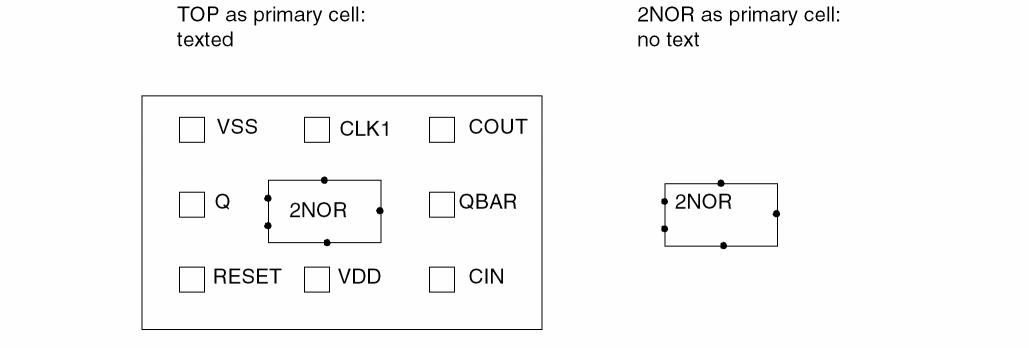
GEN-TEXT-FILEfunction in cell mode to extract Hcell text into a text file. You can then run HLVS in composite mode with the extracted text, reading the text file in with theHEDTEXTfunction. For more information, see Using GEN-TEXT To Generate Hcell Text.
Texting for Cell Mode
You must text the following on the layout for each Hcell in your design:
If you are running HLVS or HLPE using a netlist, the I/Os reflect the local pin names supplied in the .SUBCKT definition in your SPICE/CDL netlist file. For example, here is a netlist for a design:
*.PIN VDD VSS
.SUBCKT INV ABAR A
MP1 ABAR A VDD VDD PMOS
MN1 ABAR A VSS VSS NMOS
.ENDS
.SUBCKT 2NOR OUT1 IN1 IN2
MP1 OUT1 IN1 A   VDD PMOS
MP2 A    IN2 VDD VDD PMOS
MN1 OUT1 IN1 VSS VSS NMOS
MN2 OUT1 IN2 VSS VSS NMOS
.ENDS
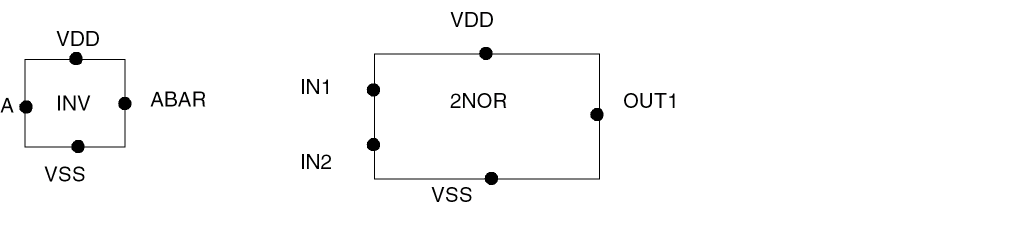
On the corresponding layout, these nodes must be texted:
Supplying Text from the Layout
You can use Hcell text from your layout database using the CTEXT function in the INPUT-LAYER block of your Dracula rules file:
*INPUT-LAYER
PWELL  = 1 CTEXT = 27 ATTACH = METAL
ACTIVE = 2 CTEXT = 33
POLY   = 4
; <functions omitted>
CTEXT = 44
CONNECT-LAYER = NSUB PWELL PSD NSD POLY METAL
*END
The text on layer 27 attaches to the metal geometries of your defined Hcells. Hcell text on layers 33 and 44 is attached globally, as described in the “CTEXT and ATTACH” section in Chapter 12 of the Dracula Reference.
TEXT and CTEXT. You must use different layers for Hcell text and composite text.Bringing Text Up to the Hcell Level
By default, Dracula uses only database text contained within Hcells at level zero (the text must not be obscured by any hierarchy). When a cell placed within an Hcell is expanded up to the Hcell level, the text it contains is not considered part of the Hcell text.
-
To include cell text as part of the Hcell text, add this function to the Description block of your Dracula rules file:
CELL-CHILD-TEXT = YES
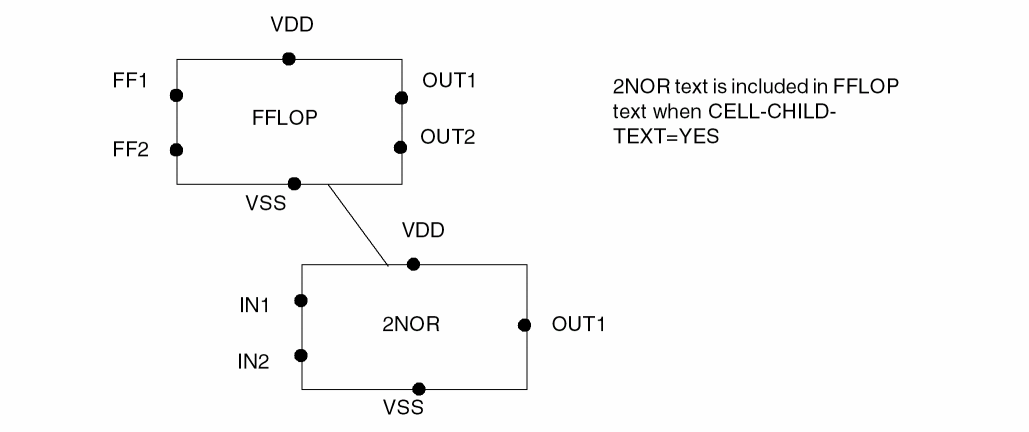
If CELL-CHILD-TEXT=YES in the following example, text strings IN1, IN2, VDD, VSS, and OUT1 are considered part of this instance of the FFLOP Hcell.
Supplying Text from a Text File
You can supply Hcell text from an external text file. You can use this file in place of layout text or in conjunction with layout text. Any text you supply through an external file takes precedence over layout text if
- The origin of the text in the file is at the same X,Y location as the layout text
- The text in the file attaches to the same layer as the layout text
Use the HEDTEXT function in the Operation block of your Dracula rules file to specify an external texting file. For details, see the “HEDTEXT” section in Chapter 3 of the Dracula Reference.
Using GEN-TEXT To Generate Hcell Text
You can use Dracula in cell mode to generate Hcell text for a composite mode run by including the GEN-TEXT-FILE function in your Dracula rules file.
To use the text generation functions, you need to know how to do the following:
These techniques are described in the sections that follow.
For basic information, see the GEN-TEXT Commands section in Chapter 6 of the Dracula Reference.
Supplying Minimum Text
To use GEN-TEXT, you must supply the following minimum text for each Hcell:
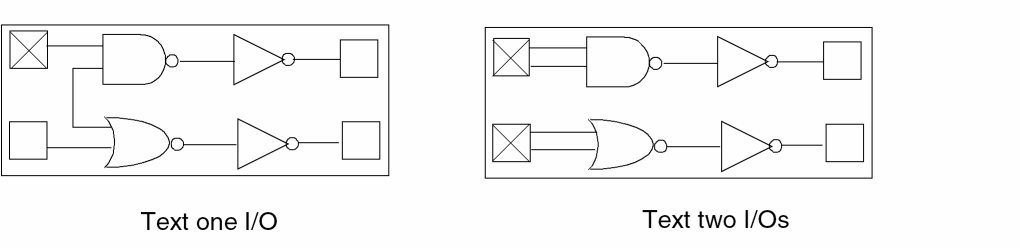
You need to text only one I/O on the cell on the left in the following figure, because each I/O has a path to every element in the Hcell. You must text both I/Os on the cell on the right.
If Dracula can completely verify an Hcell with this minimum text by referring to the .SUBCKT definition for that Hcell, all text for that Hcell is output to a file in HEDTEXT format. You can use this file as the Hcell text for a subsequent composite mode run.
Specifying Texting Layers
If you use the GEN-TEXT-FILE function and supply the minimum text for a composite mode run, all Dracula-generated text is attached to the layer you specified in the CTEXT function or HEDTEXT file. If a node is not on a layer specified in one of these functions, that node is not texted in the HEDTEXT file that Dracula creates.
In the following example, the only layer that text can attach to is metal:
*INPUT-LAYER
POLY  = 5 CTEXT = 28 ATTACH = METAL
METAL = 6
;
; <functions omitted>
;
*END
Without GEN-TEXT-LAYER, the default is to attach to metal only, because it is the layer you specified with ATTACH to supply the minimum text from layer 28.
-
To be sure that all possible nodes are texted, supply a list of layers with the
GEN-TEXT-LAYERfunction in the Input-Layer block.
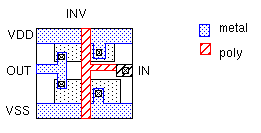
The IN node of the INV Hcell can only be texted on poly. To attach text correctly, you need to add this line to the Input-Layer block:
GEN-TEXT-LAYER = POLY METAL
When you include this function, Dracula attaches text to metal first. If it cannot attach to metal, it attaches to poly.
Dracula attaches generated text only to the layers defined by the GEN-TEXT-LAYER function, not to layers specified in the ATTACH statement.
Texting in a Hierarchy
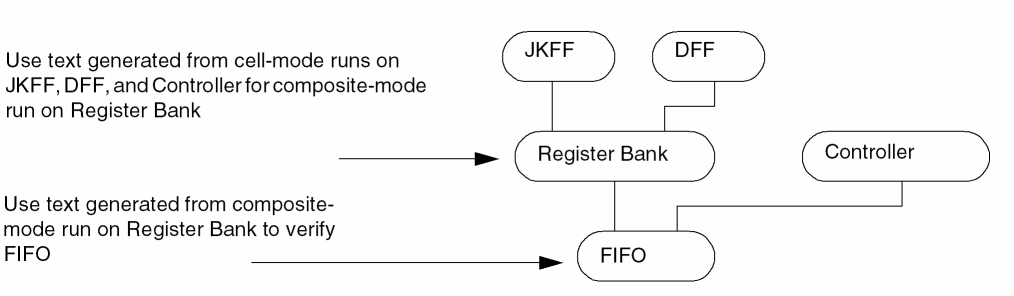
You can use GEN-TEXT functions to provide text for your design as you work up the hierarchy tree. For example, you can do a cell-mode run using GEN-TEXT functions on the JKFF, DFF, and Controller cells shown in the figure. Using the generated text, you can do a composite-mode run on the register bank with GEN-TEXT functions. You then have all the text you need to verify the FIFO cell
Using Composite Mode
The composite plane is the top level of the current design hierarchy. It contains all geometries not included in any Hcell boundaries.
Composite mode DRC is not a comprehensive check. It can help you find composite-level errors when you don’t have time to do a full analysis of the database. However, only hierarchical or flat mode provides a complete check.
Dracula expands all cells that are neither Hcells nor cells contained in Hcells and brings them to the composite plane. The composite plane can be an intermediate cell. It does not need to be the top level of your design.
Running Dracula in Composite Mode
To run a job in composite mode, include this function in the Description block of your Dracula rules file:
CHECK-MODE = composite
Checks in Composite Mode
Use composite mode on hierarchical designs for HDRC, HERC, HLVS, HLPE, and HPRE checks. Composite mode first extracts interconnect information from cells, then processes the following checks:
-
HDRC
The interconnections between Hcells, and between Hcells and composite-level cells. Dracula doesn’t check inside Hcells. -
HERC, HLVS
Composite, Hcell, Hcell-to-Hcell, and composite-to-Hcell interconnect information.
Composite-mode LVS does a complete electrical analysis of the contents every Hcell and verifies that there are no electrical violations between the contents and the composite data. Composite LVS doesn’t LVS-check the Hcells, but it electrically analyzes every net inside every Hcell. For this reason, composite-mode LVS can take a long time, even if there are only one or two placements of each Hcell. -
HLPE
Composite information and composite-to-cell parasitics. You can run HLPE in composite mode with the same functions as in HLVS. -
HPRE
Designed (ELEMENT RES) and parasitic (PARASITIC RES) resistors on the composite plane, including interconnection between instances and placements.
When To Use Composite Mode
The usual flow for LVS/ERC/LPE is to check cells in cell mode first. Then, when all cells are verified, run a composite mode check on the cells’ environment. The combination of cell- and composite-mode runs is a complete check, equivalent in completeness to a flat-mode run. Both cell mode and composite mode are required. Neither is sufficient by itself.
-
Simplified verification analysis
Composite mode checks a subset of your design, so it is easier to debug. -
Decreased disk space requirements
A composite mode run requires less disk space than a flat verification run. -
Dracula-to-CDC-to-Verilog timing flow
Use composite mode HPRE to extract RC parasitics for the interconnect, then calculate the delays from the parasitics using the Central Delay Calculator (CDC) and use the delay values in Verilog. For details, see “”.
Composite Mode and Blackbox LVS
If you have cells with internal pins, you might be able to speed up your composite LVS run by running blackbox LVS. Blackbox LVS removes the contents of Hcells, so Dracula does not read in cell data and does not consider overlapping and over-the-cell geometries. The amount of time you save depends on the density of your Hcells and their interaction with each other and the composite plane.
For information about running a blackbox LVS, see the Dracula Blackbox LVS Verification application note, available from your local Field Applications Engineer.
Texting for Composite Mode
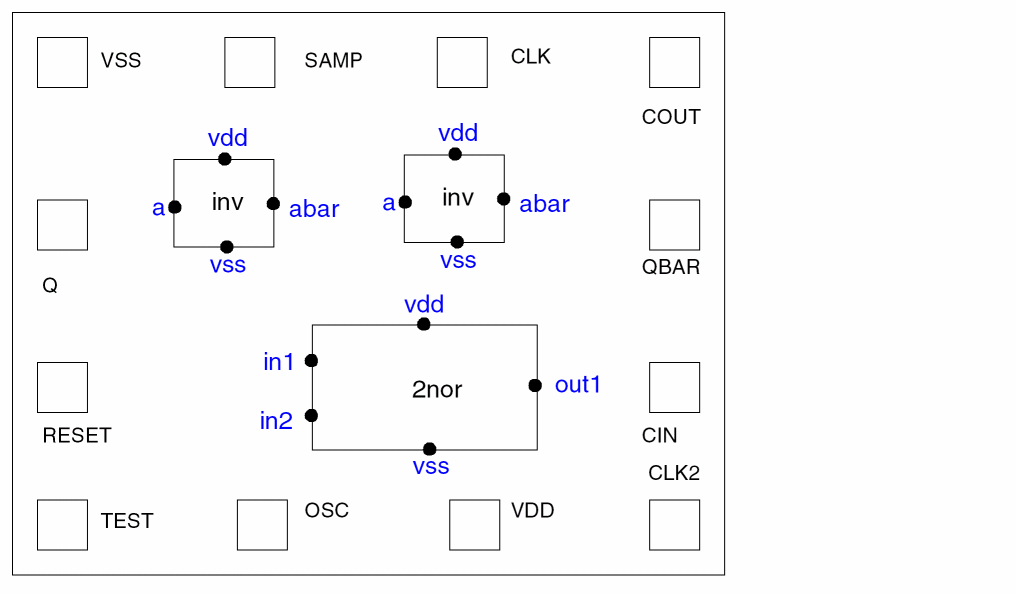
You must text the following on the layout for each Hcell in your design:
If you have verified the cell in cell mode, you already have this text.
In addition to Hcell text, you need to supply composite text:
The following figure shows Hcell text in regular font (blue) and composite text in red:
Supplying Text from the Layout
You extract cell and composite text from your layout database using the TEXT and CTEXT functions in the INPUT-LAYER block of your Dracula rules file:
*INPUT-LAYER
PWELL  = 1 TEXT  = 27 ATTACH = METAL
ACTIVE = 2 TEXT  = 33
POLY   = 4 CTEXT = 29 ATTACH = METAL
;
; <functions omitted>
;
CONNECT-LAYER = NSUB PWELL PSD NSD POLY METAL
*END
In this example, both top-level text and Hcell text are extracted from the layout. This supplies sufficient text to run Dracula in composite mode.
In composite mode, you can include text for a cell inside an Hcell as part of the Hcell text. See Bringing Text Up to the Hcell Level.
Supplying Text from a Text File
You can supply composite text from an external text file. You can use this file in place of layout text or in conjunction with layout text. Any text supplied through the external file takes precedence over the layout text if
- The origin of the text in the file is at the same X,Y location as the layout text
- The text in the file attaches to the same layer as the layout text
To specify an external text file, use the EDTEXT function in the Operation block of your Dracula rules file. For details, see the “EDTEXT” section in Chapter 13 of the Dracula Reference.
Improving Performance
To improve performance, try the following techniques on your designs. Because designs vary in size, content, structure, input format, and technology, your results might vary from design to design.
Grouping Functions
You can group similar functions to reduce overhead time in loading layers, so Dracula runs faster. Similar functions that you can group are as follows:
When you group similar functions, Dracula creates fewer stages and runs faster, because it doesn’t have to open and close modules as many times. Also, some modules can do multiple operations in one run. For example
| Random: | Grouped: | ||
|---|---|---|---|
The rules on the left create four stages. Because they are not grouped, Dracula must keep re-calling the module. The rules on the right group the AND and SELECT functions, so Dracula has to call the modules only once for each group, resulting in two stages rather than four.
You can also group operations that use the same layer. Grouping similar functions for the same layer, one after the other within the Dracula rules file, reduces the time required to access the same file over and over again.
BREAK function ungroups functions within a stage. Use it to separate stages if swap space is a problem.Preallocating Swap Space
Dracula provides a function to preallocate swap space. If you don’t use this function, you might need to reallocate swap space during Dracula processing.
- To preallocate swap space, include this function in the Description block of your Dracula rules file:
TRANSISTOR-NUM = value
where value is an estimated number of top-level transistors. The default is 100000. If swap space has to be reallocated during a Dracula run, that individual operation must be re-run, which wastes CPU time.
You can tell by looking in the Dracula log file whether your run is reallocating additional memory. Search your log file for the word reallocate. You might see lines like this:
reallocate at: EXPANX icutex,fatt: 30 0.50 0 50000
reallocate at: HLOGIC icutex,fatt: 159 0.50 0 4000
TRANSISTOR value
Optimizing Rules
Dracula runs every operation you specify in your rules file. It is common for redundancies to occur within a rules file, such as two separate functions generating the same layer.
Dracula cannot automatically recognize these redundancies and optimize the rules file. To reduce processing time, you might want to read through your rules file and delete these redundancies.
X-to-Y Ratio of the Circuit
If the x range of your circuit is significantly larger than the y range, you might experience performance problems. Long horizontal circuits take longer to process because of the horizontal band scan algorithm that Dracula uses.
You can resolve this problem by rotating the circuit so that the larger dimension is in the y range. You can either place the circuit at a 90-degree rotation or use the ROTATION=90 function in the Description block of your Dracula rules file. Be sure to consider what effect a rotation will have on your text.
Return to top