
Adding, Updating, and Deleting Relative Constraints
You can add, modify, and delete the values of the relative constraints using this section.
To modify a constraint using the Relative Constraints tab of Block Placer form, perform the following steps:
-
Choose Floorplan – Block Placer command to open the Block Placer form.
In Layout EXL and higher tiers, choose Plan – Block Planning – Place Blocks. -
In the Constraints tab, choose Relative Constraints sub-tab.
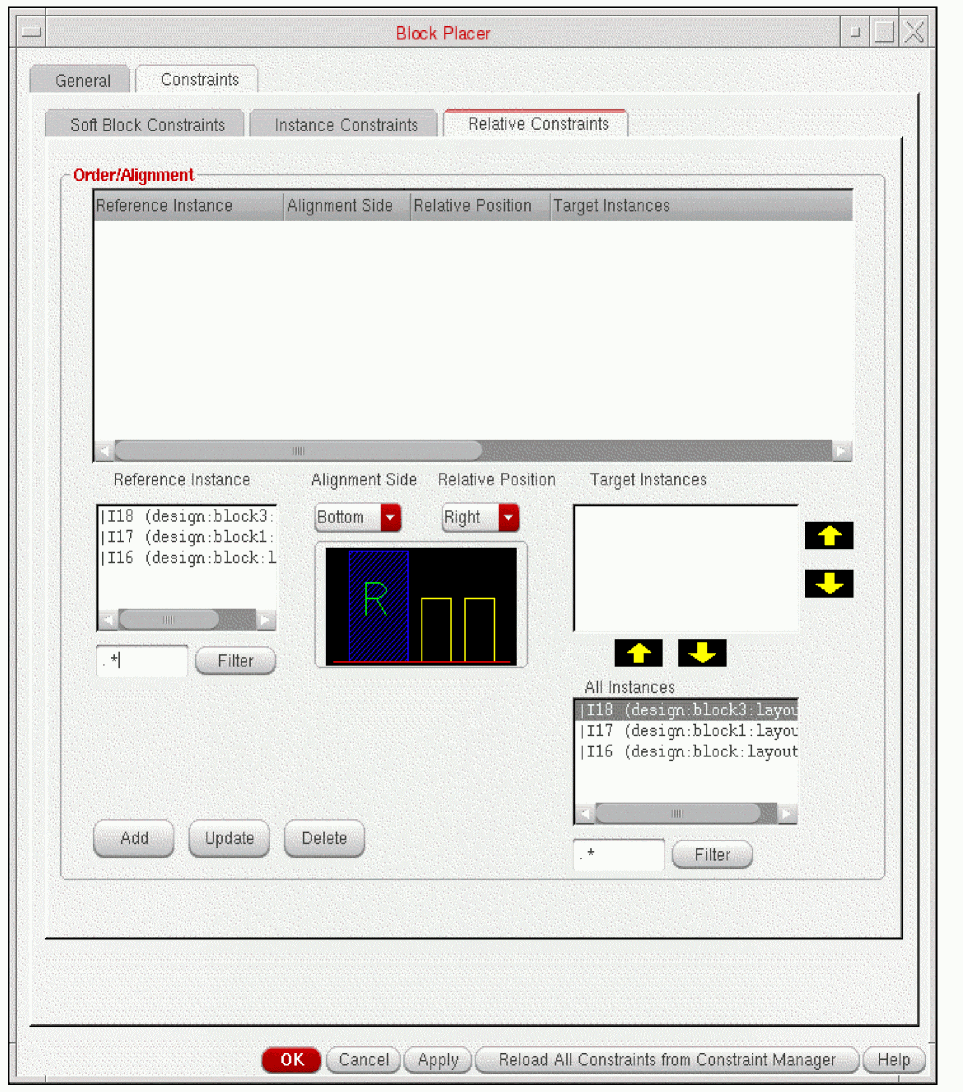
Block placer respects the order and alignment constraints for blocks specified in the table in the Order/Alignment section. The order and alignment constraints use Reference Instance, Target Instance, Alignment Side, and Relative Position parameters.
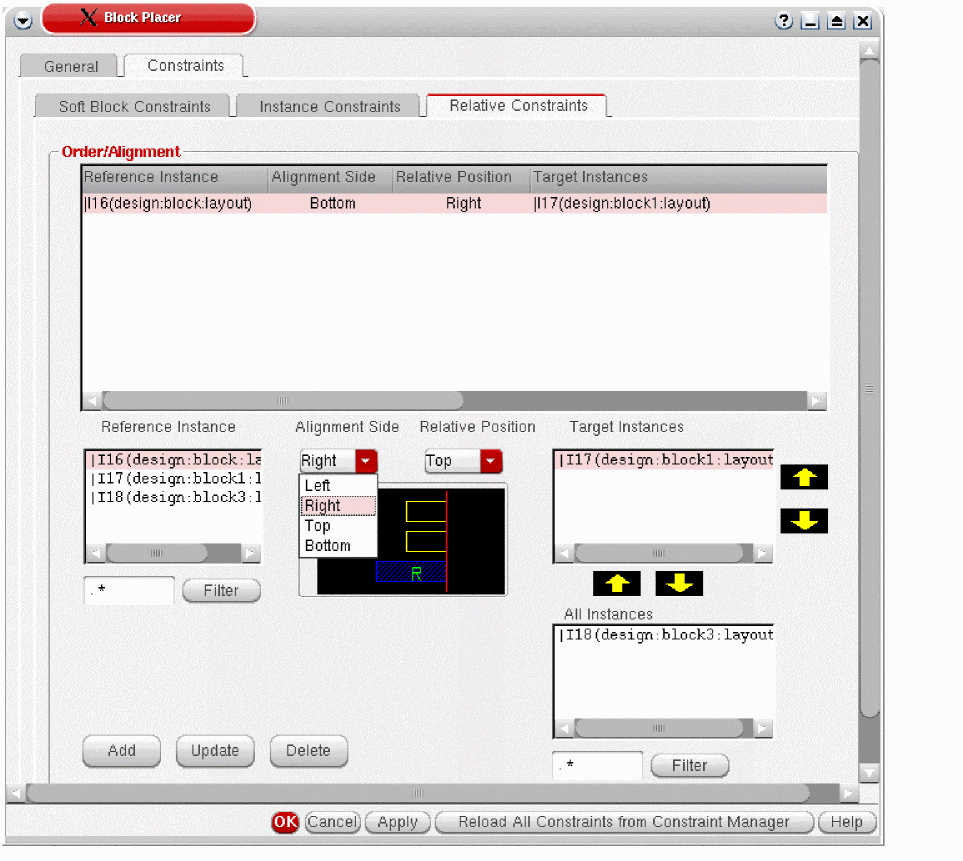
The Relative Constraints tab is shown in the image.
- Select the reference instance from the Reference Instance field.
- Specify the side in the Alignment Side drop down list.
- Specify the position in the Relative Position drop down list.
-
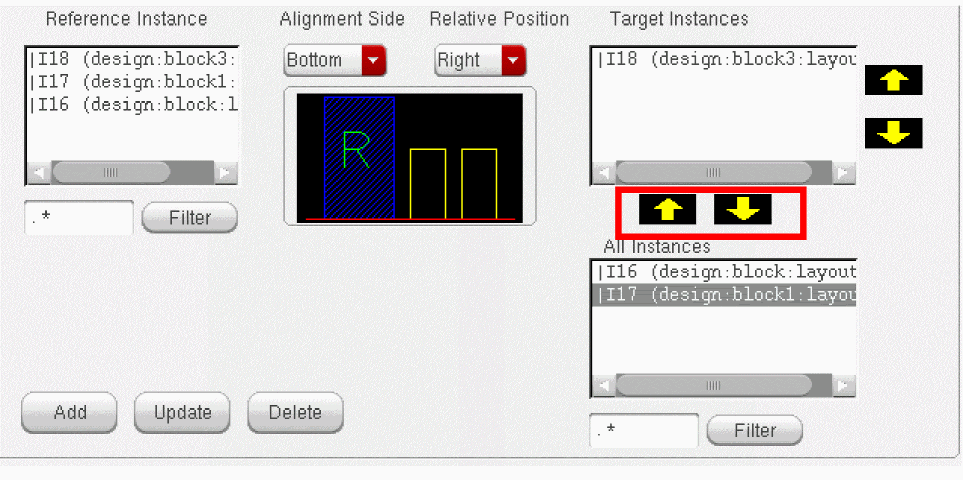
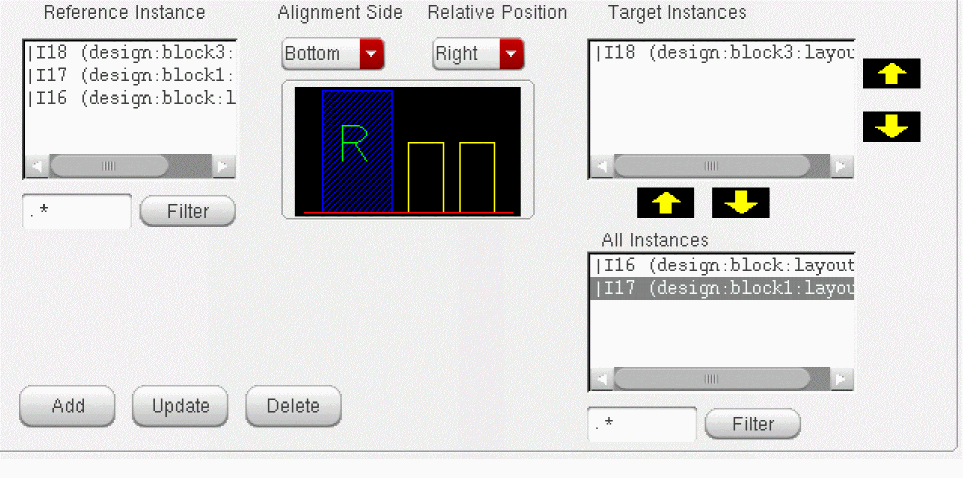
Specify the target instance by moving an instance from the All Instances list box to the Target Instance list box as shown in the graphic.
-
Adjust the order of Target Instances using the arrow keys next to the field.
For example, consider the following order and alignment constraint:Parameter Value
In this case, the placement of the blocks will be as follows:
This is because block1 is the reference block and the top edge of block1 is aligned with the top edge of block4, block2, and block6. The target blocks are placed in the specified order on the right side of the reference block because the relative position parameter is set to right.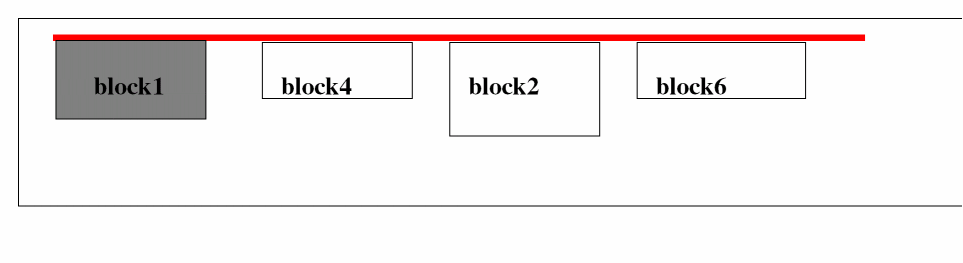
Consider another constraint as given in the following table:Parameter Value
In this case, the placement of the blocks will be as follows:
In this case, the target blocks are placed in the specified order on the left side of the reference block. This is because the relative position parameter is set to left.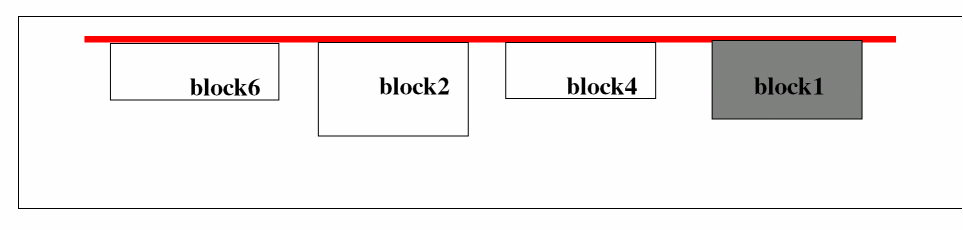
However, if you do not specify any value for the relative position parameter, the target blocks are placed either on the left or right of the reference block depending on the available space
.The following table lists the various alignment sides and the corresponding possible relative positions.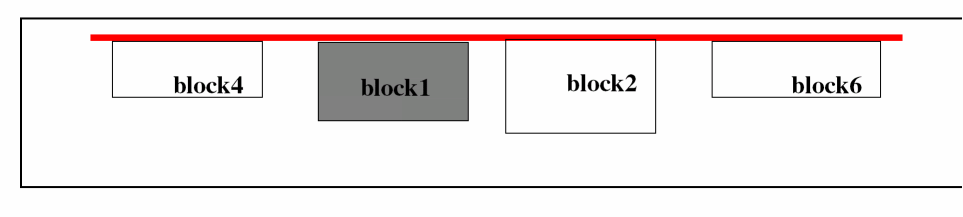
Alignment Side Possible Relative Position
For example, if you specify the alignment side as Left, then the target instances can be placed either on top or bottom of the reference instance. You can specify top or bottom by using the Relative Position field.
The image below the Alignment Side and Relative Position fields shows how the target and the reference instances will be placed based on the specified settings.
-
Click Add.
The constraint is added. -
To update a constraint, select the constraint in the constraints table.
The corresponding reference instance, side, position, and target instances are displayed in the Reference Instance, Alignment Side, Relative Position, and Target Instance fields. -
Modify the values in the Alignment Side, Relative Position, and Target Instance list box as shown in the graphic.
-
Click Update.
The constraint is updated. While updating a constraint, if you specify a value that violates the values in the Constraint Manager, a warning message is displayed in the CIW and the previous values are restored. - Click OK after block placer is run on the entire design.
After block placer is run, the blocks in the design automatically fits in the workspace.
To delete a relative constraint:
Related Topics
Adding, Updating, and Deleting Soft Block Constraints
Adding, Updating, and Deleting Instance Constraints
Adding, Updating, and Deleting Instance To Boundary Constraints
Return to top