
Adding, Updating, and Deleting Soft Block Constraints
You can add, update and delete the side constraints for soft blocks using the Constraints tab of the Block Placer form.
To modify the side constraints for soft blocks:
-
Choose Floorplan – Block Placer command to display the Block Placer form.
In Layout EXL and higher tiers, choose Plan – Block Planning – Place Blocks. - In the Constraints tab, choose Soft Block Constraints sub-tab.
-
Select the row for the soft block that you want to modify.
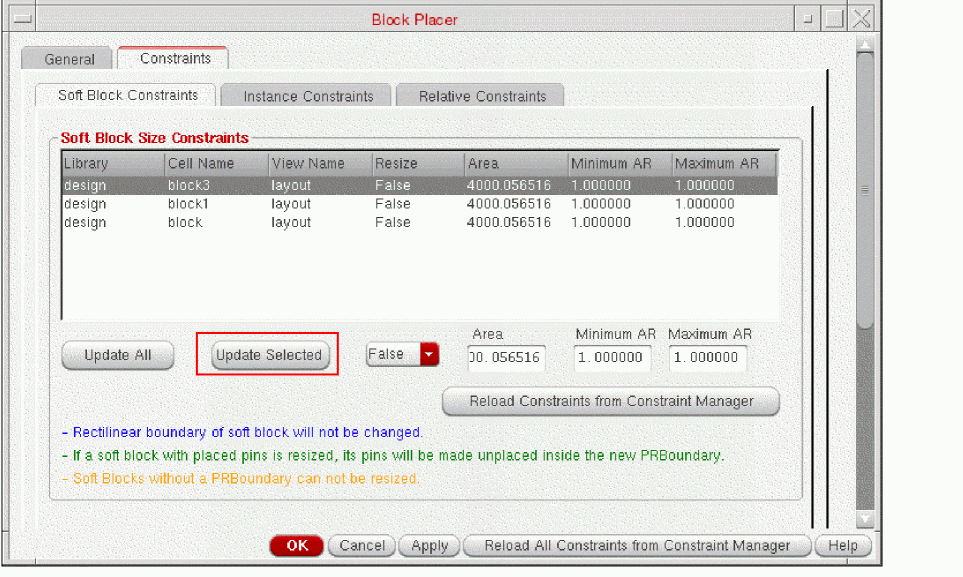
The Area, Minimum AR, and Maximum AR fields below the table show the values for the specified soft block. - Modify the values in the Area, Minimum AR, and Maximum AR fields. The valid values are positive numbers, AS IS, and empty field. If a field value is AS IS, then the corresponding value in the table is not updated.
-
Click Update Selected to apply the changes to the selected soft block as shown in the image. You can also update multiple soft blocks simultaneously by selecting the corresponding rows.
-
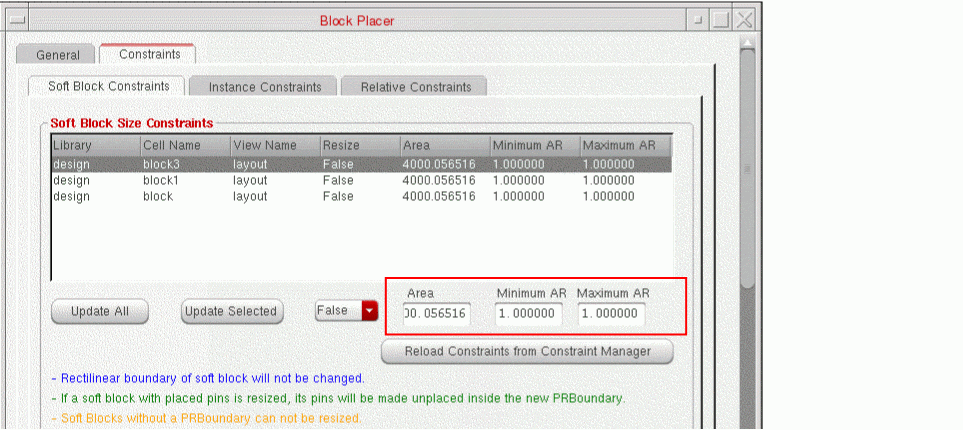
If you select multiple rows, the Area, Minimum AR, and Maximum AR fields display the values if they are same for all the selected soft blocks, else it displays AS IS as shown in the image.
- Click Update Selected to update all the selected rows with the new values.
- Click Update All to update all rows.
Related Topics
Adding, Updating, and Deleting Instance Constraints
Adding, Updating, and Deleting Instance To Boundary Constraints
Adding, Updating, and Deleting Relative Constraints
Return to top