
Specifying Soft Block Constraints in Block Placer
To specify soft block constraints:
-
Choose Floorplan – Block Placer command to display the Block Placer form.
In Layout EXL and higher tiers, choose Plan – Block Planning – Place Blocks. - In the Constraints tab, open the Soft Block Constraints sub-tab.
-
Verify the Library, Cell Name, and View Name.
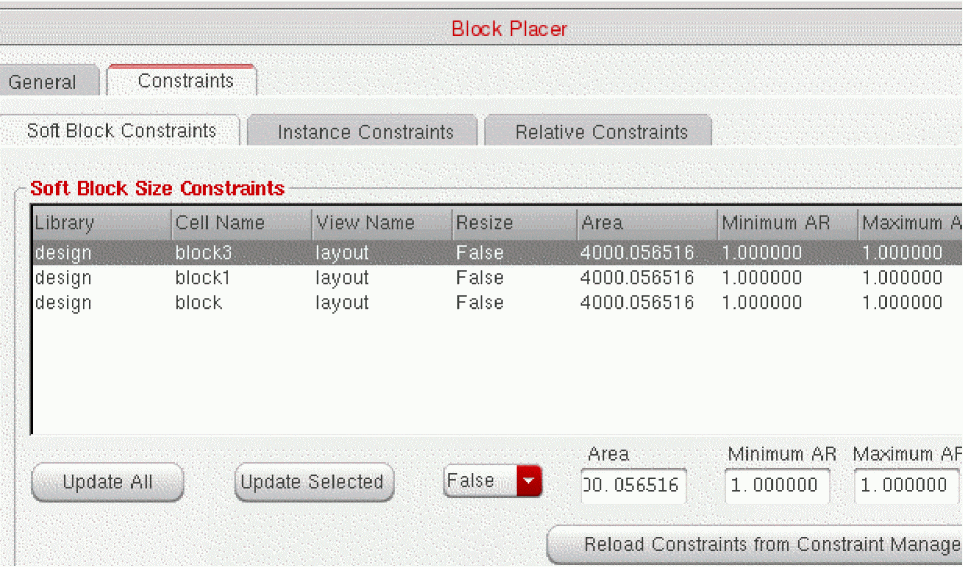
- Select Resize to indicate if block placer can modify the boundary of the soft block. The default value is False.
-
Modify the Area, Minimum AR, and Maximum AR values within the limits specified using the minWidth, maxWidth, minHeight, and maxHeight parameters of the Boundary Area constraint in Constraint Manager. If the values you specify violates the Boundary Area constraint, a warning message is displayed in the CIW.
For example, consider a soft block that has the following parameters of the Boundary Area constraint specified in the Constraint Manager:minWidth = 50
maxWidth = 200
minHeight = 20
maxHeight = 100
In the above example, the minimum aspect ratio = MinWidth/MaxHeight = 50/100 = 0.5 and the maximum aspect ratio = MaxWidth/MinHeight = 200/20 = 10.
If the values you specify in the Minimum AR and Maximum AR fields do not fall with in the minimum and maximum aspect ratio as calculated above, the values specified in the Constraint Manager are loaded in the Minimum AR and Maximum AR fields. - Click Update Selected to update all the selected rows with the new value.
- Click Update All to update all rows.
- Reload the constraint values in the Constraint Manager by using Reload Constraints from Constraint Manager. Only the constraints specified in the Constraint Manager are reloaded. The other additional constraints added in the form remain.
Related Topics
Adding, Updating, and Deleting Soft Block Constraints
Adding, Updating, and Deleting Relative Constraints
Adding, Updating, and Deleting Instance Constraints
Adding, Updating, and Deleting Instance To Boundary Constraints
Return to top