
You must configure licensing to use Cadence products. If you do not configure licensing, you will not be able to run Cadence products and you will see licensing errors.
Configuring licensing can include:
- Editing the license file
- Creating a script to start the license daemons
- Editing the boot script of the license server (optional)
- Creating a symbolic link
- Setting up application clients
- Setting up workstations of users
Cadence products do not interfere with other FlexNet-based software if you configure the Cadence products by following the Cadence procedures.
This section describes:
What Do You Need to Know?
Use these checklists as a guide for gathering the information you need to configure licensing.
|
What You Need to Know |
Your Site |
|
Where is the license file? |
|
|
Which license configuration does it support One SERVER line: single license server Three SERVER lines: fault-tolerant license server Neither one nor three SERVER lines: invalid license file |
|
|
If you have a new license file, do you have an encoded or ASCII file? |
|
|
Is the license-server host ID correct? |
|
|
Where is the computer with that host ID? |
|
|
Are the products you want this host ID to manage correct? |
|
|
Is the default Cadence port, 5280, available and usable for Cadence licensing? |
|
|
What You Need to Know about License Administration |
Your Site |
|
Who will be the license administrator? |
|
|
Who should be able to start the license daemons? |
|
|
Who should be able to kill the license daemons? |
|
|
Do you need to control access to the Cadence software? |
|
|
Do you want to manage licenses with an options file? |
|
|
Do you want to start the license daemons with a script? |
|
|
When the license server reboots, should the daemons start? |
|
|
If the license daemons should start, what is the root password, so that you can modify the license-server boot script? |
|
|
Where do you want the log file (default: /usr/tmp/license.log)? |
|
|
What type of license-usage reports do you want? |
|
|
How will Cadence products locate the license files ? |
|
What Do You Do Now?
Now that you have completed the checklists and you know what type of license file you have, you can proceed to configuring your new license file.
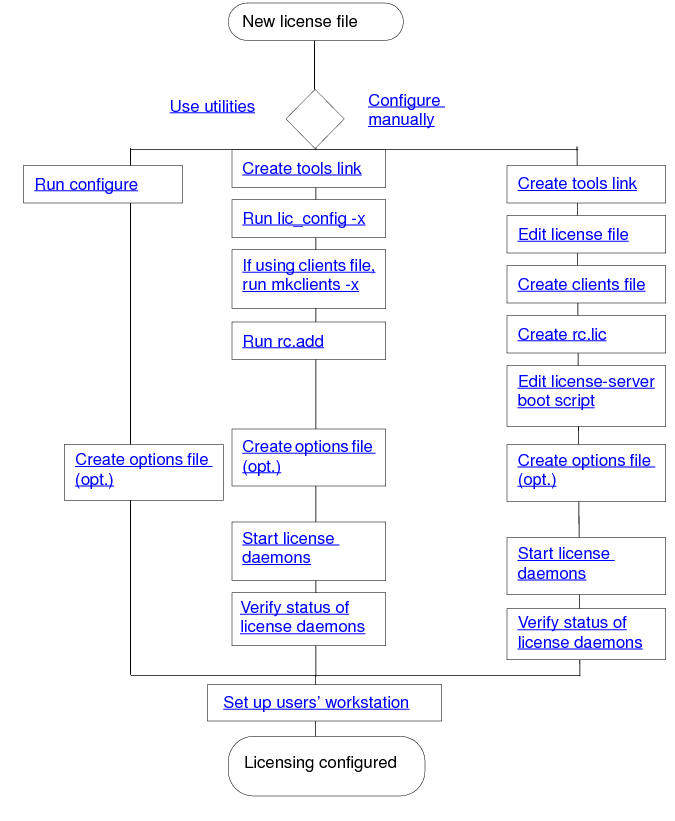
Configuring Licensing with Cadence Utilities
This section describes how to configure licensing using Cadence utilities. Cadence products do not interfere with other FlexNet-based software if you configure the Cadence products by following the Cadence procedures.
This section describes:
- Summary of License Configuration Utilities
- Configuring the License Server
- Sample Dialog
- Configuring the Clients File
- Sample Dialog
- Editing the License Server's Boot Script
- Sample Dialog
- Creating the Tools Link
- Modifying the License File
- Creating the Clients File
- Creating the Daemon Startup Script
- Editing the License Server's Boot Script
- Starting the License Daemons
- Installing the HASP Dongle Drivers
- Checking the Dongle driver and USB Hardware
- Starting Up the License Server
- Validating Licenses
- Examples
- Checking Performance
Summary of License Configuration Utilities
The licensing utilities modify the files listed below.
|
Utility |
Files Modified |
Description |
|
configure |
License file
or
|
Runs the lic_config -x, the mkclients -x utility, the rc.add utility, creates the |
|
lic_config |
License file |
Modifies the license-server host name, daemon path, port number, and |
|
Creates or modifies the script to start the correct daemon and create the log file. |
|
|
mkclients |
|
Adds the host names of workstations that can use the license file (if applications use the |
|
rc.add |
|
Appends the script to start license daemons to the end of the license-server boot script. Depending on your operating system, you will need root permission to access or edit / etc files. |
|
Script that runs when a Linux computer boots. |
Configuring the License Server
The configure utility runs configure, which runs lic_config -x, which edits the license file and the clients file, and creates the rc.lic script that starts the license daemons.
Cadence licensing requires that both the lmgrd and cdslmd daemons be running. Using a script to start the license daemons is a convenient way to always:
- Let users start the license daemons easily
- Start the license daemons with the same options
- Use the same log file (old log file renamed in the same location)
- Use the same license file
When you run the utilities, descriptive text precedes the prompts to help you determine the correct response. Respond to the prompts as described.
Continue from the configure utility, or start the lic_config utility.
- To use the defaults, type
lic_config
To customize licensing, typelic_config -x - Enter the top installation directory
<q to quit>
Type the path to the top directory that stores the installed Cadence products. This is the installation directory referred to as install_dir. This path is the basis for all the information in the license file. Occasionally, you need to use a different path, such as one starting with /net, in the licensing files. The path must be to a Cadence Hierarchy that includes tools/bin, share/license, and other directories. The prompts continue with this prompt if the utility cannot find the tools link.
Can't find the /usr/cds/tools link.Create it?
- If the
toolslink does not exist, create it by typingyat the prompt.
Edit the license file or the startup script now? <y/n/q> [y] ->
- Type
yif you want to configure the license file or therc.licstartup script (only in the configure utility).
- If you type
n, the software prompts you to configure theclientsfile (Configuring the Clients File).
Override the defaults? <y/n/q> [y] →
You can use the default licensing configuration when:
- The computer you are configuring is the license server
- The licensing debug log file is
/usr/tmp/license.log
- The license server uses the
lmgrdlicense daemon in the default path
- The license server does not use an
optionsfile
- All workstations have permission to access the license file
- The
lmgrdlicense daemon starts with the default options
You minimize the chance of users shutting the license daemons down inadvertently by starting thelmgrddaemon with one of these methods instead of using the default options:
lmgrd -2 -p
Only members of thelmadmingroup can runlmdown,lmremove, andlmreread. Ifrootshould be able to uselmdown,rootmust be in thelmadmingroup. If nolmadmingroup exists, onlyrootor a user belonging to group0can use these utilities.
lmgrd -x lmdown
No one, not evenroot, can runlmdown. The license daemons can only be stopped withkill. Do not usekill -9. Do not kill the license daemons while licenses are in use because the users risk losing their data.
Answer the prompt for paths to daemons by typing install_dir /tools. xxx /bin Configure license file license.abcd1234? <y/n/q> [y] ->
- Choose the license file to configure.
After you configure one license file, the software prompts you to configure the next license file in the directory. If you are editing an existing license file, the utility copies the existing file tolicense_file.month.day.hour:minutereflecting the timestamp on the existing file.
- To use the default licensing configuration, answer the prompt to override the defaults by typing
n. After you specify the license file, go to Configuring the Clients File. - To customize licensing, answer the prompt to override the defaults by typing
y.
Follow the prompts to customize licensing. Press Return to use the defaults.
Enter the hostname of the computer with hostid hostid <q to quit>
- Type the host name of the license server with the specified
HOSTID.Enter the TCP port number <q to quit>
- Type the port number that the license daemons will use.
The default is5280, but you can specify any unused port.
Enter the path to the cdslmd daemon for hostname <q to quit>
- Type the path to the daemon executable, usually
install_dir /tools. xxx /bin
If you do not know the path, press Return. You can continue (even if the path does not exist) and correct the path later.
Enter the path to cdslmd's OPTIONS file for hostname <q to quit>
- Type the path to the options file.
You can use an options file to manage licensing and restrict users beyond the limits provided by the license file. For example, you can restrict licenses to specific users, displays, workstations, or internet addresses with an options file.
Enter the installation directory the license daemons should use <q to quit>
- Type the path to the installation directory to use in the rc.lic script that starts the license daemons.
This utility creates the rc.lic script to start the license daemons after you supply the requested information.
Enter the license file the license daemons should use <q to quit>
- Type the name of the license file that the license daemons started with rc.lic will use.
Enter the debug log file the license daemons should use
- Type the location of the debug log file for this license server.
The default location is in /usr/tmp because the software will not delete a file in that location when the license server reboots.
Enter the new lmgrd daemon option
- Type the lmgrd options to use when starting the license daemons on this license server.
You can minimize the chance of users shutting the license daemons down inadvertently by not using the default options. For example, for one method, type
-2 -p
For example, the default records the datestamp in the log file every 360 minutes (six hours). To increase the frequency of datestamps in the log file to every three hours, type
-s 180
To increase the time-out between fault-tolerant license servers to 30 minutes, type
-t 1800
The lic_config utility stops here and prompts you to run the mkclients utility if workstations will locate the license file with the clients file. The configure utility continues in Configuring the Clients File.
Sample Dialog
For example, if you were modifying the licensing on a license server named sunny with a host ID of abcd1234, without the usual descriptive text, the prompts from the configure utility and lic_config -x utility would look like this. The defaults are in square brackets.
Enter the top installation directory <q to quit>
[/usr/cds] ->
Edit the license file or the startup script now? # only in lic_config -x
<y/n/q> [y] -> y
Override the defaults? <y/n/q> [n] -> y # only in configure
Configure license file license.abcd1234? <y/n/q> [y] -> y
Configuring license.abcd1234...
Enter the hostname of the computer system with hostid abcd1234
<q to quit> [sunny] ->
Enter the TCP port number <q to quit>
[5280] ->
Enter the path to the cdslmd daemon for sunny
<q to quit> [/usr/cds/tools/bin/cdslmd] ->
Enter the path to cdslmd's OPTIONS file for sunny
<CR for none, q to quit> ->
These next prompts affect the information in the rc.lic script that starts the license daemons.
---------------------------------------------------------------
The existing rc.lic uses the following installation directory
`/usr/cds'
Enter the installation directory the license daemons should use
<q to quit> [/usr/cds] ->
---------------------------------------------------------------
The existing rc.lic uses the following license file
`/usr/cds/share/license/license.abcd1234'
The following license files exist under the directory:
license.abcd1234
license.abcd1234.Nov.20.11:03
license.klmn1234
Enter the license file the license daemons should use
<q to quit> [/usr/cds/share/license/license.abcd1234] ->
---------------------------------------------------------------
The existing rc.lic uses the following license debug log
`/usr/tmp/license.log'
Enter the debug log file the license daemons should use
<q to quit> [/usr/tmp/license.log] ->
---------------------------------------------------------------
The existing rc.lic uses no lmgrd daemon options
Enter the new lmgrd daemon option [no options] -> -s 180
Configuring the Clients File
The clients file is one of several methods by which your Cadence applications locate licenses . If you do not use a clients file, go on to Editing the License Server's Boot Script.
The configure utility continues running mkclients -x. Respond to the continuing prompts.
Continue from the configure utility, or start the mkclients utility.
To allow all workstations to access this license server, type
mkclients
To identify specific workstations that can access this license server, type
mkclients -x
The configure utility continues.
Configure the clients file <y/n/q> [y] →
All utilities continue.
Enter the top installation directory
- Type the path to the top directory which stores the installed Cadence products (only in the mkclients -x utility). This is the installation directory referred to as install_dir. This path is the basis for all the information in the clients file. Occasionally, you need to use a different path, such as one starting with /net, in the licensing files. The path must be to a Cadence Hierarchy that includes tools/bin, share/license, and other directories. The prompts continue with this prompt if the utility cannot find the tools link.
Can't find the /usr/cds/tools link.
Create it?
- If the tools link does not exist, create it by typing y at the prompt.
- To configure the clients file, type y (only in the configure utility).
Create a new clients file [c] or append to the existing one [a]
- If a clients file exists, specify whether you want to add to the existing file or create a new file.
- If you create a new file, the utility copies the existing file to clients .month.day.hour:minute , reflecting the timestamp on the existing file. The configure utility continues.
Override the default?
- To allow all workstations to access this license server, type n to use the defaults (only in the configure utility).
If you do not override the defaults and then press Return for the host name, all workstations can use the Cadence products.
- To identify specific workstations that can access this license server, type y to override the defaults and follow these steps:
Enter the host name of the client
- Type the host name of the application client that will use the license file, or type an asterisk (*) to allow all workstations to use licenses from the license server.
Enter the path to the license file from hostname
If you override the defaults and then press Return for the host name, only this workstation can use the Cadence products.
- Specify the license file for the workstation you just listed.
The workstation must be able to access the path exactly as typed. For example, if the workstation uses an automount path of /net, you would type something like this:
/net/sunny/usr/cds/share/license/license.abcd1234
Repeat these steps for each application client.
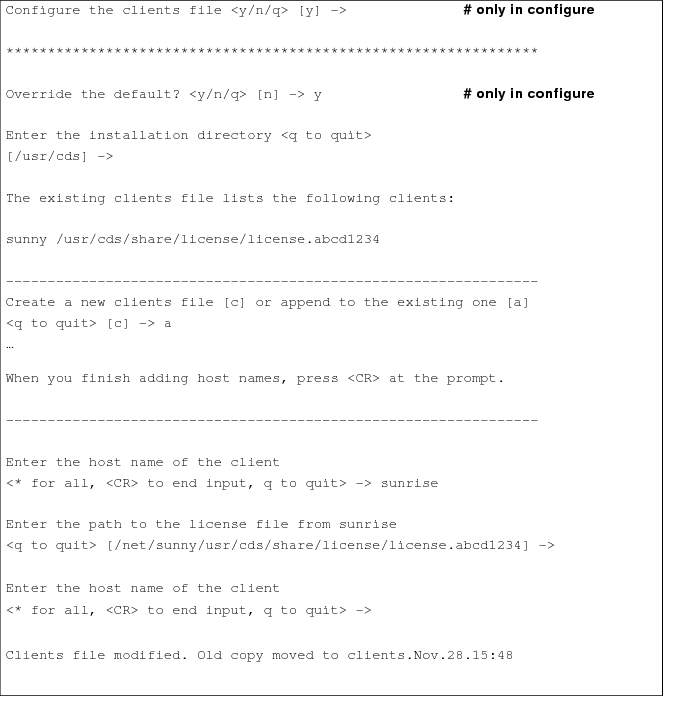
Sample Dialog
For example, if you were adding sunrise to a clients file on a license server named sunny, sunny is already in the license file. The prompts from the mkclients -x utility would look like what follows. Note that sunny and sunrise will be the only workstations that can access the license file.
Editing the License Server's Boot Script
The rc.add utility adds the rc.lic script to the license server's boot script so that the license-server daemons start when the computer reboots. The utilities also let you start the license daemons now or force running license daemons to read the new license file.
- Continue the configure utility, or start rc.lic. To start rc.lic, as root type
rc.lic
The configure utility continues by running the rc.add utility. Respond to the continuing prompts.
Edit hostname 's boot script?
- Type y to add the rc.lic script to the license server's boot script (only in the configure utility).As root you can add rc.lic to the license server's boot script. The rc.add utility is not interactive.
- Type the root password at the prompt (only in the configure utility).
- Type exit to exit root (only in the configure utility).
If you are not root, you cannot edit the boot script, but you are still able to start the license daemons (depending on permissions and the lmgrd options).
Start the license server daemons?
- If you are Setting Up Fault-Tolerant License Servers , type n so that you do not start the license daemons (only in the configure utility).
- If the Cadence license daemons are already running, the software prompts you to restart the license daemons or force the license daemons to read the license file.
Decide if you must shut the license daemons down
|
What Changed |
|
|
Path to the license file |
3 |
|
Name of the license file |
3 |
|
SERVER host name |
3 |
|
TCP/IP port numbers |
3 |
|
Contents of options file |
3 |
|
Path to the options file |
3 |
|
Contents of license file |
3 |
- If the Cadence license daemons are not running, type y at the prompt to start the license daemons.
- To verify the license daemons are running, type
cd install_dir /tools/bin
./lmstat -c license_file
- If you have multiple license servers, repeat this entire procedure (beginning with Configuring the License Server) on each license server.
Sample Dialog
For example, the output from the rc.add utility looks like this.
Edit sunny's boot script? <y/n/q> [y] -> # only in lic_config -x
Type the root password at the prompt and then type `./rc.add'.
Once rc.add completes and the UNIX prompt returns, type `exit' to
continue configuration.
Password:
# rc.add
Copying the startup script (rc.lic) to /etc directory . . .
Startup script (rc.lic) added to /etc/rc.local
For more information about licensing utilities, see the
`Cadence License Manager Guide'.
# exit
If you were able to become root and run rc.add, you are done editing
the boot script.
At this point, you should be able to start the license daemons.
However, you can *only* start them successfully on the computer
specified as the license server.
Type `n' to the next prompt if
o The daemons are already running
o You are configuring the license server files on
another workstation
****************************************************************
Start the license server daemons? <y/n/q> [n] -> y
Starting Cadence license daemons
Old debug log files in /usr/tmp:
-rw-r--r-- 1 cdsmgr 1127 Nov 28 14:38 /usr/tmp/license.log.Nov.28.14:38
Configuring Licensing without Utilities
This section describes how to configure licensing using an editor. Cadence products do not interfere with other FlexNet-based software if you configure the Cadence products by following the Cadence procedures.
This section describes:
- Creating the Tools Link
- Modifying the License File
- Creating the Clients File
- Creating the Daemon Startup Script
- Editing the License Server's Boot Script
- Starting the License Daemons
- Validating Licenses
- Checking Performance
When configuring licenses, you may also need to modify some of these files:
license file
install_dir /share/license/rc.lic
install_dir /share/license/clients
/etc/rc.local, /etc/inittab
/sbin/rc2.d or /etc/rc2.d directory
install_dir /tools link
Creating the Tools Link
If you do not configure the software with licensing utilities, or if you do not have a tools link, you must create a tools link by following these steps:
- Change to the installation directory.
cd install_dir
- Create the tools link.
ln -s tools. xxx tools
tools. xxx is the platform-specific directory listed below.
|
Platform |
Directory Name |
| Linux | tools.lnx86 |
The tools link lets the Cadence software find the appropriate executable files for your computer's architecture easily. The section on the Cadence Hierarchy illustrates this link.
Modifying the License File
Even though your license files are for specific host IDs, the host name does not identify the license server. You must add the host name and verify the daemon path in the license file.
To edit the license file, follow these steps:
- Gather the information you need by completing the checklist.
- On the license server, log in as cdsmgr or another non-root account. Cadence recommends creating an account, such as cdsmgr, exclusively for managing Cadence software so that cdsmgr can manage the software without root permission. Change to the Cadence installation directory.
cd install_dir
- Verify the host ID of the license server.
tools/bin/lmhostid
The computer returns the host ID expected by Cadence licensing.

Note the host ID. Replace HOSTID in these procedures with the host ID of the computer.
- On the license server, change to the install_dir /share/license directory.
cd share/license
- Edit the license file with an editor.
Note: Licensing files are case sensitive.
The license file lists the license servers:
SERVER Cadence_SERVER HOSTID port_number
- Compare your license-server host ID to the host ID on the SERVER line in the file.
The HOSTID on the SERVER line of the license file must match the host ID of your license server. - Add the correct host name on the SERVER line.
Replace Cadence_SERVER with the host name for each corresponding host ID. A sample line for a license server with a host ID of abcd1234 is
SERVER sunny abcd1234 5280
- Edit the port number (optional).
Replace port_number with the number of the port that Cadence licensing software should use. The Cadence default is 5280, but you can specify any unused port. - On the cdslmd DAEMON line, type the absolute path to the cdslmd daemon. The line is similar to:
DAEMON cdslmd /usr/cds/tools/bin
- If your path includes spaces, enclose the path with quotation marks, as shown:
DAEMON cdslmd "c:\Program Files\Cadence Design Systems\Cadence License Manager\cdslmd.exe"
- Save the license file and exit the editor.
Creating the Clients File
The clients file is one of several methods by which your Cadence applications locate licenses. If you do not use a clients file, go on to Starting the License Daemons .
Follow the steps below to create install_dir /share/license/clients.
- On the license server, log in as cdsmgr or another non-root account.
- Change to the install_dir /share/license directory.
cd install_dir /share/licens
- Copy the clients.sample template file to clients.
cp clients.sample clients
- Change the permissions of the new file.
chmod 644 clients
- Edit the new clients file with an editor.
- The lines in the
clientsfile use this syntax:
port @ host
- Add the host name and the license-server name using the port @ host syntax.
sunny 5280@breezy
- The lines in the clients file also use this syntax:
hostname license_file
- Add the host name ( hostname ) and the correct path to the license file (license. HOSTID ) for each workstation that can run Cadence software. This is the path that the workstation uses to find the license file, such as
sunny /usr/cds/share/license/license.abcd1234
- For a local license file, use the absolute path to the license file. For a remote license file, use the network path, such as /net, to the license file. Use an asterisk (*) for hostname to let all application clients access the license file, such as
* /usr/cds/share/license/license.abcd1234
- If you are configuring fault-tolerant license servers, specify the port @ host syntax as follows:
sunny 5280@sunny;5280@breezy;5280@windy
- If you are configuring fault-tolerant license servers and if install_dir is not identical on each license server (for example, the network sees some of the paths as /net), add lines to the clients file to identify the different install_dir paths, such as
sunny /usr/cds/share/license/license.abcd1234
sunny /net/sunrise/usr/cds/share/license/license.abcd1234
- Save the file and exit the editor.
If you are setting up fault-tolerant licensing, copy the clients file to the second and third license servers.
For example, in the following line, replace server2 with the name of the second license server.
rcp /usr/cds/share/license/clients server2 :/usr/cds/share/license
Creating the Daemon Startup Script
Cadence licensing requires that both the lmgrd and cdslmd daemons be running. Using a script is a convenient way to always
- Let users start the license daemons easily
- Start the license daemons with the same options
- Use the same log file (old log file renamed in same location)
- Use the same license file
To create a script to start the license daemons, follow these steps:
- On the license server, log in as root.
- Change to the install_dir /share/license directory.
cd install_dir /share/license
- Copy rclic.sample to /etc/rc.lic
|
Platform |
Copy to |
|
Linux |
/etc/rc.lic |
- Open the new /etc/rc.lic file with any text editor.
The sample file contains place-holding variables, which you need to replace with your own configuration information.
|
Replace |
With |
|
INSTALL_DIR |
Absolute path to the installed Cadence software. |
|
LICENSE_FILE |
Absolute path to the license file. |
|
LOG_DIR |
Absolute path to the log-file directory |
|
LOG_FILE |
Optional. Absolute path to the debug log file. The default is /usr/tmp/license.log |
|
LMGRD_OPTS |
Optional. Any options to use when starting the license daemon, such as lmgrd -t or lmgrd -p. Minimize the chance of users shutting the license daemons down inadvertently by starting the lmgrd daemon with -2 -p or -x options: |
- If you want to run your own log-file filter, incorporate your filter into your rc.lic file.
- Save the file and exit the editor.
- Change the ownership of /etc/rc.lic to cdsmgr.
chown cdsmgr /etc/rc.lic
- Give the file the correct permissions.
|
Platform |
Command |
|
Linux |
|
Editing the License Server's Boot Script
If you want the license daemons to start every time the license server reboots, add the startup script to the license server's boot script by following these steps:
- On the license server, log in as root.
- Change to the /etc directory.
cd /etc
- To save the existing boot script listed below, copy it to a different name.
|
Platform |
Name of Boot Script |
|
Linux |
/etc/inittab |
- For example, on a Linux, type
cp ./etc/inittab /cic/inittab.old
- Open the original file with an editor.
- Add the following lines to the end of the file.
|
Platform |
File Name |
Lines to Add |
|
Linux |
/etc/inittab |
# Starting the Cadence license server |
- Save the file and exit the editor.
Starting the License Daemons
After you configure the license server (or all license servers in fault-tolerant licensing), start the license daemons without rebooting the license servers.
Note: You can configure other licensing options either now or later. For example, you can use an options file to define work groups or reserve copies of a feature for specific users. If you decide to use options later, you will need to stop and restart the daemons at that time.
To start the license daemons, follow these steps:
- On the license server, log in as cdsmgr or another non-root user.
- If the Cadence license daemons are already running, the software prompts you to restart the daemons or force the license daemons to read the license file.
- Decide if you must shut the license daemons down.
|
What Changed |
|
|
Path to the license file |
3 |
|
Name of the license file |
3 |
|
SERVER host name |
3 |
|
TCP/IP port numbers |
3 |
|
Contents of options file |
3 |
|
Path to the options file |
3 |
|
Contents of license file |
3 |
- If you are installing software for the first time or the license daemons are not running, type
/etc/rc.lic
If this is not the first time you are starting the daemons and you are directing the daemon output to the same log file, a message might indicate the location of earlier debug log files.

- If you are adding software, use the same process as installing software.
- If the new license file contains changes to licenses currently in use, users must exit and restart the applications to use the new features.
- If you see a "Trying connection to host" message, stop and restart the daemons.
This message indicates that you are setting up fault-tolerantlicensing. - If you are setting up multiple independent license servers, repeat these steps on each license server.
- Make sure that the license daemons are up and running.
The FlexNet daemon is lmgrd and the Cadence daemon is cdslmd. Type
cd install_dir /tools/bin
./lmstat -c license_file
You see messages similar to these.
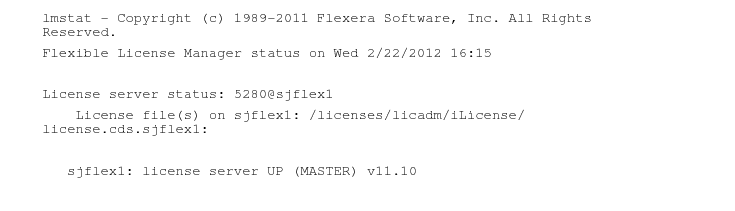
If the license server is UP, the lmgrd daemon is running. If the cdslmd status is UP , the cdslmd vendor daemon is running.
- If the daemons are not running, start them.
- If you are using fault-tolerant licensing, complete this step on one license server.
- If you are using multiple independent license servers, complete this step on each license server.
- Test the changes to the boot script (optional).
Determine if the license daemons start when the license server reboots by rebooting the license server now. If the setup is correct, the license daemons start, and the file systems mount and link. A computer will not boot properly if one of the essential files, such as one of those listed below, is not correct.
|
Platform |
File Name |
|
Linux |
/etc/rc.lic, /etc/fstab |
- To set up multiple independent license servers, repeat these procedures (beginning with Creating the Tools Link on each license server).
Configuring Licensing using Dongles
HASP Dongles is now supported on Windows and Linux 64-bit platforms.
This section describes:
- Installing the HASP Dongle Drivers
- Checking the Status of the Dongle Driver and USB Hardware
- Starting up the License Server
Installing the HASP Dongle Drivers
The HASP Dongle drivers are included in the Cadence License Server kit.
For Linux, the driver (aksusbd-X.X-X. x86_64.rpm) can be found under tools.lnx86/bin/. To install it, you must have root privilege. Change directory to tools.lnx86/bin/ (or use the absolute path of the driver package, e.g. /tmp/install/ tools.lnx86/bin/aksusbd-2.5-1.i386.rpm) and run the following in a terminal:
rpm -i aksusbd-2.5-1.i386.rpm(if in the tools.lnx86/bin directory)
OR
rpm -i <absolute path of driver package>
The installation will add two files to the machine under the /usr/sbin directory:
- /usr/sbin/aksusbd
- /usr/sbin/winehasp
For Windows, to install the driver, run the appropriate executable installer found in the flexid directory. For more Windows Dongle installation and details, refer to the README which can be found in the same flexid directory.
NOTE: There is a limitation that the user space dongle dynamic libraries, haspsrm_win32.dll and haspsrm_win64.dll for 32 and 64 bit platforms respectively, are not installed when this installer is run. This is because these dlls are specific to Flexera Software and therefore cannot be included as part of haspdinst.exe.
These dlls are present in the toolkit platform folder. The dongle dlls can be installed this way,
On 64-bit Windows systems, copy haspsrm_win64.dll to %windir%/System32 and haspsrm_win32.dll to %windir%/SysWOW64.
Checking the Dongle driver and USB Hardware
To check whether the Dongle driver has been successfully installed, plug in the USB Dongle hardware, and run the following:
./lmutil lmhostid -flexid
The output should show the FLEX ID of the HASP Dongle.
On Windows only, an alternative way to check the Dongle installation is to open lmtools and select the System Settings tab to check for the flexid.
If an error is reported or the FLEX ID could not be returned, refer to Aladdin's website: http:/ /www.aladdin.com for more details and troubleshooting tips.
Starting Up the License Server
The instructions to start up a license server with Dongle is the same as starting up a normal license server, except that the USB Dongle hardware must be plugged-in to a port on the host and assure that the Dongle license file is updated with the proper host name.
A Cadence Dongle license file contains a SERVER line similar to the following:
SERVER Cadence_Server FLEXID=9-3B325844 5280
Modify "Cadence_Server" to the name of the system which will host as the server. This must be modified when the host is changed.
Refer to the previous sections on configuring licensing for details on starting up the license server.
Validating Licenses
After setting up the license server, the administrator can test out the server setup without the need to launch a Cadence product by running the "ckout_test" program. The ckout_test program is a client test program which tests the different Cadence licensing features. It can be run to perform a checkout and checkin of a license for validation of the server setup.
There may also be cases where the attention of Cadence support is needed, such as application crashes or suspected licensing bugs. When this occurs, the Cadence support team would occasionally ask the customer to run the ckout_test program with various options and see how it behaves.
./ckout_test [options]
Below describes the basic options that are frequently used to validate licenses. For details of other options supported by ckout_test, refer to the help menu by typing ./ckout_test -h.
Options:
|
-I |
Test lmCheckIn*() and exit. This option will simply do a checkout and a checkin of a license and exit immediately. |
|
-c <n|q|w> |
Specify the checkout return type flag n - no wait: By specifying this checkout return type, upon failure, checkout will return immediately without blocking. q - queue: This type indicates to place the request for a license in the queue if the license is currently not available and return immediately. Once the licenses are available, the request in the queue will automatically checkout the requested number of licenses. w - wait: This type indicates to block in checkout if the licenses are currently not available. It will block until the licenses become available upon being released by other license holders. |
|
-f [<f1>...<fn>] |
Specify one or more features separated by a space. |
|
-n <n1>...<nn |
Specify one or more # of licenses separated by a space. |
|
-v [<v1>...<vn>] |
Specify one or more version separated by a space. |
Examples
- To validate the server setup using a simple regular checkout/checkin:
./ckout_test -f F1 -v 1.0 -n 1 r -I
- Output:
checkout 1 license(s) of F2 succeeded.
checkin of F2 succeeded.
- To validate the server setup using a queuing return type of checkout and checkin:
./ckout_test -f F1 v 1.0 -n 1 r -c q -I
- To validate the server setup using a nowait return type of checkout and checkin:
./ckout_test -f F1 -v 1.0 -n 1 r -c n -I
- To validate the server setup using a wait return type of checkout and checkin:
./ckout_test -f F1 -v 1.0 -n 1 r -c w -I
- Besides the simple checkout and checkin, the program could also be run in the interactive mode by omitting the -I option:
./ckout_test -f F1 -v 1.0 -n 1 r -c w
- This specifies that the program to checkout F1 feature, with the regular checkout and do a block if the license is currently not available. The result of the output will be as follows:
- checkout 1 license(s) of 'F2' succeeded.
- Press 'q' to quit, 'u' for user list, 'f' for featureexist, 's' for status, or 'c' to check in, 'r' to recheck, 'v' to check status, 'l' for list of features, or 'n' to return number of licenses checked out.
From this menu, the user may interactively select the available options for other feature queries, such as `s' for status, `v' to check status, `l' for list of features, etc. To quit, type `q' and return. Upon exiting the program, the license will be returned to the server license pool.
Checking Performance
In an environment where you have licenses served across multiple servers spread over a WAN network, users can experience significant delays during application start up because Cadence applications search all the license servers to acquire a license.
perf_test utility can be used to run a diagnostic test to determine the license checkout performance on a feature by feature basis and across each server. The tests can be looped and repeated over a period of time to calculate the average, median, max, and min times for each checkout.
./perf_test [options] …
The following is the usage of the test program:
Options:
|
-f <feature> |
Feature name to be used for all tests. Can be specified more than once for multiple features for the Network Latency Test |
|
-v <version> |
Feature version associated with feature name. Default is 1.000 |
|
-h |
Print this message and exit |
|
-o <file> |
Output result to this file in XML format |
|
-test_nl |
Run network latency tests ( default ) (see Details Section for test description |
|
-test_cp |
Run checkout performance tests (this test includes sub-tests see Details Section) |
|
-test_fe |
Run feature exists tests (this test includes sub-tests see Details Section |
|
-test_sl |
Run server load tests (see Details Section) |
Additional Tunability Options:
|
-lc <count |
Loop count for checkout performance and server load tests. Default is 100. |
|
-pc <count |
Number of sub processes for server load test. Default is 50. |
|
-rc <count |
Test repeat count. Re-run the tests <count> number of times. Default is 1. |
|
-ri <interval |
Test repeat interval. Valid only if -rc is specified. Re-run the tests every <interval> seconds. Default is 3600 seconds (1 hour) |
Details
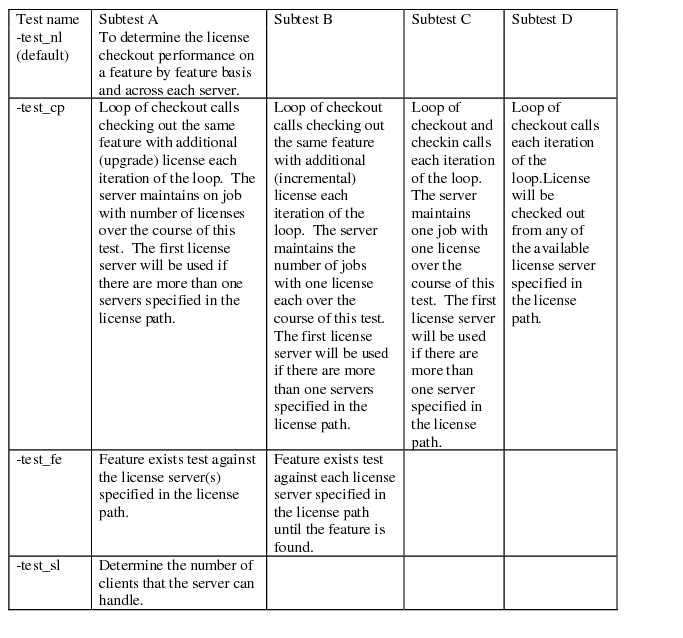
Note: Running -test sl might severely affect the performance of servers in production. Please use with care.
Examples
Basic license check-out test
If `-lc 5' is passed as the options on a license file which has 5 Virtuoso_Layout_Migrate licenses, then only 5 successes is expected:
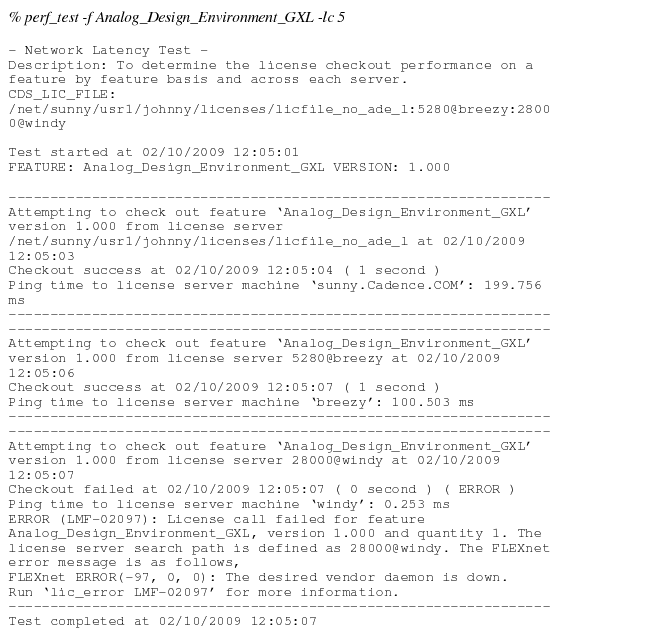
Basic license check-out with failure
- Run -test_cp and look at subtest A
- License file has only 5 Virtuoso_Layout_Migrate licenses, so do a -lc 10, expect only 5 out of 10 successes
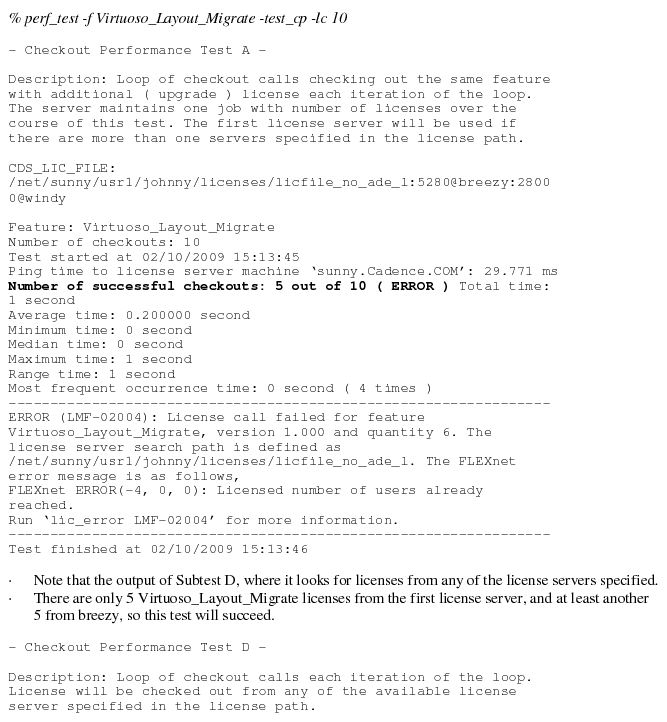
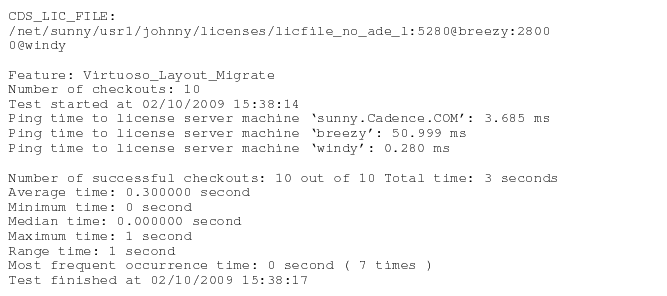
Repeat testing over regular interval
- This test is useful to determine if there's a time-of-day element in any licensing issue. Perhaps check-outs are slower when it's mid night in Asia and a huge rsync job is being run over WAN.
- This example runs the check-out performance test 10 times (-rc 5) with an interval of 1800s between tests (-ri 1800) and ouputs the results to an XML file (as well as to your tty)
