
2
Accessing Information about ROD Objects
This chapter describes Virtuoso® relative object design (ROD) objects, ROD object IDs, ROD object attributes, and how to access ROD object attributes. The topics covered are
About ROD Objects and ROD Object IDs
Accessing ROD Object Attributes
About ROD Objects and ROD Object IDs
Every named database object, such as an instance, layout cellview, or named shape, automatically has relative object design information associated with it. This information is stored in a ROD object. A ROD object is also a database object, but it exists in relation to its associated named database object. A ROD object is identified by a unique ROD object ID.
A ROD object for a named shape, instance, or cellview contains the following information:
hierarchical name cellview ID database ID transformation information (rotation, magnification, and offset) alignment information, if any number of segments (for shapes) names and values of user-defined handles, if any names of system-defined handles
A ROD object ID is similar to a database ID. The database ID for an object is the temporary address in memory for the object. A ROD object ID is the temporary address for the ROD object associated with a specific database object. When you look at these two IDs in the Command Interpreter Window (CIW) for a database object, the database ID might be db:98342974 and the ROD object ID rodObj:23970843.
You can create a new ROD database shape and its associated ROD object by using one of the rodCreate functions, such as rodCreateRectangle. You can also use the rodNameShape function to assign a name to an existing, unnamed database shape; the rodNameShape function creates a new associated ROD object for the shape.
The value of the ROD object ID is returned when you execute the function rodGetObj, rodNameShape, or a rodCreate function, such as rodCreateRect. You might want to store the value returned in a variable so that you can refer to it later. You can also get the ROD object IDs for all of the named shapes in a cellview with a ROD function; see rodGetNamedShapes.
Getting the ROD Object ID
You can get the ROD object ID for a named shape, instance, or cellview in the current open design window by performing one of the following steps.
-
For a named shape, or instance, type the
rodGetObjfunction using as input either the database ID of the object or both the hierarchical name of the object and the top-level layout cellview ID:rodId = rodGetObj(
ordbId)rodId = rodGetObj( "
where dbId is the database ID, hierarchical_name is the hierarchical name of the object, and cellview_ID is the cellview ID. When you want the cellview ID (the database ID for the cellview) for the current open cellview, you can use the deGetCellView function without any arguments.hierarchical_name"cellview_ID)
For example, you can get the names of all attributes for the named shapepolyRect, wherepolyRectis in instanceptr1andptr1is in instanceINV1, by typing the following statements in the CIW:cvId = deGetCellView()
rodId = rodGetObj( "INV1/ptr1/polyRect" cvId )
where the statementcvId = deGetCellView()returns the cellview ID for the active cellview. -
To get the ROD object ID for a cellview, use an empty string ("") for the hierarchical name:
rodId = rodGetObj( "" cvId )
Getting the ROD Object ID Interactively
You can get the ROD object ID for one or more objects in an open layout cellview window by selecting the object(s) and typing commands in the Command Interpreter Window (CIW). Depending on whether you want to select a single object or multiple objects, do one of the following:
Getting the ROD Object ID for a Single Object
-
Get the cellview ID for the active cellview window by typing in the CIW
cvId = deGetCellView()
- Select one object in the layout cellview window.
-
Get the database ID of the selected object and set it equal to the variable
dbIdby typing in the CIWdbId = car(geGetSelectedSet(cvId))
where the SKILL list operatorcarreturns the first item in the list; in this case, the only item. - Get the ROD object ID of the selected object by typing in the CIW
rodId = rodGetObj(dbId)
Getting the ROD Object ID for Multiple Objects
cvId = deGetCellView()
- Select two or more objects in the layout cellview window.
- Set a variable equal to a list of the database IDs of the selected objects by typing in the CIW
dbIdList = geGetSelectedSet(cvId)
To get the ROD object ID for a specific object in the list, use the SKILL list operators, such as car and cdr.
Storing the ROD Object ID as a Variable (Avoid)
There are circumstances under which a ROD object ID might change. For example, doing an Undo and Redo assigns new ROD object IDs to all ROD objects in the cellview. Therefore, rather than storing a ROD object ID in a variable, it is safer to retrieve it when you need it. For example, rather than stating:
r = rodCreateRect( ?name "a" ?cvId cv ... )
... ; More lines of code here
rodAlign( ?alignObj r ... )
rodCreateRect( ?name "a" ?cvId cv ... )
... ; More lines of code here
rodAlign( rodGetObj( "a" cv) ... )
For more information about the effect of Undo and Redo on ROD object IDs, see Appendix H, “ROD object ID changes after Undo”.
Checking Whether an Object Is a ROD Object
The easiest way to find out if an object is a ROD object is with the Virtuoso layout editor Edit Properties command. You can also verify whether an object is a ROD object in the CIW or within a program.
Checking with the Edit Properties Command
To check whether an object is a ROD object, do the following:
- In your layout cellview window, select the object.
-
Choose Edit – Properties or press
q.
The Edit Properties from appears. -
Look at the bottom of the for a ROD Name field.
If there is a ROD Name field, the object is a ROD object; otherwise, the object is not a ROD object. -
To see the ROD properties for a ROD object, click the ROD button at the top of the Edit Properties form.
The form changes to show ROD properties for the selected object.
For more information about this form, see
Checking in the CIW
To check in the CIW whether an object is a ROD object, you must first assign the object to a variable, then test the variable in either of the two ways shown below, where variable_name is a variable whose value might be a ROD object ID:
-
Use the
rodIsObjfunction by typing
IfrodIsObj(variable_name)rodIsObjreturnst, the object is a ROD object. -
Test for equivalency with the internal name of the ROD object data type (
‘rodObj) by typingif( type(
wherevariable_name) == ‘rodObj then ... ) ; end if‘rodObjis a symbol.
nil or rod:invalid. For more information see ROD object ID changes after Undo.Checking in a Program
To verify whether an input parameter to a procedure you write contains a ROD object ID, you can test to see if the data type is R, the data type for ROD objects. The following sample procedure tests parameter_name to see if the data type is R:
procedure(printObjType(parameter_name"R" )
printf("ROD object type is: %L"parameter_name~>dbId~>objType)
) ; end procedure
When the data type for parameter_name is R, the procedure prints the type of ROD object, such as inst, rect, polygon, or path, as shown below:
ROD object type is: "rect"
When the data type for parameter_name is not R, the procedure returns an error message similar to the following:
*Error* printObjType: argument #1 should be rodObj (type template = "R") - db:21218404
For information about basic Cadence® SKILL language functions, including list operators, refer to the SKILL Language Reference Manual.
Accessing ROD Object Attributes
You can access predefined attributes for any of the following named objects: instances, cellviews, and named rectangles, polygons, paths, lines, dots, labels, and text-display objects.
Use the ROD object ID and the database access operator (~>) with
- The name of an attribute to get the value of that attribute
-
One question mark (
?) to get a list of the names of all attributes -
Two question marks (
??) to get the names and values of all attributes
The following table shows the information you can access with the ROD object ID and the database access operator (~>).
For information about how to get the ROD object ID, see Getting the ROD Object ID.
Accessing Subpart Attributes
Examples of Using ~> to Display Information
The following examples show some of the ways to display information about ROD objects in the CIW.
Example 1: Alignment Information
You can query any named object to see what the object is aligned to. When you query a hierarchical object, the system displays all top-level alignments for the object.
The figure below shows instance I1 and rectangle rect0. Instance I1 contains instance I2. Instance I2 contains the polygon I1/I2/polyRect. The polygon I1/I2/polyRect is aligned to rect0 with a separation of -10.0.
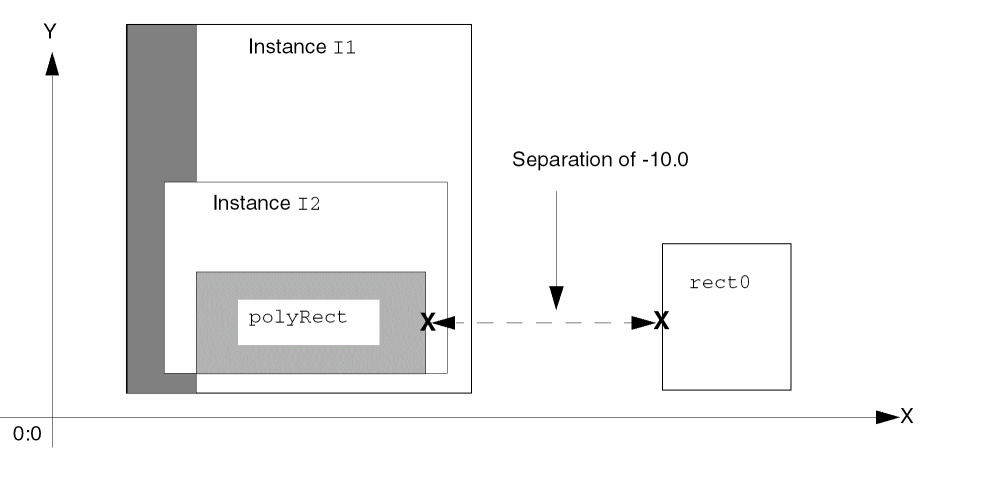
To query rect0 for alignments, type the following in the CIW:
cvId = deGetCellView()
rodGetObj( "rect0" cvId )~>align
The system displays text similar to the following in the CIW:
((rodObj:2585108 "cR" rodObj:2585114 "cL" -10.0
        0.0
    )
)
The text above means the centerRight (cR) handle on I1/I2/polyRect (rodObj:2585108) is aligned to the centerLeft (cL) handle on rect0 (rodObj:2585114), with a separation of -10.0 along the X axis and no separation along the Y axis.
Example 2: Attribute Names
To display all attribute names for a ROD object,
rodId~>?
where the variable rodId contains the ROD object ID.
The system displays a list of attribute names similar to the following list:
(name cvId dbId transform align
             numSegments userHandleNames systemHandleNames
)
numSegments appears in the list only for shapes with segments: rectangles, polygons, and paths.Example 3: Attribute Names and Values
To display all attribute names and values for any ROD object (a named shape, instance, or cellview), get its ROD object ID and type in the CIW:
rodId~>??
where the variable rodId contains the ROD object ID. If you do not want to use variables and the object is in the current open cellview, the following statement gets the same result:
rodGetObj( "hierarchical_name" deGetCellView() )~>??
Example 4: Value of One Attribute
To get the value for a particular attribute, use the attribute name instead of a question mark:
rodId~>attribute_name
For example, to display the value of the system-defined handle for the point in the center of the bounding box around a ROD object, type
rodId~>centerCenter
Example 5: Names of User-Defined Handles
To display the names of all user-defined handles for an object, type in the CIW:
rodGetObj( "hierarchical_name"cellview_ID)~>userHandleNames
For example, assume the following four-segment, single-layer path named path2 is in the active cellview window, and that it has several user-defined handles.
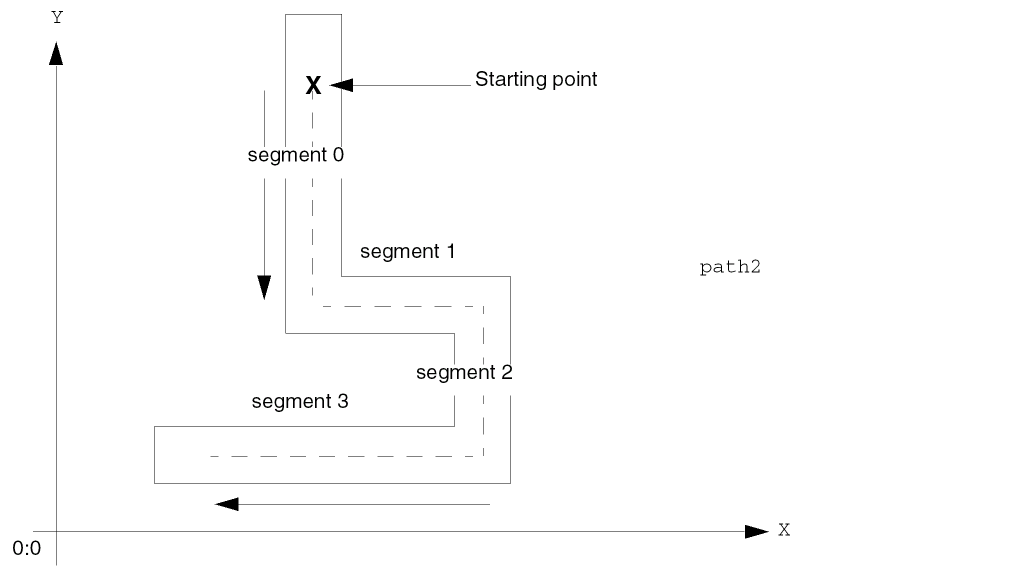
You can use the deGetCellView function (without any arguments) to get the database ID for the current open cellview.
For this example, you would type:
cvId = deGetCellView()
userHandNames = rodGetObj( "path2" cvId )~>userHandleNames
The system displays the following information in the CIW:
("stringHandle" "intHandle" "floatHandle" "trueHandle" "falseHandle"
"ILExprHandle" "pointHandle"
)
Example 6: Names of System-Defined Handles
To display the names of all system-defined handles for an object, type in the CIW:
rodGetObj( "hierarchical_name"cellview_ID)~>systemHandleNames
For more information about using rodGetObj, see rodGetObj.
For example, assume the following two-segment, single-layer path named path1 is in the active cellview window.
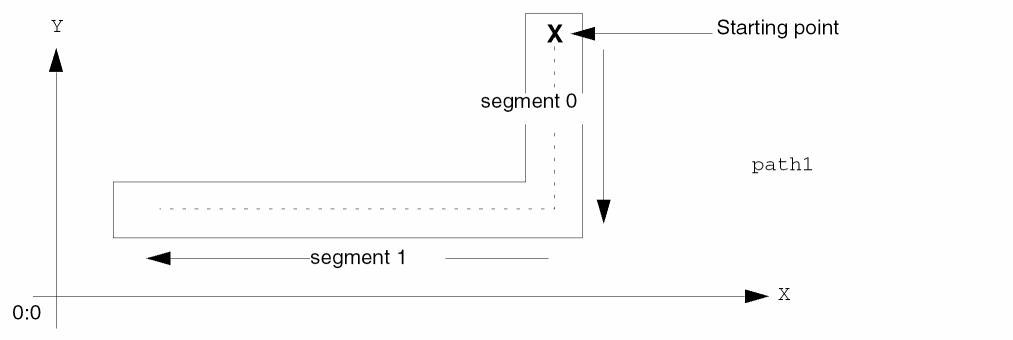
You can use the deGetCellView function (without any arguments) to get the database ID for the current open cellview. For this example, you would type:
cvId = deGetCellView()
sysHandNames = rodGetObj( "path1" cvId )~>systemHandleNames
The system displays the following information for path1 in the CIW:
("width" "length" "lowerLeft" "lowerCenter" "lowerRight"
    "centerLeft" "centerCenter" "centerRight" "upperLeft"
    "upperCenter" "upperRight" "length0" "start0" "startCenter0"
    "startLeft0" "startRight0" "mid0" "midLeft0" "midRight0" "end0"
    "endLeft0" "endRight0""length1" "start1" "startLeft1"
    startRight1" "mid1" "midLeft1""midRight1" "end1" "endLeft1"
    "endRight1" "lengthLast" "startLast""startLeftLast"
    "startRightLast" "midLast" "midLeftLast" "midRightLast" "endLast"
    "endCenterLast" "endLeftLast" "endRightLast" "mmpBBox" "chopHoles"
)
Example 7: Names and Values of Attributes
To display the names and values for all attributes of an object, type in the CIW:
rodGetObj( "hierarchical_name"cellview_ID)~>??
Using the same example, assume the following four-segment, single-layer path named path2 is in the active cellview window.
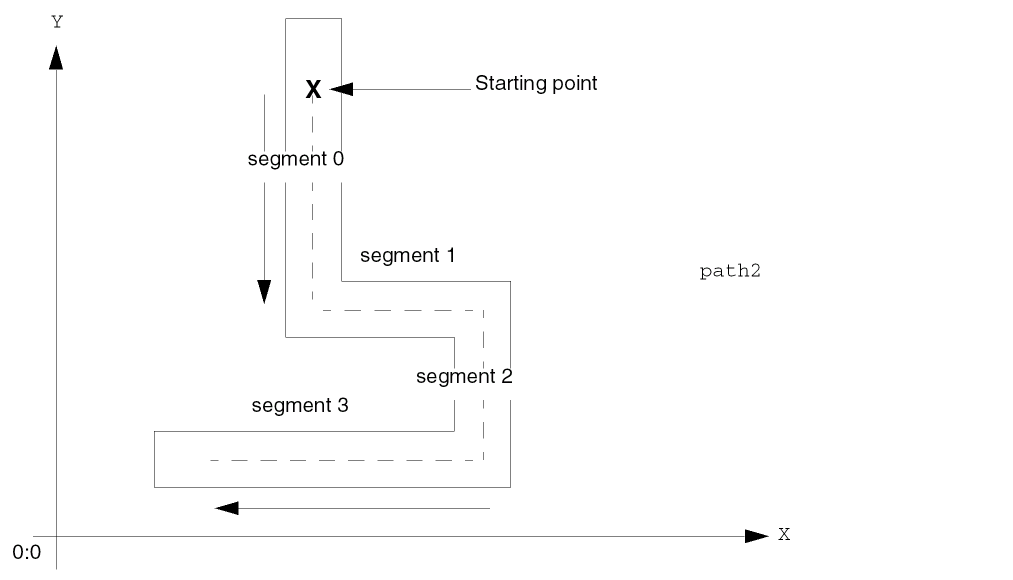
You can use the deGetCellView function (without any arguments) to get the database ID for the current open cellview. For this example, you would type:
cvId = deGetCellView()
rodGetObj( "path2" cvId )~>??
The system displays information in the CIW that looks like this:
("rodObj:17653796" name "path2" cvId db:16324652
 dbId db:16325104 transform
 ((0.0 0.0) "R0" 1.0) align
 nil numSegments 4 userHandleNames
 ("stringHandle" "intHandle" "floatHandle" "trueHandle"
  "falseHandle" "ILExprHandle" "pointHandle"
 )
 systemHandleNames
 ("width" "length" "lowerLeft" "lowerCenter" "lowerRight"
  "centerLeft" "centerCenter" "centerRight" "upperLeft"
  "upperCenter" "upperRight" "length0" "start0" "startCenter0"
  "startLeft0" "startRight0" "mid0" "midLeft0" "midRight0"
  "end0" "endLeft0" "endRight0" "length1" "start1" "startLeft1"
  "startRight1" "mid1" "midLeft1" "midRight1" "end1"
  "endLeft1" "endRight1" "length2" "start2" "startLeft2"
  "startRight2" "mid2" "midLeft2" "midRight2" "end2"
  "endLeft2" "endRight2" "length3" "start3" "startLeft3"
  "startRight3" "mid3" "midLeft3" "midRight3" "end3"
  "endLeft3" "endRight3" "lengthLast" "startLast"
  "startLeftLast" "startRightLast" "midLast" "midLeftLast"
  "midRightLast" "endLast" "endCenterLast" "endLeftLast"
  "endRightLast" "mppBBox"
 )
)
Getting System-Defined Handle Values with a Script
You can display in the CIW the values for all system-defined handles for a selected ROD object in a cellview by using the SKILL procedure rodPrintSystemHandleValues. The procedure requires the ROD object ID as input.
Problem 2-4 Getting Values of System-Defined Handles for a Path
You want to know the values of the system-defined handles for a particular ROD object in your active cellview. Use the rodPrintSystemHandleValues procedure to display the names and values of all system-defined handles.
You can load the procedure from the Cadence hierarchy or create a procedure file yourself and load your file. Instructions for accessing or creating the rodPrintSystemHandleValues procedure are presented in the following Solution section. To access the ROD object path1 using its name, you need the cellview ID.
For example, there is a two-segment single-layer path named path1. Use the rodPrintSystemHandleValues procedure to display the names and values of all system-defined handles for path1.
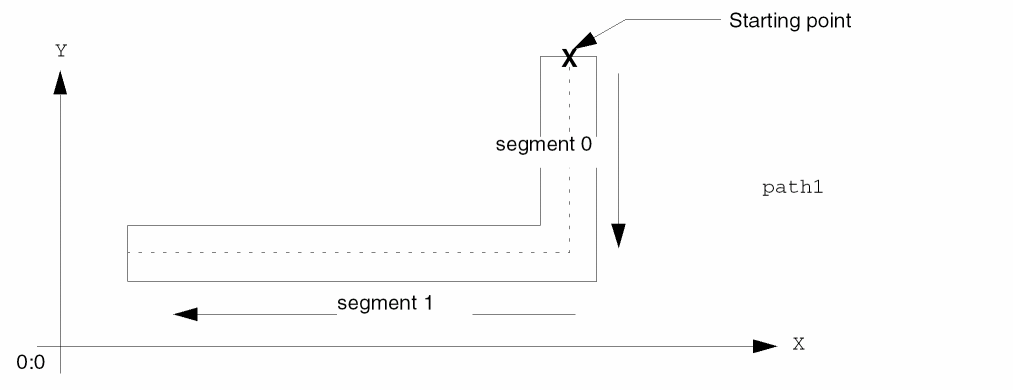
Solution 2-4 Getting Values of System-Defined Handles for a Path
First, you need to load the rodPrintSystemHandleValues procedure into your system. You can access the rodPrintSystemHandleValues.il file from the samples/ROD/skill directory in your Cadence hierarchy or create the procedure yourself and load your file.
-
Access the
rodPrintSystemHandleValuesprocedure in one of the following ways:-
To create the procedure yourself, use a text editor to open a new file named
rodPrintSystemHandleValues.iland type or copy the following statements:
; rodPrintSystemHandleValues.il
procedure( rodPrintSystemHandleValues(rodObj)
 prog(( handleValue handleList)
  handleList = rodObj~>systemHandleNames
  if(handleList then
   printf( "System handle names and values for %L (%L):\n"
    rodObj~>name
    rodObj
   ) ; end of printf
   foreach( handle handleList
    handleValue = rodGetHandle(rodObj handle)
    printf("%L %L\n" handle handleValue)
   ) ; end of foreach
  else
   printf("%L has no system-defined handles.\n"
    rodObj
   ) ; end of printf
  ) ; end of if
 ) ; end of prog
t ; procedure always returns t
) ; end of procedure
To load therodPrintSystemHandleValues.ilfile you created, type the following in the CIW:load "
where your_path is the path to your procedure file. Theyour_path/rodPrintSystemHandleValues.il"rodPrintSystemHandleValuesprocedure requires the ROD object ID as input, so next you get the ROD object ID. -
To create the procedure yourself, use a text editor to open a new file named
-
Get the ROD object ID for a selected object in the active cellview window by typing the following statements in the CIW:
cv = deGetCellView()rodId = rodGetObj( "
where the first statement gets the cellview ID for the active cellview and hierarchical_object_name is the name of your selected ROD object. For example:hierarchical_object_name" cv )rodId = rodGetObj( "path1" cv )
-
Run your
rodPrintSystemHandleValuesprocedure by typing the following statement in the CIW:rodPrintSystemHandleValues(rodId)
In the CIW, the system displays a list of all handle names and their values. For example, for path1, the system displays the following information in the CIW:
rodPrintSystemHandleValues(rodId)
System handle names and values for "path1" (rodObj:29057048)
"width" 21.0
"length" 11.0
"lowerLeft" (2.7 1.4)
"lowerCenter" (13.2 1.4)
"lowerRight" (23.7 1.4)
"centerLeft" (2.7 6.9)
"centerCenter" (13.2 6.9)
"centerRight" (23.7 6.9)
"upperLeft" (2.7 12.4)
"upperCenter" (13.2 12.4)
"upperRight" (23.7 12.4)
"length0" (20.0)
"start0" (2.7 2.4)
"startCenter0" (2.7 2.4)
"startLeft0" (2.7 3.4)
"startRight0" (2.7 1.4)
"mid0" (12.7 2.4)
"midLeft0" (12.2 3.4)
"midRight0" (13.2 1.4)
"end0" (22.7 2.4)
"endLeft0" (21.7 3.4)
"endRight0" (23.7 1.4)
"length1" 10.0
"start1" (22.7 2.4)
"startLeft1" (21.7 3.4)
"startRight1" (23.7 1.4)
"mid1" (22.7 7.4)
"midLeft1" (21.7 7.9)
"midRight1" (23.7 6.9)
"end1" (22.7 12.4)
"endLeft1" (21.7 12.4)
"endRight1" (23.7 12.4)
"lengthLast" 10.0
"startLast" (22.7 2.4)
"startLeftLast" (21.7 3.4)
"startRightLast" (23.7 1.4)
"midLast" (22.7 7.4)
"midLeftLast" (21.7 7.9)
"midRightLast" (23.7 6.9)
"endLast" (22.7 12.4)
"endCenterLast" (22.7 12.4)
"endLeftLast" (21.7 12.4)
"endRightLast" (23.7 12.4)
"mppBBox" (((2.7 1.4) (23.7 12.4)))
t
Getting User-Defined Handle Names with a Script
You can display in the CIW the values for all user-defined handles for a selected ROD object in a cellview by using the SKILL procedure rodPrintUserHandleValues. The procedure requires the ROD object ID as input.
Problem 2-5 Getting Values of User-Defined Handles for a Path
You want to know the values of the user-defined handles for a particular ROD object in your active cellview. Use the rodPrintUserHandleValues procedure to display the values of all handles assigned to the four-segment, single-layer path named path2. Assign the results to the local variable userHandValues.
You can load the rodPrintUserHandleValues.il file from the samples/ROD/skill directory in your Cadence hierarchy or create the procedure file yourself and load your file. Instructions for creating and loading the rodPrintUserHandleValues procedure are presented in the Solution section.
To access the ROD object path2 using its name, you need the cellview ID.
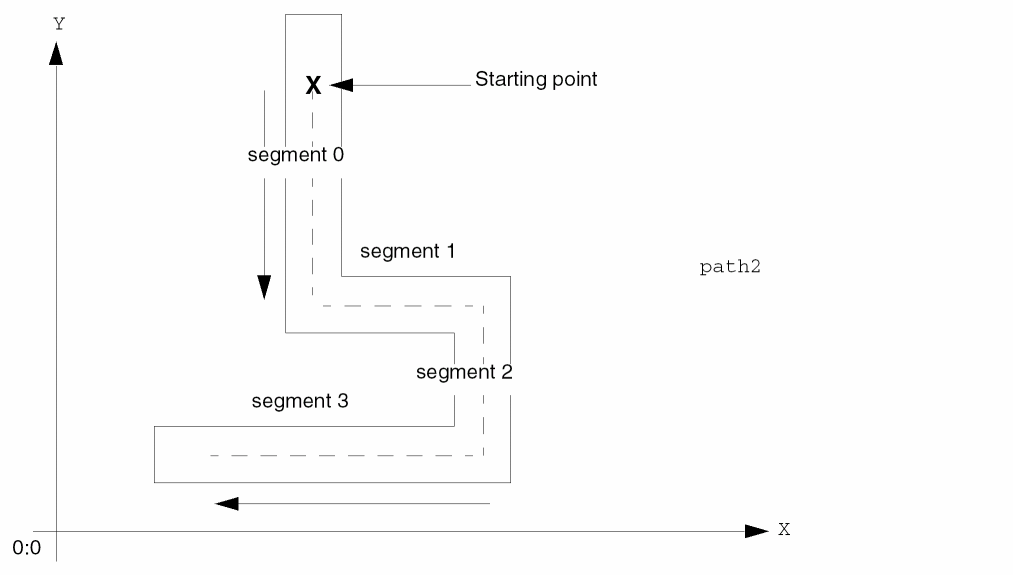
Solution 2-5 Getting Values of User-Defined Handles for a Path
-
Access and load the
rodPrintUserHandleValuesprocedure in one of the following ways:-
To create the procedure yourself, use a text editor to open a new file named
rodPrintUserHandleValues.iland type or copy the following statements:; rodPrintUserHandleValues.il
procedure( rodPrintUserHandleValues(rodObj)
  prog((handle handleValue handleList)
        handleList = rodObj~>userHandleNames
        if(handleList then
        printf( "User handle names and values for %L (%L):\n"
                 rodObj~>name
                 rodObj
        ) ; end printf
        foreach(handle handleList
                 handleValue = rodGetHandle(rodObj handle)
                 printf("%L %L\n" handle handleValue)
        ) ; end foreach
        else
           printf("%L has no user-defined handles.\n" rodObj)
        ) ; end if
  ) ; end of prog
t ; procedure always returns t
) ; end of procedure
To load therodPrintUserHandleValuesprocedure you created, type the following statements in the CIW:load "
where your_path is the path to your procedure file.your_path/rodPrintUserHandleValues.il" -
To load the procedure from the Cadence hierarchy, type
load prependInstallPath("samples/ROD/skill/rodPrintUserHandleValues.il")
rodPrintUserHandleValuesprocedure requires the ROD object ID as input, so next you get the ROD object ID. -
To create the procedure yourself, use a text editor to open a new file named
-
Get the ROD object ID for a selected object in the active cellview window by typing the following statements in the CIW:
cv = deGetCellView()rodId = rodGetObj( "
where the first statement gets the cellview ID for the active cellview and hierarchical_object_name is the name of your selected ROD object. For example:hierarchical_object_name" cv )rodId = rodGetObj( "path2" cv )
-
Run your
rodPrintUserHandleValuesprocedure by typing the following statements in the CIW:rodPrintUserHandleValues(rodId)
In the CIW, the system displays a list of all user-defined handle names and their values. For example, for path2, the system displays the following information in the CIW:
rodPrintUserHandleValues(rodId)
User handle names and values for "path2" (rodObj:29057048)
"stringHandle" "aaa"
"intHandle" 311
"floatHandle" 3.3
"trueHandle" t
"falseHandle" nil
"ILExprHandle" 1.8
"pointHandle" (6.6 7.7)
t
rodCoord Objects
A rodCoord object is a user type implemented by C/C++ in the Virtuoso environment. It is used to store values given in user unit as an integer after applying the arithmetic resolution factor and supported with arithmetic, logical, and snapping to grid operations.
A rodCoord object contains the following information:
- User input in arithmetic resolution unit
- Grid information in arithmetic unit
- Arithmetic resolution factor
A rodCoord object can be used in many basic operations, such as arithmetic and logical operations, snapping, and determining the maximum or minimum value. The main objective of using rodCoord is to standardize the solution for handling rounding orsnapping requirements.
Advantages of using rodCoord
A rodCoord object is useful for transmitting the scale information. An arithmetic operation using both rodCoord and a scalar value is not acceptable because the operands are not compatible.
rodCoord(0.01) + 20 = ??
Therefore, operands for the plus operation should be rodCoord. The same use model is true for most arithmetic and logical operators, as well as most related APIs.
Return to top