
A
Using Relative Object Design Functions
This chapter contains information on using Virtuoso relative object design (ROD) functions.
For information on relative object design (ROD) functions, refer to the Virtuoso Relative Object Design SKILL Reference.
Aligning ROD Objects Using rodAlign
Creating Handles Using rodCreateHandle
Creating Paths with rodCreatePath
Creating Objects Using rodCreateRect
Naming Shapes Using rodNameShape
Unaligning All Zero-level Shapes in a Cellview Using rodUnAlign
Unnaming All Named Shapes in a Cellview Using rodUnNameShape
Aligning ROD Objects Using rodAlign
This section presents a few problems that can be solved using the rodAlign function. To encourage you to think about or solve them yourself, the solutions are not presented until the end of this chapter.
You can use one of the following variables to access the current cellview ID: pcCellView, tcCellView, or rodCellView. For a brief description of these variables, see
- Problem 3-1 Aligning an Object to a Point
- Problem 3-2 Aligning Two Rectangles at the Same Level of Hierarchy
- Problem 3-3 Moving an Object with rodAlign
- Problem 3-4 Aligning Objects at Different Levels in the Hierarchy
For an example showing a guard ring created using rodAlign, see Code Examples.
Problem 3-1 Aligning an Object to a Point
Inside of a Pcell, align the lower left corner of the object named Boundary to the reference point 15:10.
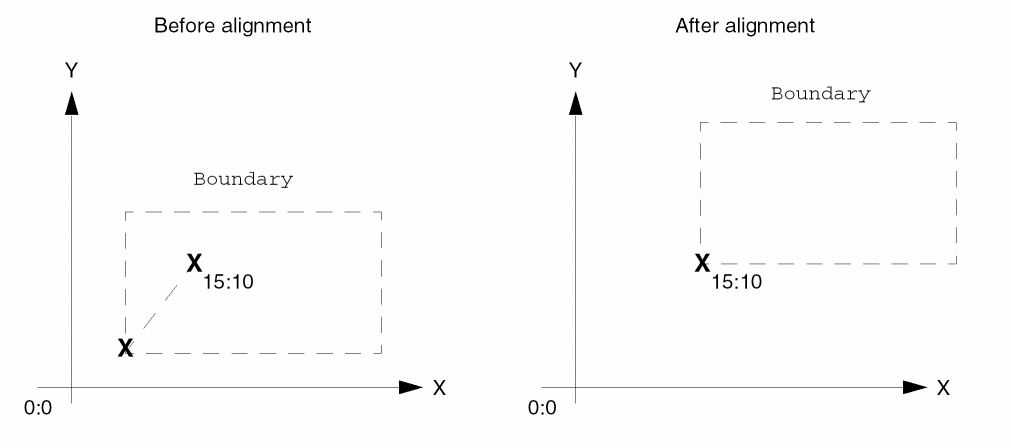
Solution 3-1 Aligning an Object to a Point.
Problem 3-2 Aligning Two Rectangles at the Same Level of Hierarchy
Align the center of the rectangle named polyRect to the center of the rectangle named activeRect so that their centers are coincident. The two rectangles are at the same level in the design hierarchy.
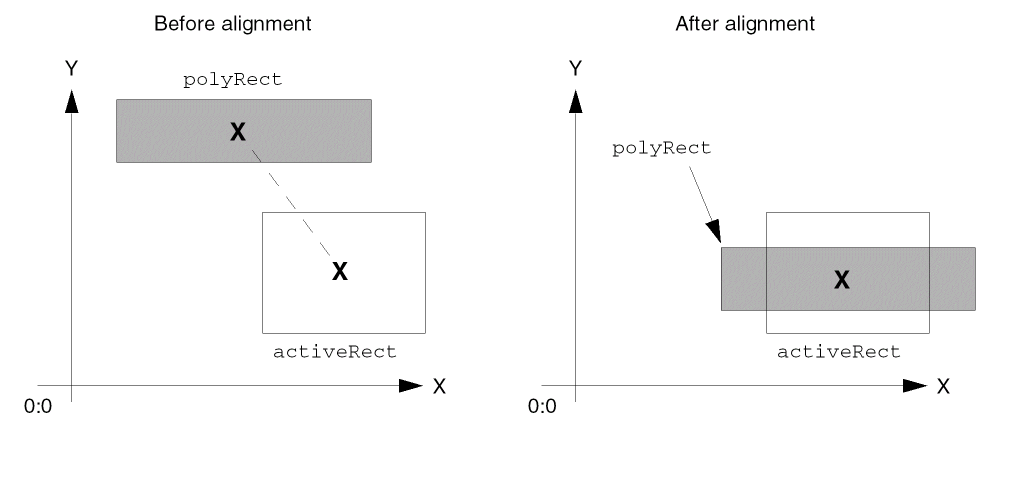
Solution 3-2 Aligning Two Rectangles at the Same Level of Hierarchy.
Problem 3-3 Moving an Object with rodAlign
Use the rodAlign function to move the object named boundary so that its lowerCenter handle has a positive offset along the Y axis from the upperLeft handle of the reference object activeRect. Specify the arguments so that no alignment persists after the rodAlign function completes.
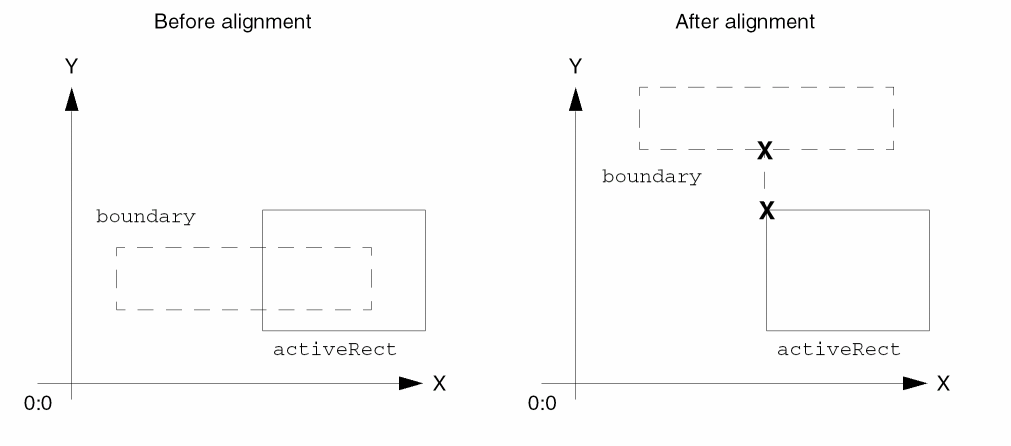
Solution 3-3 Moving an Object with rodAlign.
Problem 3-4 Aligning Objects at Different Levels in the Hierarchy
In a Pcell, there are two objects named rect0 on the metal1 layer in different instances. Align the centerRight point handle on rect0 in the instance nTran1 to the centerLeft point handle of the reference object rect0 in the instance nTran2. Specify a negative separation along the X axis between the point handles as the minimum spacing rule from the technology file for the metal1 layer. Because this rodAlign statement occurs within a Pcell, you can use the Pcell variable pcCellView for the cellview ID.
To access the technology file, use the techGetTechFile function to get the technology file ID and set it equal to the variable tfId. The techGetTechFile function requires the cellview ID or library ID as input.
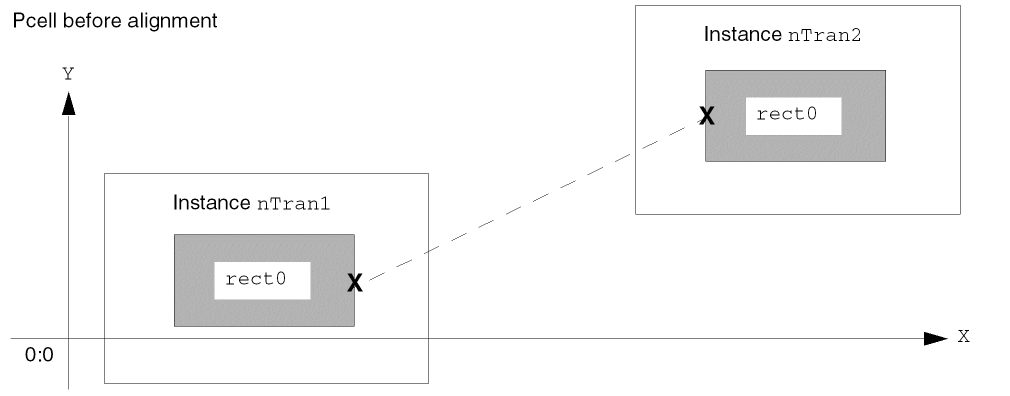
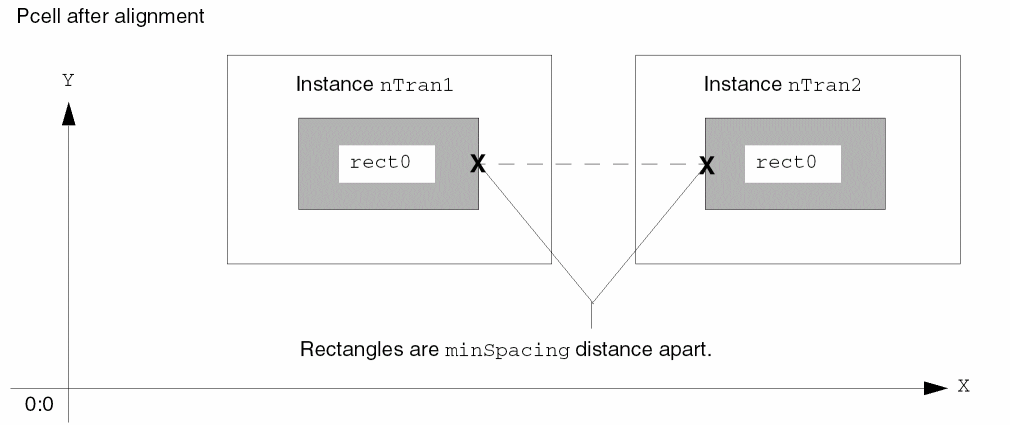
Solution 3-4 Aligning Objects at Different Levels in the Hierarchy.
Creating Handles Using rodCreateHandle
This section presents you with a series of problems to solve, to help you become familiar with using the rodCreateHandle function. To encourage you to think about or solve the problems yourself, the solutions are not presented until the end of this chapter.
- Problem 3-5a Creating a Point Handle for a Cellview
- Problem 3-5b Querying a Point Handle for a Cellview
- Problem 3-6 Querying a System-Assigned Handle Name
You identify the object for which you want to create a handle by using its
You might want to use information from your technology file for the values of some arguments. For example, for the n_width argument, you can use the value of the design rule for minimum width.
You can access design rules in several ways. The problems in this section access design rules by using defaults, and by including techGetTechFile and techGetSpacingRule statements, when needed. For more detailed information about accessing design rules, see Using Design Rules in ROD Functions.
For a code example showing how to use rodCreateHandle to compute the resistance of a ROD path, see Getting the Resistance for a ROD Path.
Problem 3-5a Creating a Point Handle for a Cellview
Create a point handle named originAAA for the origin of layout cellview AAA in the library cellLib.
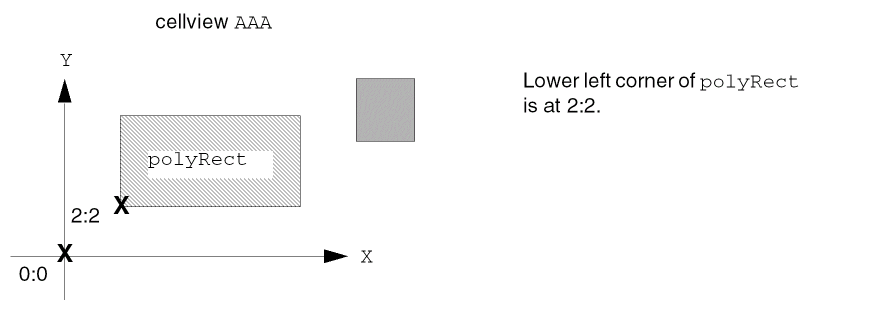
Solution 3-5a Creating a Point Handle for a Cellview.
Problem 3-5b Querying a Point Handle for a Cellview
Find the value of the point handle named originAAA, which is the origin of layout cellview AAA. Instance IA1 of cellview AAA is within cellview BBB, offset from the origin of cellview BBB by 3 units in the direction of the X and Y axes.
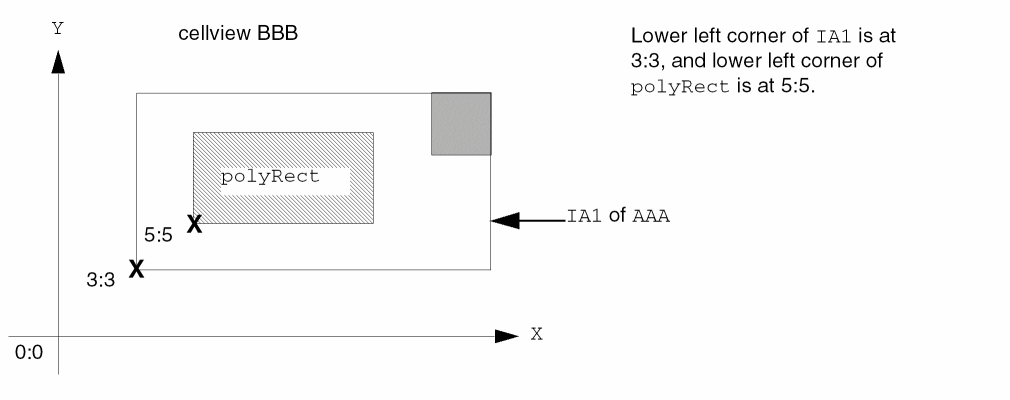
Solution 3-5b Querying a Point Handle for a Cellview.
Problem 3-6 Querying a System-Assigned Handle Name
When you create a handle without specifying a name, the system assigns a name. For the layout cellview myCell in the library cellLib, find the system-assigned name for the last handle you created without a name.
Solution 3-6 Querying a System-Assigned Handle Name.
Creating Paths with rodCreatePath
To help you become familiar with using the rodCreatePath function, this section presents a problem to solve. To encourage you to think about and solve the problem yourself, the solution is not presented until the end of this chapter.
For additional code examples, including computing the resistance for a ROD path, see Code Examples.
Creating Objects Using rodCreateRect
This section presents you with a series of problems to solve, to help you become familiar with using the rodCreateRect function. To encourage you to think about or solve the problems yourself, the solutions are not presented until the end of this chapter.
- Problem 3-8 Create One Rectangle with n_width and n_length
- Problem 3-9 Create One Rectangle with l_bBox
- Problem 3-10 Create a Multipart Rectangle with One Row/Column of Master Rectangles
- Problem 3-11 Create a Multipart Rectangle with Multiple Rows/Columns of Master Rectangles
- Problem 3-12 Fill a Bounding Box with Master Rectangles
When using rodCreateRect, you might want to use information from your technology file for the values of some arguments. For example, for the n_width argument, you can use the value of the design rule for minimum width.
You can access design rules in several ways. The problems in this section access design rules by using defaults and by including techGetTechFile and techGetSpacingRule statements, when needed. For more detailed information about accessing design rules, see Using Design Rules in ROD Functions.
Creating a Named Rectangle
dbCreateRect function instead of the rodCreateRect function.To create a named rectangle with ROD attributes, determine its size and location either by specifying the width, length, and origin (n_width, n_length, and l_origin) or by specifying a bounding box (l_bBox). The l_bBox argument overrides the values of the n_width, n_length, and l_origin arguments.
Problem 3-8 Create One Rectangle with n_width and n_length
Assume that you are in a Pcell, and create a rectangle named minMetal on the metal1 layer. Set the width equal to 3. Set the length equal to twice the minimum width.
Use the techGetTechFile function to get the technology file ID, and set it equal to the variable tfId. Let the cellview ID (d_cvId) default to the Pcell variable pcCellView, because your statement is executed inside of a Pcell.
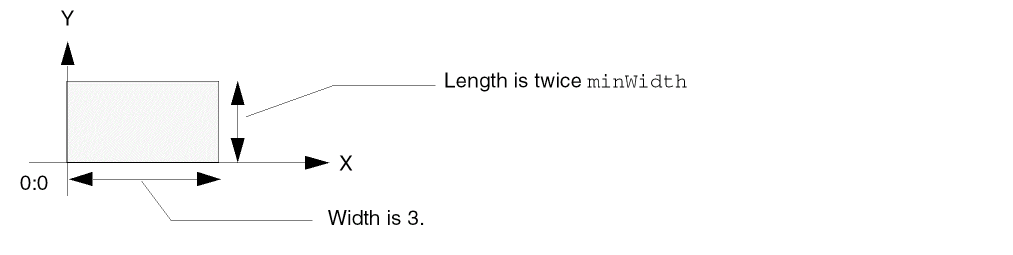
Solution 3-8 Create One Rectangle with n_width and n_length
Problem 3-9 Create One Rectangle with l_bBox
Create a single rectangle similar to the way it was created for Problem 3-8 Create One Rectangle with n_width and n_length, but this time, use l_bBox to specify its size and location. Make the rectangle 6 wide by 3 long, with its origin point at the coordinates 2:2.
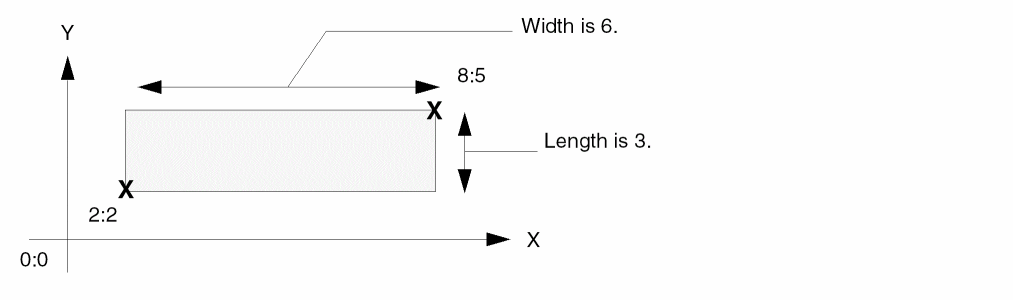
Solution 3-9 Create One Rectangle with l_bBox
Creating a Multipart Rectangle with Rows/Columns of Master Rectangles
To create rows and/or columns of rectangles that are regular, unnamed database shapes, see
To create a multipart rectangle with a single row of master rectangles parallel to the X axis, specify the number of rectangles (elements) with the x_elementsX argument. To create a single column of master rectangles parallel to the Y axis, use the x_elementsY argument. To create both rows and columns, use both x_elements arguments.
Problem 3-10 Create a Multipart Rectangle with One Row/Column of Master Rectangles
For a Pcell, you want to create a multipart rectangle with one row of master rectangles. Add a rodCreateRect statement to the body of a pcDefinePCell statement, as follows:
Create nine minimum-size rectangles on the metal1 drawing layer in the direction of the X axis, and name them minMetal.1 through minMetal.9. Use the rules from the technology file for minimum width and minimum space between rectangles.
Let the origin of the first rectangle default to the coordinates 0:0. Let the cellview ID default to the value of the Pcell variable pcCellView, because your statement is executed inside of a Pcell.
The rectangles form a row that looks like this:
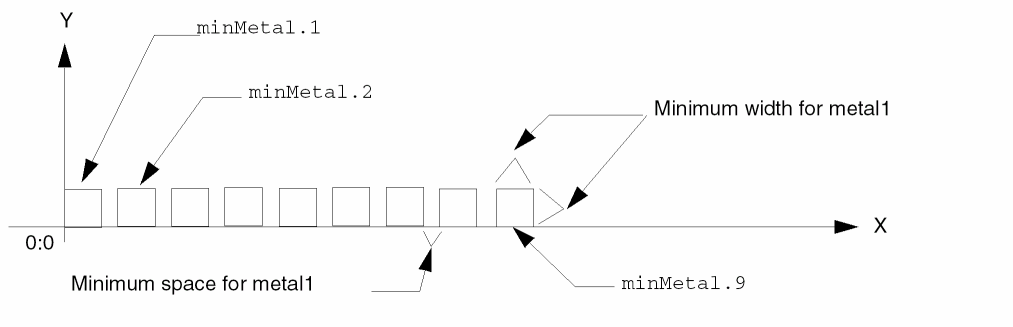
Solution 3-10 Create a Single Row or Column of Rectangles
Problem 3-11 Create a Multipart Rectangle with Multiple Rows/Columns of Master Rectangles
Inside a Pcell, create rows and columns of master rectangles using polyRect as the base for the name, with five along the X axis and four along the Y axis, using the layer-purpose pair poly and drawing. Set the origin of the first rectangle to the coordinates 3:6.
For the X axis, make the distance between the edges of rectangles equal to three greater than the minimum spacing for the poly layer. For the Y axis, make the distance between rectangles equal to six greater than the minimum spacing for the poly layer. This time, you need the technology file ID.
The rectangles form rows and columns that looks like this:
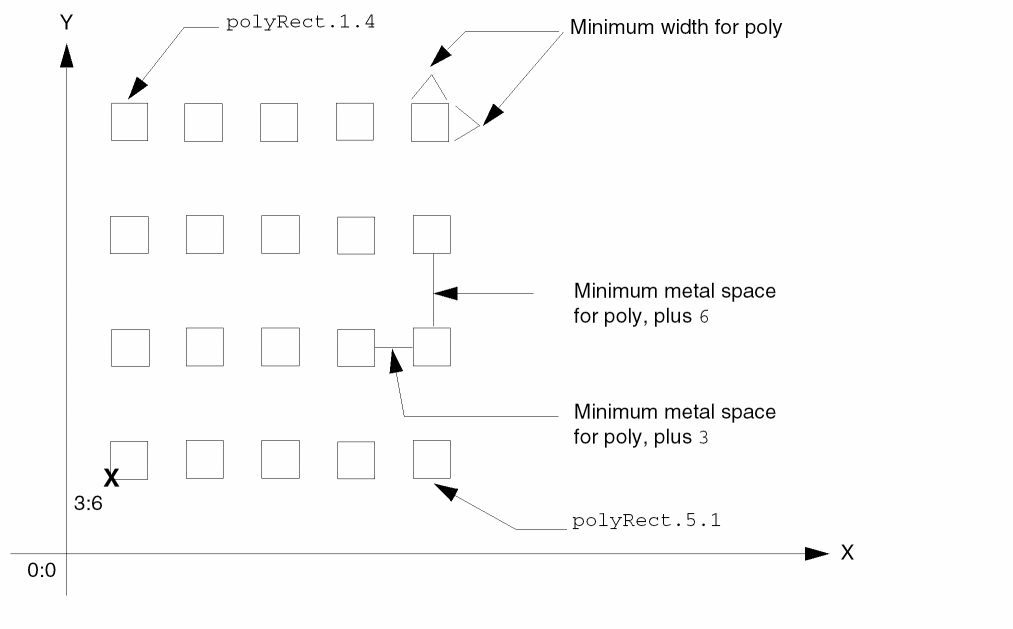
Solution 3-11 Create Multiple Rows and Columns of Rectangles
Filling Bounding Boxes with Master Rectangles
To fill a bounding box with master rectangles that have ROD attributes, use the l_fillBBox argument; to partially fill a bounding box, specify the maximum number of rectangles to repeat in the direction of the X and/or Y axis. The system creates rectangles starting in the lower left corner of the fill-bounding box.
The system gives each rectangle a unique name, using the value of the S_name argument as a base, then adding a suffix for the row and column number, with periods in front of the row and column numbers. For example, if you specify polyRect as the base for the name, the system names the rectangle in the lower-left corner of the fill-bounding box polyRect.1.1. The system creates all rectangles at level zero in the hierarchy, so no additional hierarchy is created. Also, no bounding box is created.
To specify the maximum number of rectangles along each axis, use the x_elementsX and x_elementsY arguments. To specify spacing between rectangles, use the n_spaceX and n_spaceY arguments. When you specify both spacing and number of elements, the system creates as many rectangles as fit inside the bounding box without exceeding the numbers specified by the x_elements arguments.
Problem 3-12 Fill a Bounding Box with Master Rectangles
In a Pcell, define an 18-by-10 bounding box on the poly layer, offset from the coordinates 0:0 by 2 user units in both directions. Fill the box with master rectangles using polyRect as the base for the name and the minimum width for the poly layer. Make the distance between rectangles along the X and Y axes equal to 2.0 units.
Let the cellview ID default to the variable pcCellView, because the statement is inside of a Pcell. The fill-bounding box and rectangles look like this:
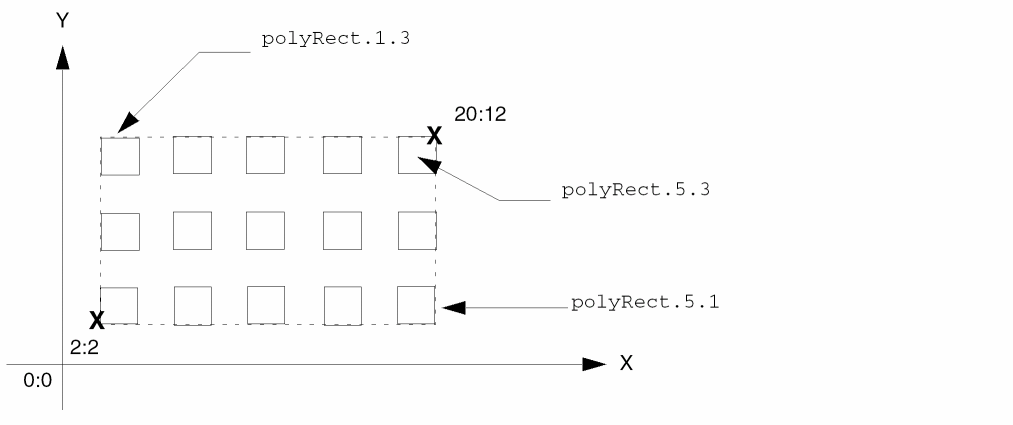
Solution 3-12 Fill a Bounding Box with Rectangles
Problem 3-13 Partially Fill a Bounding Box with Master Rectangles
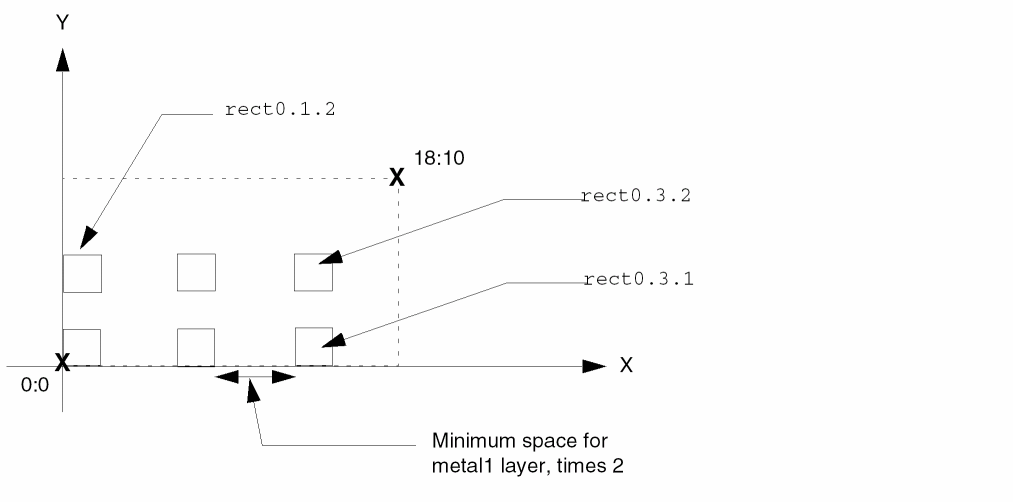
On the metal1 layer in a Pcell, fill a bounding box that is 18 units wide and 10 units long with master rectangles. Do not define an offset for the fill-bounding box. Set the layer purpose to drawing. Fill the box with a maximum of 3 rectangles in the direction of the X axis and 2 rectangles in the direction of the Y axis.
Specify the size of the rectangles as 2 units wide by 2 units long using the bounding box argument l_bBox. Set the distance between rectangles along the Y axis to the minimum design rule in the technology file for the metal1 layer. Make the distance between rectangles along the X axis twice as large as the spacing along the Y axis. The rectangles do not fill the bounding box.
Let the cellview ID default to the variable pcCellView, because the statement is inside of a Pcell.
Solution 3-13 Partially Fill a Bounding Box with Rectangles
Problem 3-14 Overfill a Bounding Box with Master Rectangles
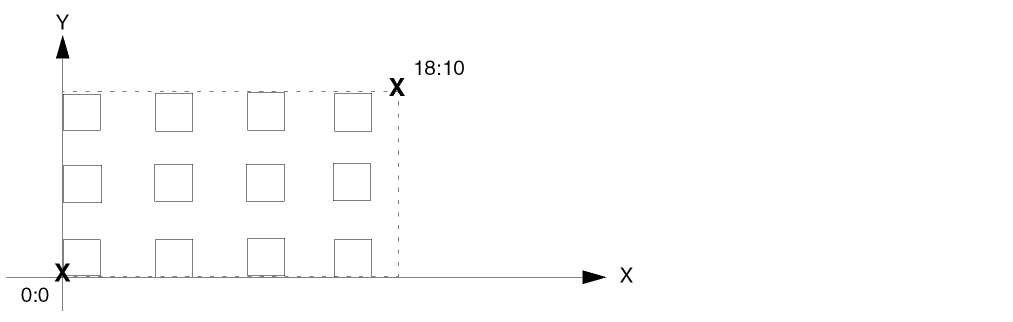
Fill an 18-by-10 bounding box with master rectangles on the metal1 layer, with no offset. Make the rectangles as wide and long as the minimum width for the metal1 layer. Specify a maximum of six rectangles in the direction of the X axis and four rectangles in the direction of the Y axis.
Set the distance between rectangles along the X axis to 2.5 and along the Y axis to 2.0. Let the cellview ID default to the Pcell variable pcCellView.
The bounding box and rectangles look like this:
Solution 3-14 Overfill a Bounding Box with Rectangles
Creating Rectangles on a Terminal and Net
To create a shape on a specific terminal and net, specify the terminal and net name using the S_termName argument.
Problem 3-15 Create a Single Named Rectangle on a Terminal and Net
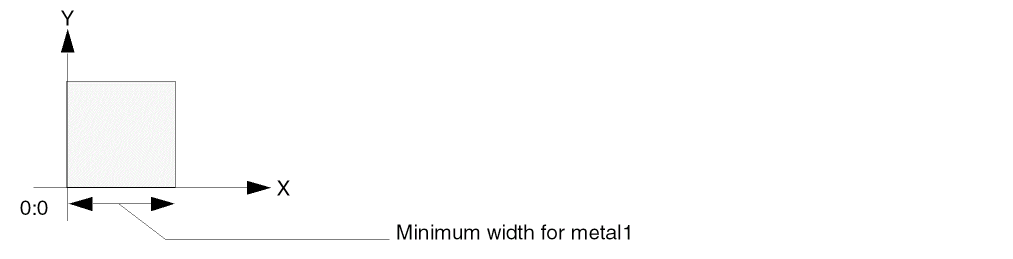
In a Pcell, create a rectangle named termFig on the metal1 layer. Assign the rectangle to the terminal and net Aout, and make the terminal direction type output.
Let the width and length default to the minimum width for the specified layer from the technology file. Let the cellview ID (d_cvId) default to the variable pcCellView.
Solution 3-15 Create a Single Rectangle on a Terminal and Net
Looking at Properties
You can look at the properties for ROD objects with the Virtuoso layout editor Edit – Properties command.
Creating Rectangular Pins
To create rectangular pins with the rodCreateRect function, you must specify the net and terminal name and your intention to create a pin. The system assigns the pin to the net and terminal identified by the S_termName argument.
For a short overview of pin connectivity, see Connectivity.
Problem 3-16 Create a Rectangular Pin
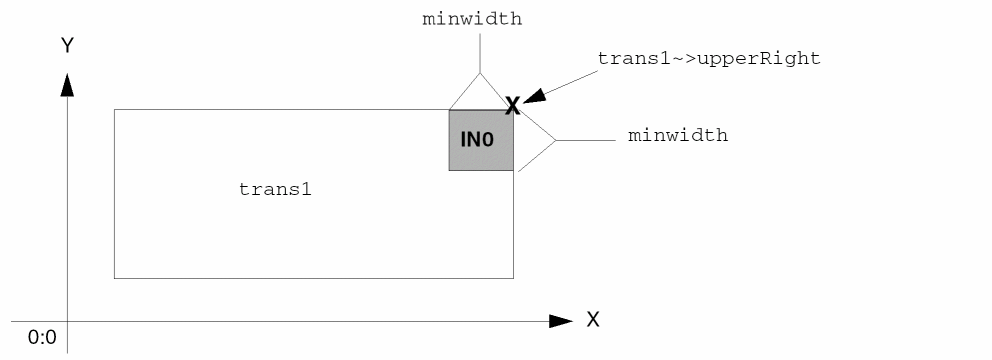
Create a rectangular pin named polyPin for the terminal and net named InOut0, using the layer-purpose pair poly and pin. Set the access direction to input-output and label the pin. Use the l_bBox argument to determine the pin size and to place the pin in the upper-right corner of the object named trans1.
You need to define a local variable for the minimum width so that you can use it to compute the size of the bounding box for the rectangle. You also need a local variable for the coordinates of the upper-right corner of the ROD object trans1. You can use the rodPointX function to get the X coordinate from your variable for the upper-right corner and rodPointY to get the Y coordinate.
The polyPin pin looks like this:
Solution 3-16 Create a Rectangular Pin.
Using rodGetObj
This section presents you with a few problems to solve using the rodGetObj function. To encourage you to think about or solve the problems yourself, the solutions are not presented until the end of this chapter.
- Problem 3-17 Accessing Coordinates without Hierarchy
- Problem 3-18 Accessing Coordinates through One Level of Hierarchy
- Problem 3-19 Accessing Coordinates through Two Levels of Hierarchy
For more information about the ROD object ID (the value returned by the rodGetObj function), see About ROD Objects and ROD Object IDs.
Transforming Coordinates through Hierarchy
The following problems show how the system transforms a set of coordinates up through the hierarchy to the top-level layout cellview. This information applies to the rodGetObj and rodGetHandle functions and to queries made using the ROD object ID with the database access operator (~>) to access point handles on ROD objects.
To get the ROD object ID for an object, you must provide either the database ID, or both the hierarchical name and cellview ID as input to the rodGetObj function. When the rodGetObj function is within the body of Pcell code, you can use one of the following variables for the cellview ID:
-
The
pcCellViewvariable whenrodGetObjis in a pcDefinePCell statement. ThepcDefinePCellfunction automatically sets the value of thepcCellViewvariable to the cellview ID. -
The
tcCellViewvariable whenrodGetObjis in a tcCreateCDSDeviceClass function call. ThetcCreateDeviceClassfunction automatically sets the value of thetcCellViewvariable to the cellview ID.
For convenience, you might want to assign these internal variables to a variable with a shorter name, for example cv = pcCellVieworcv = tcCellView
You can access information about the attributes of ROD objects by using the ROD object ID and the database access operator (~>). For detailed information about how to do so, see Accessing ROD Object Attributes.
Problem 3-17 Accessing Coordinates without Hierarchy
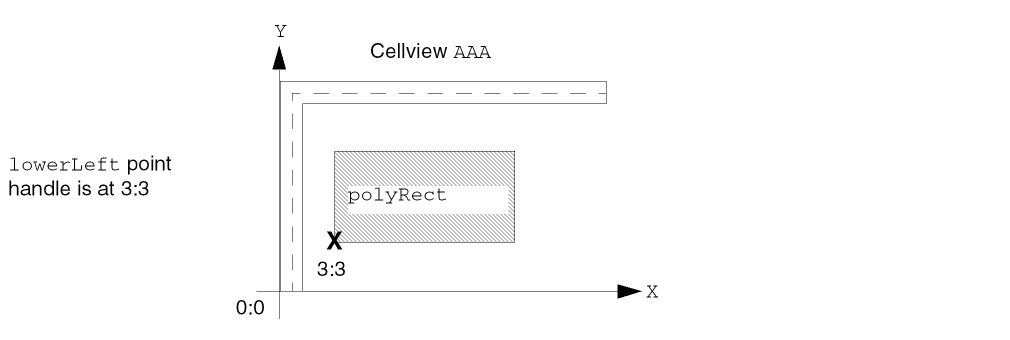
The layout cellview AAA contains a shape named polyRect. The lower-left corner of polyRect is 3 units above and 3 units to the right of the coordinates 0:0 on the X and Y axes. The library name is rodTestLib.
Assign the cellview ID for layout cellview AAA to the local variable cv and the coordinates of the lower-left corner of polyRect to the local variable point1. What is the value of point1?
Solution 3-17 Accessing Coordinates without Hierarchy.
Problem 3-18 Accessing Coordinates through One Level of Hierarchy
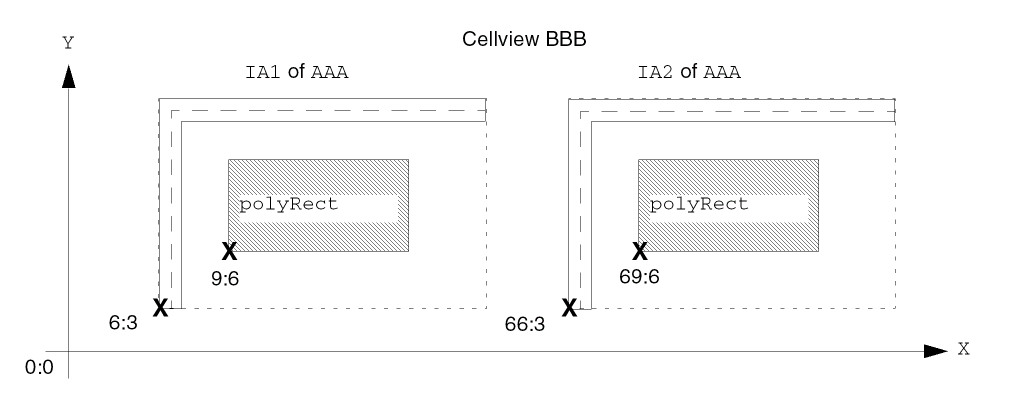
The layout cellview BBB contains two instances of layout cellview AAA: IA1 and IA2. Each instance of AAA contains the shape polyRect.
Instance IA1 is offset from the coordinates 0:0 by 6 units on the X axis and 3 units on the Y axis. Instance IA2 is offset from 0:0 by 66 units and 3 units, respectively. The origin of shape polyRect is offset from the origin of each instance by 3 units and 3 units.
Assign local variables point1 and point2 to the values of the lowerLeft point handles on the shape polyRect in instances IA1 and IA2, respectively. What are the values of point1 and point2?
Solution 3-18 Accessing Coordinates through One Level of Hierarchy.
Problem 3-19 Accessing Coordinates through Two Levels of Hierarchy
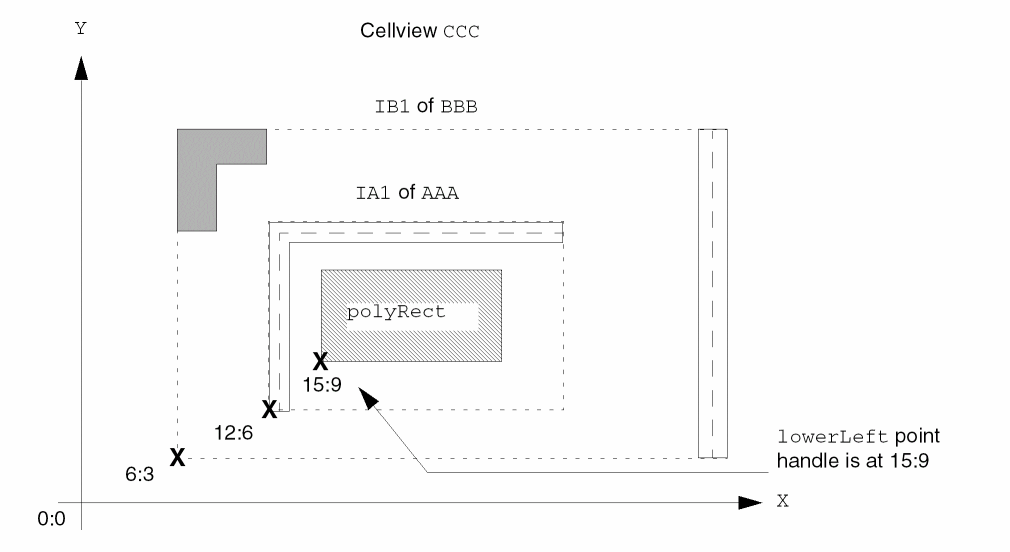
The layout cellview CCC contains instance IB1 of layout cellview BBB, and instance IB1 contains instance IA1 of AAA. The named shape polyRect is in instance IA1.
Instance IB1 is 3 units above and 6 units to the right of the coordinates 0:0. Instance IA1 is offset from the origin of IB1 by 6 units and 3 units. The shape polyRect is offset from the origin of IA1 by 3 units and 3 units, respectively.
Assign the value of the lowerLeft point handle for the shape polyRect to the local variable point1. What is the value of point1?
Solution 3-19 Accessing Coordinates through Two Levels of Hierarchy.
Naming Shapes Using rodNameShape
Normally, you create named rectangles and paths using the rodCreateRect, rodCreatePolygon, and rodCreatePath functions, so you do not need to name them. But if you want to assign a name and create ROD object information for a shape that was created with a database function, such as dbCreateRect, dbCreatePolygon, or dbCreatePath, you can do so with the rodNameShape function and the database ID of the shape. The dbCreate functions return the database ID of the newly created shape.
If you are working interactively in the Virtuoso layout editor and the CIW and need the database ID for an unnamed shape, follow the steps below. Use variables to hold the value returned by each function.
To get the database ID for a shape, do the following:
- Select the shape in the layout cellview window.
-
To get the cellview ID for a selected shape in the active cellview window, type in the CIW
cv = deGetCellView()
-
To return a list of the database IDs for the selected shapes (in this case, only one shape), type in the CIW:
selset = geGetSelectedSet(cv)
-
To return the first element in the list (even though there is only one element), type in the CIW:
dbId = car(selset)
Problem 3-20 Naming a Polygon Created by dbCreatePolygon in a Pcell
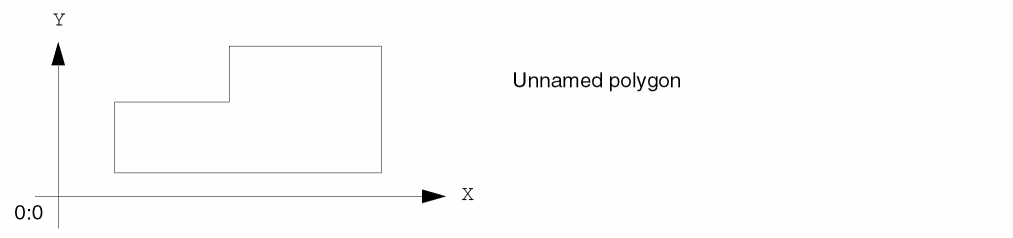
The polygon shown in this problem was created inside a Pcell with the dbCreatePolygon function. The dbCreatePolygon function returns the database ID of the new polygon. In this problem, the polygon ID is stored in the variable polyDbId.
Verify that the name testName is a valid name and that it has not been used in the cellview. Then assign the name testName to the unnamed polygon. Use a variable to save the value returned by the rodNameShape function.
Solution 3-20 Naming a Polygon Created in a Pcell
Problem 3-21 Naming a Shape Created in the CIW and Layout Window
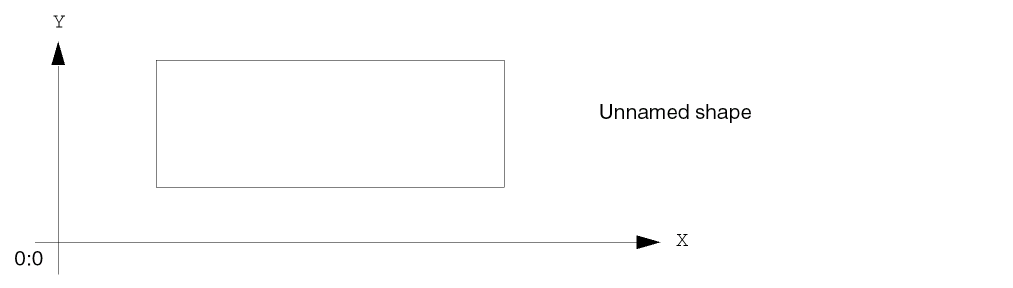
You are working interactively in a layout cellview window and the CIW. You used the layout editor to create the ordinary, unnamed rectangle. Assign the name rectA to the shape, using variables for values returned by functions.
Solution 3-21 Naming a Shape Created in the CIW and Layout Window
Unaligning All Zero-level Shapes in a Cellview Using rodUnAlign
To remove the alignments from all zero-level ROD shapes in a cellview using the rodUnAlign function, run the procedure shown below. This procedure does not remove alignments from shapes at levels in the hierarchy other than zero.
-
Set the variable cvId equal to the desired cellview ID by using your library name for library and your cell name for cell.
cvId = dbOpenCellViewByType( "
library" "cell" "layout" ) -
Load the following procedure:
;
; ExUnAlignShapes -- removes alignments from all zero-level ROD
; shapes in cellview
;
procedure( ExUnAlignShapes( cvId )
    prog( ( shapelist shape rodId )
        ; Get list of all shapes in cellview
        shapelist = cvId~>shapes
        if(shapelist then
            ; For each shape in cellview, get rodID
            foreach( shape shapelist
                if( rodId = rodGetObj( shape ) then
                    ; The shape is a ROD object because the ROD ID
                    ; is not nil; remove all associated alignments.
                    rodUnAlign( rodId )
                ) ;end if rodID
            ) ;end foreach
        ) ;end if shapelist
    ) ;end prog
) ;end procedure
- Execute the procedure using the cellview ID:
Unnaming All Named Shapes in a Cellview Using rodUnNameShape
To remove the names from all named shapes in a cellview using the rodUnNameShape function, run the procedure shown below.
-
Set the variable cvId equal to the desired cellview ID by using your library name for library and your cell name for cell.
cvId = dbOpenCellViewByType( "
library" "cell" "layout" ) -
Load the following procedure:
;
; ExUnNameAll -- removes ROD names from all ROD objects in cellview
;
procedure( ExUnNameAll( cvId )
    prog( ( shapelist shape rodId )
        ; Get list of all shapes in cellview
        shapelist = cvId~>shapes
        if( shapelist then
            ; For each shape in the cellview,get rodID
            foreach( shape shapelist
                 rodId = rodGetObj( shape )
                    ; if it has a rodId (ie., is a ROD object)
                    ; then remove it’s ROD name
                    if( rodId then
                        rodUnNameShape( rodId )
                    ) ;end if rodId
            ) ;end foreach
        ) ;end if shapelist
    ) ;end prog
) ;end procedure
- Execute the procedure using the cellview ID:
Converting Multipart Path to Polygon Using dbConvertPathToPolygon
By default, it is not possible to edit a subpart of a multipart path (MPP) individually, and you need to use defining parameters of the MPP to make changes to the whole structure. However, if the dbId supplied to the dbConvertPathToPolygon function is an MPP subpath ID, then the MPP subpath will be converted to a polygon and removed from the complex MPP structure.
Solutions to Problems
Here are solutions to the problems presented in this chapter.
Solutions for rodAlign
Solution 3-1 Aligning an Object to a Point
rodAlign(   ?alignObj        rodGetObj("boundary")
            ?alignHandle     "lowerLeft"
            ?refPoint        15:10
) ;end of rodAlign
For the rodGetObj function, you let the cellview ID default to the local variable pcCellView, because the statement is in the body of Pcell code.
There is no separation between the lowerLeft point handle and the reference point because the txf_xSep and txf_ySep arguments defaulted to zero. You can align a named object directly to a specific point by specifying a value for the reference point argument l_refPoint.
When you specify a reference point, you do not have to specify a reference object (R_refObj) and a reference handle (S_refHandle). If you specify a reference point and also specify a reference object (with or without specifying a reference handle), the value of the reference point overrides the values for reference object and reference handle.
Return to Problem 3-1 Aligning an Object to a Point.
Solution 3-2 Aligning Two Rectangles at the Same Level of Hierarchy
cvId = deGetCellView()
rodAlign(   ?alignObj        rodGetObj("polyRect" cvId)
            ?refObj          rodGetObj("activeRect" cvId)
) ;end of rodAlign
To get the ROD object IDs for polyRect and activeRect using the rodGetObj function, you need the cellview ID. The reference handle arguments (S_refHandle and S_alignHandle) default to the value centerCenter for both rectangles, so the center of polyRect is aligned to the center of the reference object activeRect. The txf_xSep and txf_ySep arguments default to zero, so the centers of the two rectangles are on the same point. The g_maintain argument defaults to t, so this alignment is maintained.
Return to Problem 3-2 Aligning Two Rectangles at the Same Level of Hierarchy.
Solution 3-3 Moving an Object with rodAlign
rodAlign(    ?alignObj        rodGetObj("boundary")
             ?alignHandle     "lowerCenter"
             ?refObj          rodGetObj("activeRect")
             ?refHandle       "upperLeft"
             ?ySep            6.0
             ?maintain        nil
) ;end of rodAlign
When you specify g_maintain as equal to nil, the alignment operation behaves like a move. No alignment information is saved after the rodAlign function completes.
Return to Problem 3-3 Moving an Object with rodAlign.
Solution 3-4 Aligning Objects at Different Levels in the Hierarchy
tfId = techGetTechFile( pcCellView )
rodAlign(  ?alignObj         rodGetObj("nTran1/rect0")
           ?alignHandle      "centerRight"
           ?refObj           rodGetObj("nTran2/rect0")
           ?refHandle        "centerLeft"
           ?xSep
             "-techGetSpacingRule(tfId \"minSpacing\" \"metal1\")"
) ;end of rodAlign
The rectangles were specified by their hierarchical names nTran1/rect0 and nTran2/rect0. Separation along the Y axis defaulted to zero. Separation along the X axis is negative, so the aligned object is moved to the left of the reference object by the distance specified in the minSpacing rule for the metal1 layer. The alignment will be maintained because the g_maintain argument defaulted to t.
The techGetSpacingRule expression is enclosed in quotation marks so that whenever the minSpacing rule for the metal1 layer changes in your technology file, the system updates the alignment using the new rule. If you do not enclose the whole expression in double quotations marks, the system evaluates the expression immediately and uses the result from then on. Be sure to include a backslash in front of each double quotation mark within the string to prevent the system from interpreting it as the end of the string.
For more detailed information about accessing design rules, see Using Design Rules in ROD Functions.
Return to Problem 3-4 Aligning Objects at Different Levels in the Hierarchy.
Solutions for rodCreateHandle
Solution 3-5a Creating a Point Handle for a Cellview
cvId1 = dbOpenCellViewByType( "cellLib" "AAA" "layout" )
rodId = rodGetObj( "" cvId1 )
rodCreateHandle( ?name    "originAAA"
                 ?type    "point"
                 ?value    0:0
                 ?rodObj   rodId
) ; end rodCreateHandle
First, you need the ROD object ID for the cellview, and to get it, you need the cellview ID. You can use dbOpenCellViewByType to get the cellview ID. Get the ROD object ID for the cellview with rodGetObj, where the name of the cellview is represented by a null string.
Return to Problem 3-5a Creating a Point Handle for a Cellview.
For more informarion, see rodCreateHandle in the Virtuoso Relative Object Design SKILL Reference.
Solution 3-5b Querying a Point Handle for a Cellview
cvId2 = dbOpenCellViewByType( "cellLib" "BBB" "layout" )
rodId = rodGetObj( "IA1" cvId2 )
origin = rodID~>originAAA
origin = rodGetObj( "IA1" cvId2 )~>originAAA
First, get the ID for cellview BBB. Then either set a variable equal to the ROD object ID for cellview BBB and query the variable, or perform both actions in a single statement. The value of originAAA in the coordinate system of cellview BBB is 3:3.
Return to Problem 3-5b Querying a Point Handle for a Cellview.
Solution 3-6 Querying a System-Assigned Handle Name
cvId = dbOpenCellViewByType( "cellLib" "myCell" "layout" )
rodId = rodGetObj( "" cvId )
rodId~>userHandleNames
You can use the database access operator (~>) and the ROD object ID to
Return to Problem 3-6 Querying a System-Assigned Handle Name.
Solutions for rodCreatePath
Solution 3-7 Create a Multipart Path with an Offset Subpath on the Right
rodCreatePath(
        ?name            "p1"
        ?layer           "nwell"
        ?width           0.6
        ?pts             list(2:2 8:2 8:6 10:6)
        ?endType        "flush"
        ?offsetSubPath   list(
                                 list(  ?layer           "metal2"
                                        ?width           0.8
                                        ?justification   "right"
                                        ?sep             1.0
                                      ) ; end of sublist
                            ) ; end of offset subpath list
) ; end rodCreatePath
For both the master path and the offset path, the layer purpose defaults to drawing. The master path is choppable because g_choppable defaults to t.
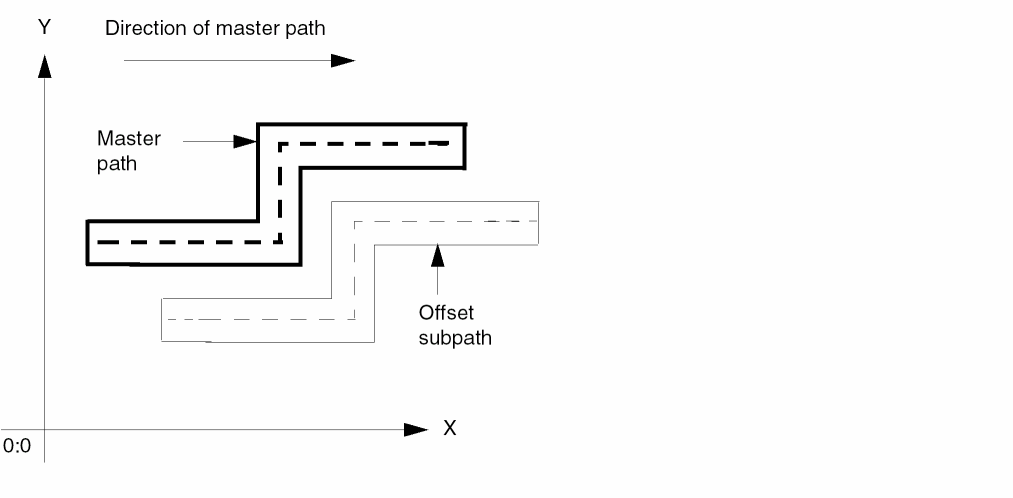
Because S_justification is set to right, the offset subpath appears on the right side of the master path, relative to the direction of the master path.
For more information, see rodCreatePolygon or rodCreatePath in the Virtuoso Relative Object Design SKILL Reference.
Solutions for rodCreateRect
Solution 3-8 Create One Rectangle with n_width and n_length
tfId = techGetTechFile( pcCellView )
rodCreateRect(
    ?name     "minMetal"
    ?width    3
    ?layer    "metal1"
    ?length   2 * techGetSpacingRule( tfId "minWidth" "metal1" )
) ; end of rodCreateRect
The layer purpose defaults to drawing. To use minimum width in a calculation, you must refer to the technology file rule for minimum width directly. Do this by using the techGetSpacingRule function with the standard user-defined name for minimum width, minWidth, and the layer name, metal1. Let the origin of the rectangle default to 0:0.
Return to Problem 3-8 Create One Rectangle with n_width and n_length.
For more information, see rodCreateRect in the Virtuoso Relative Object Design SKILL Reference.
Solution 3-9 Create One Rectangle with l_bBox
tfId = techGetTechFile( pcCellView )
rodCreateRect(   ?name       "minMetal"
                 ?bBox       list( 2:2 8:5 )
                 ?layer      "metal1"
) ; end of rodCreateRect
The rectangle is 6 by 3 with its origin at 2:2, and the upper-right corner is
at 8:5.
Return to Problem 3-9 Create One Rectangle with l_bBox.
Solution 3-10 Create a Single Row or Column of Rectangles
rodCreateRect(
?name "minMetal"
?layer "metal1"
?elementsX9) ; end of rodCreateRect
Because the rectangle width and space between rectangles was not specified, the system automatically retrieves the minimum width and minimum design rules for the metal1 layer from your technology file.
Return to Problem 3-10 Create a Multipart Rectangle with One Row/Column of Master Rectangles.
Solution 3-11 Create Multiple Rows and Columns of Rectangles
tfId = techGetTechFile( pcCellView )
rodCreateRect( ?name "polyRect"
?layer "poly"
?elementsX5?elementsY4?origin list( 3 6 )?spaceX
techGetSpacingRule( tfId "minSpacing" "poly" ) + 3
?spaceYtechGetSpacingRule( tfId "minSpacing" "poly" )+6) ; end of rodCreateRect
For rectangle size, let the system use the minimum width for the poly layer from the technology file for both width and length. Set a local variable equal to the technology file ID.
Use the techGetSpacingRule function to get the minimum space between rectangles for the poly layer. Let the cellview ID default to the variable pcCellView, because the statement is executed inside of a Pcell.
Return to Problem 3-11 Create a Multipart Rectangle with Multiple Rows/Columns of Master Rectangles.
Solution 3-12 Fill a Bounding Box with Rectangles
rodCreateRect(       ?name        "polyRect"
                     ?layer       "poly"
                     ?fillBBox    list( 2:2 20:12 )
                     ?spaceX      2.0
) ; end of rodCreateRect
Let the rectangle width and length default to the minimum design rules in the technology file for the poly layer and the distance between rectangles along the Y axis default to the value of the n_spaceX argument. The layer purpose defaults to drawing.
Return to Problem 3-12 Fill a Bounding Box with Master Rectangles.
Solution 3-13 Partially Fill a Bounding Box with Rectangles
tfId = techGetTechFile( pcCellView )
rodCreateRect(
?fillBBox list( 0:0 18:10 )
?layer list( "metal1" "drawing" )
?elementsX 3
?elementsY 2
?bBoxlist( list(0 0) list(2 2))?spaceY
techGetSpacingRule( tfId "minSpacing" "metal1" )
?spaceX
techGetSpacingRule( tfId "minSpacing" "metal1" ) * 2
) ; end of rodCreateRect
This is the first time rectangles were created in the cellview, so the names of the rectangles default to rect0.x.y. The system did not use the values for l_bBox to determine the location of the first rectangle because using the l_fillBBox argument always causes the first rectangle to be placed in the lower-left corner of the fill-bounding box.
Use the techGetSpacingRule function to retrieve the minimum design rule for the metal1 layer.
Return to Problem 3-13 Partially Fill a Bounding Box with Master Rectangles.
Solution 3-14 Overfill a Bounding Box with Rectangles
rodCreateRect(
        ?fillBBox    list( 0:0 18:10 )
        ?layer       "metal1"
        ?elementsX   6
        ?elementsY   4
        ?spaceX      2.5
        ?spaceY      2.0
) ; end of rodCreateRect
This is the second time rectangles were created in the cellview, so the names of the rectangles default to rect2.x.y. When you use the l_fillBBox argument, the system always places the first rectangle in the lower-left corner of the fill-bounding box. The width and length of the rectangles defaults to the minimum width for the metal1 layer from the technology file, which is 2.0.
The number of rectangles specified with the n_elements arguments, combined with the distance between them, exceeds the space in the fill-bounding box, so the system creates only as many rectangles as fit inside the box. In this case, the system creates four columns and three rows of rectangles.
Return to Problem 3-14 Overfill a Bounding Box with Master Rectangles.
Solution 3-15 Create a Single Rectangle on a Terminal and Net
rodCreateRect(   ?name            "termFig"
                 ?layer           "metal1"
                 ?termName        "Aout"
                 ?termIOType      "output"
) ; end of rodCreateRect
The layer purpose defaults to drawing. The origin of the rectangle defaults to 0:0. The rectangle termFig is now associated with the terminal and net Aout.
Return to Problem 3-15 Create a Single Named Rectangle on a Terminal and Net.
Solution 3-16 Create a Rectangular Pin
tfId = techGetTechFile( pcCellView )
localMinWidth = techGetSpacingRule( tfId "minWidth" "poly" )
ptUR = rodGetObj( "trans1" )~>upperRight
rodCreateRect(
?name       "polyPin"
?pin        t
?termName   "InOut0"
?layer      list( "poly" "pin" )
?pinLabel   t
?bBox list( list( rodPointX( ptUR ) - localMinWidth
                         rodPointY( ptUR ) - localMinWidth
                  ) ; list for value of lower-left corner
              ptUR   ; value of upper-right corner
              ; end of bBox list of points
) ; end of rodCreateRect
First, the technology file ID is set equal to the variable tfId, and the local variable localMinWidth is set equal to the minimum width rule from the technology file for the poly layer. Then, the local variable ptUR is set equal to the coordinates of the upper-right corner of the bounding box around the object trans1, using the rodGetObj function. The upper-right corner of the pin has the same coordinates.
In the rodCreateRect statement, set the g_pin argument to t for true to create a pin. Let the pin access direction default to inputOutput. Set g_pinLabel to t to create a pin text-display label. The text of the label is the contents of the S_termName argument, InOut0. The location of the origin of the text-display label defaulted to centerCenter.
Next, compute the coordinates for the lower-left corner of the pin bounding box as follows:
-
To compute the X coordinate, use the
rodAddToXfunction to subtract the minimum width for the poly layer from the X coordinate ofptUR. -
To compute the Y coordinate, use the
rodAddToYfunction to subtract the minimum width for the poly layer from the Y coordinate ofptUR.
For the upper-right corner of the pin bounding box, use the value of the ptUR variable, the same point as the upper-right corner of trans1.
Return to Problem 3-16 Create a Rectangular Pin.
Solutions for rodGetObj
Solution 3-17 Accessing Coordinates without Hierarchy
cv = dbOpenCellViewByType(
                    "rodTestLib" "AAA" "layout" "maskLayout" "a" )
point1 = rodGetObj( "polyRect" cv )~>lowerleft
There is no hierarchy in layout cellview AAA.
First, you used the database function dbOpenCellViewByType to get the cellview ID for AAA. Then you got the ROD object ID for the object polyRect and used the database access operator (~>) to retrieve the system-defined point handle for the lower-left corner.
The lowerLeft point handle is at 3:3, so point1 = 3:3.
For more information, see rodGetObj in the Virtuoso Relative Object Design SKILL Reference.
Return to Problem 3-17 Accessing Coordinates without Hierarchy.
Solution 3-18 Accessing Coordinates through One Level of Hierarchy
cv = dbOpenCellViewByType(
                    "rodTestLib" "BBB" "layout" "maskLayout" "a" )
point1 = rodGetObj( "IA1/polyRect" cv )~>lowerLeft
point2 = rodGetObj( "IA2/polyRect" cv )~>lowerLeft
There is one level of hierarchy. The coordinates of the lower-left corner of polyRect are 9:6 for instance IA1 and 69:6 for instance IA2, so point1 = 9:6 and point2 = 69:6.
Return to Problem 3-18 Accessing Coordinates through One Level of Hierarchy.
Solution 3-19 Accessing Coordinates through Two Levels of Hierarchy
cv = dbOpenCellViewByType(
                    "rodTestLib" "CCC" "layout" "maskLayout" "a" )
point1 = rodGetObj( "IB1/IA1/polyRect" cv )~>lowerLeft
There are two levels of hierarchy. The coordinates of the lower-left corner of polyRect are 15:9, so point1 = 15:9.
Return to Problem 3-19 Accessing Coordinates through Two Levels of Hierarchy.
Solutions for rodNameShape
Solution 3-20 Naming a Polygon Created in a Pcell
cvId =       deGetCellView()
testName =   "abcde"
rodId = if(
            rodIsFigNameUnused( testName cvId )
        then
            rodNameShape(
                          ?name       testName
                          ?shapeId    polyDbId
                         ) ;end rodNameShape
        ) ;end if
To verify whether the name testName has already been used in the cellview, you need the cellview ID.
The local variable polyDbId was set equal to the database ID for the polygon when it was created, so you can use polyDbId in your rodNameShape statement. You can specify a name as a character string enclosed in quotation marks or as a symbol preceded by a single quotation mark ('). The rodNameShape function returns the ROD object ID for the shape you named.
For more information, see rodNameShape in the Virtuoso Relative Object Design SKILL Reference.
Return to Problem 3-20 Naming a Polygon Created by dbCreatePolygon in a Pcell.
Solution 3-21 Naming a Shape Created in the CIW and Layout Window
cvId = deGetCellView()
selSet = geGetSelectedSet(cvId)
dbId = car(selSet)
rectRodId = rodNameShape(?name "rectA" ?shapeId dbId)
First, you must select the unnamed shape in the active cellview window by clicking on it. Then, get the cellview ID (cvId) using deGetCellView(). Use cvId with geGetSelectedSet to return a list of the database IDs for all objects in the selected set (in this case, just one object).
Use the variable containing the list of database IDs (selSet) with the car Cadence SKILL language function to get the first database ID in the list (dbId). Use dbId to identify the shape you want to rename with rodNameShape.
Return to Problem 3-21 Naming a Shape Created in the CIW and Layout Window.
Problem 3-7 Create a Master Path with an Offset Subpath to the Right
When you create an offset subpath, you determine its location by specifying its separation from the master path (n_sep) and its justification (S_justification).
Assume that you are in a Pcell. Create a three-segment master path on the nwell layer as shown in the following illustration, with the width equal to 0.6, end type flush, and the centerline on the following points: 2:2, 8:2, 8:6, 10:6. Make the master path choppable and name it p1.
In the same statement, create an offset subpath 1.0 units to the right of the master path on the metal2 layer, with a width of 0.8. Let the offset of the subpath ends default to zero. You can also let the cellview ID (d_cvId) default to the Pcell variable pcCellView, because your statement is executed inside a Pcell.
The master path and offset subpath look something like this:
Solution 3-7 Create a Multipart Path with an Offset Subpath on the Right
Return to top