1
Introduction
This document describes Virtuoso® Text Editor and helps you in using it to work with digital and analog text cellviews. It is intended for circuit designers who want to use Virtuoso Text Editor for working with design blocks stored in HDL files. This document also describes the SKILL functions of Virtuoso® Text Editor.
The SKILL API reference is meant for verification project managers and designers who want to use Verifier SKILL APIs for requirements-based verification of their analog designs.
This document assumes that users are familiar with the Cadence SKILL™ language and Virtuoso Schematic Editor.
This document includes the following topics:
Licensing Requirements
Virtuoso Text Editor is available with Virtuoso Framework License 111. Virtuoso Schematic Editor L license 95100 is required to edit HDL files using Virtuoso Text Editor.
For more information on licensing, see Virtuoso Software Licensing and Configuration Guide.
Overview
Virtuoso® Text Editor lets you work with the text cellviews stored in HDL files, such as Verilog, SystemVerilog, VHDL, PSpice, HSPICE, Spectre, and SPICE text files, in Virtuoso libraries. You use this application to perform the following tasks:
-
Create and edit digital and analog text cellviews.
-
Check the syntax of text cellviews.
-
Create text cellview databases.
-
Create different types of views, such as symbol and schematic views, from a text cellview.
-
Check the pin order in text cellviews.
Virtuoso provides various tools to create text cellviews. For example, Virtuoso Verilog In lets you import modules into an external Verilog file as text cellviews in a Virtuoso library. You can continue to use these tools to create text cellviews, while using Virtuoso Text Editor to edit the text cellviews.
Launching Virtuoso Text Editor
You can launch Virtuoso Text Editor from various Virtuoso applications to open or create a text cellview.
The following table describes some methods to open a text cellview in Virtuoso Text Editor.
|
Virtuoso Application
|
Process to Launch Virtuoso Text Editor
|
|
Virtuoso Library Manager
|
-
Double-click the text cellview.
|
|
Virtuoso CIW
|
-
Choose File — Open. The Open File form appears.
-
Select the text cellview and click OK.
For details, see Working with Cellviews in Virtuoso Studio Design Environment User Guide.
|
|
Virtuoso Schematic Editor
|
-
Open a design and double-click the symbol associated with a text cellview. The Descend form appears.
-
Select the text cellview and click OK.
For details, see Descending Using the Descend Command in Virtuoso Schematic Editor L User Guide.
|
The following table describes some methods to create a new text cellview using Virtuoso Text Editor.
|
Virtuoso Application
|
Process to Launch Virtuoso Text Editor
|
|
Virtuoso Library Manager
|
-
Choose File — New — Cell View. The New File form appears.
-
Specify the library, cell, and view. Select one of the HDL languages from the Type list.
-
Click OK.
|
|
Virtuoso CIW
|
-
Choose File — New — Cellview. The New File form appears.
-
Specify the library, cell, and view. Select one of the HDL languages from the Type list.
-
Click OK.
|
|
Virtuoso Schematic Editor
|
-
Choose File — New. The New File form appears.
-
Specify the library, cell, and view. Select one of the HDL languages from the Type list.
-
Click OK.
|
Understanding the Graphical User Interface
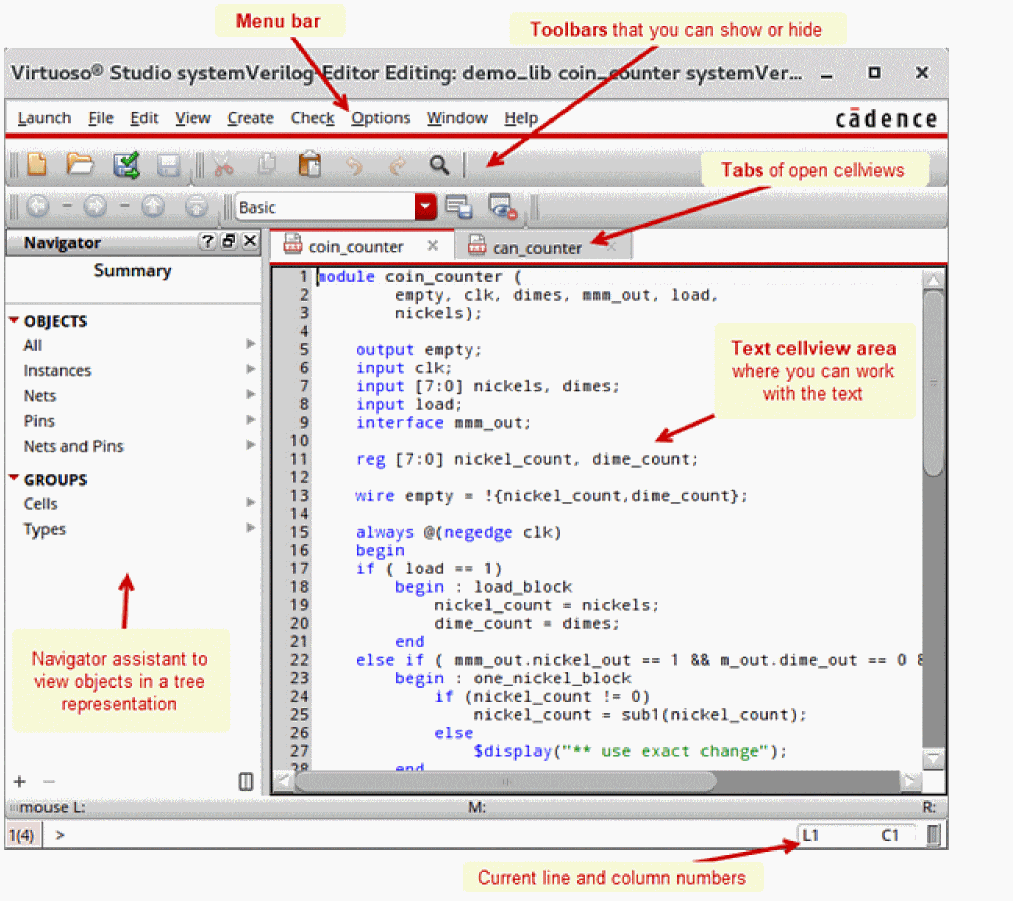
The following figure illustrates the main form of Virtuoso Text Editor.
The title bar of Virtuoso Text Editor indicates the library, cell, and text cellview opened in the editor, along with the read or write mode and the language of the text cellview.
The following table describes the key graphical user interface components of Virtuoso Text Editor.
|
UI Component
|
Description
|
|
Text cellview area
|
Displays the contents of the text cellview.
You can open the cellview in edit or read-only mode. You can open multiple text, schematic, and layout cellviews in different tabs of a single window.
|
|
Navigator assistant
|
Provides facilities to view objects across the design hierarchy using a tree representation.
For details, see The Navigator Assistant in Virtuoso Schematic Editor L User Guide. Also see “Navigating a Design Hierarchy Containing Text Cellviews”.
|
|
Menu bar
|
|
Launch menu
|
Provides the option to launch the NC-Verilog Integration Environment, if a Verilog text cellview is opened.
For details on this environment, see Virtuoso NC-Verilog Environment User Guide.
|
|
File menu
|
-
New – Create a new cellview.
-
Open – Open an existing cellview.
-
Close – Close the displayed text cellview.
-
Save – Save the text cellview without checking for syntax errors.
-
Check – Check the syntax, save, and parse the text cellview.
-
Extract – Create the database of instances, nets, and pins in the text cellview after checking, saving, and parsing the cellview. This feature also performs cross-view checks. If the symbol of the text editor does not exist, the feature prompts you to create it.
-
Make Editable/Read-Only – Switch text cellview mode to read-only or edit.
-
Discard Edits – Discard unsaved edits and reload the text cellview.
-
Reload – Reload the text cellview. This option is useful when you edit the cellview in an external editor and want to view the changes in Virtuoso Text Editor.
-
Print – Print the contents of the text cellview file.
-
Bookmarks – Add and manage bookmarks.
For details, see Bookmarks and Views in Virtuoso Studio Design Environment. -
Cellview list – List the previously opened cellviews for quick access.
-
Close All – Close all the tabs in the session window. If there are unsaved changes in the cellview opened in a tab, the application prompts you to save them before closing that tab. If all the tabs are closed, the session window also closes.
|
|
Edit menu
|
-
Undo, Redo – Undo or redo changes.
-
Copy, Cut, Paste – Copy, cut, and paste content.
-
Find, Find Previous, Find and Replace – Find and replace text.
-
Go to Line – Go to a specific line number.
-
Hierarchy – Navigate the design hierarchy.
-
Launch External Editor – Open the text cellview in an external editor.
-
Select All – Select all text in the work area.
|
|
View menu
|
-
Show Line Numbers – Show or hide the line numbers.
-
Parser Log File – View the text cellview file parser log.
|
|
Create menu
|
|
|
Check menu
|
-
Pin Order – Check the pin order. This feature is useful for text cellview files where terminals of instances are connected by sequence.
-
Remove All Markers – Remove all displayed markers, such as syntax error markers.
|
|
Options menu
|
-
Editor – Enable or disable the default behavior of opening text cellviews in an external editor for editing.
You can set the environment to always open a text cellview for editing in the external editor. To revert this setting, open the text cellview in read-only mode in Virtuoso Text Editor and reset the option. -
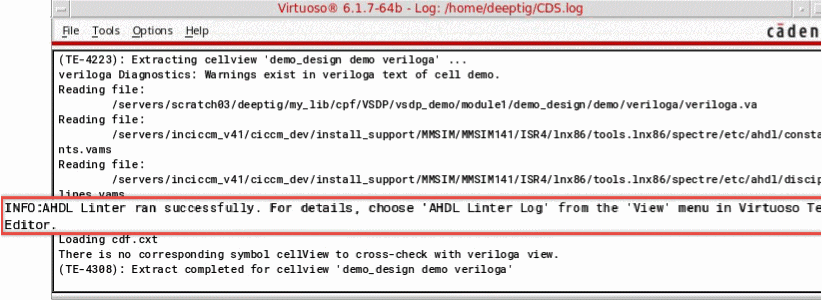
Enable AHDL Linter Static Check– Enable AHDL Linter static check in Virtuoso Text Editor. You can also enable this check by using “enableAhdllintStaticCheck”. When you check the syntax, save the text cellview file, and create the database of instances, nets, and pins in the text cellview, you see following message in CIW.
|
|
Window menu
|
-
Assistants – Access the Navigator assistant. For details, see “Navigating a Design Hierarchy Containing Text Cellviews”.
-
Toolbars – View or hide the toolbars and customize the File and Edit toolbars using Toolbar Manager. For details, see Using and Resetting Toolbar Manager.
The available toolbars are File, Edit, Bookmarks, Go, and Workspaces. -
Workspaces – Set the workspace. For details, see Virtuoso Workspaces.
-
Tabs – Navigate between the opened tabs. You can also close the current or other opened tabs.
-
Copy Window – Copy the current window. Any changes you make in the opened text cellview file is reflected in all the copies of the window.
|
|
Help menu
|
-
Access help and online support.
|
|
Toolbars
|
|
File toolbar
|
-
Create or open a text cellview.
-
Check the syntax, save the text cellview file, and create the database of instances, nets, and pins in the text cellview.
-
Save the text cellview file without checking for syntax errors.
|
|
Edit toolbar
|
-
Cut, copy, paste content.
-
Undo and redo changes.
-
Search the text cellview content.
|
|
Bookmark toolbar
|
|
|
Go toolbar
|
|
|
Workspaces toolbar
|
-
Set and optimize the workspace.
For details, see Virtuoso Workspaces in Virtuoso Studio Design Environment User Guide.
|
Return to top