
1
Getting Started
This chapter provides basic information on setting up tool and how to run Virtuoso IPVS for the first time.
The content of this chapter is organized as follows:
Prerequisites
In order for Virtuoso IPVS to run and report errors correctly, following information needs to be pre-established:
When both PVS and Virtuoso are available, VIPVS toolbar is ready to be used on the layout window once it is opened. However, toolbar may not be fully enabled if no snapshot is detected by VIPVS during layout opening.
You can create your own set of local snapshots or refer to global snapshots provided by CAD.
For details on creating local snapshot, refer to following:
For details on setting up global snapshot, refer to following:
PVS DRC Browser is the default browser for both Virtuoso IPVS and PVS. It has its own set of PVS specific display packages. Thus, it is required for you to integrate this set of display package within Virtuoso for proper error highlight capability. For the quick PVS DRC Browser color scheme integration, refer to:
Using Virtuoso IPVS for the First Time
There is no special tool setup for Virtuoso IPVS as long as both of Virtuoso and PVS installations are present in your Unix PATH.
Once you launch Virtuoso and open a layout in any Virtuoso tier (L/ XL/ GXL), Virtuoso IPVS toolbar is decked on the layout window as following:
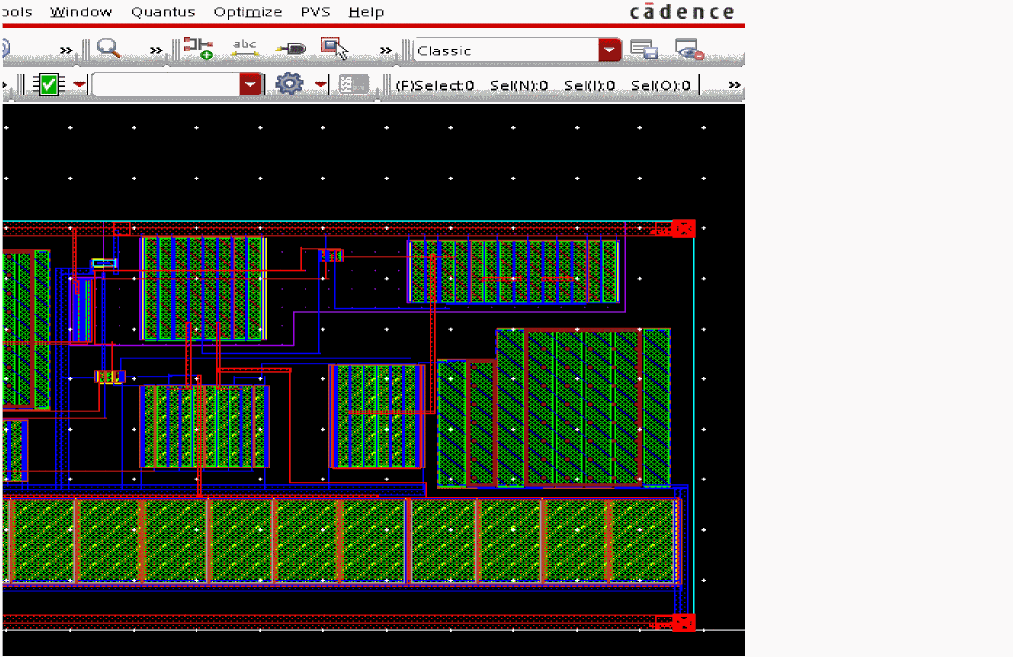
At this point, only Density_Analysis snapshot is available. The Open PVS DRC Browser option is disabled at this stage.
To create a snapshot, click VIPVS Run Options icon, click Create Snapshot button on Virtuoso IPVS Run Options form and create snapshot using the Virtuoso IPVS Snapshot Creator form.
Figure 1-2 Invoke Virtuoso IPVS Snapshot Creator
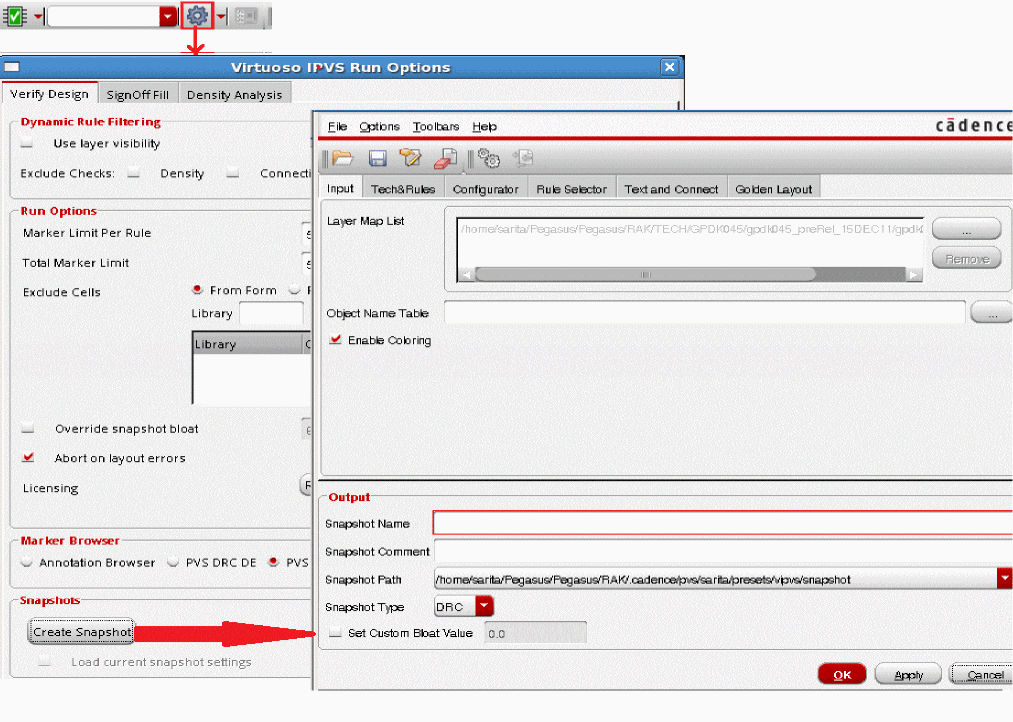
To create a snapshot from the first time, refer to First Time under Quick Start: Create Snapshot. Once the snapshot is created, all of icons are activated except Open PVS Results Viewer icon. Open PVS DRC Browser icon is inactivated due to no run results available for Open PVS DRC Browser to load.
Figure 1-3 Virtuoso IPVS toolbar ready to use

To run DRC, you can click VIPVS Verify-Design icon using its default setting or other setting described in Verify Design Mode in the Invoke Design Rule Checking chapter.
Once VIPVS is running DRC against the layout, the VIPVS Verify-Design icon changes to a Stop symbol. At this moment, you are free to do any of following:
- Terminate the DRC run any time
-
Continue editing the same or different layout for the same Virtuoso Session
Figure 1-4 Virtuoso IPVS run in progress
Once the run is complete, PVS DRC Browser is automatically triggered and has error violations populated in the browser. Meanwhile, these errors are highlighted in the layout as well.
By default, markers are displayed on all cells found in the layout. You can ask VIPVS to generate and display markers by cell master through drdPVSErrorDisplayMaster. Once this CDS environmental variable is set, PVS DRC Browser populates markers by cell name and first cell markers are highlighted by default.
Figure 1-5 Display violations by cell in PVS DRC Browser
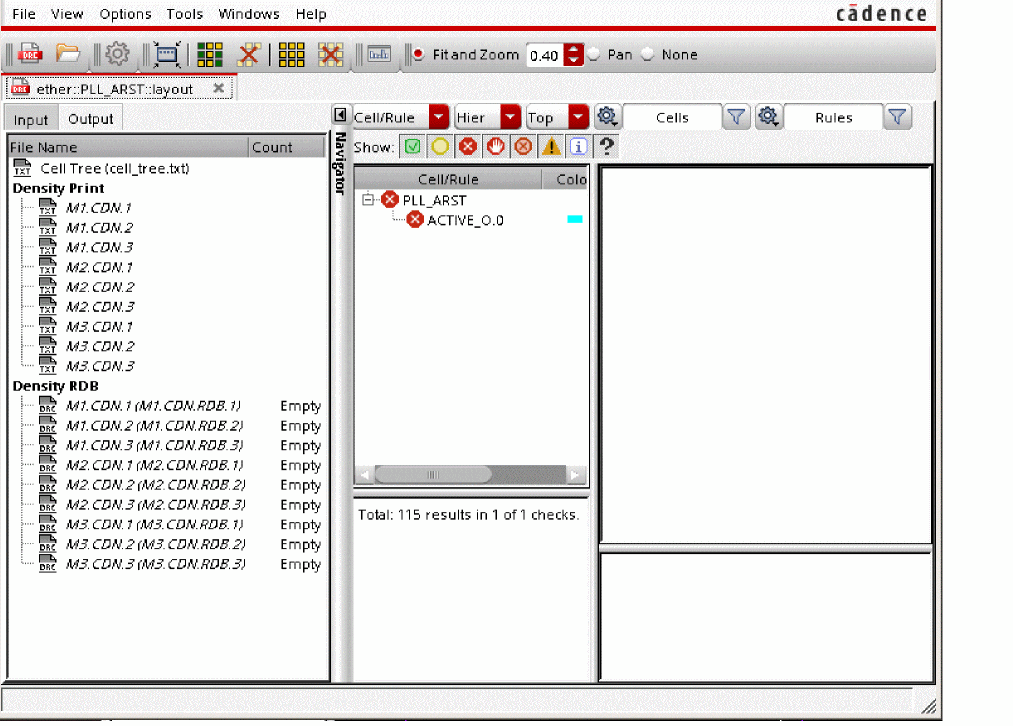
Figure 1-6 Display violations by cell in DRCDE Browser
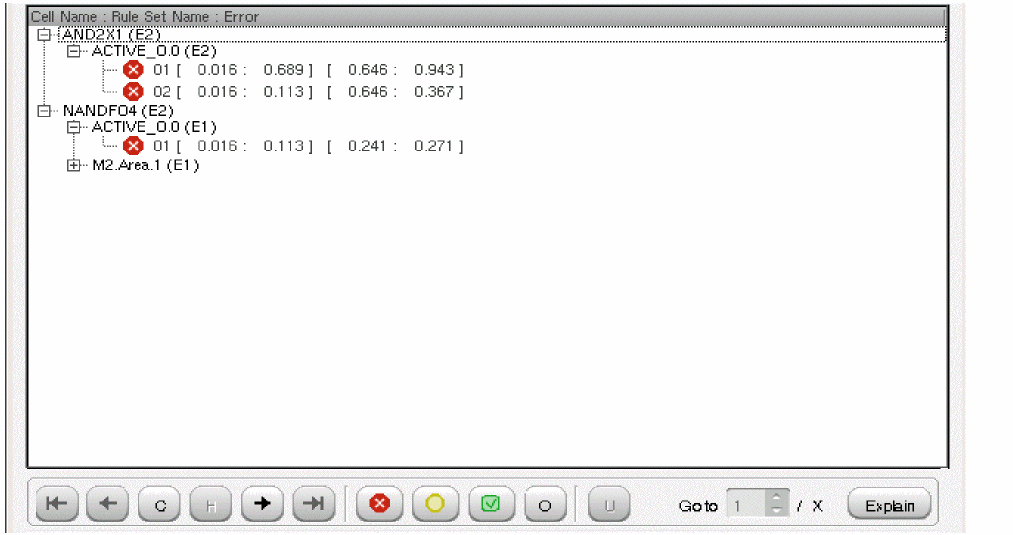

At this point, the PVS DRC Browser icon becomes active. You can invoke PVS DRC Browser to view the last run results as long as layout is opened regardless its editing status.
Figure 1-7 PVS Results Viewer icon is active

For a given snapshot, you may want to run on certain rules based on the layer visibility displayed in the layer Palette. To do so, you can enable Dynamic Rule Filtering (DRF). Once this setting is enabled, Virtuoso IPVS only selects check based on current visible layers in the Palette to run DRC.
Return to top