
Reshaping a Multipart Path
You can reshape a segment of a multipart path in the same way you reshape a segment of a single-part path; however, you must start the reshaped segment on the master path centerline.
The master path and its subparts reshape together. You cannot reshape the master path separately from its subparts, nor can you reshape subparts separately from the master path.
To reshape one segment in a multipart path:
- In the layout window, choose Edit – Advanced – Reshape.
-
Press
F3to open the Reshape form. - Select Mode as line.
-
Select a multipart path on the canvas.
You are prompted to enter the first point. -
Click the centerline of the master path to enter the first point.
As you move the pointer, an outline of the master path shows the new shape.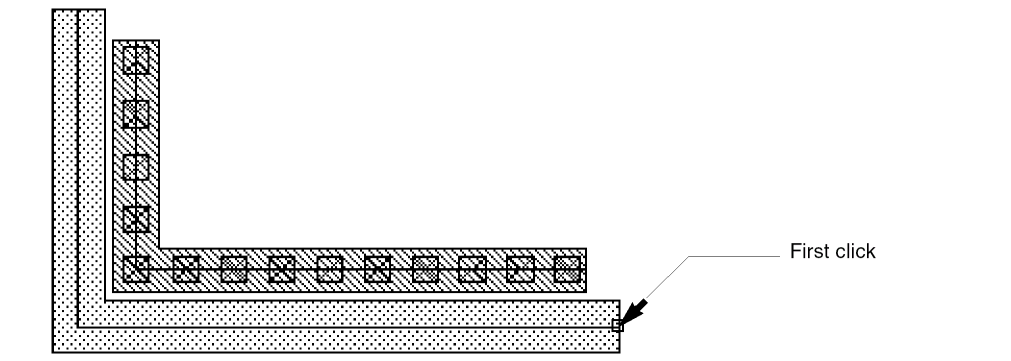
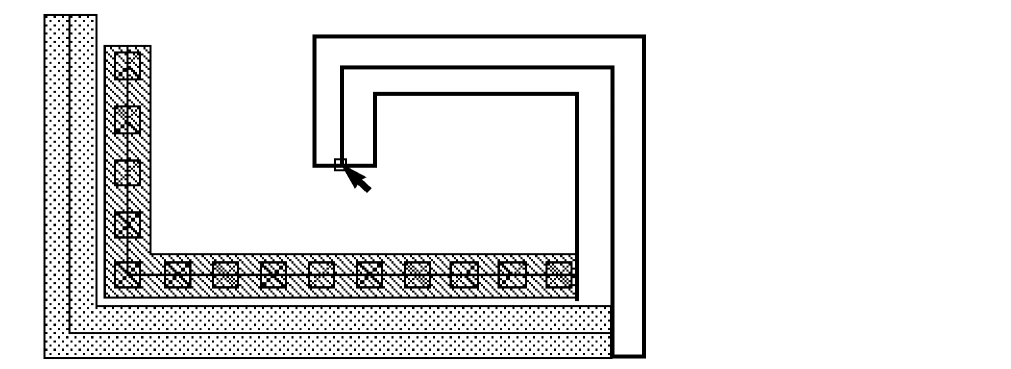
- Double-click on the canvas when you are finished entering points.
- Right-click to toggle between highlighting the new path and highlighting both the old and new path.
-
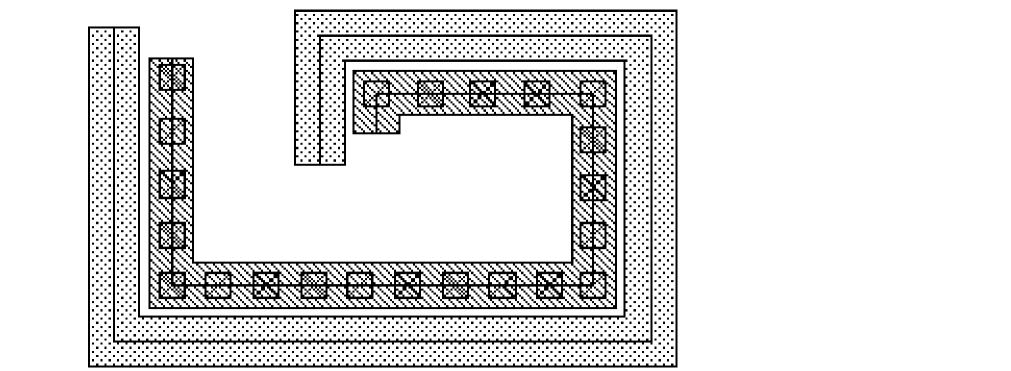
When the shape you want is highlighted, click on the canvas.
Related Topics
Selecting a Whole Multipart Path
Return to top