
Probing a Design in Edit-in-Concert Mode
Probing lets you interactively explore the design and locate the counterpart of a selected object in different windows on different fabrics. In Edit-in-Concert mode, you can probe nets, bump instances, and Ball Grid Array (BGA) balls. Multi-fabric net probe lets you probe nets from a package or module to a die or from a board to a package, and then to a die. When an object, for example, a net, is probed in the package die tab, it is highlighted in the corresponding layout tabs. This section covers the procedures for:
Probing a Net
- Launch Edit-in-Concert mode from a package die of the required die instance.
- Click either the package tab or the die layout tab.
- Right-click the required net in the Navigator assistant.
- Choose Probe and select a highlight color from the shortcut menu.
The top-level net geometries (in the foreground) and the net geometries inside the die layout (in the background) are highlighted on the package tab. Similar highlights are seen in the die layout tab.
Example1: In the first image, net D2 is probed (with a pink-colored highlight) in the package die.
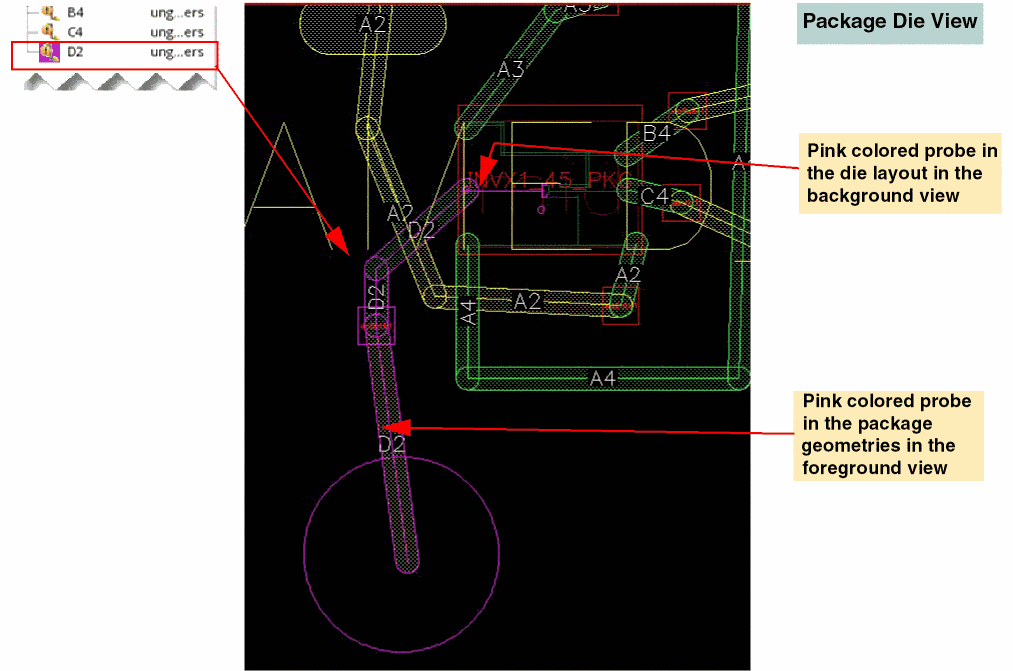
The second image depicts the same probe, when viewed from the die layout.
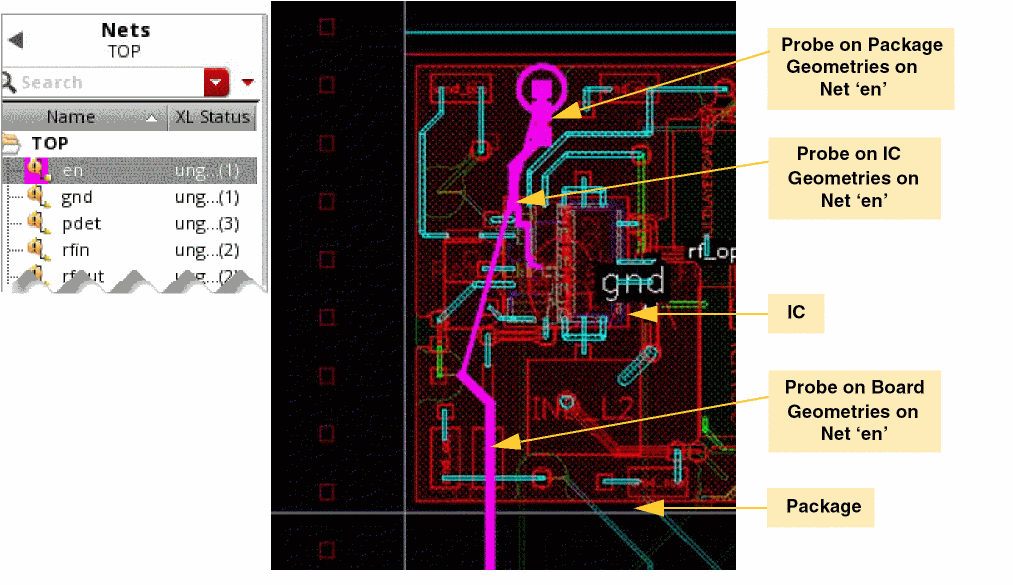
Example 2: In the following example, a net is probed from a board fabric. The probe highlights the net object in the board, package, and die.
Probing Bump or Ball
- Launch Edit-in-Concert mode from a package die of the required die instance.
- Move to the package tab.
- Choose Module – Probe Bump and Ball.
- Click the BGA ball or bump instance to be probed.
The net connecting the selected bump or BGA ball is highlighted hierarchically across the top level and die layout. In the following examples, the selected net is highlighted hierarchically starting from the selected BGA ball.
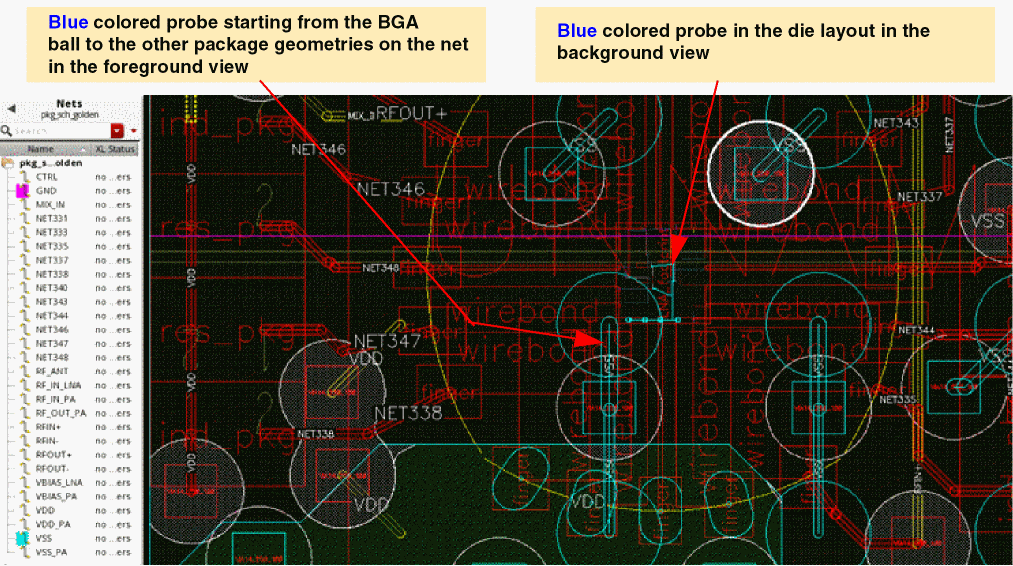
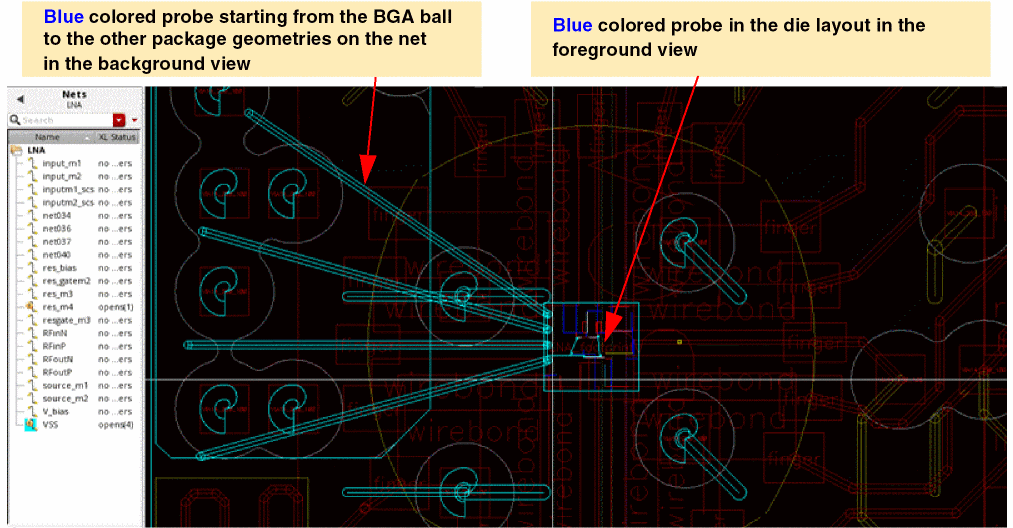
To select balls and bumps in a design, use Pins in the Objects panel of the Palette assistant.
Related Topics
- IntAddTrace
- Edit-in-Concert
- Modify in Edit-in-Concert Mode
- Movement of Dies in Edit-in-Concert Mode
- Changes to TILP Parameters in Edit-in-Concert mode
- Change from Package view to Layout View
- Net Tracing in Editing-In-Concert Mode
Return to top