
Array Generation - Group Array
Certain custom and digital designs, such as those containing memory arrays and routing channels, might require patterns of objects to be repeated across a design. You can use group arrays to create such repeated patterns in your designs. Group arrays are XL compliant and support mixed connectivity with different masters.
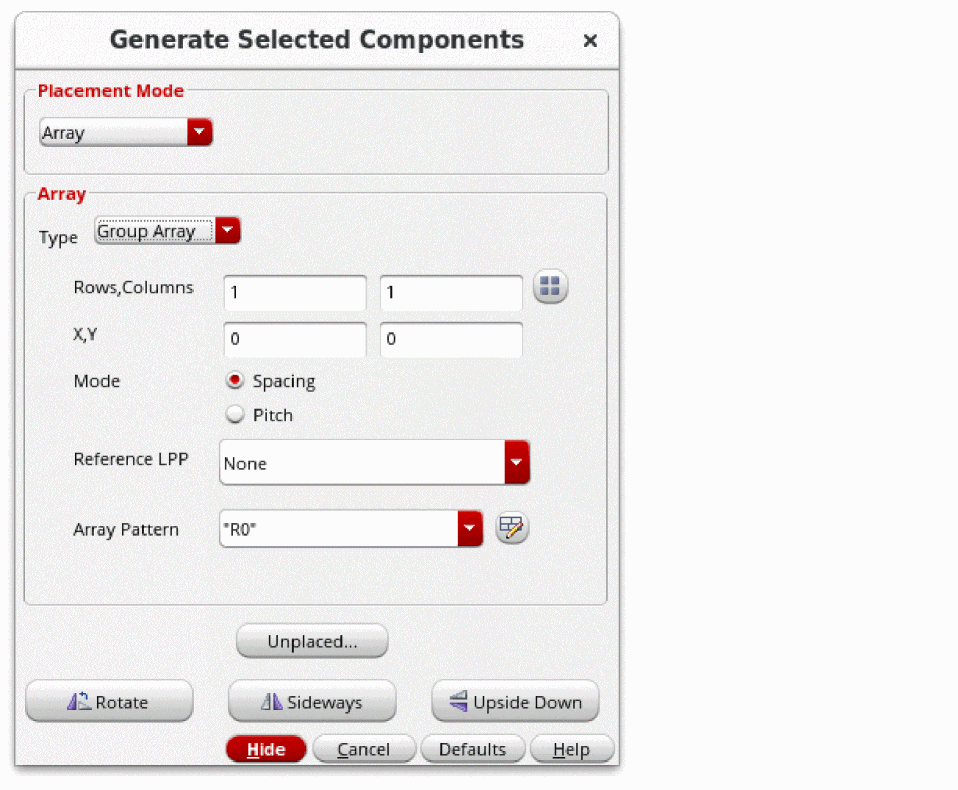
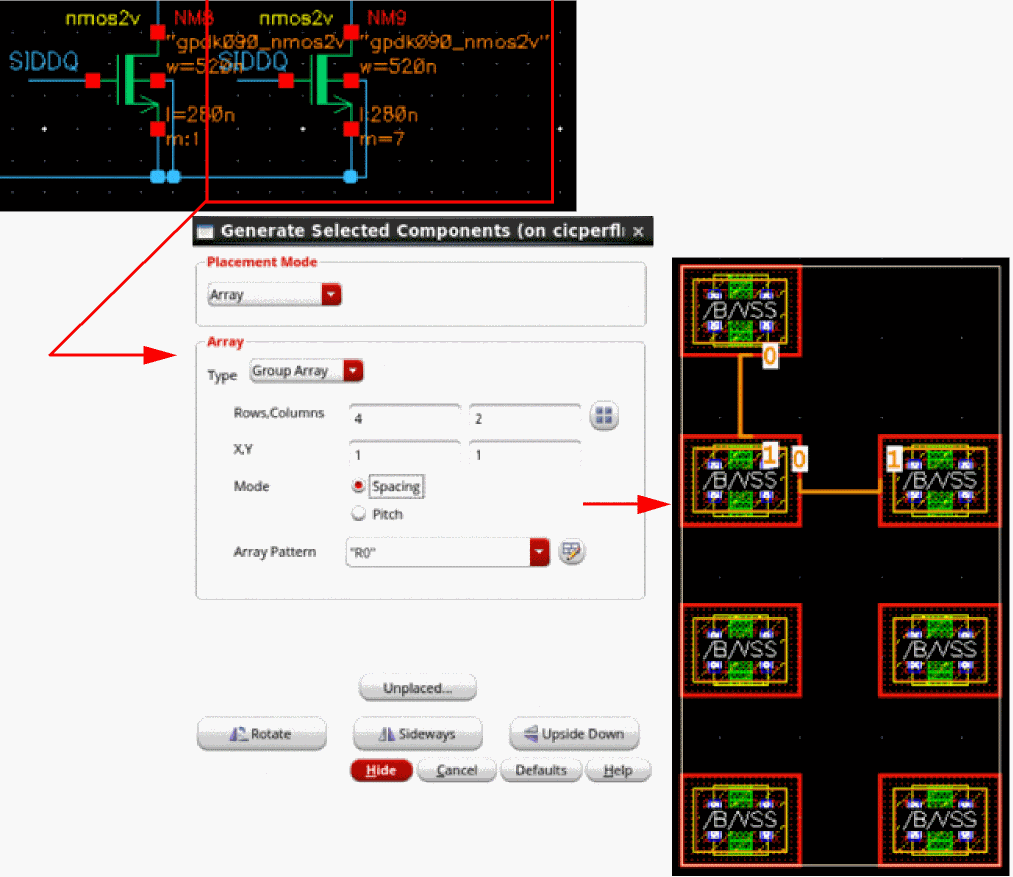
To generate a group array, you need to specify number of rows and columns and X and Y coordinates. Mode lets you specify the type of spacing for the group array.
Reference LPP is used to specify the layer-purpose pair used for computing the bounding box of the cells in a group array. The combined bounding box of the geometries on the specified reference layer-purpose pair is used for calculating the spacing between cells.
Array Pattern is used to control the orientation pattern for the group array. The Array Pattern form is displayed when you click the Array Pattern button on the Generate Selected Components form.
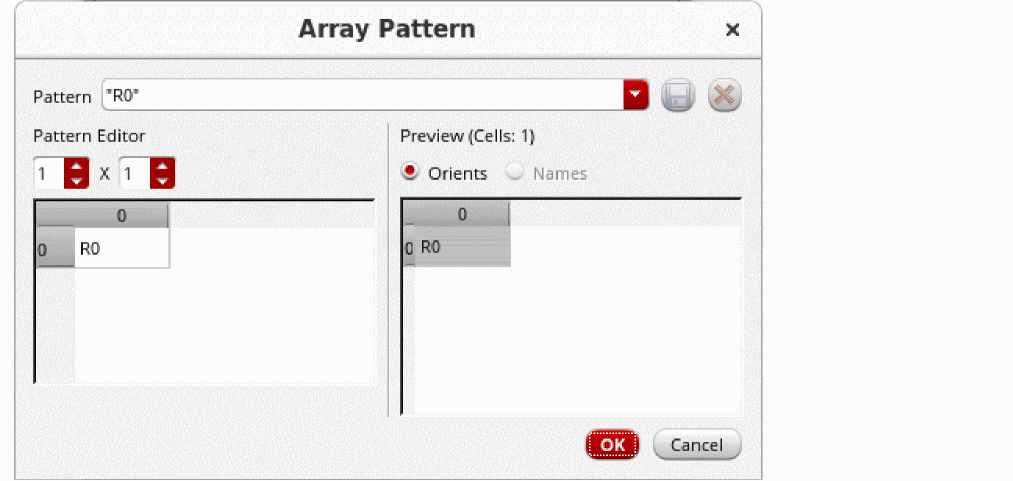
You can also change the orientation pattern of the array as required.
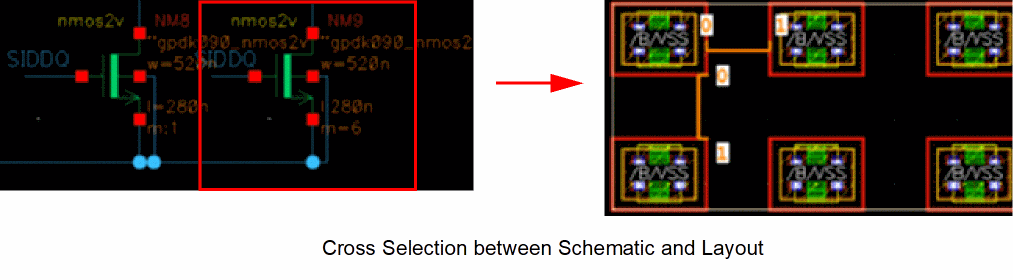
Layout components will appear in the drag set that you can place in the layout canvas. All the instances of the group array are bound to respective schematic instances and their XL status is OK for all the instances in the Navigator. Cross selection works between group arrays and schematic instances where members of the group array are highlighted in the canvas.
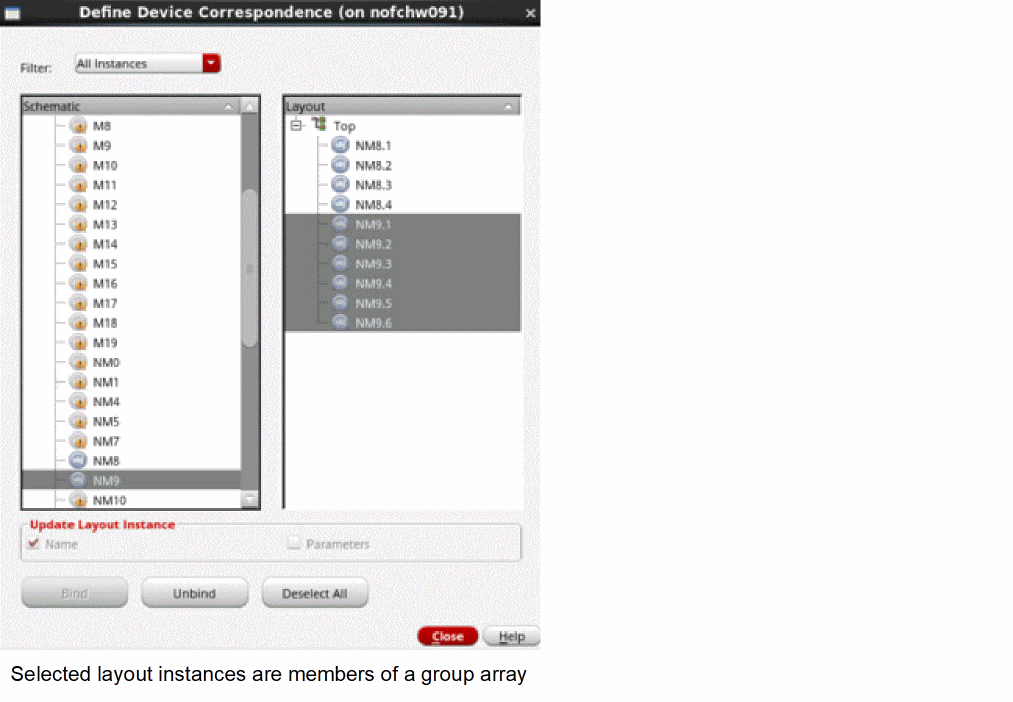
You can check or define the binding of instances in a group array using the Define Device Correspondence form.
In group arrays, you can create holes by specifying different number of rows or columns that result in different sizes.
Consider a schematic instance where m=7 and, specify 4 in either the row or column field of the Generate Selected Components form. The other field (row or column) is automatically filled with the value 2. The resultant group array has one hole to complete the product because there are 7 members in the group array.
You cannot generate a group array:
- If instances of different masters or different parameters are selected in the schematic.
- While editing inside a Group Array. You should either choose a different placement mode or create the Group Array outside the existing Group Array.
In these cases, you might see the following message in the layout canvas and a warning message is displayed in the CIW.

Related Topics
Return to top