
Concurrent Layout Toolbar in Manager Mode
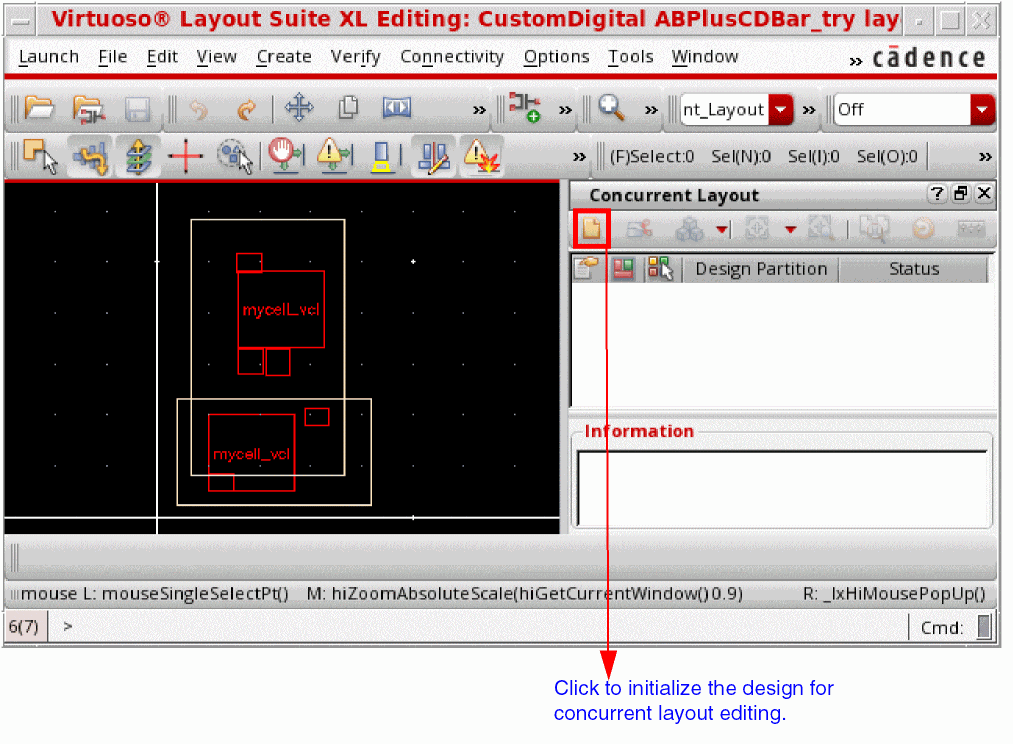
To perform concurrent layout editing, you first need to initialize the design to make it ready for concurrent editing. Therefore, when you start the Concurrent Layout assistant for the first time for a design, only the Initialize button is available on the Concurrent Layout toolbar.
Click Initialize to make the design ready for the concurrent editing. This annotates the design so that it opens in the Concurrent Layout environment next time.
After you initialize the design, remaining buttons on the Concurrent Layout toolbar are enabled in manager mode.
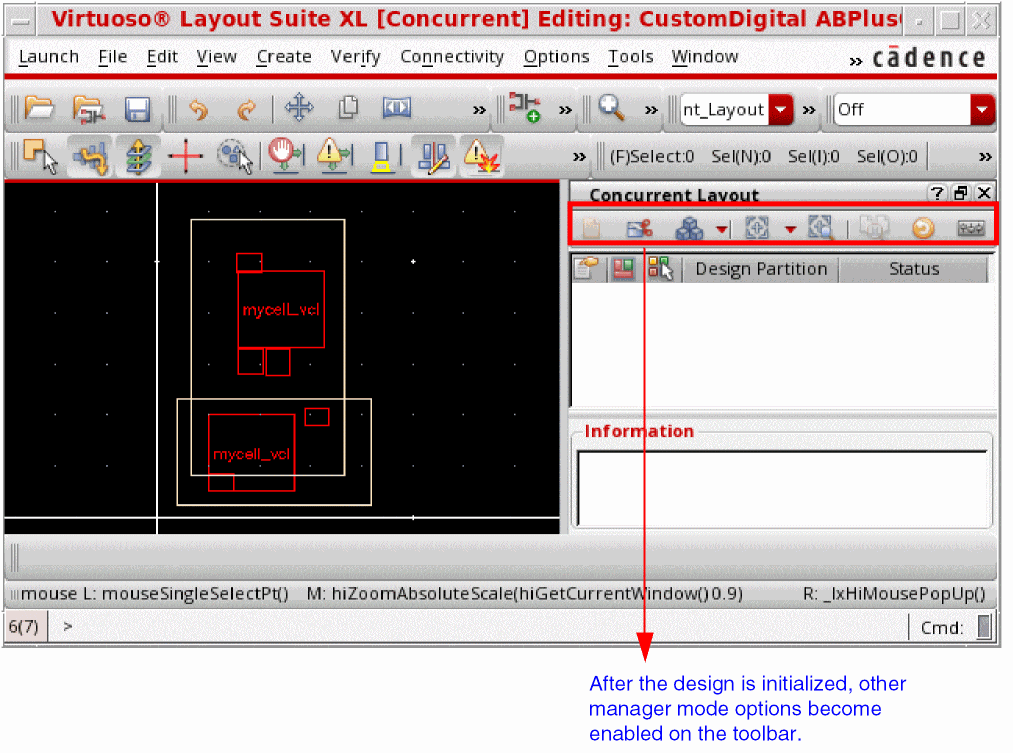
The following table lists the functions of the different buttons on the Concurrent Layout assistant toolbar:
|
Displays the Define Design Partition Form form that lets you create and configure design partitions. |
||
|
Displays the Merge Form form that lets you merge or reject design partition views that have been submitted to be merged with the top design. |
||
|
Cancels checkout of design partition views. This should be the last step of merge after the top design is checked-in. |
||
|
Displays the Change Design Partition View Form form that lets you change existing design partition views. |
||
|
Displays the Layout Configuration Form form that lets you load or unload layout configurations in design partition views. |
||
|
Displays the Append History Form form that lets managers inform designers about important changes made to the top design. |
||
|
Compares design before and after you update it by placing them side-by-side. |
||
|
Reloads design partition views or the top design from the disk. |
||
|
Displays the Concurrent Layout Options Form form. |


Related Topics
Design Partition Management Pane in Manager Mode
Design Partition Options in Manager Mode
Return to top