
Running the Batch Checker
-
Choose Verify – Design.
The Batch Checker form appears, as shown in the following figure.
There is a tree widget on the left panel for the checks that can be performed using this form.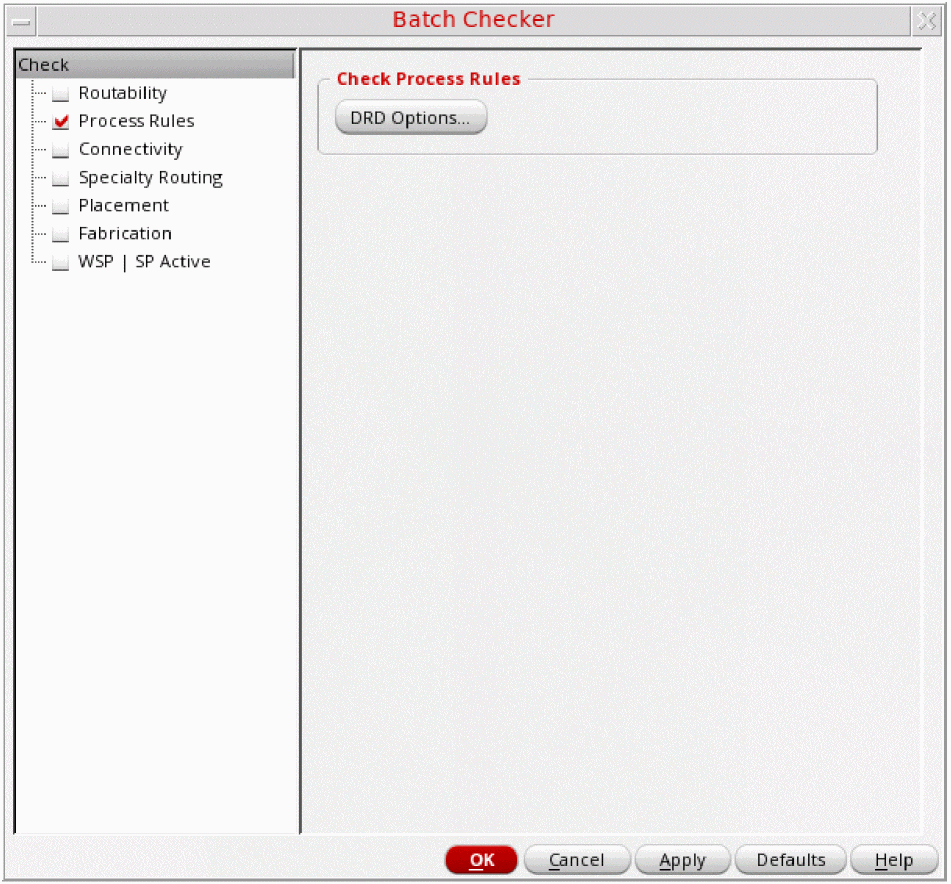
The Verify – Design command is disabled when a cellview is opened in read-only mode. This is because when a cellview is in read-only mode, DRD is unable to write into the cellview and hence cannot create markers in it. -
Choose a check from the list of checks in the left panel.
The options for the check are shown in the right panel. - Repeat step 2 until all the checks that you want to run are enabled with the desired options.
-
Click OK or Apply to run the checks.
For information about using the Annotation Browser to inspect the markers that are created by these checks, see Finding Violations Using Annotation Browser.
Related Topics
Checking Routability Using Batch Checker
Checking Process Rules Using Batch Checker
Checking Connectivity Using Batch Checker
Checking Specialty Routing Using Batch Checker
Checking Fabrication Using Batch Checker
Checking WSP | SP Active Using Batch Checker
Return to top