
A
Verilog In Form
The Verilog In form is organized in three tabs for import options: Import Options, Global Net Options, and Schematic Generation Options.
Import Options
The following table describes the fields available on the Import Options tab of the Verilog In form.
| Field | Description |
|---|---|
|
Lets you select the names of the Verilog files that contain the complete descriptions to import. You can type or select multiple files separated by a space. To select the files, click the corresponding Browse button. In the Select File form, browse and select the files you want to import.
To select multiple files, hold down the |
|
|
Specifies the Virtuoso Studio Design Environment library in which all the imported cells are to be placed. If the library exists, Verilog In places the imported cells in it, else, Verilog In creates a new target library and places the imported cells in it. Browse opens the Library Browser form. Clicking a library name in Library Browser puts that library name in the Target Library Name field. |
|
|
Lets you reference the libraries that contain Virtuoso Studio Design Environment reference cells. Typically, these reference cells are imported as part of another design or are ASIC library cells. If a cell exists in a reference library with the same name as the module to import, Verilog In does not import the module.
If you want to generate a multi-sheet schematic, you must specify a reference library containing a sheet border and index sheet symbols (for example, the
The default reference libraries are For incomplete designs, if the description of a module is not provided, but a symbol for the module exists in the reference library, it is used to create a structural view for the instantiating modules.
For more details on symbol selection, see |
|
|
Lets you reference multiple symbol view names and find the instance master in the reference library. |
|
|
This section specifies overwrite options for the cellviews to be generated by the import process. |
|
|
Overwrites existing views with a new version if the module to be imported already exists as a cell in the target library. By default, this check box is not selected and Verilog In does not import a module if it already exists. When the Overwrite Existing Views check box is selected, Verilog In imports the specified module and overwrites its existing version. |
|
|
Overwrites the specified symbol view with a new symbol if the symbol of the module to be imported already exists in the target library.
By default, this option is set to Set this option to any of the following values to specify which symbols you want to overwrite:
To view the |
|
|
Specifies the views that must be created for structural modules by Verilog In.
If you use the schematic option for a big design containing a large number of gates or huge vector nets, it can take several hours to complete the processing and can require a large amount of memory. In this case, you can create a quick schematic without routed nets and where the connectivity is indicated by names.
For generating such a place-only schematic, disable Full Place and Route in the Schematic Generation Options tab or specify the Verilog In If you want to maintain the placement and routing information in the schematic, split your Verilog design into sub-designs before you import it using the schematic option. If you want only the connectivity of the design and not the graphics, use the netlist option instead of the schematic option. |
|
|
Specifies what to do if a module is described as a Verilog HDL cell in the input file. |
|
|
Specifies the name for the schematic view to be created in the target library. The default view is |
|
|
Specifies the name for the netlist view to be created in the target library. The default view is |
|
|
Specifies the name for the functional view to be created in the target library. The default view is |
|
|
Specifies the name for the symbol view to be created in the target library. The default view is |
|
|
This section specifies options to filter modules in the schematic. |
|
|
Specifies the text file that lists modules which you do not want to import. Modules underneath these modules in the design hierarchy are imported, unless they too are listed in this file. Create this file with a text editor and list one module for each line. For example, given a module hierarchy as follows: 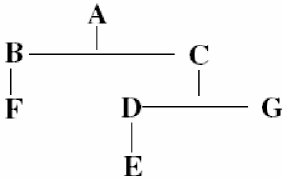 If the ignore modules file contains:
Verilog In imports the modules If a module is listed in the ignore modules file and Verilog In does not find a symbol for the module in the target or reference libraries, Verilog In creates a symbol for the module. |
|
|
Specifies the text file, which lists the modules that you need to import. Only the modules listed in the file are imported. The modules underneath these modules in the design hierarchy are marked as
If the specified text file is empty, all the modules in Verilog In netlists are marked as |
|
|
This section provides the options to specify pre-compiled libraries. |
|
|
Specifies the name of the pre-compiled library to be used while importing a design. Multiple pre-compiled libraries can be specified by separating them with spaces. |
|
|
Specifies the view in the pre-compiled library that is used to find the IR for the cell while using pre-compiled libraries. When pre-compiled libraries are created, use this option to specify the view in which the IR of the module is saved. |
|
|
Specifies the |
|
|
Compiles pre-compiled libraries without importing the design. |
|
|
Specifies the names of the files that contain Verilog In options, such as |
|
|
Specifies the names of the Verilog files needed to compile the design. The reference design files can be given as - |
|
|
Specifies a suffix that identifies Verilog files in the path to the Verilog Library. Different organizations use different extensions, such as |
|
|
Specifies the file that logs the import status of each module being imported. For more information about the log file, see Output Files Created by Verilog In. The default log file is |
|
|
Specifies the directory in which Verilog In stores internal data.
This option is useful for importing large designs when space in the |
|
|
Specifies the name of the
The default filename is |
|
|
Specifies whether you want to create a technology file during import. If you deselect this option, no
You can also specify this option using the |
Global Net Options
The following table describes the fields available on the Global Net Options tab of the Verilog In form. Use these options to specify global nets and net expressions of the schematic imported by Verilog In.
Schematic Generation Options
The following table describes the fields available on the Schematic Generation Options tab of the Verilog In form. Use these options to specify the format of the schematic imported by Verilog In.
| Field | Description | ||
|---|---|---|---|
|
Lets you generate a schematic with full placement and routing when the number of instances or ports in the file being imported are within the limits specified in the Instances Less Than or Ports Less Than fields. If the number of instances or ports exceed the specified number, Verilog In generates a place-only schematic in which the nets are not routed and the connectivity is indicated by name. Deselect this check box to create a place-only schematic, irrespective of the number of instances or ports. When you deselect the check box, the Instances Less Than and Ports Less Than fields become disabled.
|
|||
|
Specifies the maximum number of instances in the file being imported when the Full Place and Route check box is selected. If the file has more than the specified number of instances, Verilog In generates a place-only schematic.
Environment variable:
For information on the corresponding parameters for the |
|||
|
Specifies the maximum number of ports in the file being imported when the Full Place and Route check box is selected. If the file has more than the specified number of ports, Verilog In generates a place-only schematic.
These fields specify the default value and the environment variable of these options, which are typically set in
Environment variable:
For information on the corresponding parameters for the |
|||
|
Specifies the direction for placing pins in the schematic that Verilog In generates using the pin-placement options. |
|||
|
Specifies the configuration to be used for pin-placement in the schematic.
The syntax of the pin-direction declaration in a pin-placement file includes the module name, the pin direction, and the pin name list. The values for the direction are The syntax of entries in a pin placement file is as follows:
The pin names in the pin-placement file must match the names specified in the port list. Additionally, the pin names must not contain spaces, except escaped names. The following is an example entry in a pin-placement file: |
|||
|
For compatibility with previous product versions, the pin-placement functionality also supports a comma-separated pin-placement file. The following is an example entry in a comma-separated file:
Based on the format of the entries in the pin-placement file, the following behavior of the pin-placement functionality is observed: |
|||
|
This section lets you specify a list of views that can be looked up by the tool. |
|||
|
Specifies the separated schematic or symbol views in the List of Views field, which the tool can look up for missing terminals on an instance line in the input Verilog file. It is possible that an instance line in the Verilog file has more terminals than the number of terminals specified on the identified instance symbol master. In this case, the tool uses the schematic or symbol views specified in the Reference Schematic/Symbol View For Inherited Connections field to look for the required additional terminals. The reference schematic views can contain terminals or nets with net expressions whose names match the names of the additional terminals on the instance line.
The tool extracts the
For example, you can use this field when you want to import a physical Verilog netlist with power-ground terminals on an instance line, where the corresponding symbol master does not have the power-ground terminals.
In this case, Verilog In checks if the power-ground terminals or nets exist in the reference schematic/symbol view list. If the corresponding terminals or nets exist and are inherited, the application creates the |
|||
|
This section specifies the library, cell, and view name of the component to be used between shorted ports. |
|||
|
Lets you specify the library name of the component to be used between shorted ports.
When the input and output ports of a module in the input Verilog design are shorted, Verilog In puts the default symbol called
The default location of this symbol is You can customize the location of the symbol from the Schematic Generation Option form. You can also click the Browse button and select the design from Library Browser. |
|||
|
Lets you specify the cell name of the component to be used between shorted ports. |
|||
|
Lets you specify the view name of the component to be used between shorted ports. |
|||
Continuous Assignment Symbol |
Specifies the library, cell, and view names for the patch symbol to avoid net shorting. Net shorting happens whenever you use an assign statement, such as You can also click the Browse button and select the design from Library Browser. |
||
Advanced Schematic Generation Options |
This section lets you set advanced schematic generation options. |
||
|
Specifies whether to square the schematic. Deselect this option if you do not want to have Verilog In manipulate rows and columns of devices to make a rectangular schematic into a square one. |
|||
|
Specifies whether to minimize crossover of nets. Select this option to minimize crossovers of nets. |
|||
|
Specifies whether to override default label placement. Select this option to override default label placement, which keeps overlap of segments or labels to a minimum, in favor of fast placement, which places labels of segments at the midpoint without checking for the minimum overlap. |
|||
|
Specifies whether to extract the schematic. Select this option to extract the schematic, that is, to have Verilog In look for errors and warnings in the schematic written into the Open Access database format. An extracted schematic shows blinking markers for the errors or warnings in the schematic view. |
|||
|
Lets you control the selection of symbols from the reference libraries. If this button is selected and Verilog In finds a reference symbol with the same name as specified in the Verilog design, the symbol is picked up. The pins not referred remain unconnected in the schematic.
By default, this option is The symbol is picked up even if all its pins are not used. To get the pin symbols from the reference library, set the following environment variables:
The
The
When set to
When set to |
|||
|
Specifies whether to connect dummy nets to unconnected pins of instances. Deselect this option to connect dummy nets named
This option only works for netlist view and not for schematic view. For schematic view, all unconnected pins on instances are always connected to dummy nets named |
|||
|
Lets you print detailed status messages while the schematic is being partitioned and routed. Select this option to print detailed messages. By default, this option is disabled. |
|||
|
Enables or disables the creation of snap space properties. Snap space can be defined as the minimum distance the cursor moves, in user units. The default distance ( |
|||
|
Lets you specify the list of scalar nets that need to be connected by name instead of physical wires. If a net specified in this field is a part of a bundle then all the nets in the bundle are connected by name. |
|||
|
Specifies a space-separated list of
If the
For more details on the Text-to-Symbol generator and the |
|||
|
This section provides options to let you set schematic dimensions. |
|||
|
Specifies the symbol that controls the size and page orientation of the sheet on which the schematic is to be made. Valid entries are the names of customer-designed sheet symbols and sheet symbols offered by Virtuoso Studio Design Environment.
A selection of sample sheet symbols is shipped with Virtuoso Studio Design Environment in the install_dir
The library containing the sheet symbol entered in this field must be in your
If the Sheet Symbol is If a specific sheet symbol size is provided, and Verilog In cannot fit the schematic onto one sheet, it creates a multisheet schematic. A multisheet schematic has one index sheet and many schematic sheets.
The view with the index sheet for the schematic has the same name as the Verilog module. The schematic sheets are numbered
For information about working with sheet symbols and multi-sheet schematics, refer to |
|||
|
Specifies the maximum number of rows that Verilog In places on each sheet. Verilog In uses this option only on a multi-sheet schematic. The value must be an integer from
Depending on the size of the instance symbols and the size of the sheet, Verilog In might not be able to place the maximum number of rows on a sheet. If you specify a value that is too large for the size of the instance symbols and the size of the sheet, Verilog In places as many rows as fit on each sheet up to the maximum of |
|||
|
Specifies the maximum number of columns that Verilog In places on each sheet. Verilog In uses this option only on a multi-sheet schematic. The value must be an integer from
Depending on the size of the instance symbols and the size of the sheet, Verilog In might not be able to place the maximum number of columns on a sheet. If you specify a value that is too large for the size of the instance symbols and the size of the sheet, Verilog In places as many columns as fit on each sheet up to the maximum of |
|||
|
Controls the size of the font used for pin, wire, and instance labels. The value must be a real value between |
|||
|
Specifies the spacing in inches between nets flowing in a channel for each sheet. The spacing for net segments connected to instance pins depends on the pins placed on symbols of the instances. Line To Line Spacing is used for all other net segments. The value must be a decimal number in the range of |
|||
|
Specifies the spacing in inches between a component and the nearest net flowing in a channel. The value must be a decimal number in the range of |
|||
|
Lets you control the density of the schematic. The value must be an integer from |
|||
Related Topics
Return to top