
1
Basic Library Categories
The basic library is a default reference library provided within the Virtuoso cds.lib file.
This reference contains basic information about each symbol within the basic library.
The symbols in the basic library are categorized as follows:
You can customize the values of symbols by amending the definition of the associated SKILL variables in the file schConfig.il. The file schconfig.il (located in install_dir/tools/dfII/samples/local) specifies various schematic editor configurations, including a configuration of the symbols within this library.
Misc
The Misc category (miscellaneous) lists those symbols that do not fall within the Supplies and Pins categories. It includes the following symbols:
cds_alias
Symbol View
cds_alias does not have a symbol view.
Description
A simple cell used by Verilog netlisters to short two nets.
cds_thru
Symbol View
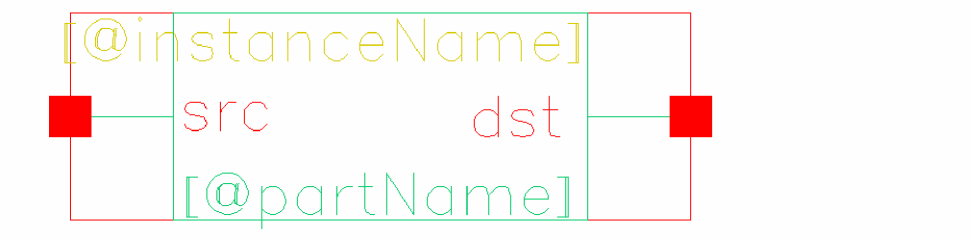
Description
This symbol is used as a component to create a connection that may otherwise be reported as a short. For example, when you need a short between two terminals or between a terminal and a global signal, use cds_thru as it prevents connectivity extraction errors in Virtuoso Schematic Editor due to shorted terminals.
The component is designed to netlist for the following tools:
-
cdl/auCdl: a small value resistor that can be ignored by using
*.RESIcommands - spectre: an iprobe, which is a zero-voltage source
- Verilog: a module describing the short. Terminal-to-terminal assigns are legal in Verilog.
In addition to a symbol view, this component cell has a functional view and other analog views, such as auLvs, hspice, hspiceD, spectre, and so on. The type of simulation determines whether a functional or analog view is used. To use an analog netlister to netlist a schematic, you can use analog views in the Hierarchy Editor (HED). To use the Verilog netlister, a functional view must be used in HED.
If you want to use another library and cell for shorting terminals, refer to Virtuoso VHDL Toolbox User Guide.
When an instance is bound to the function view of cds_thru in HED, cds_thrualias also display as a sub-instance of cds_thru in the hierarchy. AMS Unified Netlister (AMS UNL) generates an instance with cds_thru and passes the files, including the definitions of cds_thru and cds_thrualias, to the simulator. For example:
cds_thru I39 ( net012 , net09 );
Example
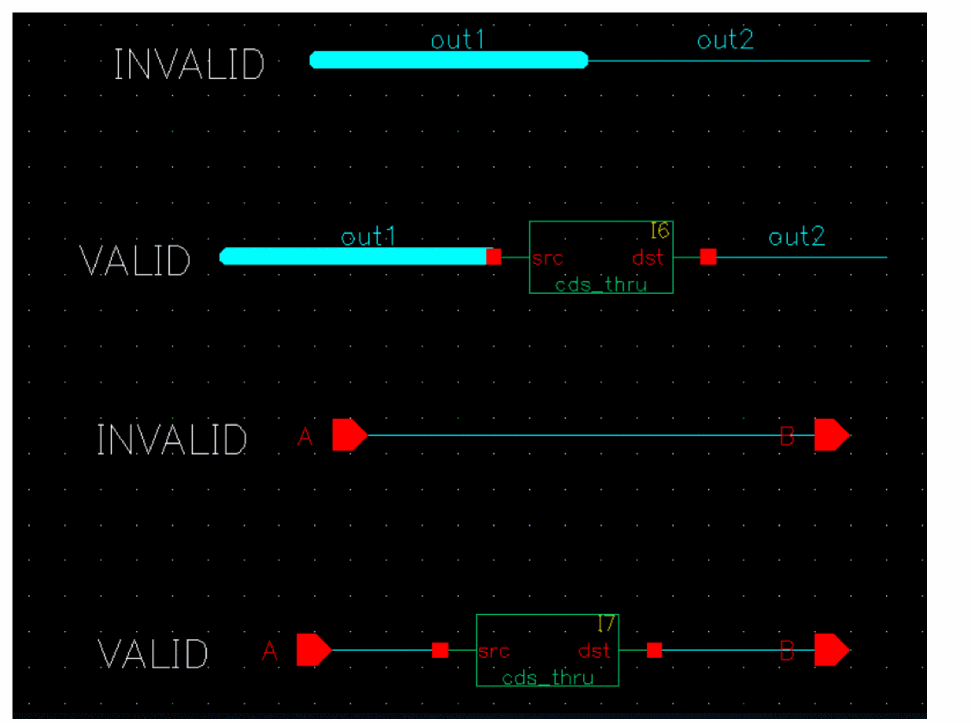
To short together two pins labeled out1 and out2, you can place the cds_thru component between the two pins. It would netlist in Spectre as follows:
I0 (out1 out2) iprobe
The iprobe does not affect the simulation run. So you have shorted out1 to out2. The following screenshot shows valid and invalid connections:
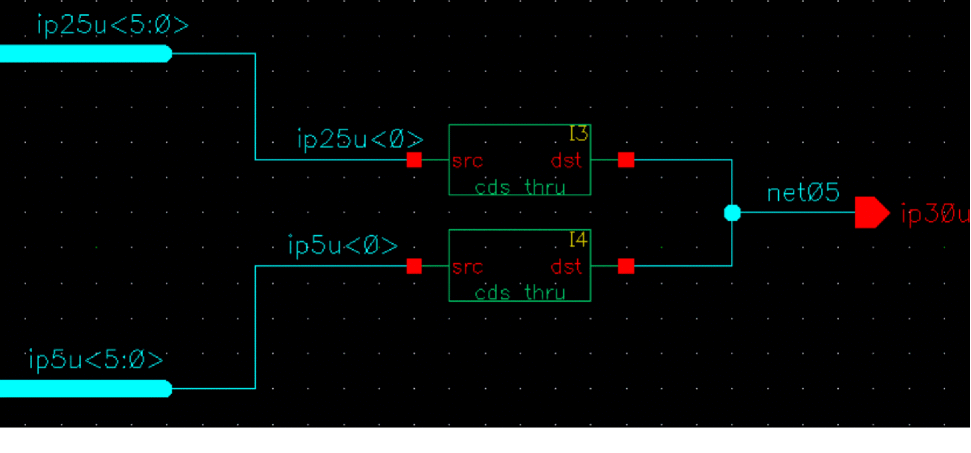
You can also combine two bus nets to form a single net using cds_thru as follows:
cds_thrualias
Symbol View
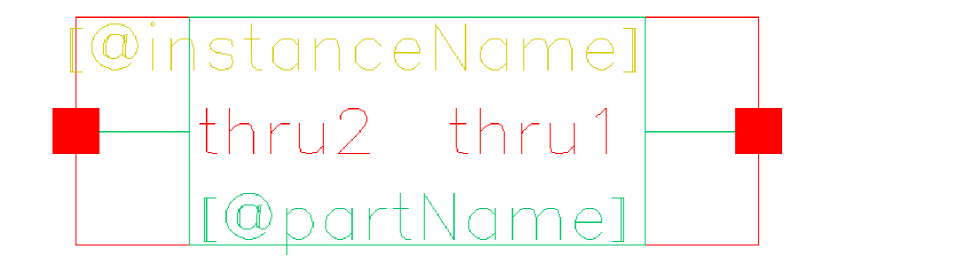
Description
When an instance is bound to the function view of cds_thru in the HED, cds_thrualias is also displayed as a sub-instance of cds_thru in the hierarchy.
AMS UNL generates an instance with cds_thru and passes the files, including the definitions of cds_thru and cds_thrualias, to the simulator.
Example
cds_thrualias I40 ( net015 , net014 );
dummy
Symbol View
Description
A dummy symbol provided for
nlpglobals
Symbol View
Description
A global block symbol containing the global netlist format property definitions used to indicate global nets. This is required when creating a global cellview for netlisting.
You must create an nlpglobals cell if using the flat netlister (FNL) to create a netlist. For more details on creating global cellviews, refer to the
noConn
Symbol View
Description
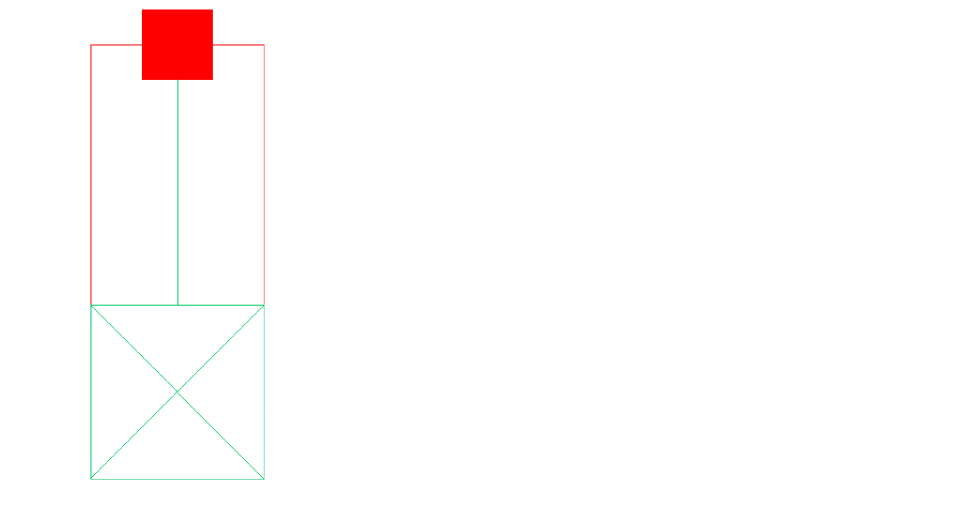
This symbol can be attached to pins with signals that are unconnected to component output pins, schematic input pins, or any other schematic I/O pins. Adding this symbol to such pins ensures that they are not highlighted by the floating pin check.
Example
When the noConn +symbol is placed on the end of a dangling wire, the schematic rules check does not highlight the wire as an error.

Related Topics
For more details, see
onPageConn
Symbol View
Description
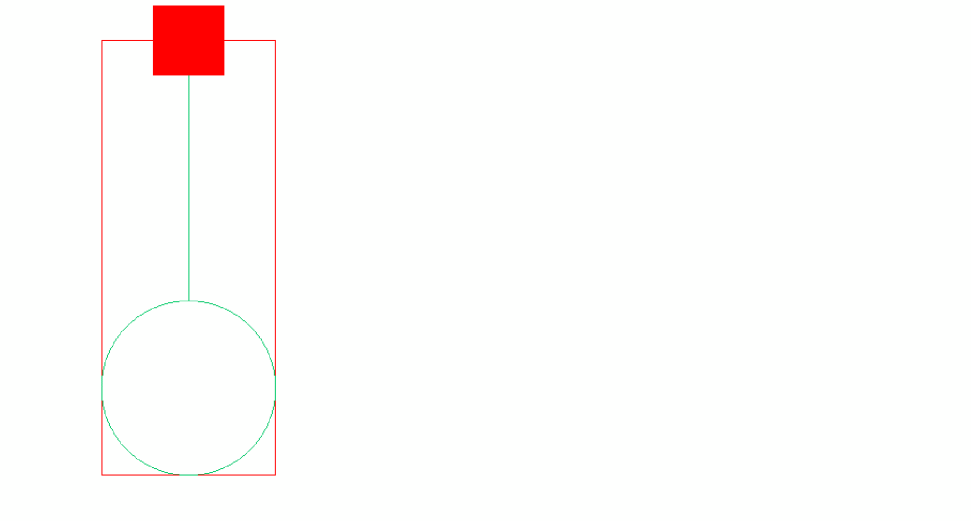
Use this symbol on wires without end points that do not physically connect to schematic or component pins, labels, or other wire segments. Attaching this symbol bypasses the unconnected wire check.
Example
When the onPageConn symbol is placed on the end of a dangling wire, the schematic rules check does not highlight the wire as an error.

Related Topics
For more details, see
patch
Symbol View
Description
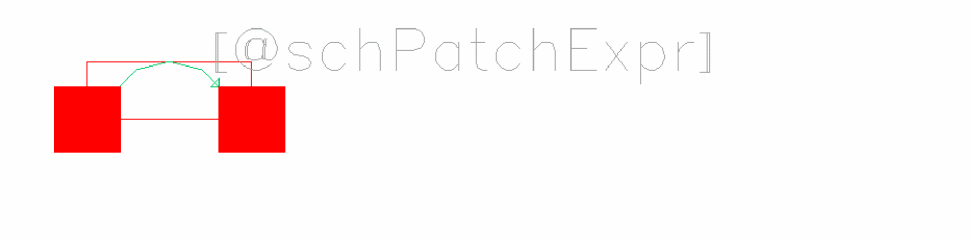
Use this symbol to create a patchcord to establish aliases between the signals of two different nets.
Example

Nets A and B are aliased together. Logically, each object that A is connected to is also connected to B, and the patchcord connects the first bit named in srcVectorExpression to the first bit named in dstVectorExpression.
Related Topics
See the following topics in the Virtuoso Schematic Editor User Guide:
Obsolete
The symbols listed in this section are obsolete and should not be used for new designs. They are preserved for existing designs.
Connectors
MiscObsolete
Saber
SuppliesObsolete
TA
Pins
The Pins category lists the symbol pins. It includes the following symbols:
- actHiInOut / actHiInp / actHiOut
- blockiopin / blockipin / blockopin
- circle
- commActLoInOut / commActLoInp / commActLoOut
- ieeeActLoInOut / ieeeActLoInp / ieeeActLoOut
- in / io / out
- iopin / ipin / opin
- sympin
- tsgActLo
- tsgActLoClock
- tsgClock
- tsgIeeeActLoInp
- tsgIeeeActLoOut
For more details, see
actHiInOut
Symbol View
Description
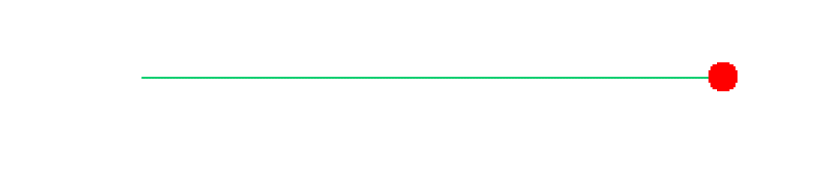
A symbol pin used when the pin type actHi is selected with a direction of input-output on the actHi.
The schSymbolPinMasters variable defines the symbol pins that are associated with the specific pin direction and type.
For more details, see
Example
schSymbolPinMasters = list(
list("actHi"
     list("inputOutput" list("basic" "actHiInOut" "symbol")))
)
actHiInp
Symbol View

Description
A symbol pin used when the pin type actHi is selected with a direction of input on the actHi.
The schSymbolPinMasters variable defines the symbol pins that are associated with the specific pin direction and type.
For more details, see
Example
schSymbolPinMasters = list(
list("actHi"
     list("input" list("basic" "actHiInp"   "symbol")))
)
actHiOut
Symbol View
Description
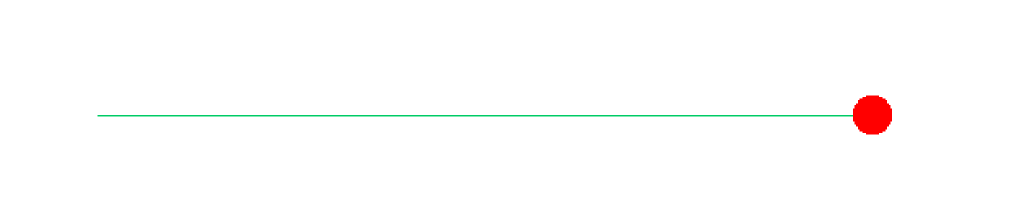
A symbol pin used when the pin type actHi is selected with a direction of output on the actHi.
The schSymbolPinMasters variable defines the symbol pins that are associated with the specific pin direction and type.
For more details, see
Example
schSymbolPinMasters = list(
 list("actHi"
     list("output" list("basic" "actHiOut"   "symbol")))
)
blockiopin
Symbol View
Description
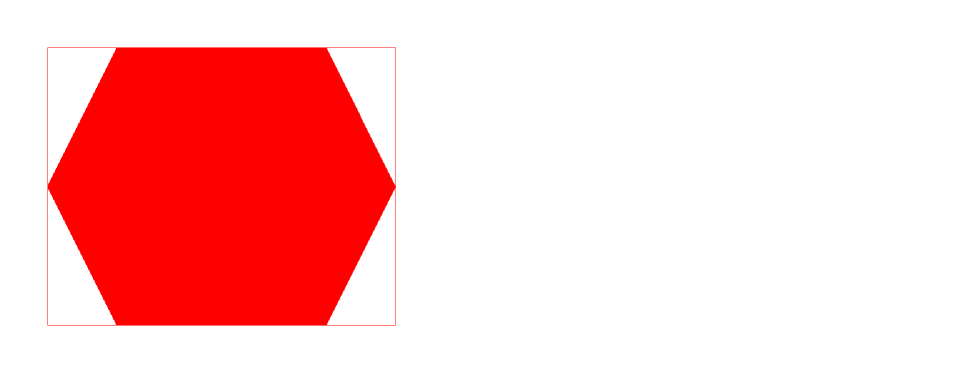
A symbol pin used when the pin type block is selected with a direction of inputOutput on the
The schSymbolPinMasters variable defines the symbol pins that are associated with the specific pin direction and type. The tsgConnectorMasters variable defines the symbol of the pin connector.
For more details, see
Example
schSymbolPinMasters = list(
list("block"
     list("inputOutput" list("basic" "blockiopin" "symbol")))
)
Related Topics
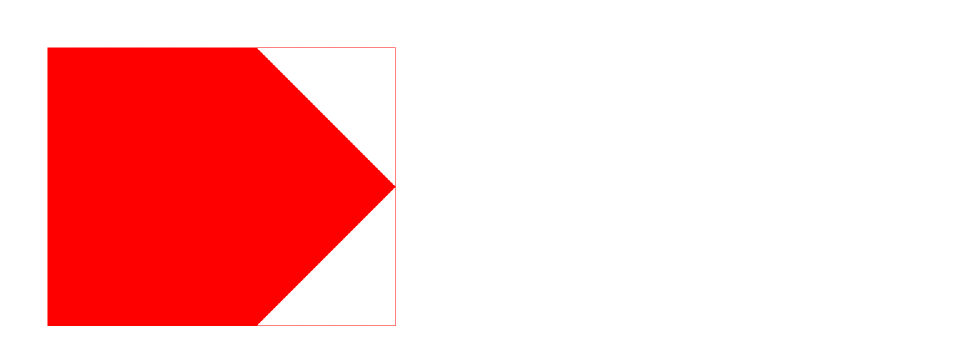
blockipin
Symbol View
Description
A symbol pin used when the pin type block is selected with a direction of input on the
The schSymbolPinMasters variable defines the symbol pins that are associated with the specific pin direction and type. The tsgConnectorMasters variable defines the symbol of the pin connector.
For more details, see
Example
schSymbolPinMasters = list(
list("block"
     list("input" list("basic" "blockipin"  "symbol")))
)
Related Topics
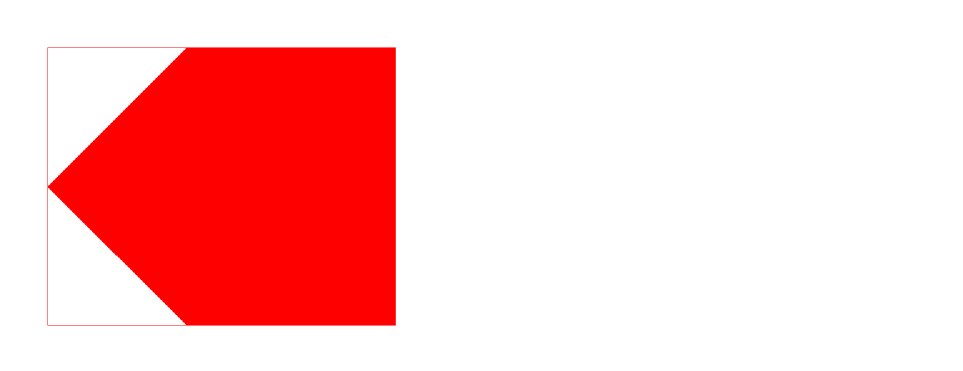
blockopin
Symbol View
Description
A symbol pin used when the pin type block is selected with a direction of output on the
The schSymbolPinMasters variable defines the symbol pins that are associated with the specific pin direction and type. The tsgConnectorMasters variable defines the symbol of the pin connector.
For more details, see
Example
schSymbolPinMasters = list(
list("block"
     list("output" list("basic" "blockopin"  "symbol")))
)
Related Topics
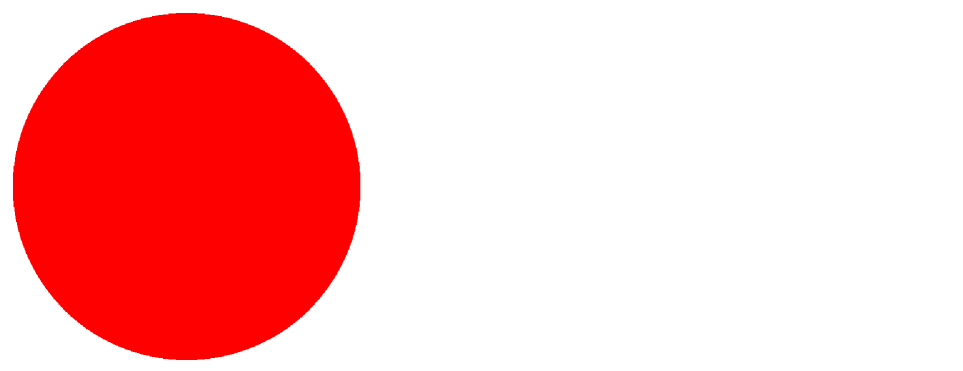
circle
Symbol View
Description
A symbol pin used when the pin type round is selected on the
The schSymbolPinMasters variable defines the symbol pins that are associated with the specific pin direction and type. The tsgConnectorMasters variable defines the symbol of the pin connector.
For more details, see
Example
schSymbolPinMasters = list(
list("round"
list("input" list("basic" "circle" "symbol"))
list("output" list("basic" "circle" "symbol"))
list("inputOutput" list("basic" "circle" "symbol"))
list("switch" list("basic" "circle" "symbol"))
list("jumper" list("basic" "circle" "symbol"))
list("tristate" list("basic" "circle" "symbol"))
     list("unused" list("basic" "circle" "symbol")))
)
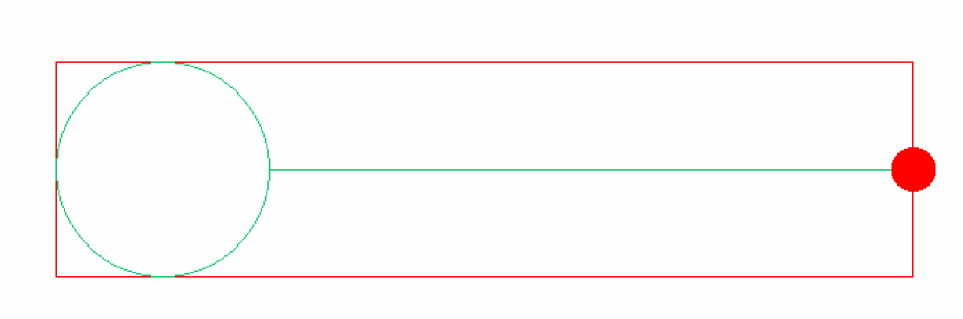
commActLoInOut
Symbol View
Description
A symbol pin used when the pin type commActLo is selected with a direction of inputOutput on the commActLo.
The schSymbolPinMasters variable defines the symbol pins that are associated with the specific pin types and directions.
For more details, see
Example
schSymbolPinMasters = list(
list("commActLo"
     list("inputOutput" list("basic" "commActLoInOut" "symbol")))
)
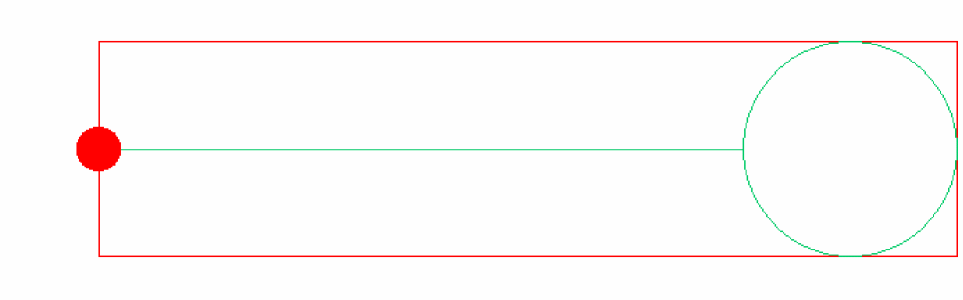
commActLoInp
Symbol View
Description
A symbol pin used when the pin type commActLo is selected with a direction of input on the commActLo.
The schSymbolPinMasters variable defines the symbol pins that are associated with the specific pin types and directions.
For more details, see
Example
schSymbolPinMasters = list(
list("commActLo"
     list("input" list("basic" "commActLoInp"   "symbol")))
)
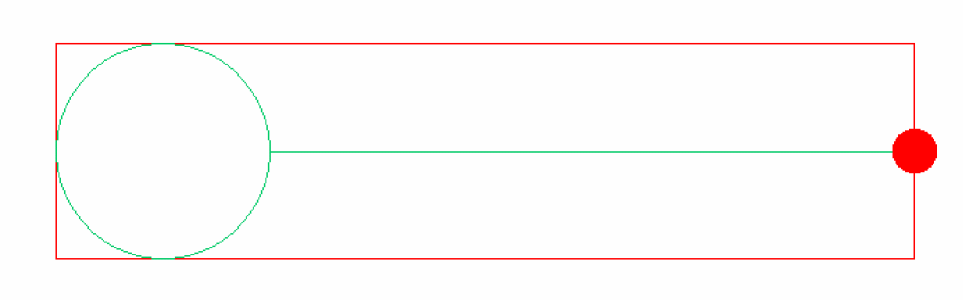
commActLoOut
Symbol View
Description
A symbol pin used when the pin type commActLo is selected with a direction of output on the commActLo.
The schSymbolPinMasters variable defines the symbol pins that are associated with the specific pin types and directions.
For more details, see
Example
schSymbolPinMasters = list(
list("commActLo"
     list("output" list("basic" "commActLoOut"   "symbol")))
)
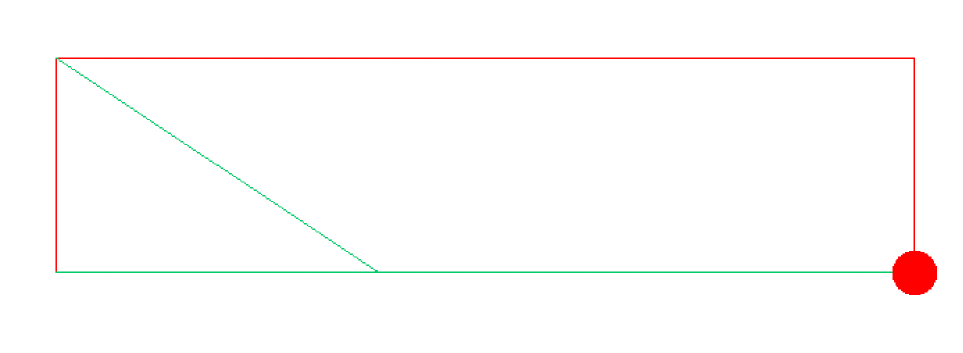
ieeeActLoInOut
Symbol View
Description
A symbol pin used when the pin type ieeActLo is selected with a direction of inputOutput on the ieeActLo.
The schSymbolPinMasters variable defines the symbol pins that are associated with the specific pin types and directions.
For more details, see
Example
schSymbolPinMasters = list(
list("ieeeActLo"
list("inputOutput" list("basic" "ieeeActLoInOut" "symbol")))
)
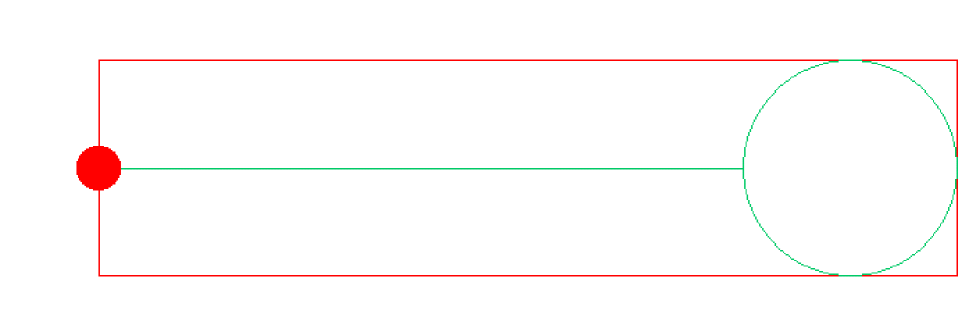
ieeeActLoInp
Symbol View
Description
A symbol pin used when the pin type ieeActLo is selected with a direction of input on the ieeActLo.
The schSymbolPinMasters variable defines the symbol pins that are associated with the specific pin types and directions.
For more details, see
Example
schSymbolPinMasters = list(
list("ieeeActLo"
list("input" list("basic" "ieeeActLoInp" "symbol")))
ieeeActLoOut
Symbol View
Description
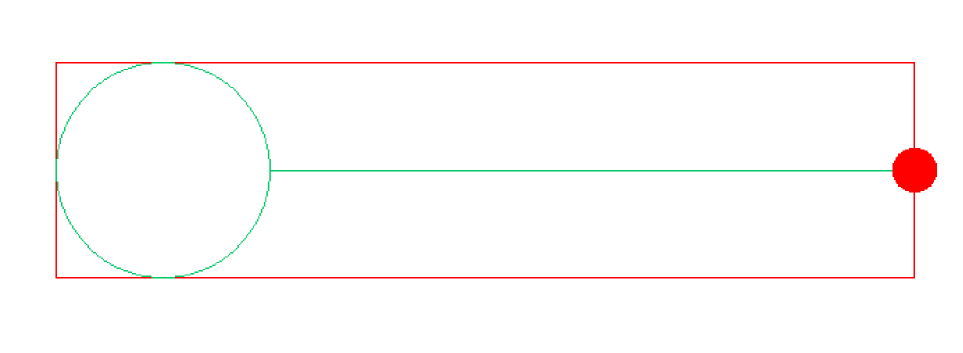
A symbol pin used when the pin type ieeActLo is selected with a direction of output on the ieeActLo.
The schSymbolPinMasters variable defines the symbol pins that are associated with the specific pin types and directions.
For more details, see
Example
schSymbolPinMasters = list(
list("ieeeActLo"
     list("output" list("basic" "ieeeActLoOut" "symbol")))
)
in
Symbol View
Description
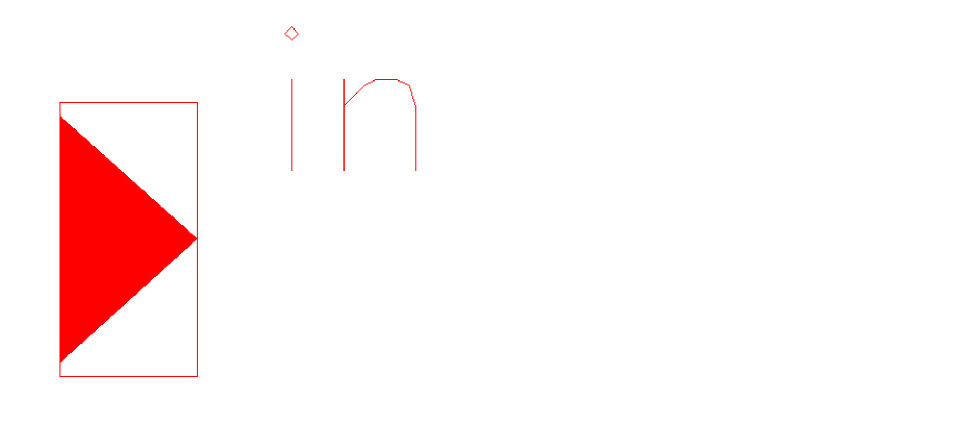
A symbol pin used to represent the input terminals to which a net connects in a schematic. It is one of the pin masters available when you choose the Create – Pin command in Virtuoso Schematic Editor. There are also output and inputOutput direction pins available.
Related Topics
See the following topics in the Virtuoso Schematic Editor User Guide:
io
Symbol View
Description
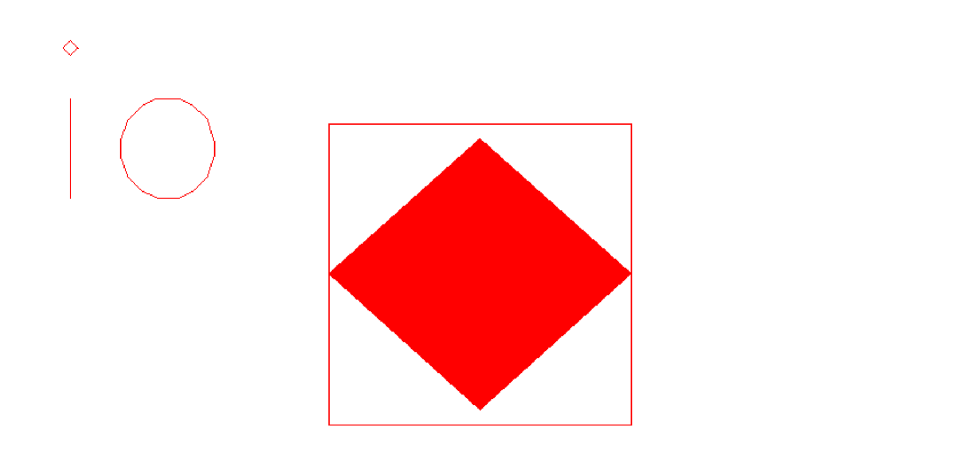
A symbol pin used to represent the inputOutput terminals to which a net connects in a schematic. It is one of the pin masters available when you choose the Create – Pin command in Virtuoso Schematic Editor. There are also input and output direction pins available.
Related Topics
See the following topics in the Virtuoso Schematic Editor User Guide:
iopin
Symbol View
Description
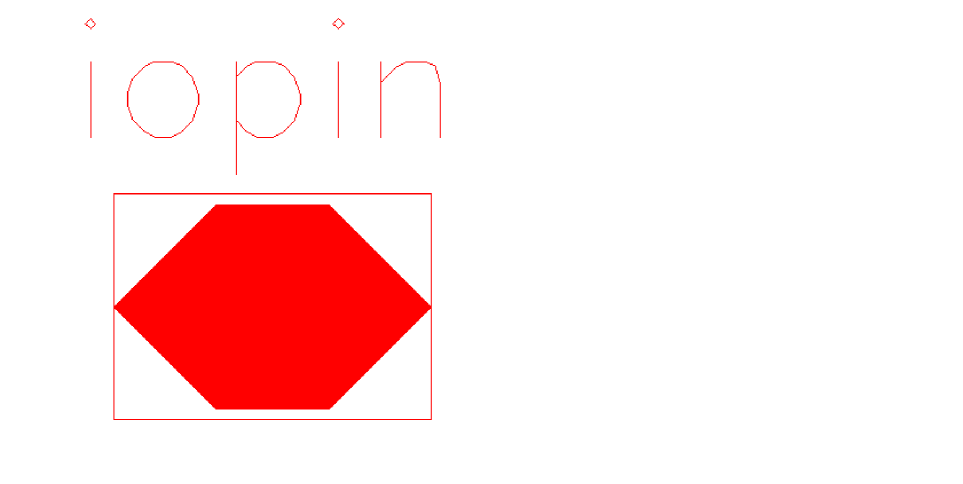
A symbol pin used to represent the inputOutput direction. It is one of the symbol pin masters available when you choose the Create — Pin command in Virtuoso Schematic Editor. There are also input and output direction pins available.
Related Topics
See the following topics in the Virtuoso Schematic Editor User Guide:
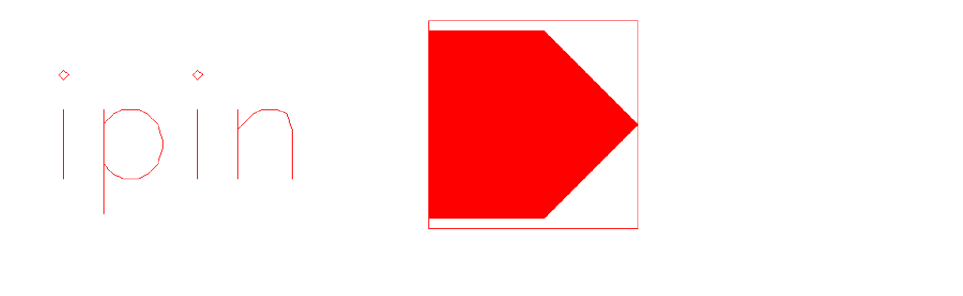
ipin
Symbol View
Description
A symbol pin used to represent the input direction. It is one of the symbol pin masters available when you choose the Create — Pin command in Virtuoso Schematic Editor. There are also output and inputOutput direction pins available.
Related Topics
See the following topics in the Virtuoso Schematic Editor User Guide:
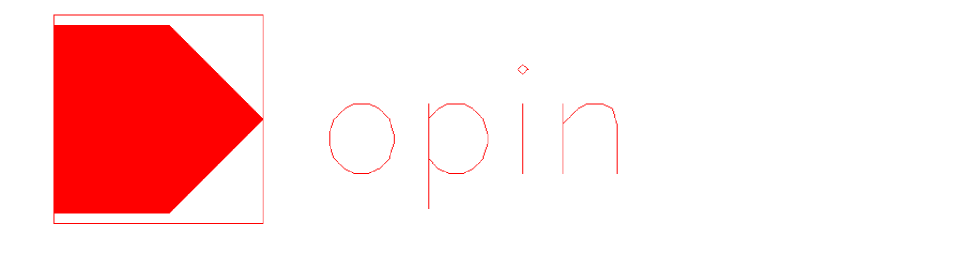
opin
Symbol View
Description
A symbol pin used to represent the output direction. It is one of the symbol pin masters available when you choose the Create — Pin command in Virtuoso Schematic Editor. There are also input and inputOutput direction pins available.
Related Topics
See the following topics in the Virtuoso Schematic Editor User Guide:
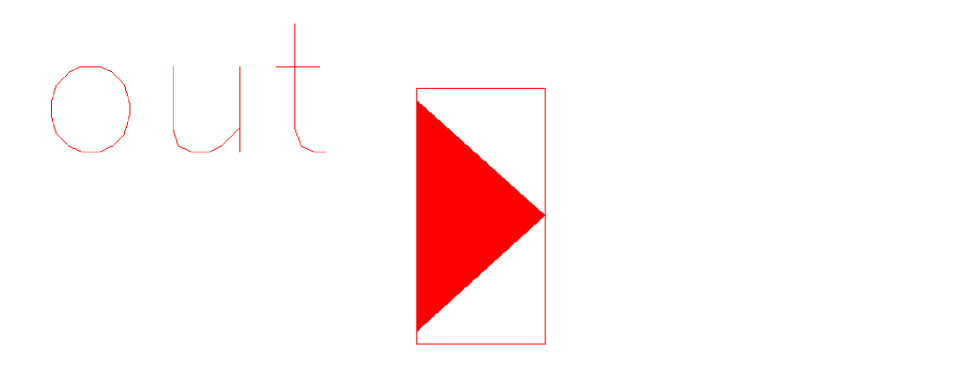
out
Symbol View
Description
This pin represents the output terminals to which a net connects in a schematic. It is one of the pin masters available when you choose the Create – Pin command. There are also input and inputOutput direction pins available.
Related Topics
See the following topics in the Virtuoso Schematic Editor User Guide:
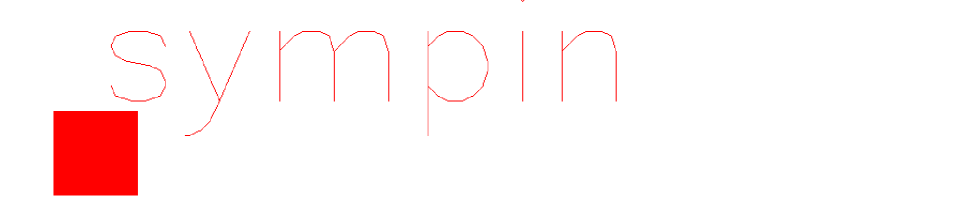
sympin
Symbol View
Description
This symbol pin represents the square pin type. It is one of the symbol pin masters available when you choose the Create – Pin command.
The schSymbolPinMasters variable defines the symbol pins that are associated with the specific pin direction and type. The tsgConnectorMasters variable defines the symbol of the pin connector.
For more details, see
Example
schSymbolPinMasters = list(
list("square"
list("input" list("basic" "sympin" "symbolNN"))
list("output" list("basic" "sympin" "symbolNN"))
list("inputOutput" list("basic" "sympin" "symbolNN"))
list("switch" list("basic" "sympin" "symbolNN"))
list("jumper" list("basic" "sympin" "symbolNN"))
list("tristate" list("basic" "sympin" "symbolNN"))
list("unused" list("basic" "sympin" "symbolNN")))
)
Related Topics
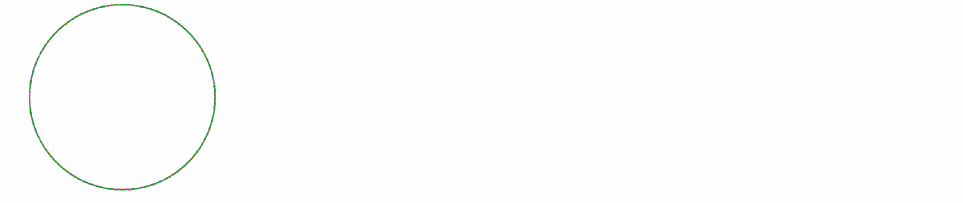
tsgActLo
Symbol View
Description
A pin graphic master for actLo. The pin graphic is selected using the appropriate Attributes - List option in the
The tsgActLo pin graphic is available from the tsgPinGraphicMasters variable, which defines the characteristics of the graphic when generating symbols. This information is not used by any other tool.
The text-to-symbol generator (TSG) is a Cadence application program that automatically generates symbol cellviews for the Virtuoso Schematic Editor and subsequent simulation processes. TSG provides a quick way to generate a symbol from a list of pins in a TSG file.
Example
tsgPinGraphicMasters = list(
list("actLo"
list("input" list("basic" "tsgActLo" "symbol"))
list("output" list("basic" "tsgActLo" "symbol"))
list("inputOutput" list("basic" "tsgActLo" "symbol"))
list("switch" list("basic" "tsgActLo" "symbol"))
list("jumper" list("basic" "tsgActLo" "symbol"))
list("tristate" list("basic" "tsgActLo" "symbol"))
list("unused" list("basic" "tsgActLo" "symbol")))
)
Related Topics
See the following topics in the Virtuoso Schematic Editor User Guide:
tsgActLoClock
Symbol View
Description
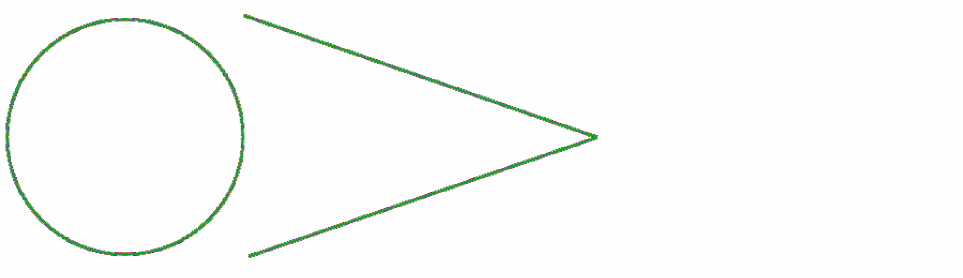
A pin graphic master for actLoClock. The pin graphic is selected using the appropriate Attributes - List option in the
The tsgActLoClock pin graphic s available from the tsgPinGraphicMasters variable, which defines the characteristics of the graphic when generating symbols. It displays an additional pin shape on the symbol. This information is not used by any other tool.
The text-to-symbol generator (TSG) is a Cadence application program that automatically generates symbol cellviews for the Virtuoso Schematic Editor and subsequent simulation processes. TSG provides a quick way to generate a symbol from a list of pins in a TSG file.
Example
tsgPinGraphicMasters = list(
list("actLoClock"
list("input" list("basic" "tsgActLoClock" "symbol"))
list("output" list("basic" "tsgActLoClock" "symbol"))
list("inputOutput" list("basic" "tsgActLoClock" "symbol")))
)
Related Topics
See the following topics in the Virtuoso Schematic Editor User Guide:
tsgClock
Symbol View
Description
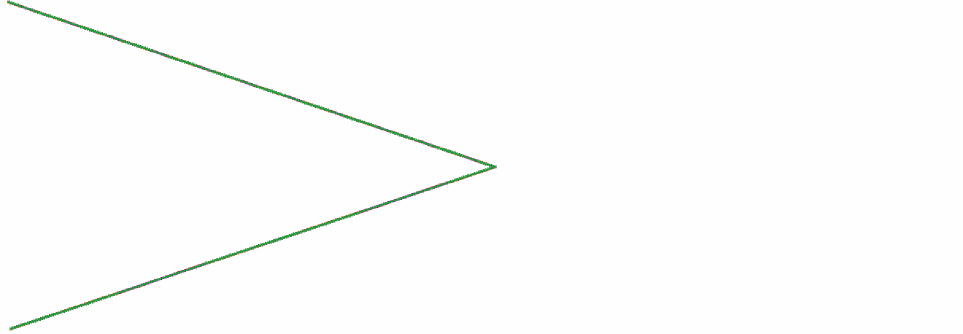
A pin graphic master for clock. The pin graphic is selected using the appropriate Attributes - List option in the
The tsgClock pin graphic is available from the tsgPinGraphicMasters variable, which defines the characteristics of the graphic when generating symbols. It displays an additional pin shape on the symbol. This information is not used by any other tool.
The text-to-symbol generator (TSG) is a Cadence application program that automatically generates symbol cellviews for the Virtuoso Schematic Editor and subsequent simulation processes. TSG provides a quick way to generate a symbol from a list of pins in a TSG file.
Example
tsgPinGraphicMasters = list(
list("clock"
list("input" list("basic" "tsgClock" "symbol"))
list("output" list("basic" "tsgClock" "symbol"))
list("inputOutput" list("basic" "tsgClock" "symbol")))
)
Related Topics
See the following topics in the Virtuoso Schematic Editor User Guide:
tsgIeeeActLoInp
Symbol View
Description
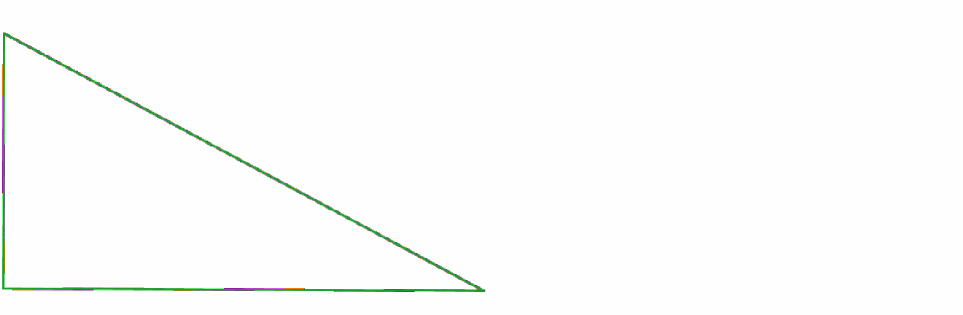
A pin graphic master for ieeeActLoInp. The pin graphic is selected using the appropriate Attributes - List option in the
The tsgIeeeActLoInp pin graphic is available from the tsgPinGraphicMasters variable, which defines the characteristics of the graphic when generating symbols. It displays an additional pin shape on the symbol. This information is not used by any other tool.
The text-to-symbol generator (TSG) is a Cadence application program that automatically generates symbol cellviews for the Virtuoso Schematic Editor and subsequent simulation processes. TSG provides a quick way to generate a symbol from a list of pins in a TSG file.
Example
tsgPinGraphicMasters = list(
list("ieeeActLo"
list("input" list("basic" "tsgIeeeActLoInp" "symbol")))
)
Related Topics
See the following topics in the Virtuoso Schematic Editor User Guide:
tsgIeeeActLoOut
Symbol View
Description
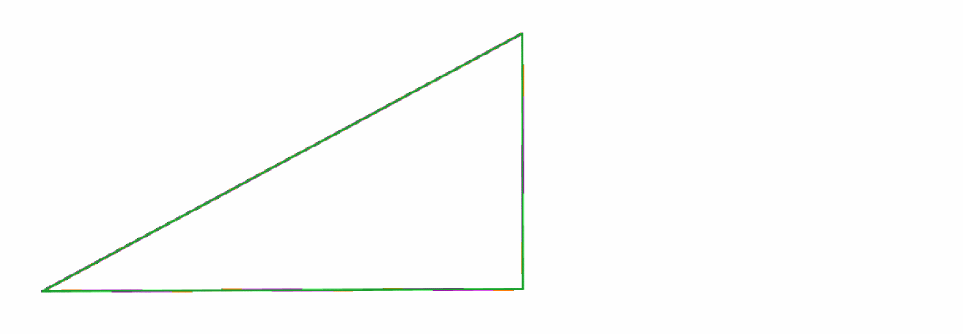
A pin graphic master for ieeeActLoOut. The pin graphic is selected using the appropriate Attributes - List option in the
The tsgIeeeActLoOut pin graphic is available from the tsgPinGraphicMasters variable, which defines the characteristics of the graphic when generating symbols. It displays an additional pin shape on the symbol. This information is not used by any other tool.
The text-to-symbol generator (TSG) is a Cadence application program that automatically generates symbol cellviews for the Virtuoso Schematic Editor and subsequent simulation processes. TSG provides a quick way to generate a symbol from a list of pins in a TSG file.
Example
tsgPinGraphicMasters = list(
list("ieeeActLo"
     list("output"       list("basic" "tsgIeeeActLoOut"  "symbol")))
)
Related Topics
See the following topics in the Virtuoso Schematic Editor User Guide:
Supplies
The Supplies category lists the power and ground supply symbols. It includes the following symbols:
gnd
Symbol View
Description
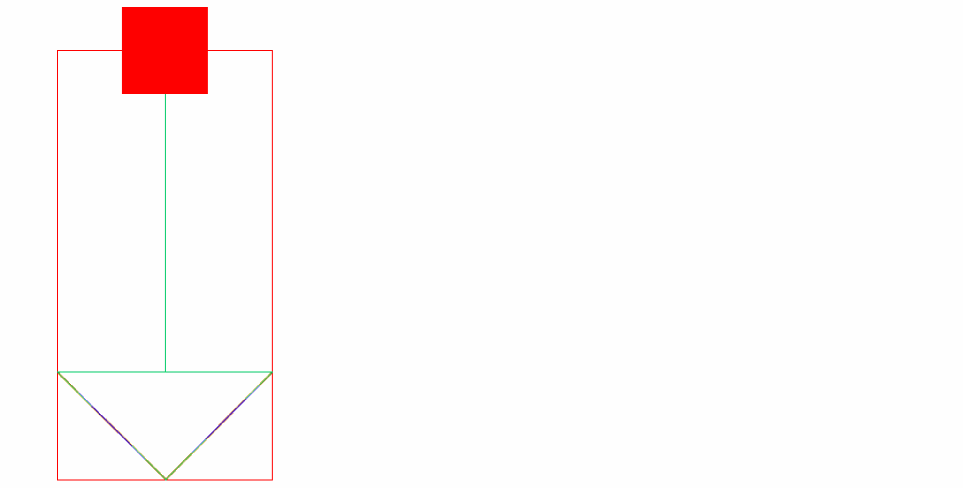
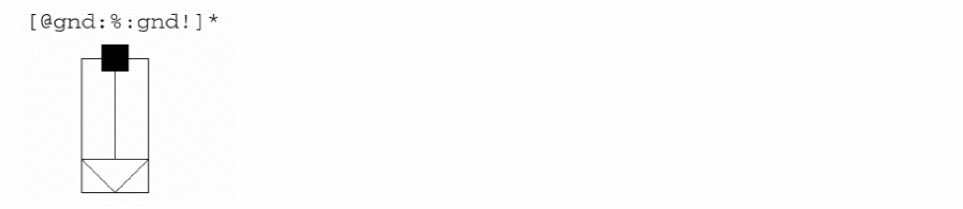
A ground supply symbol used to indicate an explicit ground pin.
Example
Related Topics
See the following topics in the Virtuoso Schematic Editor User Guide:
gnd_inherit
Symbol View
Description
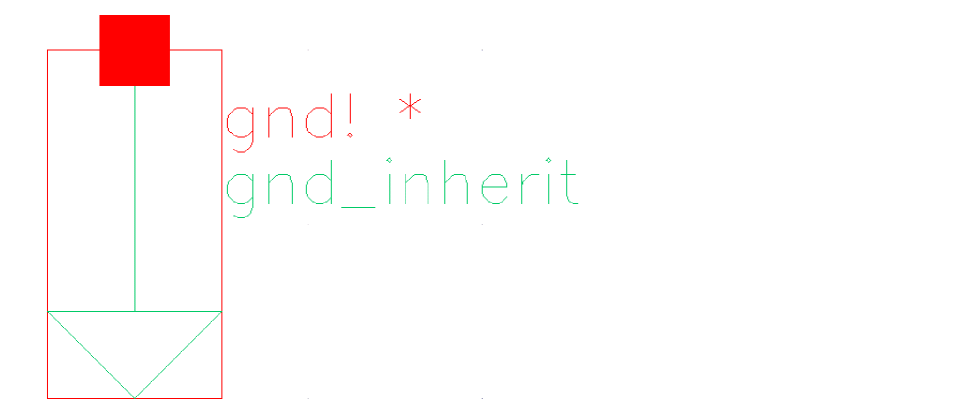
A parameterized ground supply symbol with net expression property. It can be used to create global signals or override them across a hierarchy with inherited connectivity.
Example
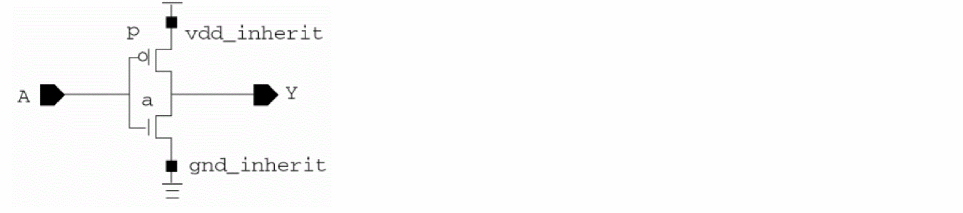
You can create an inherited connection in a schematic by placing an instance of a symbol where one of the symbol pins has a net expression label. When you run the checker program on the schematic, the net expression label from the symbol pin is propagated onto the net within the schematic.
Related Topics
See the following topics in the Virtuoso Schematic Editor User Guide:
vcc
Symbol View
Description
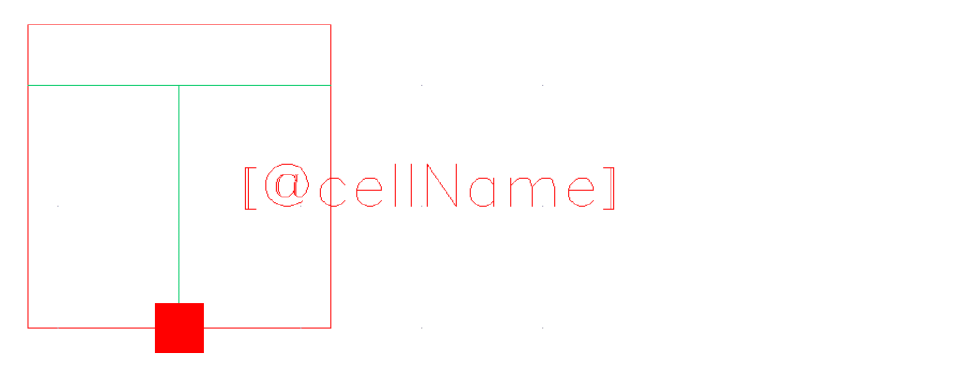
A power supply symbol used to indicate an explicit power pin.
Related Topics
See the following topics in the Virtuoso Schematic Editor User Guide:
vcc_inherit
Symbol View
Description
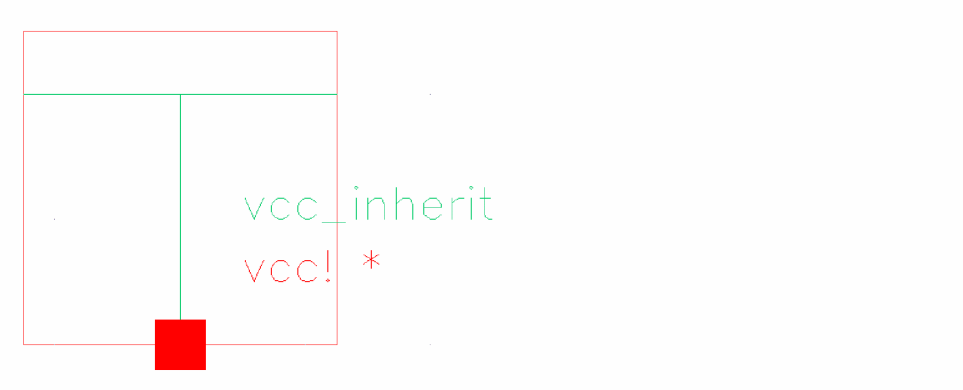
Parameterized power supply symbol with net expression property. It can be used to create global signals or override them across a hierarchy with inherited connectivity.
Related Topics
See the following topics in the Virtuoso Schematic Editor User Guide:
vdd
Symbol View
Description
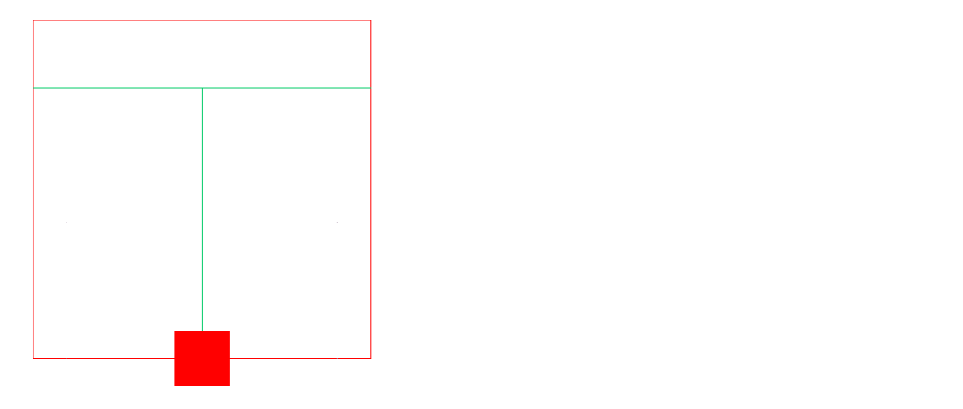
A power supply symbol used to indicate an explicit power pin.
Related Topics
See the following topics in the Virtuoso Schematic Editor User Guide:
vdd_inherit
Symbol View
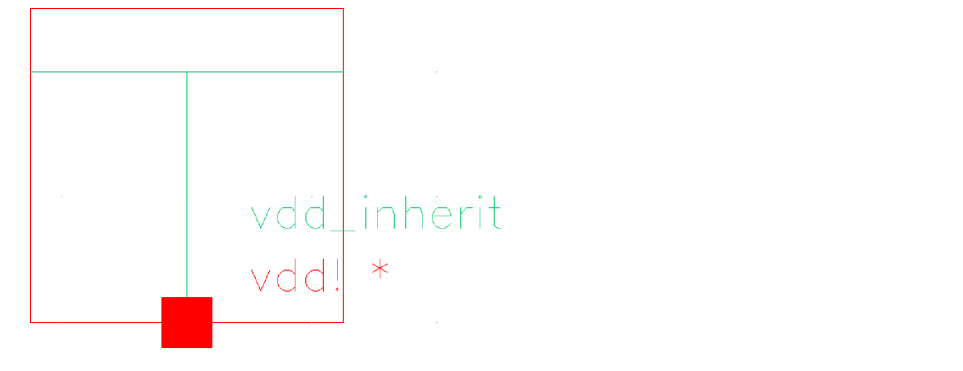
Description
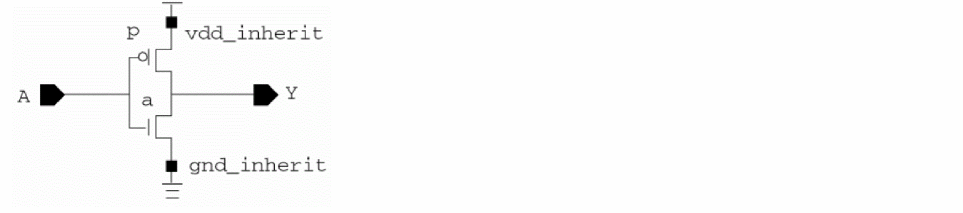
A parameterized power supply symbol with net expression property. It can be used to create global signals or override them across a hierarchy with inherited connectivity.
Example
Related Topics
See the following topics in the Virtuoso Schematic Editor User Guide:
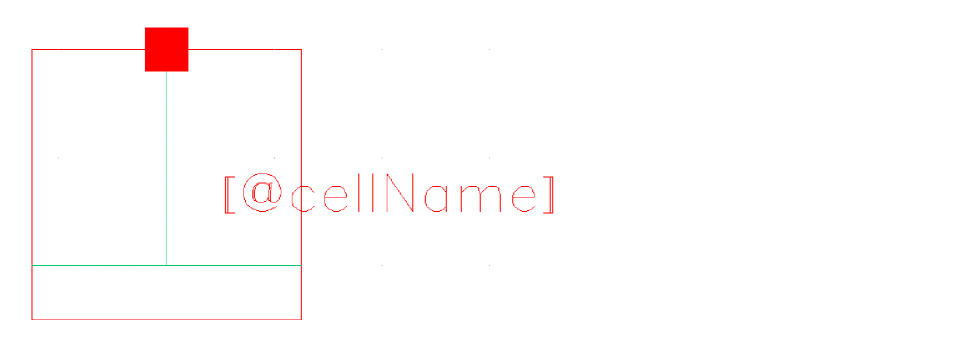
vss
Symbol View
Description
A ground supply symbol used to indicate an explicit ground pin.
Related Topics
See the following topics in the Virtuoso Schematic Editor User Guide:
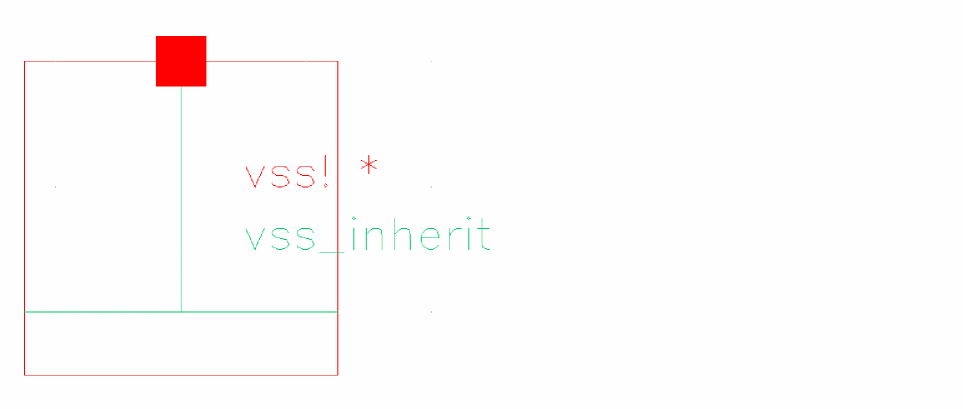
vss_inherit
Symbol View
Description
A parameterized ground supply symbol with net expression property. It can be used to create global signals or override them across a hierarchy with inherited connectivity.
Related Topics
See the following topics in the Virtuoso Schematic Editor User Guide:
VHDLPins
Within Virtuoso, you can convert a VHSIC Hardware Description Language (VHDL) structural or behavioral description into one of the following forms in OpenAccess database storage format:
For more details, refer to the
When generating schematics or netlists from VHDL, the following varieties of VHDL pins are available in the basic library:
Return to top