
A
Form Descriptions
This appendix describes the field descriptions of the following forms:
- EAD Setup
- EAD Options
- EAD Pegasus/Quantus Create Setup File Dialog Form
- EAD Process Settings
- EAD Job Policy Editor
- EAD Net Options
- Parasitics & LDE Setup
- P2T EM Optimization
- The Pre-EM Setup Form
EAD Setup
The following table describes the fields that are available on the EAD Setup form.
If you are viewing this form in smaller screens, a scroll bar appears on this form.
| Form Field | Specifies... |
|---|---|
|
If the EAD mode is to be enabled or disabled for the selected design under test. |
|
|
The library name and cell name of the design for which electromigration analysis is required to be done. |
|
All Signals |
The current data is to be saved for all the signals in the specified DUT. |
Hierarchy Stop Level |
The design hierarchy level up to which the current data for all the signals is to be saved. |
Selected Signals |
The current data is to be saved for the selected signals only. You can select the signals using the Parasitic and Electrical Setup assistant. |
DC Current (Idc) |
|
Average Current (Iavg) |
|
Scale |
A multiplier by which the direct and average current data is scaled. |
Waveforms for RMS and Peak Checks (Isignal) |
Directs to save the current waveforms with the simulation data to disk so that it can be processed later while performing RMS and Peak electromigration checks. |
Min and Max Voltage (Vmin/Vmax) |
That minimum and maximum voltages are to be captured during the simulation run for use in the voltage dependent rules flow. |
|
A multiplier by which the voltage data is scaled before it is transferred to the layout view. The default is |
|
|
Whether to create post-simulation voltage constraints. Environment variable: createVoltageConstraints |
|
|
Directs to process the current waveforms during simulation and save only the calculated current data to the disk. |
|
|
The saved waveform needs to be clipped for the given time interval. |
|
|
The start time of the time interval for which the waveform of the current data is to be saved.
You can also use the VAR expression in this field. For example, For more information, refer Virtuoso ADE Assembler User Guide. |
|
|
The end time of the time interval for which the waveform of the current data is to be saved.
You can also use the VAR expression in this field. For example, For more information, refer Virtuoso ADE Assembler User Guide. |
|
EAD Options
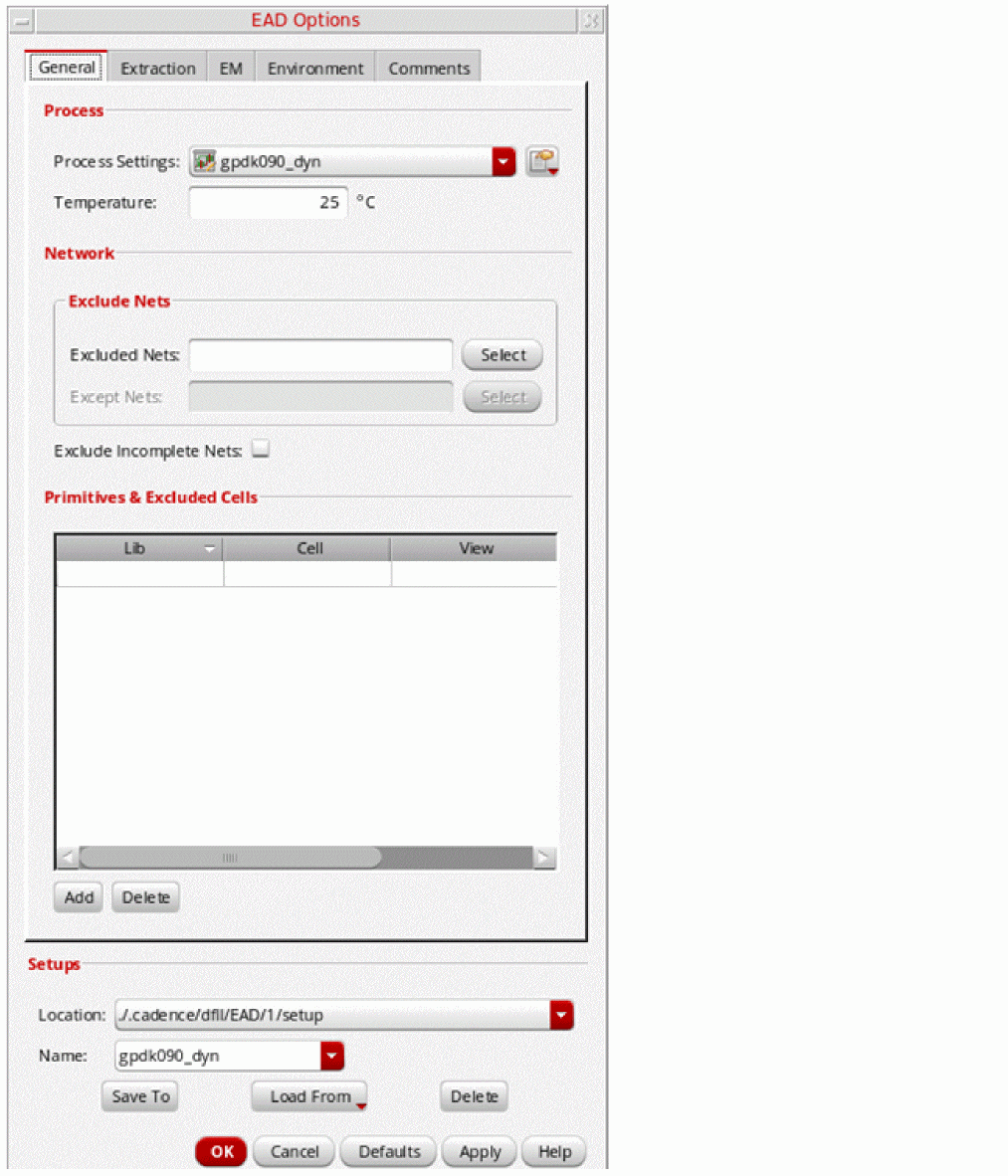
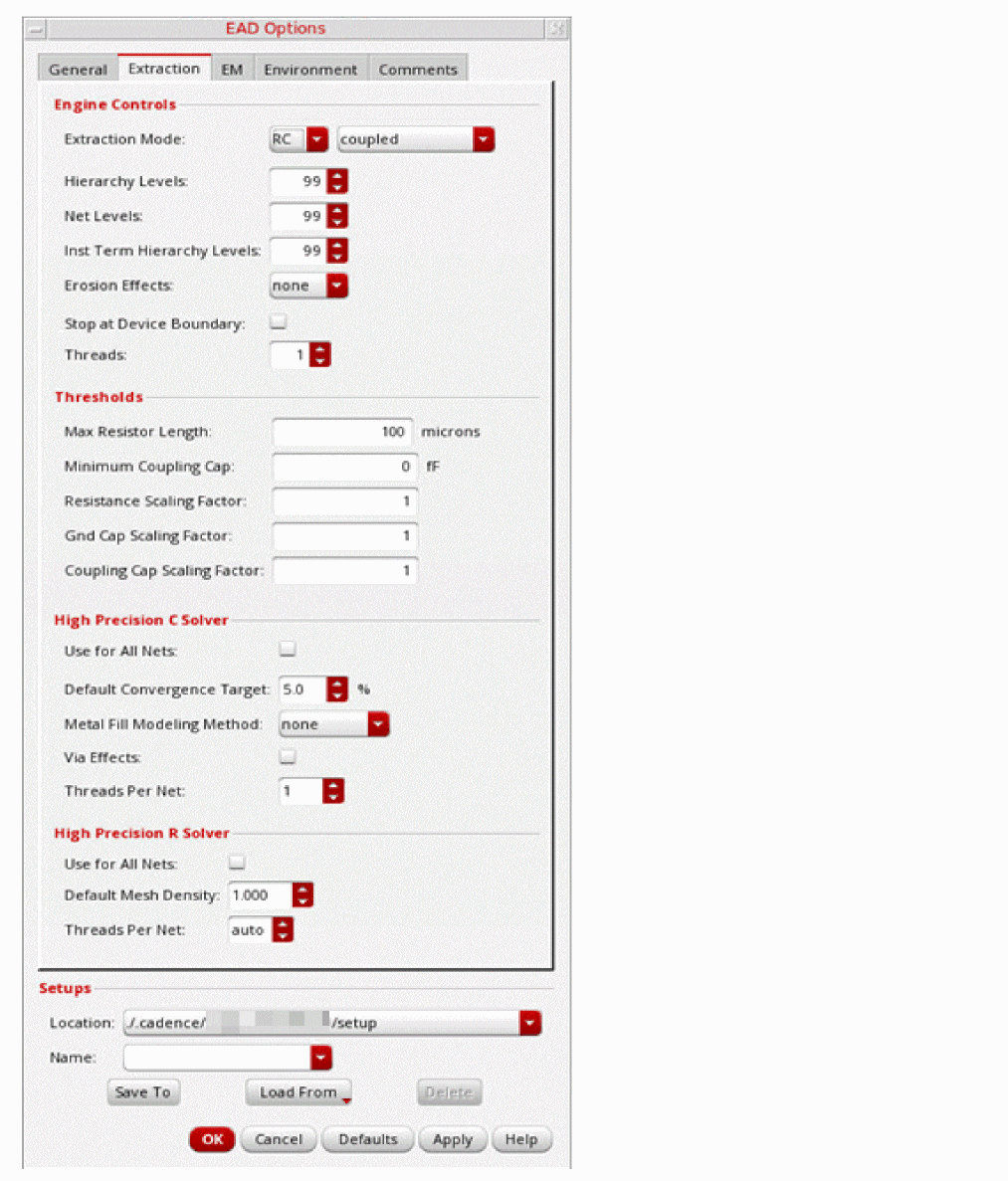
The EAD Options form in Virtuoso Layout EAD is split into four tabs:
The Setups group box is available on every tab:
If you are viewing this form in smaller screens, a scroll bar appears on this form.
General
| Form Field | Specifies... |
|---|---|
|
The process settings file to be used in the current session. The Display process settings menu button lets you add, change, or remove process settings files. 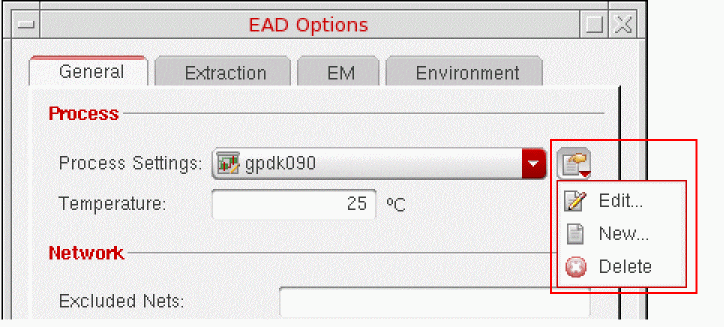 Environment variable: processSettings See Editing Process Settings for more information. |
|
|
The extraction temperature in degrees Celsius. Environment variable: temperature |
|
|
The nets to be excluded from parasitic extraction. Do one of the following:
Environment variable: excludedNets |
|
|
The nets that are exceptions to the list of nets specified in the Excluded Nets field. The nets specified in this field are extracted or displayed. Environment variable: excludedNetsExceptions |
|
|
That nets with incomplete routing or connectivity are to be excluded from extraction. Use this to skip extraction for all incomplete nets. Environment variable: includeSkippedNets |
|
|
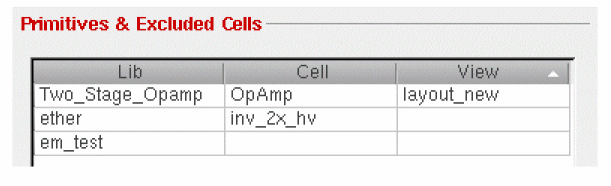
The cellviews to be excluded from parasitic extraction. Parasitics are extracted up to and including the terminals of the excluded cells, but no extraction is performed inside the specified devices. Click Add to add a row to the table, and type the required library, cell, and view names into the fields provided (or choose the names from the drop-down lists). If you do not specify a cell or view name, then all cells or views are excluded. For example, the table below specifies the following exclusions:
Environment variable: extractionPrimitives |
|
Extraction
| Form Field | Specifies... |
|---|---|
|
The types of parasitic networks produced by the EAD extractor. Choose the mode (RC, C, or R) from the first pull-down and, where appropriate, the capacitance coupling type (coupled, decoupled, or lumped coupled) from the second pull-down. Environment variable: type |
|
|
Specifies the layout hierarchy depth for RC extraction. For example, if you type in 0, only top-level routing is extracted; if you type in 99 all hierarchy levels are extracted (nets that are wholly contained in lower levels are also extracted and reported). Environment variable: hierarchyLevels |
|
|
Specifies the layout hierarchy depth for the lookup of nets for RC extraction. Value for this field should be less than or equal to the value of Hierarchy Levels. Environment variable: netHierarchyLevels |
|
|
Specifies the layout hierarchy depth from which the instance terminals are to be extracted during RC extraction. By default, the instance terminals at the bottom of the hierarchy are extracted. Value for this field should be less than or equal to the value of Hierarchy Levels. Environment variable: instTermHierarchyLevels |
|
|
Specifies whether erosion effects are applied only to resistances (R), only to capacitances (C), to resistances and capacitances (RC), or to neither resistances nor capacitances (none). Environment variable: enableErosionEffects |
|
|
Controls whether EAD extracts parasitics for shapes that are part of device terminals; for example, metal shapes in the source/drain regions of a transistor. This applies for instances at the level specified by the Hierarchy Levels setting. By default, EAD extracts parasitics for such shapes. But when this option is switched on, extraction stops at the device boundary, which means that terminals on Pcells and instances are treated as background shapes and are not extracted. Environment variable: promotePorts |
|
|
The number of threads to use in multi-threaded R and C engines, both Fast and High Precision. It is applied only when multiple nets are being processed. Environment variable: threads |
|
|
Select this check box if you want to skip extraction when there is an LVS mismatch. |
|
|
Select this check box if you want to run Quantus extraction in timing mode. In this mode, simulation is faster but there are less details available for debugging. |
|
|
The maximum length of resistor that will be extracted.
Specify a value >= Resistors that are longer than the specified length are fractured into multiple resistors.
The unit for this value is Environment variable: maxResistorLength |
|
|
A minimum coupling capacitance value in femtoFarad (fF). Capacitance values below the specified threshold are ignored during extraction. This lets you filter out small capacitance values that are likely to be inconsequential in any analysis. Environment variable: couplingCThreshold |
|
|
Scaling factor to be applied on the extracted resistances. Environment variable: resScaleFactor |
|
|
Scaling factor to be applied on the extracted ground capacitances. Environment variable: gndCapScaleFactor |
|
|
Scaling factor to be applied to the extracted coupling capacitances. Environment variable: couplingCapScaleFactor |
|
|
That the high precision C solver is to be enabled for all nets. Use the Threads option to specify the number of processing threads to be used. Environment variable: tileExtractor |
|
|
The engine to used for extracting parasitics. See the iQuantus FS C Extraction (Advanced Nodes Layout EAD Only) section for more information. |
|
|
The convergence goal (standard deviation) of the high precision C solver. It means that HPC will stop the random walk calculation process when it determines that standard deviation error has reached this convergence goal. In other words, if calculation continues with more walks, there is 99.7% probability that the result will fall into three sigma bounds comparing with the obtained values. Environment variable: convergenceCThreshold |
|
|
Controls how the EAD extraction treats fill shapes in the layout.
Environment variable: fillType |
|
|
Enables or disables via capacitance effects in the high precision C extraction. Environment variable: modelViaCapacitanceEffect |
|
|
The number of processing threads to be used by the high precision C solver for each net. This is another level of threading from the net-based processing.
Setting this value to For example, on a 16-core machine, 16 threads will be used. If you set this variable to a non-zero value, it will use the specified number of threads. The maximum number of threads that can be used will always be equal to the number of cores on the machine, regardless of the user-specified setting. For example, on a 16-core machine, if you set this variable to 8, only 8 threads will be used. But on the same machine, if you set this variable to 32, a maximum of 16 threads will be used regardless of the user-specified setting. Environment variable: tileExtractorThreadCount |
|
|
That the high precision R solver is to be used for all nets. Use the Default Mesh Density option to specify the mesh density to be used by the extractor. |
|
|
The mesh density to be used by the high precision R solver. The default value is 1.0. Environment variable: resistanceMeshDensity
You can use a customized mesh density for specific layers using the resistanceMeshDensityFileName environment variable.
|
|
|
The number of processing threads to be used by the high precision R solver for each net. This is another level of threading from the net-based processing.
Setting this value to For example, on a 16-core machine, 16 threads will be used. If you set this variable to a non-zero value, it will use the specified number of threads. The maximum number of threads that can be used will always be equal to the number of cores on the machine, regardless of the user-specified setting. For example, on a 16-core machine, if you set this variable to 8, only 8 threads will be used. But on the same machine, if you set this variable to 32, a maximum of 16 threads will be used regardless of the user-specified setting.
Setting this value to
auto means that you want to use as many threads as supported by the CPU. For distributed processing, the auto setting defaults to 1 (single thread) because it is difficult to predict on which host the job will be submitted to and how many extra licenses will be required for extraction. However, you can use the autoThreadsPerNetOverride environment variable to override the auto settings to a non-zero integer value when using distributed processing jobs for multi-threaded extraction. |
|
EM
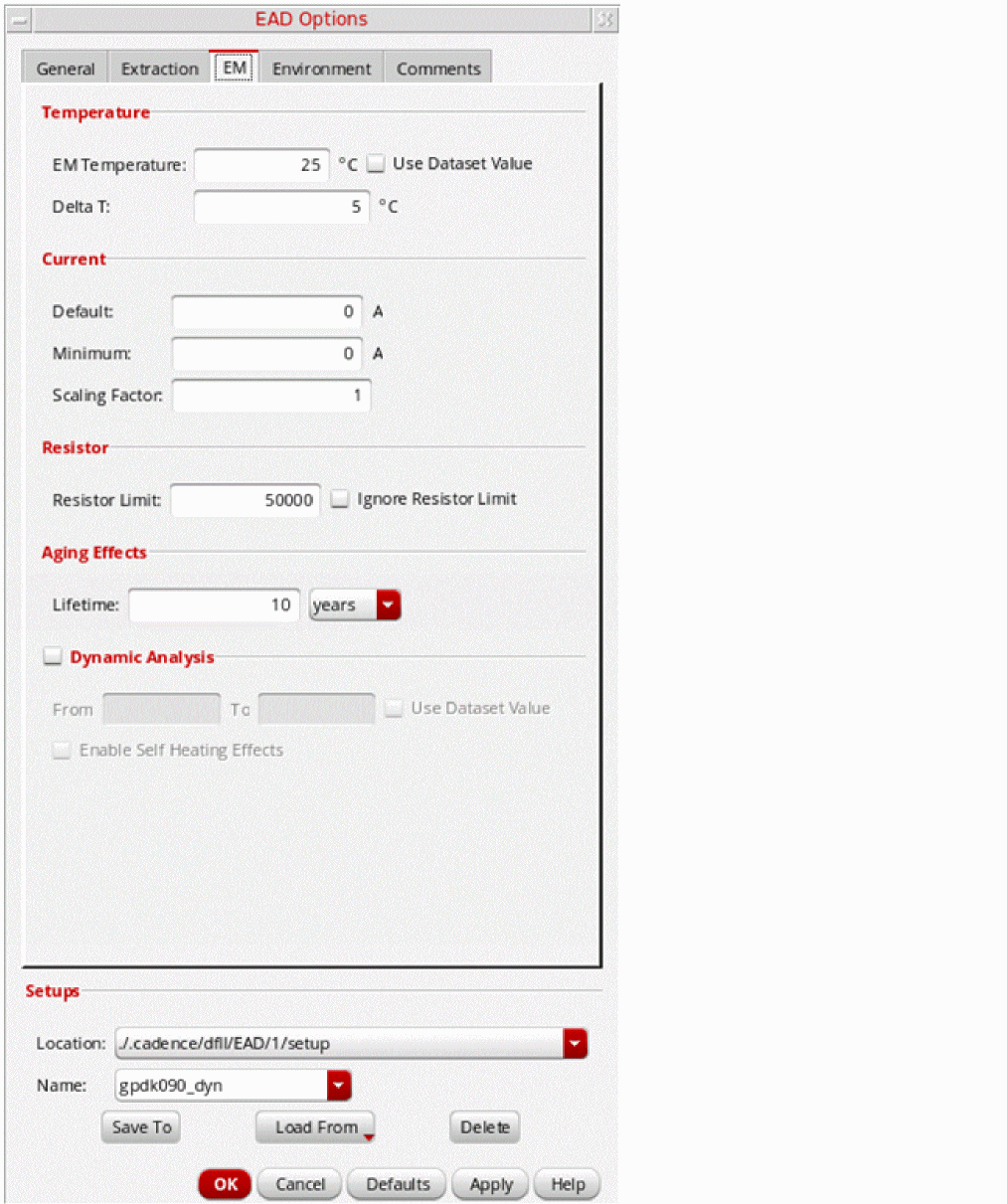
| Form Field | Specifies... |
|---|---|
|
The EM temperature in degrees Celsius. This should be based on EM rules specified by the foundry. Environment variable: temperature |
|
|
That the temperature specified in the simulation dataset is to be used when computing EM effects.
If the temperature value specified in the dataset is not valid, the default value specified in the EM Temperature field is used. ADE Assembler can correctly read a valid temperature if it is specified as a numerical value or as a variable using the Environment variable: useDatasetTemperature |
|
|
The increase (in degrees Celsius) in junction temperature due to joule heating. Environment variable: deltaT |
|
|
The default terminal current to use when computing EM effects when there is no electrical data available from ADE Assembler. Environment variable: defaultCurrent |
|
|
The minimum threshold limit for Idc and Iavg currents of the terminals and instance terminals of a net for using that net in EM calculation. If the current of all terminals and instance terminals of a net is below the threshold, EM calculation is skipped for that net. This minimum value is considered for the EM calculation of DC Op and Static-Avg current. It is not considered for the calculation of Dynamic-Rms and Dynamic-Peak current. Environment variable: minCurrent |
|
|
The scaling factor to be used to scale currents when computing EM effects. All terminal currents are scaled by this value. Environment variable: scalingFactor and scale |
|
|
The maximum resistor limit against which the resistor count is compared while running EM checks. |
|
|
Controls the comparison of the resistor count against the specified resistor limit while running EM checks. Environment variable: ignoreResistorLimit |
|
|
The lifetime to be used for risk-based EM analysis. In risk-based EM analysis, MTTF (Mean Time To Failure) is first calculated using Black's equation. The calculated value is then used together with the specified lifetime to determine the probability of EM failure. Specify the value in the text field and choose either years or hours from the pull-down list. Environment variable: lifetime and lifetimeUnits Note: This field is disabled when the EM Data Source is set to EM data files in the EAD Process Settings – Corners form. |
|
|
Enables dynamic EM analysis. Use the From and To fields to limit dynamic analysis to a specific time period in the simulation results. Environment variable: dynamicAnalysis When enabled, you can right-click in the Dynamic Peak and Dynamic Rms columns in EM tab and choose Plot Terminal Currents to view the currents associated with the terminals of the selected net or Plot Resistor Currents to view the intermediate currents through the selected resistor. Plots are displayed in a separate Virtuoso Visualization and Analysis XL window. |
|
From |
|
To |
End time for dynamic analysis (default is the last time point in the simulation results). |
Use Dataset Value |
Specifies if the information about the time interval for which the clipped waveform is to be used for EM analysis is to be taken from the dataset Environment variable: useDatasetClipInfo |
Enable Self Heating Effects |
Enables the use of self heating effects in EAD. Environment variable: enableSelfHeatingEffects When the self heating effects are used, Virtuoso Layout EAD calculates the delta-T values for devices by using the delta-T values saved in simulation result datasets and the RMS current. This calculation uses certain constant values that you can provide in a setup file specified by the sheSetupFile environment variable. To know about how to view the delta T results in EAD Browser, refer to Viewing EM Information in the EAD Browser.
When you have enabled the inclusion of self-heating effects in EM analysis, ensure that the datasets are generated from ADE Assembler simulation with the self-heating mode enabled on the Reliability Options form.
|
Environment
| Form Field | Specifies... |
|---|---|
|
The job policy to be used for all the nets. The default job policy is
Click Edit job policies ( See the Working with Job Policies section for more information. |
|
|
Waits for all the jobs to finish before showing the extraction or EM results. |
|
|
The EM violation ranges used to highlight violations in the EAD Browser. Environment variable: violationLevels |
|
|
The colors used to highlight different violation levels in the EAD Browser. These are fully customizable, allowing you to color code the table display based on how much current capacity is being used by each wire. |
|
|
That nets selected in the EAD Browser are automatically highlighted in the layout window as well. Environment variable: highlightSelectedNets |
|
|
That nets selected in the EAD Browser are automatically selected in the layout window as well. Environment variable: selectNetsInLayout |
|
|
Displays detailed resistance and capacitance tables in the EAD Browser.
Environment variable: detailedParasiticTables |
|
 ) to open the EAD Job Policy Editor form, where you can set up, edit, and delete a job policy.
Comments
The Coments tab contains a field text which displays the comments from the currently loaded EAD setup file. You can edit and save these comments. The updated comments are saved into the setup file.
EAD Setup Options
| Form Field | Specifies... |
|---|---|
|
The directories where the setup files and process settings are stored.
The list of locations includes all the
Process settings:
Setups: Also listed are any technology-dependent setup files stored in a subdirectory with the same name as the technology library for the design.
For more information, see |
|
EAD Pegasus/Quantus Create Setup File Dialog Form
The EAD Pegasus/Quantus Create Setup File Dialog form lets you specify the Quantus CCL and PVS GUI log files to create the setup required for electrically aware extraction.
| Field | Description |
|---|---|
|
The file path to the Quantus CCL file that is generated after a Quantus run. |
|
|
The file path to the PVS GUI log file that is generated after a PVS run. |
Related Topics
Creating Pegasus/Quantus Setup for Parasitics Extraction
Extracting Parasitics from a Partial Layout
EAD Process Settings
The EAD process settings are split across four tabs:
- EAD Process Settings – Corners
- EAD Process Settings – Layer Mapping
- EAD Process Settings – Vias
- EAD Process Settings – Cell Shape Types
EAD Process Settings – Corners
Lets you define extraction corners by pointing to the corresponding ICT files that contain their process information.
| Form Field | Specifies... |
|---|---|
|
The source for EM rules. Choose any of the following:
|
|
|
The location of the EAD technology file to be used for the specified corner. Type the path to the file into the field, or use the Browse button to locate it on the disk. For more details on the EAD tech file, refer to Generating an EAD Technology File. |
|
|
The location of the ICT-EM data file to be used. When using an ICT-EM data file, ensure that the layer names in the EAD technology file and the given ICT-EM data file match. If the layer names in these files do not match, you must provide an EM Layer Map file along with the ICT-EM data file. The EM Layer Map file provides the missing layer mapping information. |
|
|
The location the EM Layer Map file that contains the layer mapping information. Double click the cell in the column to specify the path either by typing or by clicking the ellipsis (...) button. You can also specify this file using the ictemLayerMapFile environment variable. |
|
|
The location of the EM data file for the corner in question. Type the path to the file into the field, or use the Browse button to locate it on disk. Note: This field is visible only when EM Data Source is set to EM data files. |
|
|
The location of the iRCX-EM data file to be used for the specified corner. Double click the cell in the column to specify the path either by typing or by clicking the ellipsis (...) button. When using an iRCX-EM file, ensure that the layer names in the EAD technology file and the given iRCX-EM file match. If the layer names in these files do not match, you must provide an iRCX-RC file along with the iRCX-EM file. The iRCX-RC file provides the missing layer mapping information. |
|
|
The location of the iRCX-RC file that contains the layer mapping information. Double click the cell in the column to specify the path either by typing or by clicking the ellipsis (...) button. |
EAD Process Settings – Layer Mapping
Specifies the mapping between the layers used in the ICT file and the layers defined in the Virtuoso technology file.
The system assumes that layers with the same names in the ICT file and Virtuoso technology file should be mapped. If this is incorrect, you can double-click the field you want to change and either type in an existing layer name directly or choose a layer name from the drop-down list.
EAD Process Settings – Vias
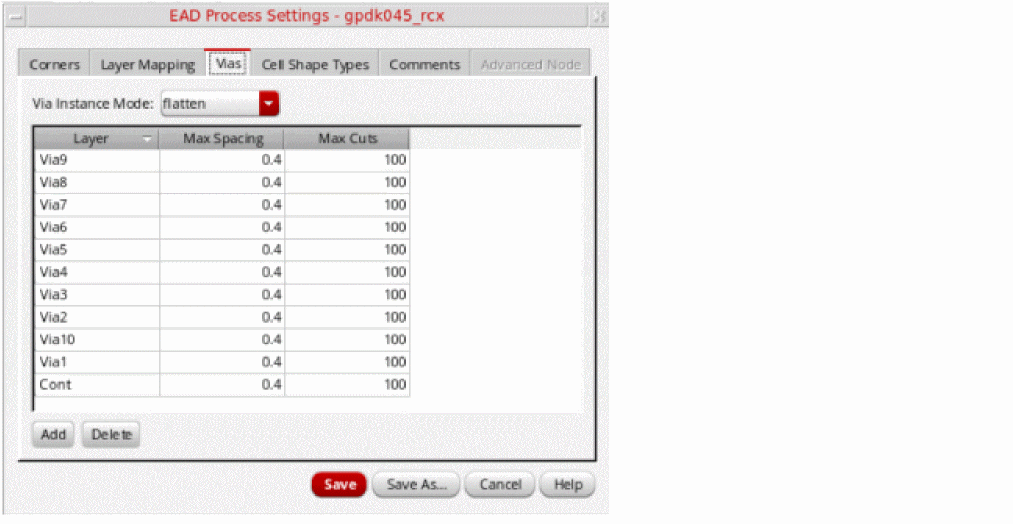
Specifies how vias are flattened and clustered.
| Form Field | Specifies... |
|---|---|
|
The clustering style to be used. Choose one of the following:
Environment variable: viaInstanceMode Also see: viaShapesScanMode |
|
|
The maximum spacing allowed between vias. If the space between vias for a given layer is below the specified value, they are clustered.
If this value is not specified, the
min_spacing rule defined in the Virtuoso technology file for the via layer is used to calculate the max spacing value as shown below.Max Spacing = 2 * minSpacing + minWidth - (1/DBUperUU)
If
DBUPerUU is |
|
The details of via layers are imported from the .ini files. If required, you can manually add or delete via layers by using the Add and Delete commands given below the Vias table.
EAD Process Settings – Cell Shape Types
Layout EAD can treat cells, views, terminals, and layers as different shape types for extraction purposes. This lets you perform a differentiated extraction of terminals on Pcells by defining how non-terminal shapes in sub-cells contribute to the extraction.
You can use wildcards to define the Pcell names, specify which terminals are to be extracted for RC, and specify whether to extract capacitance to the terminal layer even if RC is not extracted on the terminal itself.
In the table, click Add to add a row and complete the entry as required. Click Delete to remove a row from the table.
| Form Field | Specifies... |
|---|---|
|
The cellviews containing the shapes to be specified. Type the required library, cell, and view names into the fields provided (or choose the names from the drop-down lists). If you do not specify a cell or view name, then all cells or views are assumed. you can also use an asterisk as a wildcard as shown in the examples below. |
|
|
A terminal name. If you do not specify a terminal name, then all terminals are assumed. |
|
|
You can either type in a layer name or choose a layer name from the drop-down list. The list shows only those layers that are relevant to extraction. If you do not specify a layer name, then all layers are assumed. |
|
|
How a shape is treated during extraction:
Environment variable: hierarchyShapeType |
EAD Job Policy Editor
The following figure shows the EAD Job Policy Editor form.
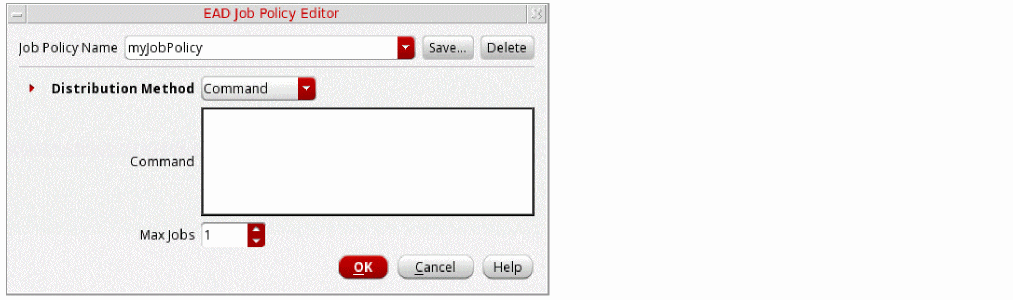
The following table describes the fields that are available in the EAD Job Policy Editor form.
EAD Net Options
The following figure shows the EAD Net Options form.
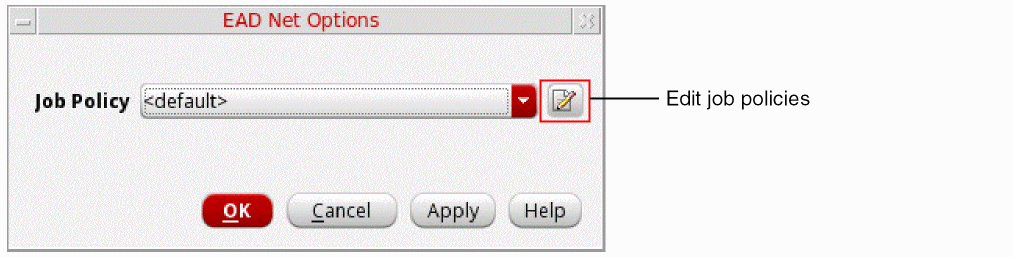
The following table describes the fields that are available in the EAD Net Options form.
| Form Field | Specifies... |
|---|---|
|
Displays the currently selected job policy for a net.
The You can also select different policies for different nets. Click the Edit job policies icon next to the Job Policy field to open the EAD Job Policy Editor form. |
Parasitics & LDE Setup
Lets you specify the options for netlist_layout view or DSPF file to be used to run simulations with layout parasitics. Depending on the command used to open this form, this form shows the following tabs:
- General tab and Layout tab when you use the Build Parasitic/LDE Netlist View command.
- General tab and DSPF tab when you use the Build Parasitic/LDE Netlist View command.
General Tab
Lets you specify the options for netlist view or DSPF file generation.
| Form Field | Description |
|---|---|
|
Names of the parameters that define the number of fingers for devices |
Layout Tab
Lets you specify the options for netlist_layout view creation.
| Form Field | Description |
|---|---|
|
Specifies the name of the view to be used to create a netlist that includes parasitics or LDE parameters from the layout view. Both LDE parameters and layout parasitics can be added to the same netlist view. |
|
|
Name of the library of the design that contains a layout cellview with layout parasitics. |
|
|
Name of the design cell that contains a layout view with layout parasitics. |
|
|
Name of the layout view that contains layout parasitics to be used in resimulation of a design. This can be a partial or a complete layout view. When you specify a layout name in this field, select Include Parasitics From Layout option in the Parasitics section on the Layout tab or the Layout View option in the LDE section on the Layout tab. This is helpful in the EAD or LDE flow. You can choose to include both the LDE parameters and the layout parasitics from the same layout view. |
|
|
This section contains fields to be used while including parasitics from a layout view. This is required while simulating a design with layout dependent effects or in the Electrically Aware Design flow. |
|
Include parasitics from |
Specifies the source of parasitics. You can select any one of the following three sources:
When you choose to include layout parasitics in simulation, you also need to change the parasitic mode to Layout (Parasitics/LDE). |
Extraction Setup for Layout Parasitics |
When you choose to include parasitics from the specified layout view, names of the all the extracted corners for that layout are listed in this field. Select name of the desired corner. |
Extraction Corner |
When you choose to include parasitics from the specified layout view, names of the all the extracted corners for that layout are listed in this field. Select name of the desired corner. The extraction corner that is selected in the EAD Browser is displayed as the default corer in this drop-down list.
The default extraction corner is defined in the process settings file ( /.cadence/dfII/EAD/1/process/gpdk045.ini |
Reference Net for Grounded C |
Specifies name of the ground net to be used for grounded capacitance. You can either type a name in this field or click Select from Schematic to select a net from the design schematic.
|
Expand Devices with M-Factor |
Specifies if it is required to expand the devices with multiple factors before generating a netlist. When this option is selected, the m-factor parameter on the schematic device is then used to create multiple parallel devices in the netlist view. This allows the parasitics for the nets between each m-factor instance in the layout to be brought into the netlist view for simulation. If this check box is disabled, the device is represented as a single instance in the netlist view, and the parasitics between m-factor instances will not be included. |
|
This section contains fields to be used while including layout dependent effects from a layout view. This is required while re-simulating a design in the Layout Dependent Effects flow. When you choose to include LDE parameters in simulation, you also need to change the parasitic mode to Layout (Parasitics/LDE). |
|
Include LDE From |
Specifies the source of LDEs. You can choose any one of the following options:
If you include parasitics from layout in the Parasitics section, you cannot choose to use LDEs defined in MODGEN constraints. This is because parasitics and LDE parameters must come from the same source. |
|
Includes estimates from the layout view into the netlist view. |
|
|
While generating a netlist with parasitics, if the tool finds any cell with parameter names listed in field, it expands the cell if the Expand Devices with M-Factor check box is selected. However, when using LDE parameters, cells will be expanded according to the multiple factors used in the layout or MODGEN constraint. In both cases, the m-factor value on the individual expanded devices in the netlist is reset to 1. |
|
|
While generating a netlist with parasitics, if the tool finds any cell with the given finger parameter names, it expands the cell if the Expand Devices with M-Factor check box is selected. However, when using LDE parameters, cells will be expanded according to the multiple fingers used in the layout or MODGEN constraint. |
|
|
Specifies that if there are any dummy cells backannotated from layout to the schematic view, they need to be ignored while generating a netlist for simulation.
For more details on backannotated dummy instances, refer to |
DSPF Tab
Lets you specify the options for DSPF file generation.
| Form Field | Description |
|---|---|
|
Name of the DSPF file. The default file name is <cellName> The file is saved in the cellview directory. Related environment variable: dspfFileName |
|
|
The delimiter to be used while writing subnodes in the DSPF file. Related environment variables: dspfSubNodeDelimiter |
|
|
The default prefix to be used for the coupling capacitance values in the DSPF file. Related environment variable: dspfCouplingCapPrefix |
|
|
The default prefix to be used for the ground capacitance values in the DSPF file Related environment variable: dspfGroundCapPrefix |
|
|
The unit for capacitance values to be written in the DSPF file. Related environment variable: dspfCapUnits |
|
|
The default prefix to be used for the resistance values in the DSPF file. Related environment variable: dspfResistorPrefix |
|
|
The unit for resistance values to be written in the DSPF file. Related environment variable: dspfResUnits |
|
|
Specifies whether to write instances in the DSPF file. Related environment variable: dspfWriteInstances |
P2T EM Optimization
Lets you specify the options for EM trunk optimization.
Related Topics
Fixing Violations Using EM Driven Trunk Optimization
The Pre-EM Setup Form
Lets you specify the options for EM trunk optimization.
| Form Field | Description |
|---|---|
|
Specifies the path to the file containing the setup options.
For example: Environment Variables: useSetup |
|
|
Specifies the extraction corner that is mapped to an ICT file or eadTechFile to be used for extraction and the source of the EM models to be used for EM Checking. Environment Variables: useCorner |
|
|
Specifies the comma-separated list of layers on which pre-EM check is performed. Environment Variables: preEMCheckLayers |
Related Topics
Setting Up Environment Variables for the Pre-EM check
Return to top