
2
Running Simulations and Saving Electrical Data
The first step towards electromigration checking is to run simulations for your design and to save the electrical data. This chapter describes how to use the EAD menu in ADE Assembler to save the electrical data in the simulation results. It further describes how to explore the electrical data in the EAD view on the Results tab.
This chapter includes the following topics:
- Setting up Testbenches and Corners
- Preparing the EAD Setup for Simulation
- Running Simulations and Viewing Output Current Data
For details on the other features in ADE Assembler, see the Virtuoso ADE Assembler User Guide.
Setting up Testbenches and Corners
Open your design in ADE Assembler, and set up the tests and corners for simulation. For details on how to set up the simulation environment, refer to the following topics:
There is no specific setting for the electromigration analysis in the test and corner setup. However, it would help to note the following points:
- Ensure that you set up DC operating point analysis to save the direct current (Idc) values and transient analysis to save the average current (Iavg) values from the simulation results.
-
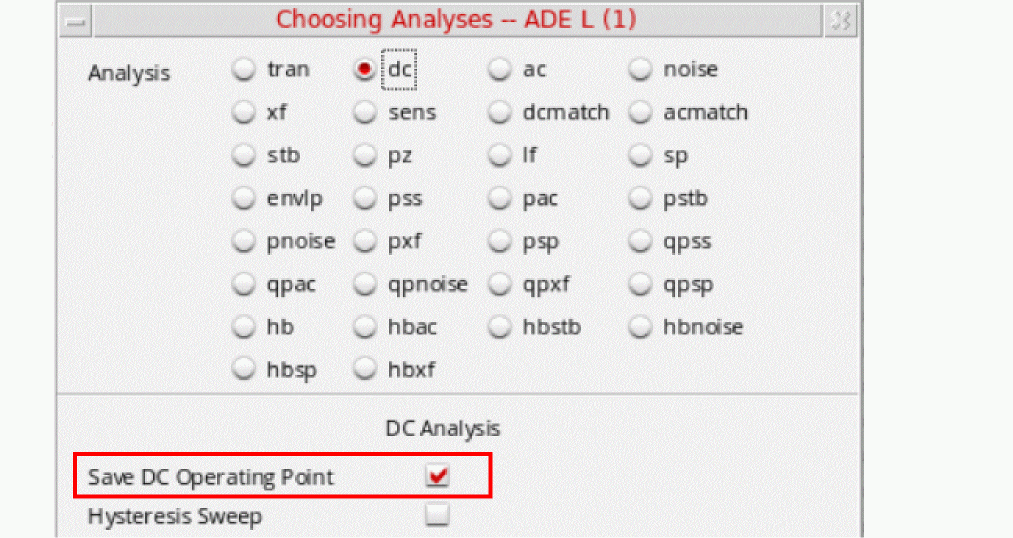
For DC analysis, enable the Save DC Operating Point check box to save the simulation data. Otherwise, the dataset would remain blank.
- It would also be helpful to run simulations at the temperature at which you need to perform the EM analysis.
Preparing the EAD Setup for Simulation
Electromigration analysis is done using the currents loaded to the terminals of a net. Therefore, before running a simulation, you need to specify the terminals for which you need to save the current data. You can also specify if you want to save the complete data or process the data and save only selected values.
The following sections explain how to use the EAD Setup form to specify the EAD-related settings before running simulations:
Enabling the EAD Mode
To enable the EAD mode, do the following:
-
Choose EAD — Setup.
The EAD Setup form is displayed. -
Select the Enable Electrical Data Capture for EAD Flow check box.
This ensures that ADE Assembler saves the electrical data in every simulation run as per the settings given in the other group boxes of this form.
Note that when you select this check box, all other sections on this form are activated, as shown below.
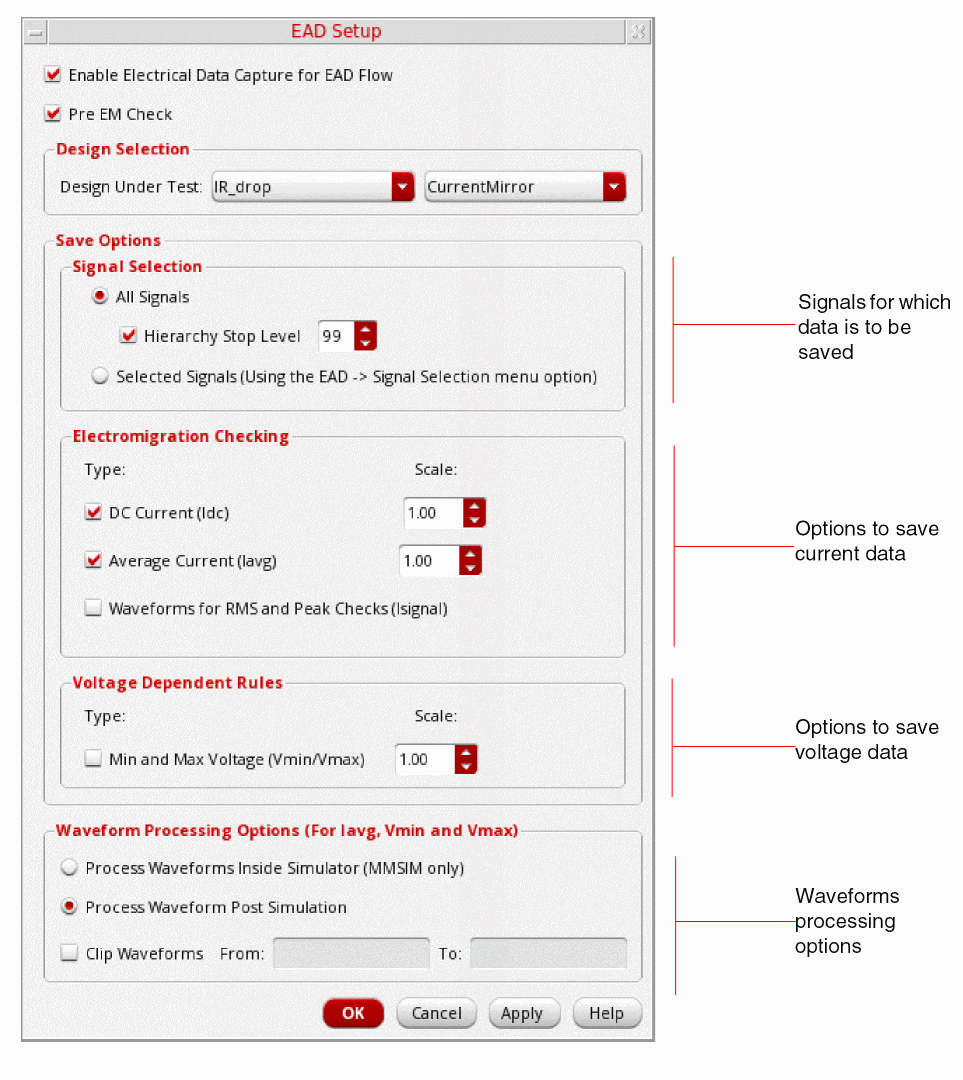
- Select the Pre EM Check check box if you want to enable the Pre-EM check mode.
-
Ensure that the design for which you need to perform electromigration analysis is displayed in the Design Selection section.
If required, you can select a different library or cell name for which you need to enable the EAD mode.
Important Points to Note- For the selected design cell, the tool uses the first available schematic in the view name list specified by the viewNameList environment variable set for Virtuoso Schematic Editor.
- You can set default values for the fields in the EAD Setup form using the corresponding environment variables. For the list of variable names, see Appendix B.
Specifying the Save Options
You can specify the following save options:
Specifying the Signals to Save Electrical Data
The Save Options section of the EAD Setup form specifies the signals for which you need to save the electrical data from the simulation results.
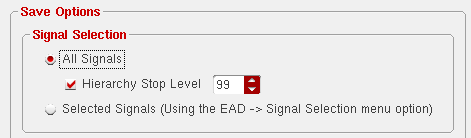
You can select any one of the following two options:
-
All Signals: This is the default option which specifies that the current data is to be saved for all the signals and instances in the selected design. Along with this, the Hierarchy Stop Level option is also selected and is by default set to
99. This option specifies the design hierarchy level upto which the current data for all the instances and pins is saved.
By default, the data for a maximum of99hierarchy levels is saved, but you can change this value as required. A value of0saves the terminal currents for instances and pins at the design level. Similarly, a value of 1 saves the terminal currents for instances and pins at the design level and one level down in the hierarchy.In case of iterated instances, the current data is saved for only one instance. This data is internally replicated across instances while transferring from schematic to layout, that is, when you update the electrical data in Virtuoso Layout XL.Related environment variables: -
Selected Signals: This option specifies that the current data is to be saved for a selected set of signals. This option helps in saving disk space and simulation time.When you choose the Selected Signals option, you also need to select the signals using the Parasitics and Electrical Setup assistant. For more details, refer to Selecting Signals to Save Currents.
Choosing the Type of Current to be Saved
For the signals specified in the previous section, you can choose to save the DC current, average current, or waveforms.
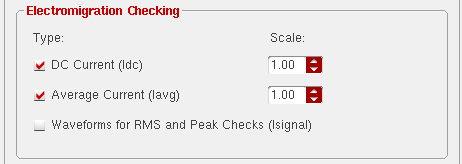
You can select the following three options to specify the type of electrical data to be saved:
- DC current (Idc): Select this check box to save the DC current. Also specify a scale value, which is the multiplier by which the electrical data is to be scaled before transferring it to layout.
- Average current (Iavg): Select this check box to save the average current computed for the transient waveform data and specify a scale value for it.
According to the specified current type, ADE Assembler calculates the DC or average current for terminals and saves one value per terminal for each simulation.
-
Waveforms for RMS and Peak Checks (Isignal): Select this check box to save the transient waveform data for the selected signals so that it can be used for dynamic EM analysis. You can select this check box in the following two cases:
- When you need to save only the waveform data for dynamic analysis and there is no requirement to save the scalar results (DC or average current values). In this case, you can choose to select only the waveforms and not the scalar data.
- When you need to process the signal values during a simulation to compute scalar results and you also need to save waveforms for dynamic analysis in the layout view. That is, when you select the Process Waveforms Inside Simulator check box to process the scalar data, you can also select Waveforms for RMS and Peak Checks to save waveforms.
Important Points to Note
- For DC current to be saved, DC analysis should be enabled in the testbench setup.
- For average current to be saved, transient analysis should be enabled in the testbench setup.
-
The scale factor is used to scale the current data only while transferring the scalar currents from the schematic to the layout view. It is also possible to specify a scaling factor on the EM tab of the EAD Options form. The default scale factor for both DC current and average current is set to
1.00and the data is not scaled.
Choosing a Method to Save the Current Data
Data requirement for static and dynamic EM analysis are different. Therefore, depending on the volume of current data and the type of electromigration checks to be run, you need to choose a method to save the data.
The Waveform Processing Options group box on the EAD Setup form provides options to specify the method to be used.
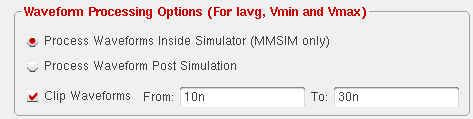
You can choose from the following options:
-
Process Waveforms Inside Simulator: Select this option if you choose to process the current waveforms during simulation and save only the calculated electrical data to the disk. This data is used when performing static electromigration checks.
- Process Waveforms Post Simulation: Select this option if you choose to process the current waveforms by reading the simulation data from disk. The saved data can be processed later while performing dynamic electromigration checks, for example, Peak EM or RMS. It is important to consider that if you have selected a large number of devices and terminals for EM checking, a large amount of disk space is required for this option.
-
Clip Waveforms: If you know the time interval for which the electrical data is relevant, select the Clip Waveforms check box and specify the time interval in the From and To fields. You can also use VAR expressions in the From and To fields. For more information, refer Virtuoso ADE Assembler User Guide.
Selecting Signals to Save Currents
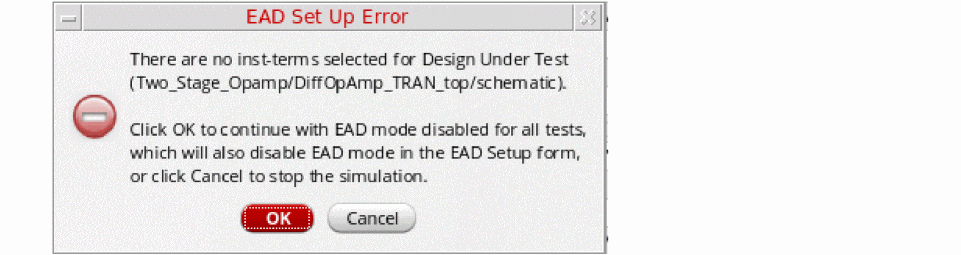
If you have chosen to save the current data for selected devices and terminals in the design (that is, you have chosen the Selected Signals options on the
Similarly, in the Voltage Dependent Rules flow, if you do not select any net, a similar message is displayed to either disable the EAD mode or to select nets on the schematic.
The Create menu on the Parasitics & Electrical Setup toolbar provides commands to add selected terminals to an electrical selection setup.
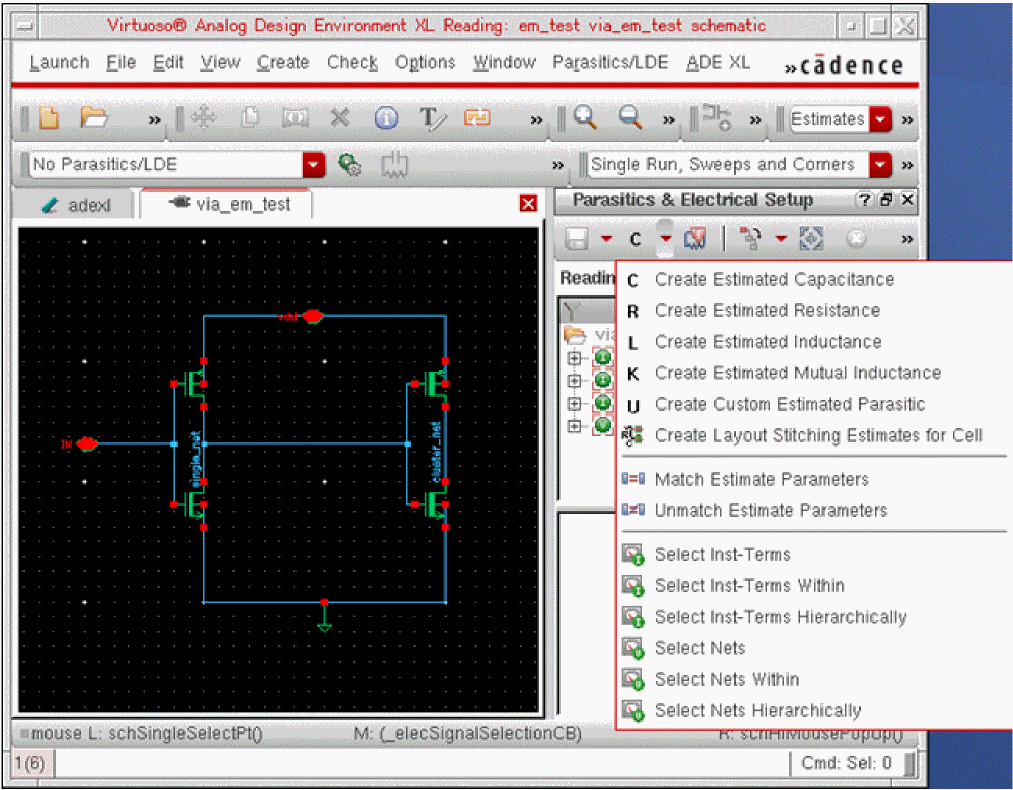
You can use the following commands to create selection setups or to add the selected terminals to an existing setup:
- Select Inst-Terms: Includes all the terminals for the selected instances
- Select Inst-Terms Within: Includes the terminals of the instances within the currently selected instances. Note that the tool traverses only one level down the hierarchy for the selected instances and selects all the terminals from that level.
- Select Inst-Terms Hierarchically: Includes all the terminals for all the instances in the complete design hierarchy
For example, to create an electrical selection setup for the terminals associated with one or more instances, you need to perform the following steps:
-
In the Design Environment XL window, select EAD — Select Signals.
The schematic view of the design opens with theParasitics-Estimatesworkspace, which displays the Parasitics & Electrical Setup assistant. - Ensure that the schematic is opened in the edit mode.
- Press the Ctrl key and click on the desired instances in the design schematic.
-
In the
Parasitics & Electrical Setup
assistant, select Create – Select Inst-Terms.
A new selection setup with a default name,ElectricalSetup_SignalSelection, is created and added to the existing list for the design, as shown in the figure given below.
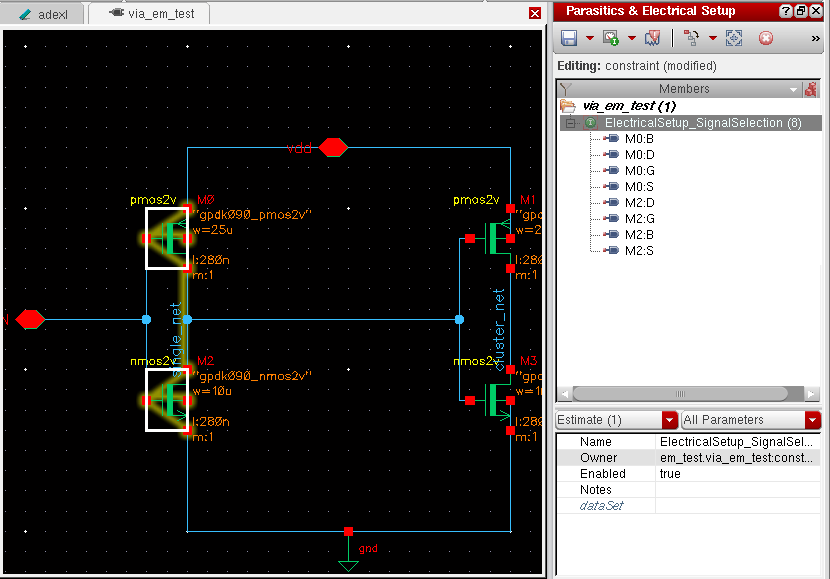 In the example shown above, instances
M0andM2were selected to create an electrical selection setup for all the terminals of these two instances. The tool extracted the details of terminals and listed their names under theElectricalSetup_SignalSelectionselection setup. The count of the selected terminals is also displayed to the right of the selection setup name. - (Optional) Select a particular terminal name in the terminal list of the selection setup and edit the properties, if required.
-
Select Save Estimates on the Parasitics & Electrical Setup toolbar to save the new selection setup.
The tool internally saves the electrical selection setups in the constraint view of the design.
Running Simulations and Viewing Output Current Data
After specifying the test and corner details and creating the EAD setup, click Run Simulation  on the Run toolbar. The EAD flow supports all simulators with the following limitations:
- Only AMS Designer simulator version IUS 13.2 and up is supported
- Live processing mode is supported only with Spectre. Post-processing mode (which uses OASIS interfaces to perform the necessary settings), works with all simulators
ADE Assembler runs the simulations and displays the results on the Results tab. When the EAD mode is enabled, by default, the results are displayed in the EAD results view.
You can now view the electrical data in the results and create datasets to be used for electromigration analysis in Layout EAD.
The following sections describes how to view the electrical data from the simulation results and how to create datasets that are referenced in the layout view.
Viewing the Current Data
The current data, Idc and Iavg, for the selected signals is saved as part of the testbench results. To view this data, ensure that the results of the correct history are loaded and select the EAD view on the Results tab of the Design Environment XL window.
The EAD view is displayed, as shown in the figure below.
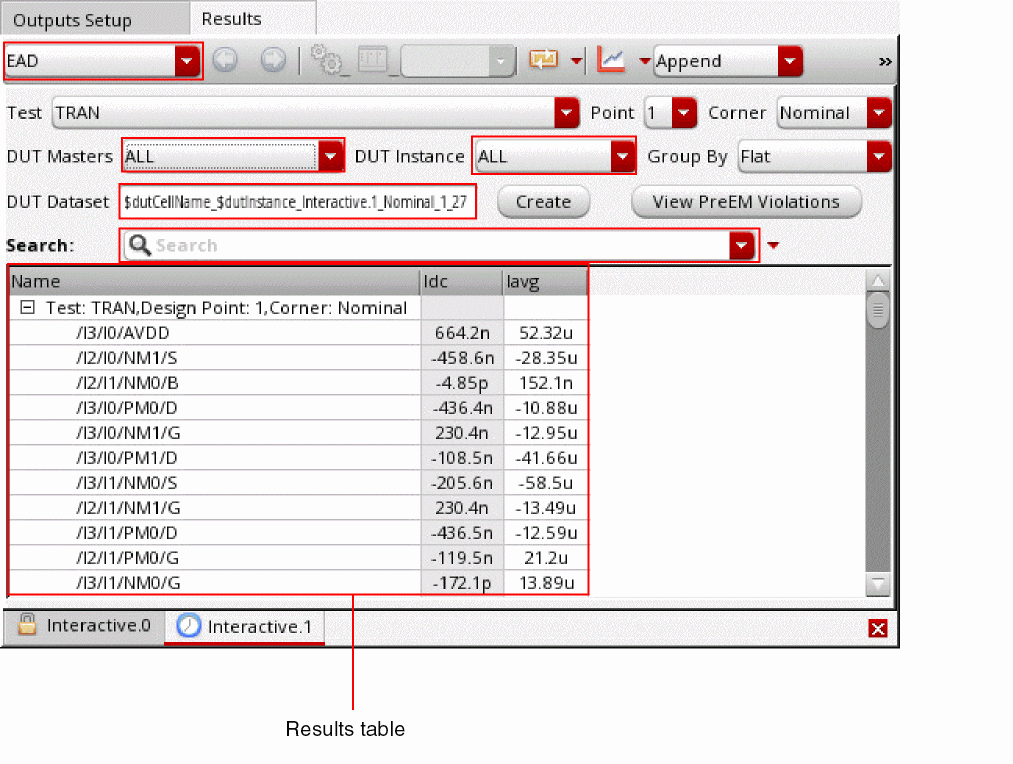
By default, the data for the first test, first design point and the first corner in the ADE Assembler results database is displayed in the results table. The test name, design point number, and the corner name is displayed in the title of the result tree node, as highlighted below.
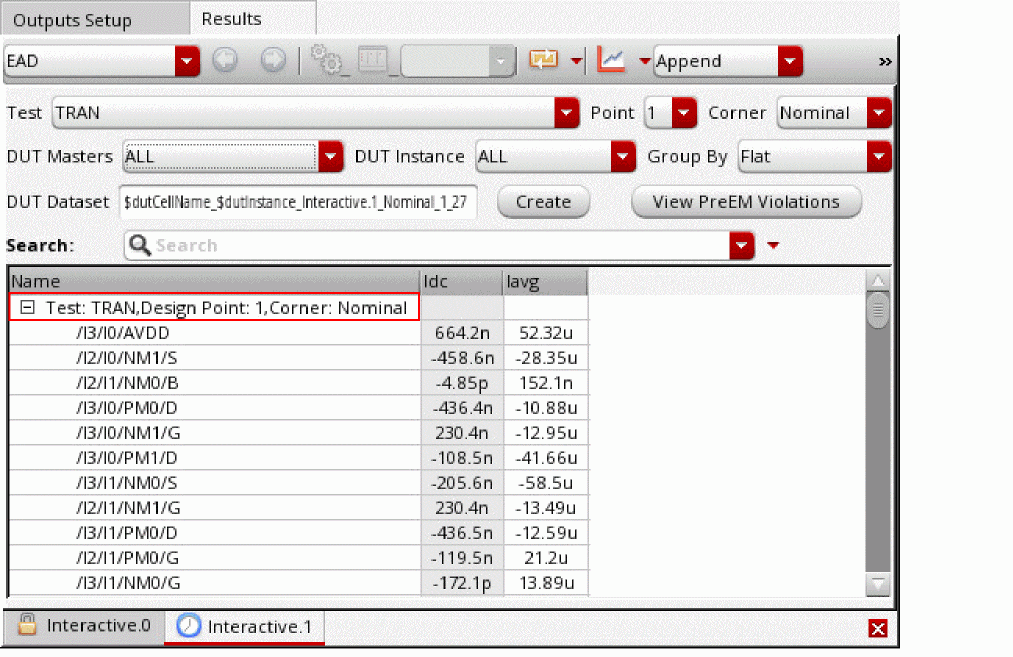
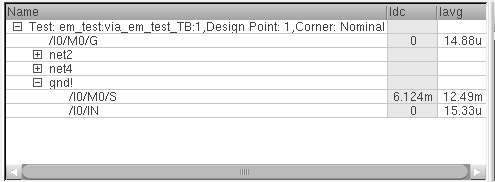
The result tree for every corner shows the DC current and average transient current values in the Idc and Iavg columns, respectively. In addition, if you chose to
You can change the values in the various drop-down lists given at the top of the results table to apply a desired filter criteria.
The drop-down lists that control the display of the current data in the results table are shown below.
Viewing the Current Data for Reliability Analysis Results
When the ADE Assembler simulation is run for reliability analysis, and the results data is saved for fresh, stress, and aged tests, additional drop-down lists are displayed on the Results tab, as shown below.
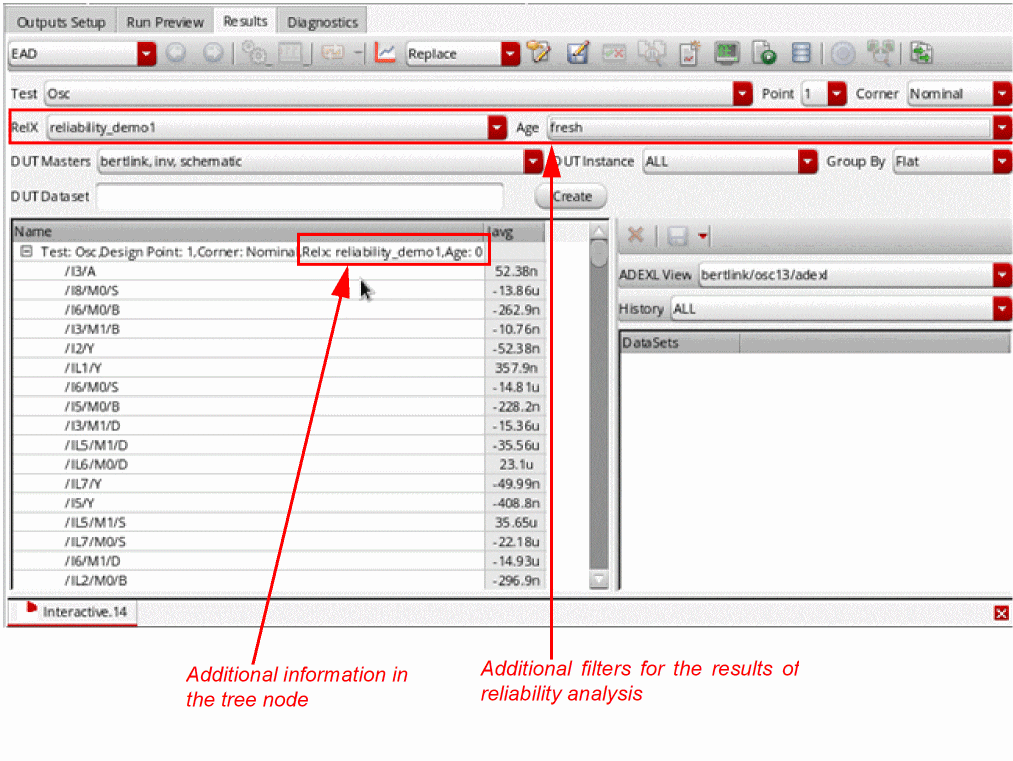
Using the RelX drop-down list, you can choose the name of reliability analysis setup for which you need to view the results. Using the Age field, you can choose the age for which you need to view the results of fresh and aged tests.
Note that reliability analysis name and age value are also displayed in the title of the result tree node.
Creating Datasets
For electromigration analysis, you need to use the current data in the layout view. For that, you need to save the data in datasets, which can be further referenced from Virtuoso Layout EAD.
For more details on how to use a dataset in the layout view, refer to Loading an EAD Setup in Chapter 3.
To save the current data displayed in the results table, open the results in the EAD results view and perform the following steps:
-
Select appropriate values in the following drop-down lists:
-
Specify a name for the dataset in the DUT Dataset field. Depending on the number of datasets being created, if multiple datasets are created, the name specified in this field is used as a prefix.
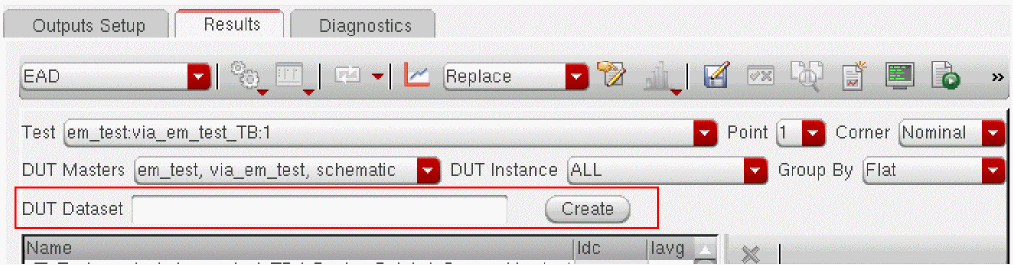 If no name is specified for the dataset, the default name
dataset_<incremental_count> is used to name the dataset. For more details on the naming convention of the datasets, refer to Important Points to Note. -
Click Create.
Depending on the filters on theEADresults view and your choice to save the current or voltage data on the EAD Setup form, ADE Assembler creates one or more datasets as described below.
How many datasets are created?
The datasets are created for unique combinations of values in the Point, Corner, DUT Masters, and DUT Instance drop-down lists. For example, if the Corner drop-down list is set to All and an instance name is selected in the DUT Instance filter, a separate dataset is created for each corner. The number of datasets created is the total number of corners. Each dataset contains results only for the selected DUT instance.
Similarly, if both the Corner and DUT Instance drop-down lists are set to All, a dataset is created for each unique combination of point, corner, and instance. The total number of datasets created is the product of the number of corners and the number of instances. Each DUT master can have a different set of DUT instances. Therefore,
If the DUT Masters drop-down list is set to ALL, multiple datasets are created, one for each unique combination of corner, DUT master, and DUT instance. The number of datasets created for each DUT master is the product of the number of instances it contains and the number of corners.
ei.dataSet excludeCurrentsInCI is set to nil and the environment variable ei.setup enableWorstCaseDatasetForVoltages is set to t, only a single worst-case simulation voltage dataset having worst Vmin and Vmax values for all nets is created.Where are the datasets saved?
These datasets are saved in the constraint view of the design. If the constraint view is not editable, the tool displays the following message and prompts you to confirm if the constraint view can be modified.
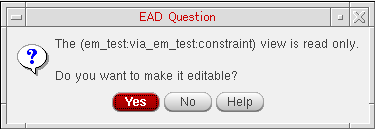
Click Yes to make the constraint view editable.
nil. ADE Assembler will suppress the display of the message box shown above. Instead, it makes the constraint view editable and creates the dataset. After completion, it displays the following information message is displayed in the CIW:--> Creating Dataset dd1 on DUT Master: "<lib-name>", "<cell-name>", "<schematic-view-name>"
INFO (CMGR-5020): Created constraint of type 'currentData' in cache '<constraint-view-name>' with name '<dataset-name>'.
Next, the tool displays the following message and confirms that the constraint view has been modified and prompts you to save the changes.

nil. ADE Assembler will save the constraint view and display the following information message in the CIW.INFO (CMGR-5030): "<constraint-view-name>" saved.
ADE Assembler saves the dataset. If a dataset already exists with the given name, ADE Assembler displays a message box to confirm that you want to delete the existing dataset and overwrite it with the new one. To suppress the display of the message box, set the warnOnDatasetOverwrite environment variable to nil.
Important Points to Note
-
The naming convention of the datasets depends on two factors, the value in the Corners or DUT Instance drop-down lists on the EAD results view and type of data in the simulation results being saved. If you choose to save the data for multiple DUT instances or corners, a separate dataset is created for each corner and DUT instance combination and an incremental number is used for unique identification.
If the simulation results contain both the current and voltage data (because you had selected the check boxes in both the Electromigration Checking and Voltage Dependent Rules sections on the EAD Setup form), separate datasets are created for the current and voltage data. The dataset names are suffixed by_Ior_Vto identify the dataset type.
For example, if the value in the DUT Dataset field is myDataset and the results contain the current as well as voltage data, the datasets are named as myDataset_0_I, myDataset_0_V, myDataset_1_I, myDataset_1_V, and so on.
- If you use a design management system, the constraint view needs to be checked out before you can create the dataset. Therefore, the Create button will be grayed out until the constraint view is checked out.
- When a dataset is created, it contains only the data that is currently displayed in the results table. Therefore, ensure that you have applied the required filters before creating a dataset.
- If ADE Assembler opens the constraints cache while creating or deleting a dataset, it closes the cache after the action is complete.
- If the constraints cache is already opened in the read-only mode and ADE Assembler changes the state to editable before creating or deleting a dataset, it resets the mode to read-only after the action is complete.
-
A dataset is saved as a part of the constraint view of the design. However, by default, the actual current data is not saved in it. The dataset in the constraint view contains only a reference to the simulation results database specified by the adexl.results saveDir environment variable.
You can choose to save the current data results as part of the constraint view. For this, you need to set the excludeCurrentsInCI environment variable tonil. By default, this variable is set tot. -
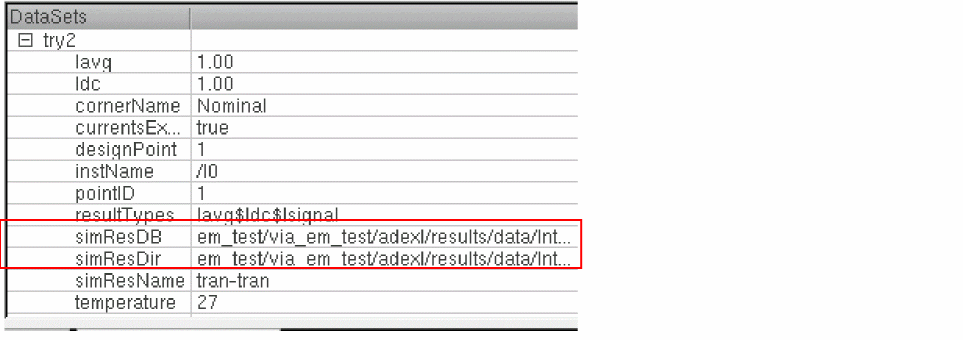
By default, a dataset includes the absolute paths to the simulation results psf directory and the results database (rdb file) where the current data is saved. These paths are saved and displayed as dataset properties in the constraint cellview, as shown in the figure below.
You can choose to save relative paths by setting the storeRelativePaths environment variable to
tbefore running a simulation. In this case, the results directory is saved in the same directory as that of the cellview, as shown in the figure below.
- When you create a dataset, ADE Assembler automatically locks the history. This is because the current data is saved as a part of the ADE Assembler history and locking the history saves the data from unintentional deletion or removal when the maximum history count is reached. The ADE Assembler history is used later for dynamic electromigration checks and dynamic read.
-
The
simResDBandsimResDirpaths saved in the constraints view are used to load the datasets in the EM Dataset drop-down list on the EAD Browser in Layout EAD. Also see EM Dataset.
Viewing Datasets
The datasets that contain the current data are saved in the constraint view for the design under test. You can view datasets for a design in any of the following two ways:
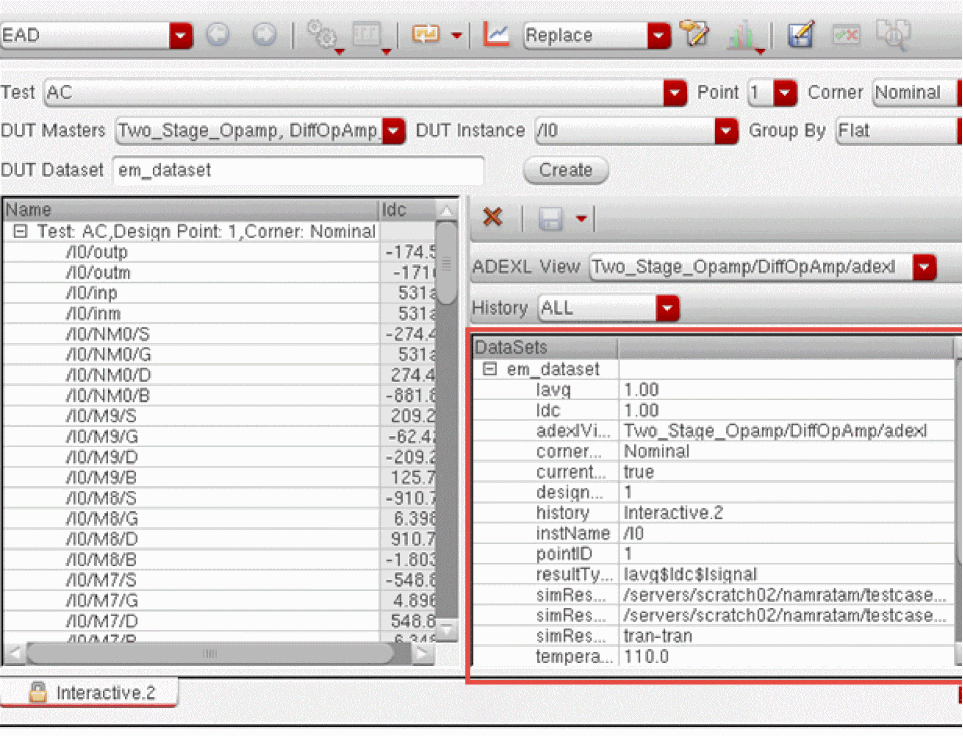
Select the name of the view from the ADEXL View or Maestro View drop-down list. All the histories for that view are listed in the History drop-down list.
By default, the History drop-down list is set to ALL, but you can select a specific history for which you want to view the datasets. All the datasets for the selected history of the given adexl or maestro view are listed in the dataset table.
Expand a dataset to view details, such as the scaling factors (Iavg and Idc), test name, corner name, and temperature values.
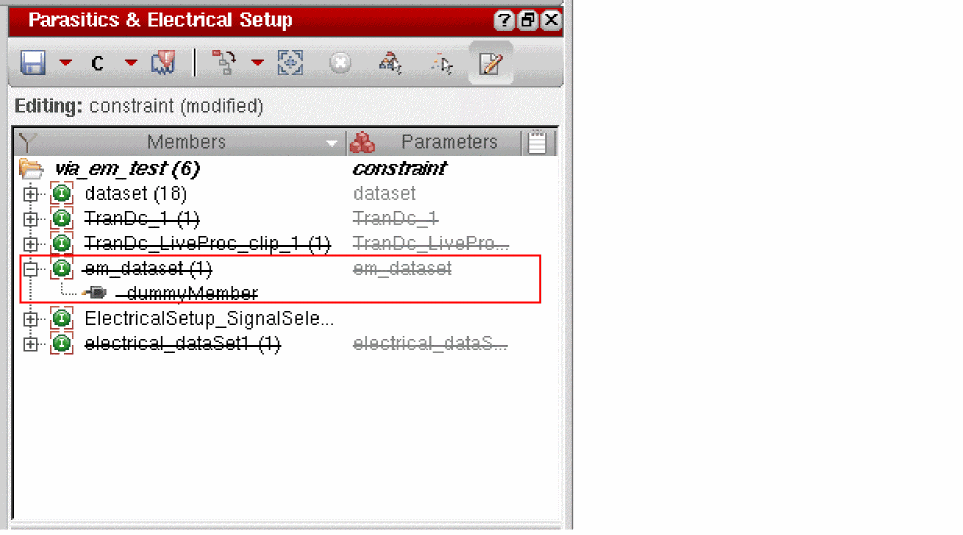
When you expand the dataset name, it does not show any details. Only a dummy member, dummyMember, is shown. This is because the dataset does not include any schematic element. Instead, it contains only the references to the current data in the results database.
Note the following points regarding datasets:
- You can save multiple datasets from the results of a simulation run, where each dataset can use a different set of filters, such as a different corner name or instance name.
-
To delete a dataset from the Results view, select its name in the dataset table, right-click and choose Delete DataSet. Alternatively, select a dataset and click
 on top of the table.
You can also delete datasets from the Parasitics & Electrical Setup assistant. -
In the
Parasitics & Electrical Setup
assistant, click a dataset name to open the properties section of this assistant. The properties displayed for a dataset are same as those displayed in the dataset table on the Results tab.
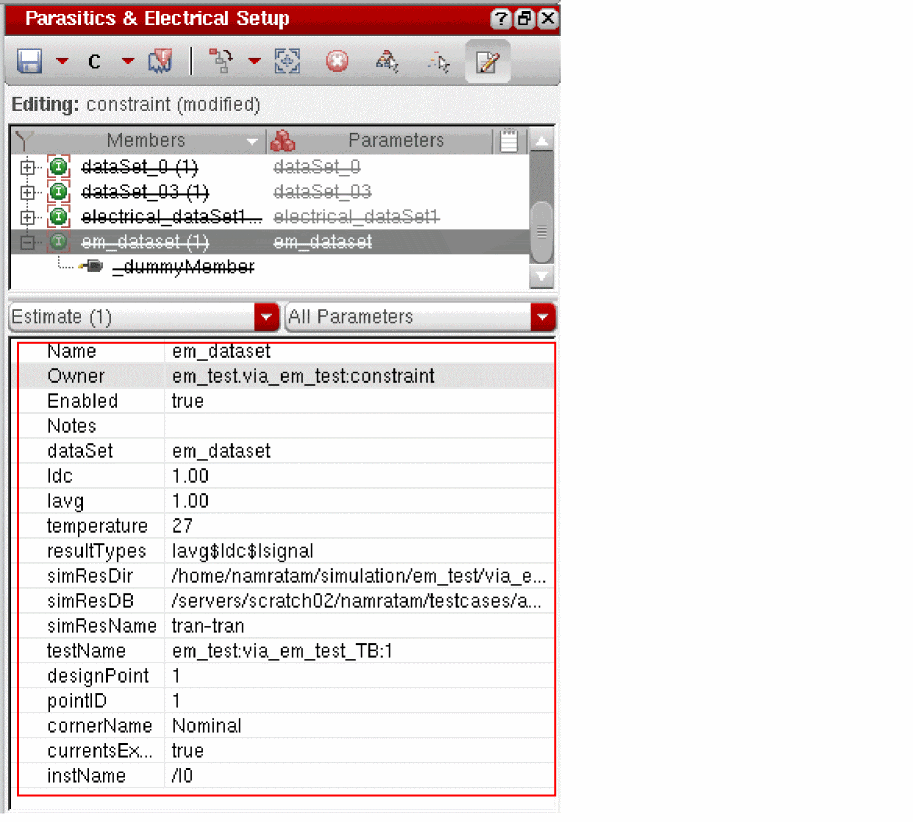
- You can edit the properties, such as, scale values for Idc and Iavg, from both the Results tab or from the Parasitics & Electrical Setup assistant.
Filtering Signals in the EAD Results View
To filter signals in the EAD results view:
Search results are displayed interactively as you type.
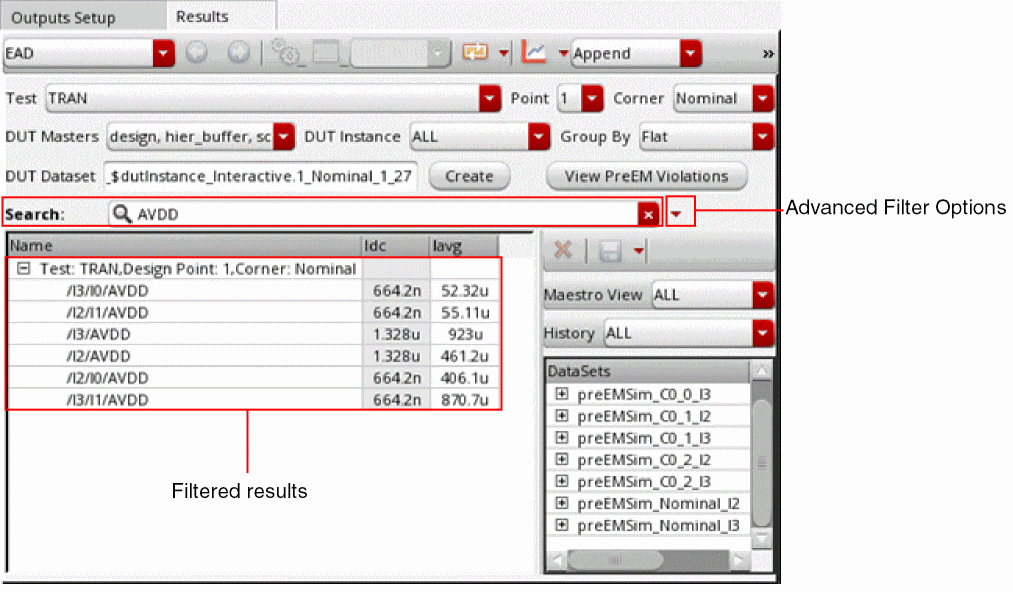
You can also use the following advanced filter options to define the search criteria.
Working with VDR Datasets
The VDR Dataset form enables you to view, refresh, and delete voltage information derived from simulation datasets. The form lists the nets in each dataset and the minimum and maximum voltages allowed for each net. You can also create a new CSV dataset from an existing CSV file.
Opening the VDR Dataset Form
To open the VDR Dataset form, do one of the following:
- From the menu bar of Virtuoso ADE Assembler, choose EAD — VDR Dataset.
-
From the menu bar of Virtuoso Schematic Editor, choose VDR — VDR Dataset.The VDR menu is disabled if the vdrConstraintGroupName environment variable is set to an empty string.
-
From Virtuoso Layout Suite EXL, choose Tools — Voltage Dependent Rules — VDR Dataset.
The VDR Dataset form opens.
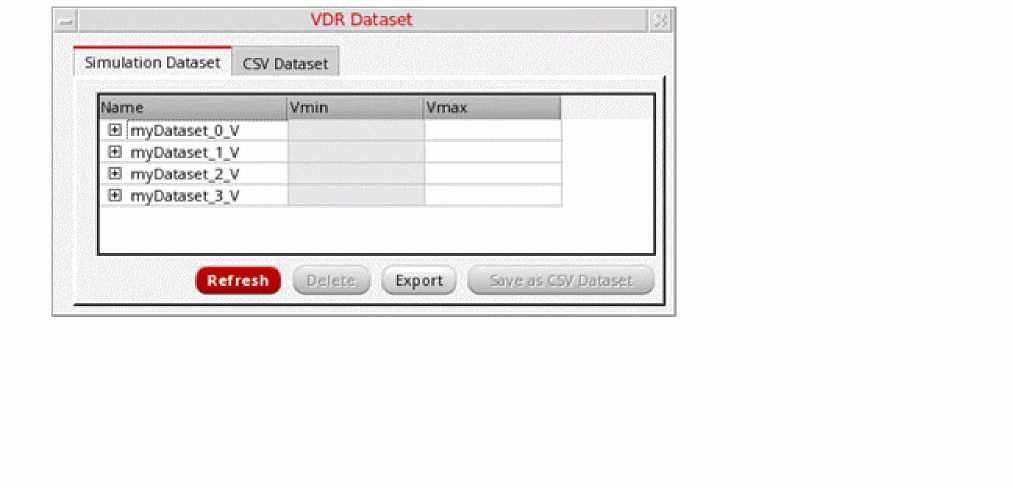
The VDR Dataset form has following tabs:
-
Simulation Dataset
The Simulation Dataset tab displays a list of all voltage datasets that are generated for the selected DUT after running simulations.
Using this tab, you can perform the following tasks: -
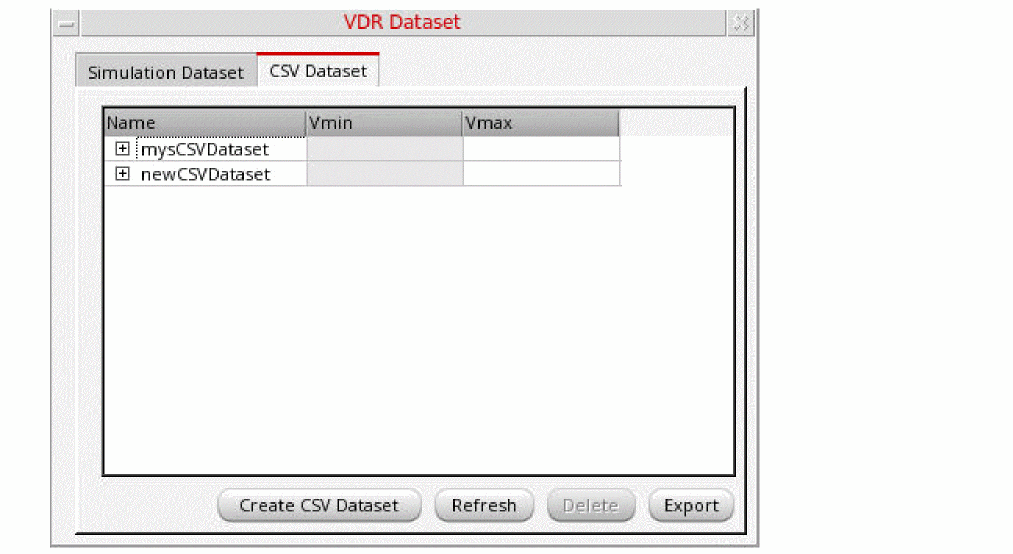
CSV Dataset
The CSV Dataset tab displays a list of CSV datasets.
Viewing Simulation Datasets
To view voltage datasets generated after a simulation is run for a DUT:
-
Open the VDR Dataset form. For more information, see Opening the VDR Dataset Form.
The VDR Dataset form opens, displaying a list of simulation datasets available for the selected DUT.
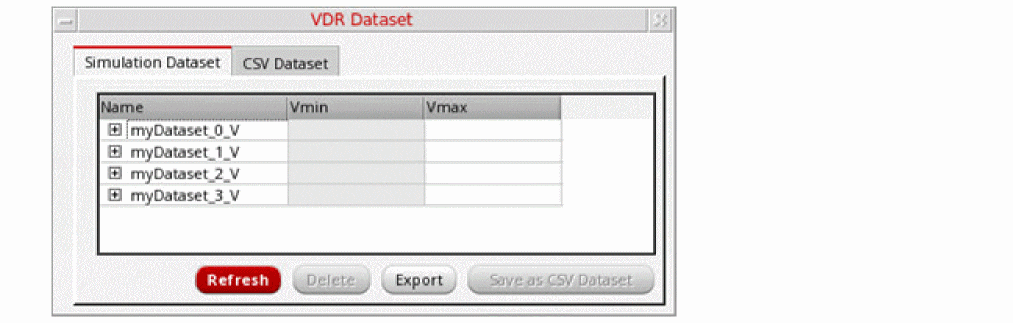
-
In the Name column, click the '+' icon next to a dataset name to view the minimum and maximum voltage for the nets in the dataset.
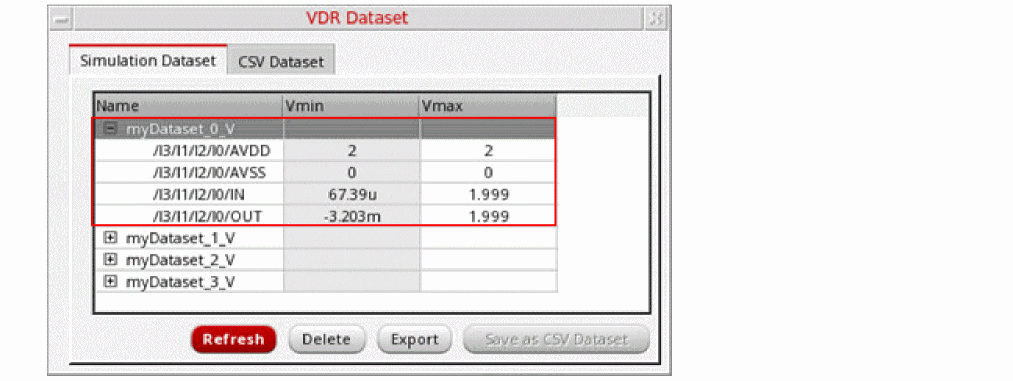
-
Double-click the cells in the Vmin and Vmax columns to edit the minimum and maximum voltages for the nets in the datasets.
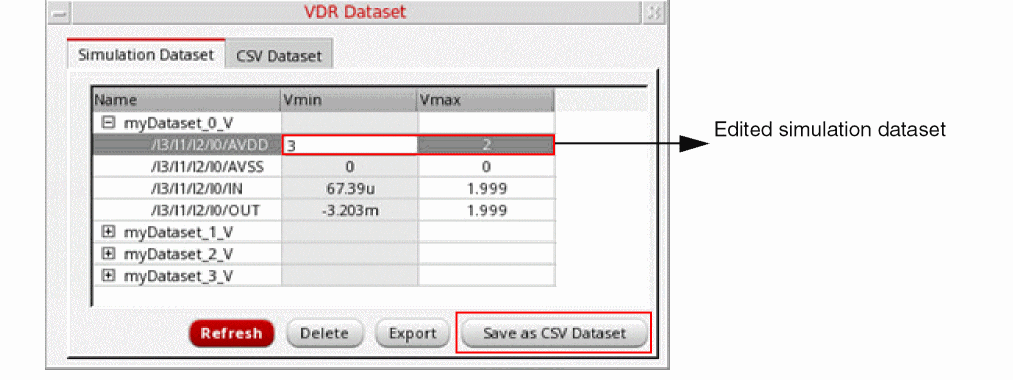
-
Click Save as CSV Dataset to save the edited simulation dataset as a CSV dataset.
The edited simulation dataset is saved as CSV dataset with the name nameOfSimulationDataset_suffix
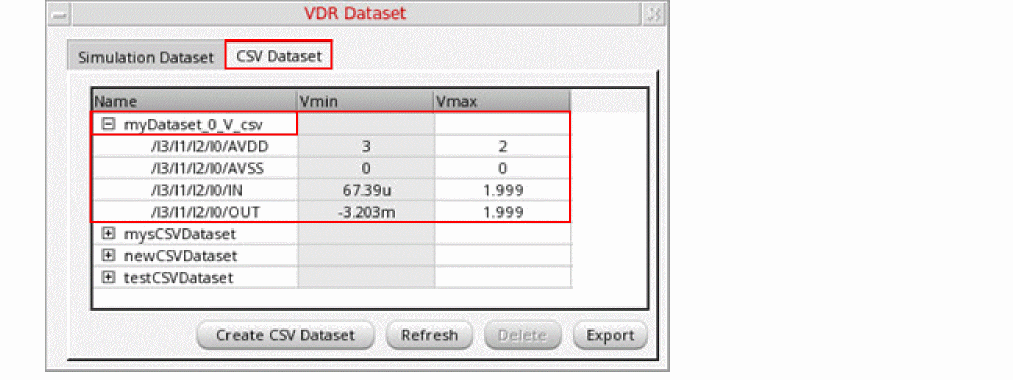
- If new simulations have been run, thus creating new simulations datasets, you can view them by clicking the Refresh command.
Deleting Simulation Datasets
To delete simulation datasets:
-
On the Simulation Dataset tab of the VDR Dataset form, select the name of datasets you want to delete, and then click Delete.
The selected simulation datasets are deleted.
Exporting Simulation Datasets
To export simulation datasets in a CSV file:
-
On the Simulation Dataset tab, select the name of datasets that you want to export, and then click Export.
The EAD Save CSV For Simulation Dataset form opens. - In the File name field, enter the name of the CSV file in which you want to export the simulation dataset.
-
Click Save.
The simulation datasets are exported to a CSV file. You can use this file to create CSV datasets.
Viewing CSV Datasets
-
Click the CSV Dataset tab on the VDR Dataset form to display a list of available CSV datasets.
-
In the Name column, click the '+' icon next to a dataset name to view the minimum and maximum voltage for the nets in the dataset.
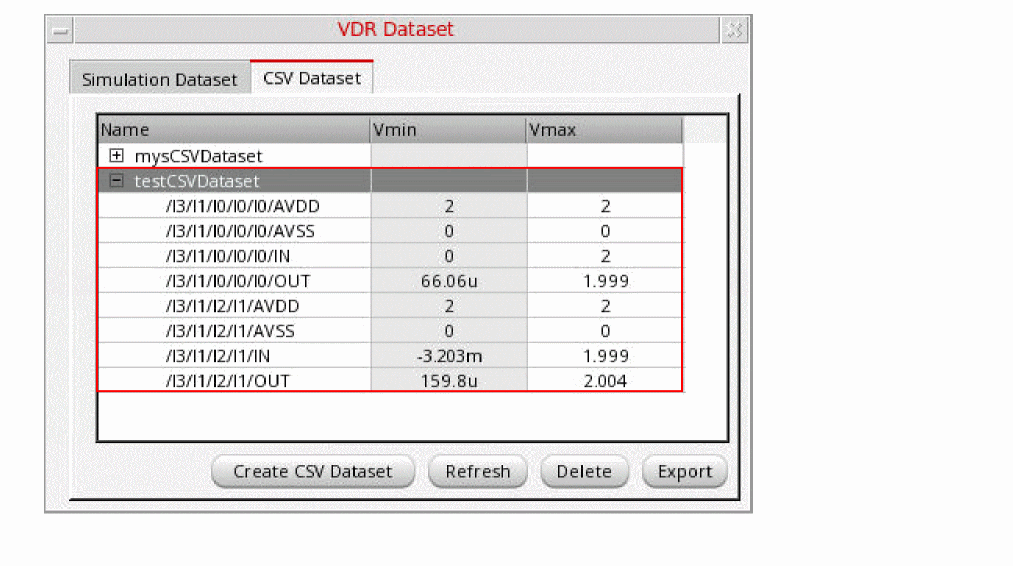
- You can also edit the values of minimum and maximum voltages for a net by double-clicking the cells in the Vmin and Vmax columns against that net.
- Click Refresh to view any new CSV datasets that have been created after you have opened the VDR Dataset form.
Creating a CSV Dataset
To create a CSV Dataset from a CSV file:
-
On the CSV Dataset tab, click Create CSV Dataset.
The Create Dataset From CSV form opens, displaying the library cellview information of the currently selected DUT master.
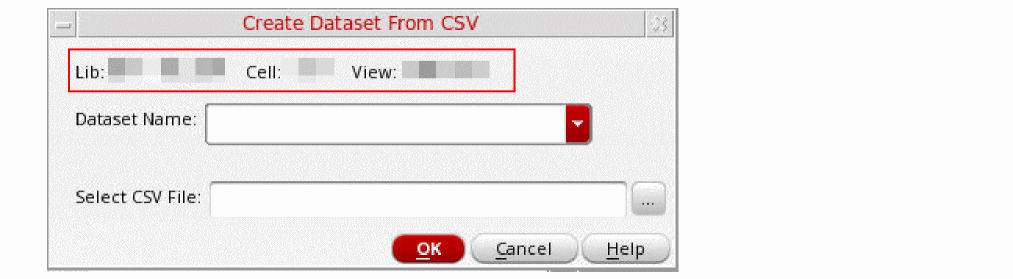
- In the Dataset Name field, either enter a name with which you want to create the CSV dataset or select an existing name from the drop-down list.
- In the Select CSV File field, click the ellipsis (...) command to open the Choose a File form.
-
Select a CSV file that you want to use to create the CSV dataset, and then click Open.
The CSV file must have entries for maximum and minimum voltages for nets. -
Click OK on the Create Dataset From CSV form.
The CSV dataset is created and added to the list on the CSV Dataset tab.
Deleting CSV Datasets
-
On the Simulation Dataset tab of the VDR Dataset form, select the name of datasets you want to delete, and then click Delete.
The selected CSV datasets are deleted.
Exporting CSV Datasets
To export CSV datasets to a CSV file:
-
On the CSV Dataset tab, select the name of datasets that you want to export, and then click Export.
The EAD Save CSV For Simulation Dataset form opens. - In the File name field, enter the name of the CSV file in which you want to export the dataset.
-
Click Save.
The datasets are exported to a CSV file.
Return to top